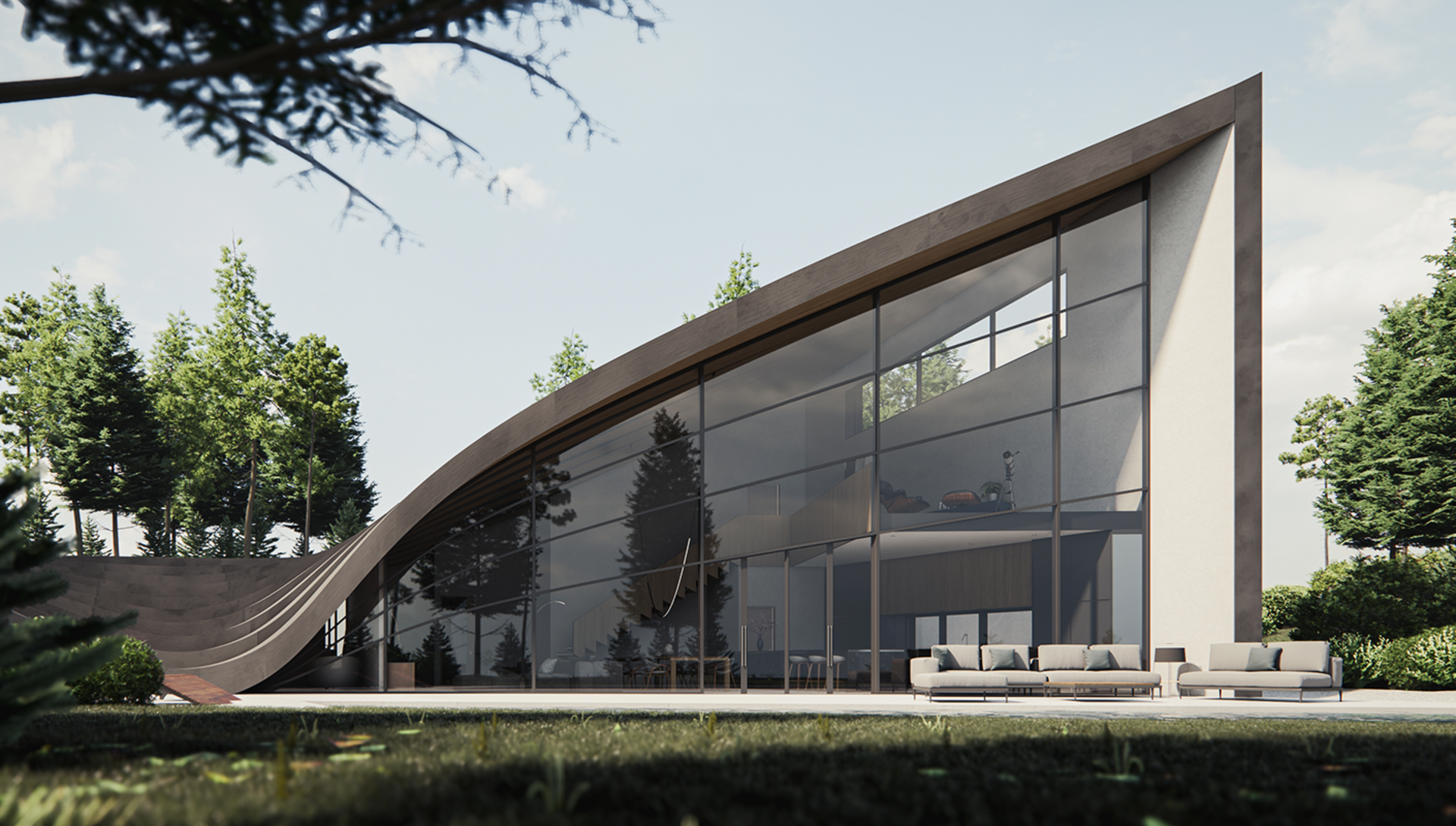


Veras
Veras is AI visualisation from Chaos: it takes the 3D models, 2D drawings and sketches you already have and turns them into presentation imagery and animation in seconds, inside your design tools or through the web app. Stills use the Nano Banana 2 model; video uses Gemini Omni, which can generate a clip or edit one you have already rendered. Because it renders from your actual geometry, the output still reads as your design.
Professional CAD Systems supplies Veras in New Zealand, with local advice on plans and credit capacity, NZD invoicing, and support during NZ business hours.
Veras at a glance
What's new
Veras 5.2Released 24 September 2026From a sketch or photo to an editable model
Veras 5.2 adds an agent on the MODEL tab that builds a structured 3D model from your images and bakes it into Revit, Rhino or SketchUp as geometry you can keep editing.
- Beta
Agentic modelling
Give the agent a render, photo or sketch. It places walls, floors, roofs, openings and furniture, checks the result against your images, and marks anything it had to assume.
- New
Astra and Opus agents
GPT-6 Astra is the default. Claude Opus 5.5 is the alternative, with an effort setting when you want a more thorough pass.
- New
Chaos Cosmos in the build
The agent can furnish the model with Cosmos assets and apply Cosmos materials, then bake those materials into the host.
- New
Material generator for everyone
Pick surfaces on a rendering and Veras finds a matching material, from Cosmos or generated, then writes it into Revit, Rhino or SketchUp.
- New
Walk the 3D view
Move through the model in first person. Speed adapts from a single asset to a whole building.
Compare directions while the brief is still open
Start from a sketch, model view, pasted image or text prompt and compare several directions before your practice commits more modelling time. Presets establish a visual language quickly; prompts help you test alternatives while the design is still fluid.

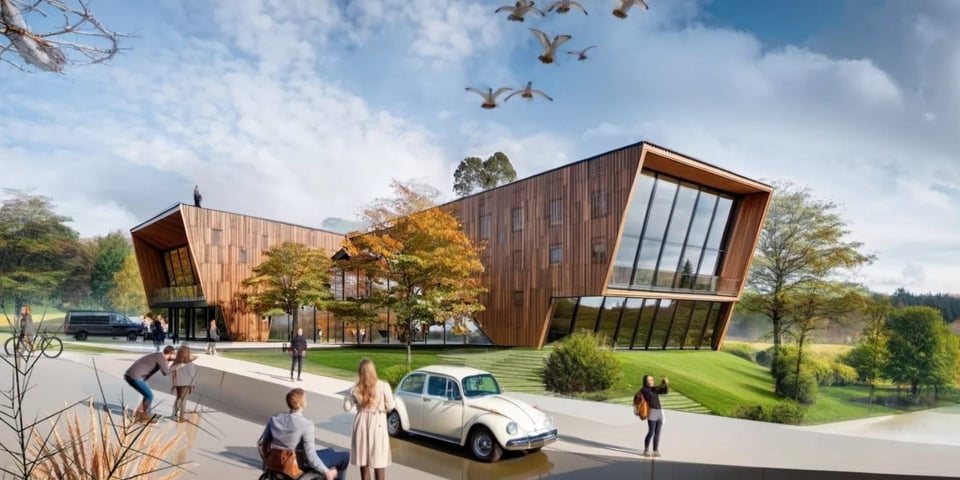
Test design decisions against your model
Study materials, colour palettes and facade treatments against the geometry already in your model. A reference image can carry a style or atmosphere across, while prompt controls limit changes to the areas you nominate.
Refine the image without losing the design
Use selection tools and Design Lock to adjust particular objects, materials or spaces while keeping the wider composition consistent. Your practice can develop a set of views without rebuilding the visual direction each time.
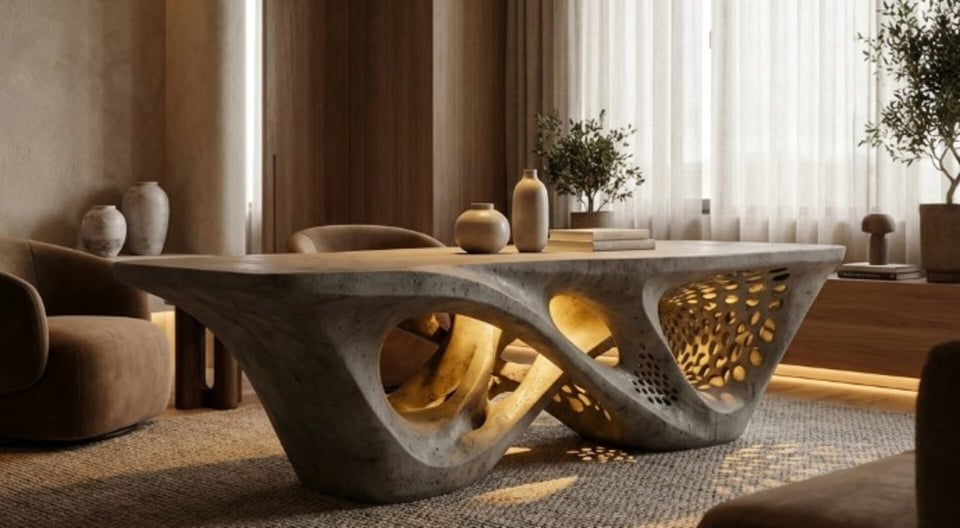
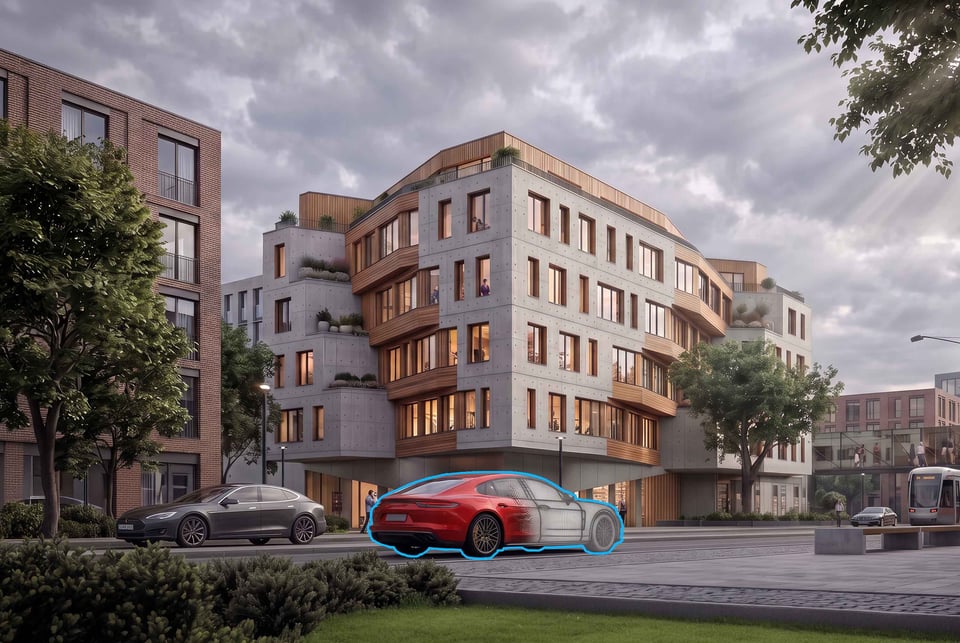
Build a clear set of presentation views
Create new image angles and short videos. Edit materials, season or time of day with Gemini Omni while retaining the camera move, in landscape or 9:16 portrait. Loop selected clips as one sequence.
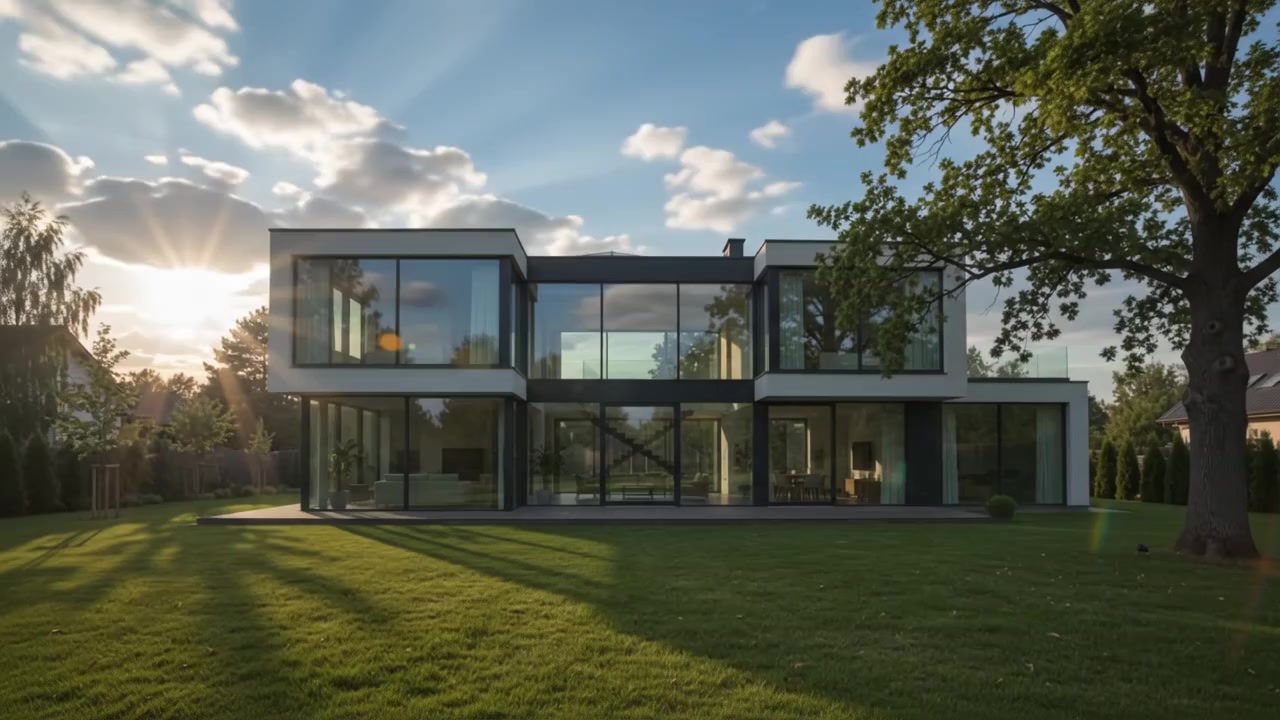
Your design language, kept intact
Keep geometry and style with Design Lock, join clips with Video Combine, and guide Gemini Omni with up to four references and consistent multi-turn edits.
Plans and pricing
Choose your Veras plan
AI visualisation
Veras Pro
AI-enhanced visualisation for one designer, or a floating seat your team shares.
Works in:
- Revit, SketchUp and Rhino
- Archicad, Vectorworks, Forma and Allplan
- The Veras web app
Includes:
- 2,000 monthly Chaos AI credits
- About 200 images or 200 short videos a month
- Design Lock - keeps your geometry and style consistent
- Image-to-video and Video Combine walkthroughs
High-volume workflows
Veras Ultra
Three times the AI capacity on a floating licence for busy studios.
Works in:
- Revit, SketchUp and Rhino
- Archicad, Vectorworks, Forma and Allplan
- The Veras web app
Everything in Pro, plus:
- 6,000 monthly Chaos AI credits
- About 600 images or 600 short videos a month
- Floating licence - included, for studios that share seats
Included with Enscape
Or get Veras with an Enscape plan
Every Enscape edition includes real-time rendering, Veras and monthly Chaos AI credits.
Enscape
Enscape Solo
Real-time rendering with Veras built in, for one seat.
Works in:
- SketchUp, Revit and Rhino
- Archicad and Vectorworks
Includes:
- Veras - AI scene creation in your design tools and on the web
- 100 monthly Chaos AI credits
- Enscape - real-time rendering as you model
- 6,700+ render-ready Chaos Cosmos assets
Enscape
Enscape Premium
Five times the AI credits, more assets, and floating licences for teams.
Works in:
- SketchUp, Revit and Rhino
- Archicad and Vectorworks
Everything in Solo, plus:
- 500 monthly Chaos AI credits
- 10,000+ render-ready Chaos Cosmos assets
- Floating licences available for teams
Enscape
Enscape Collection
Full toolkit with 1,500 monthly Chaos AI credits.
Works in:
- SketchUp, Revit and Rhino
- Archicad and Vectorworks
Everything in Premium, plus:
- 1,500 monthly Chaos AI credits
- 18,500+ render-ready Chaos Cosmos assets
- Envision - cinematic animation and scene assembly
- Impact - sustainability insights on your model
V-Ray Solo, Premium and Collection include Veras. See V-Ray plans .
How design practices use Veras
Chaos' Enscape and Veras bring a bit of magic to our work at First Forty Feet. These tools are changing the way we visualize the cities of the future - helping us create vivid, realistic images of revitalized downtowns and neighborhoods.
Enscape and Veras have been essential tools in my workflow, allowing me to quickly translate design ideas into compelling visuals that strengthen client communication and accelerate decision-making. They add value throughout all project phases - from early concept exploration in the design phases to detailed design development and clear visual validation in construction documentation.
Through the targeted use of Veras, we achieve a greater depth of planning in less time, so we can better focus on other aspects of our profession.
Veras FAQs
Which applications does Veras work with?
Veras runs as an add-in for Revit, SketchUp, Rhino, Archicad, Vectorworks, Autodesk Forma and Allplan, and there is a standalone web app for prompting from images. Veras 4.7 added Revit 2027 support and now brings Revit materials and textures into its 3D viewer for Revit 2023 and newer. Host-version support changes over time, so check your exact versions with us before you buy.
Is Veras included with Enscape or V-Ray?
Yes. Since 27 May 2026 every Enscape plan includes Veras: Solo, Premium and Collection carry 100, 500 and 1,500 monthly Chaos credits respectively, and V-Ray Solo, Premium and Collection include it as well. Standalone Veras Pro and Ultra subscriptions suit practices that want more AI capacity without Enscape or V-Ray; Veras Starter is sold directly by Chaos. Ask us to match the licence type and credit allowance to your practice.
Can PCS invoice Veras in NZD and include GST?
Yes. When you buy through Professional CAD Systems, we quote and invoice in New Zealand dollars. Prices are shown excluding GST, 15% GST is added to the invoice, and your practice receives a New Zealand GST tax invoice. Chaos direct checkout has its own currency, tax and billing terms.
How long is the Veras trial, and what happens afterwards?
The Chaos trial runs for 14 days and includes 100 credits for image and video generation. It starts as a named licence for one person. Chaos says payment starts automatically after the free period and you can cancel up to one day before it ends; if you want PCS invoicing instead, cancel the direct conversion in time and ask us to arrange the ongoing licence.
Where does my project data go when Veras renders?
Veras sends the camera view and a geometry snapshot to the cloud for rendering. Chaos says this data is encrypted in transit and at rest, stored through Firebase and Firestore, and processed on secure servers in the United States, such as AWS or Azure environments. Chaos also says project data is not used to train AI models or shared with third parties. Anonymous images, prompts and app-usage data are collected only if you opt in, and that setting can be disabled. Before uploading confidential work, confirm that United States cloud processing fits your practice and client agreements.
Do I need a powerful graphics card?
No. Rendering runs on Chaos's cloud GPU infrastructure rather than on your workstation, so you do not need a rendering-grade graphics card. Your machine only needs to run your host application, and Veras needs an active internet connection.
How is Veras different from Midjourney or other image AI?
Explore AI variations from your model or drawing inside your design tools, retaining massing and proportions.
How do the monthly credits work?
Images and videos draw from the same credit pool, which refreshes monthly on every plan. Gemini Omni video clips have a fixed credit cost, shown in the model dropdown before you render. If you run dry mid-project, extra credit packs can be added; talk to us and we will size your plan so that rarely happens.