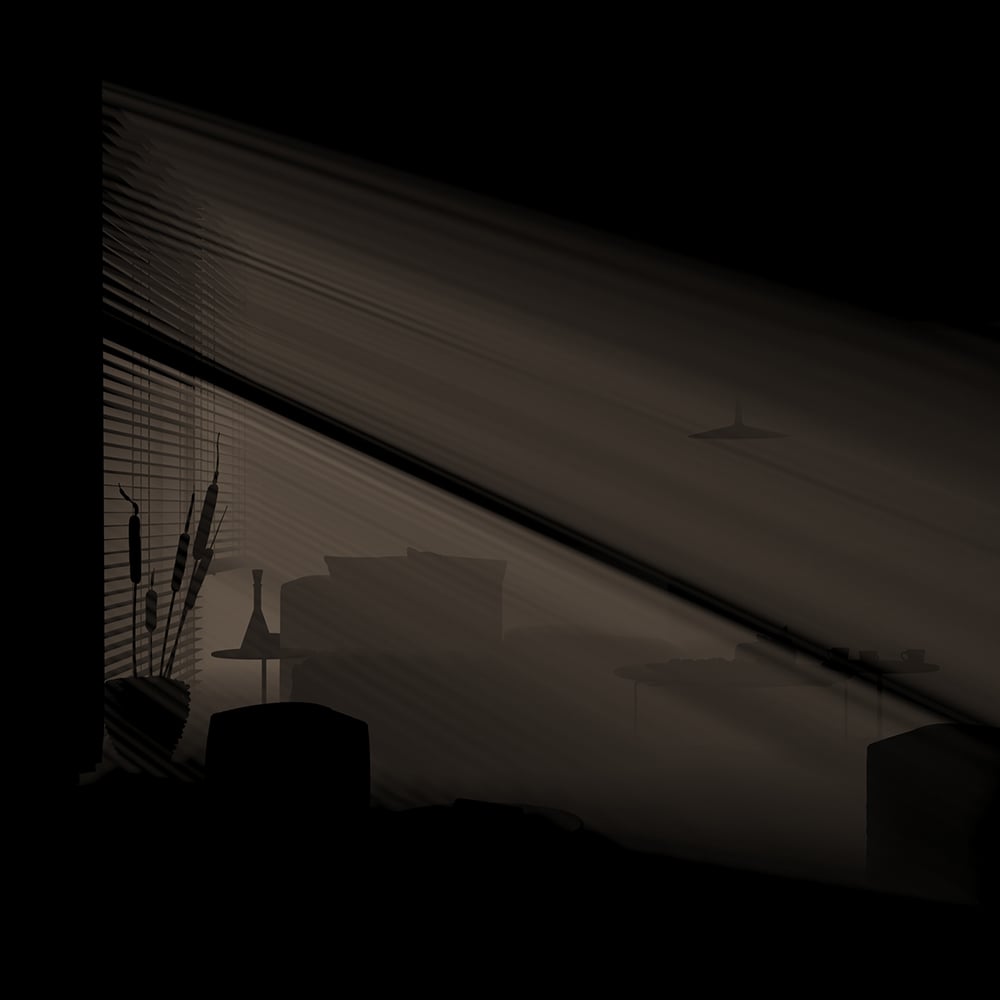
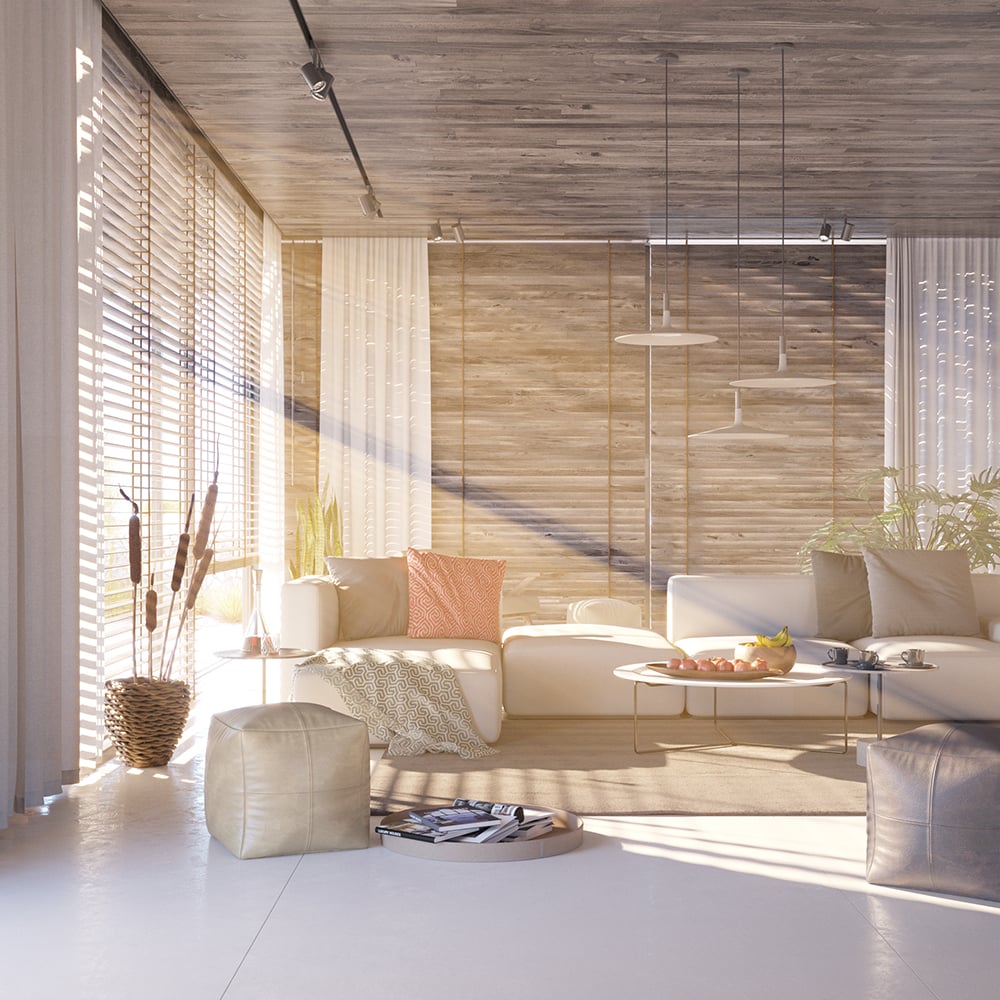
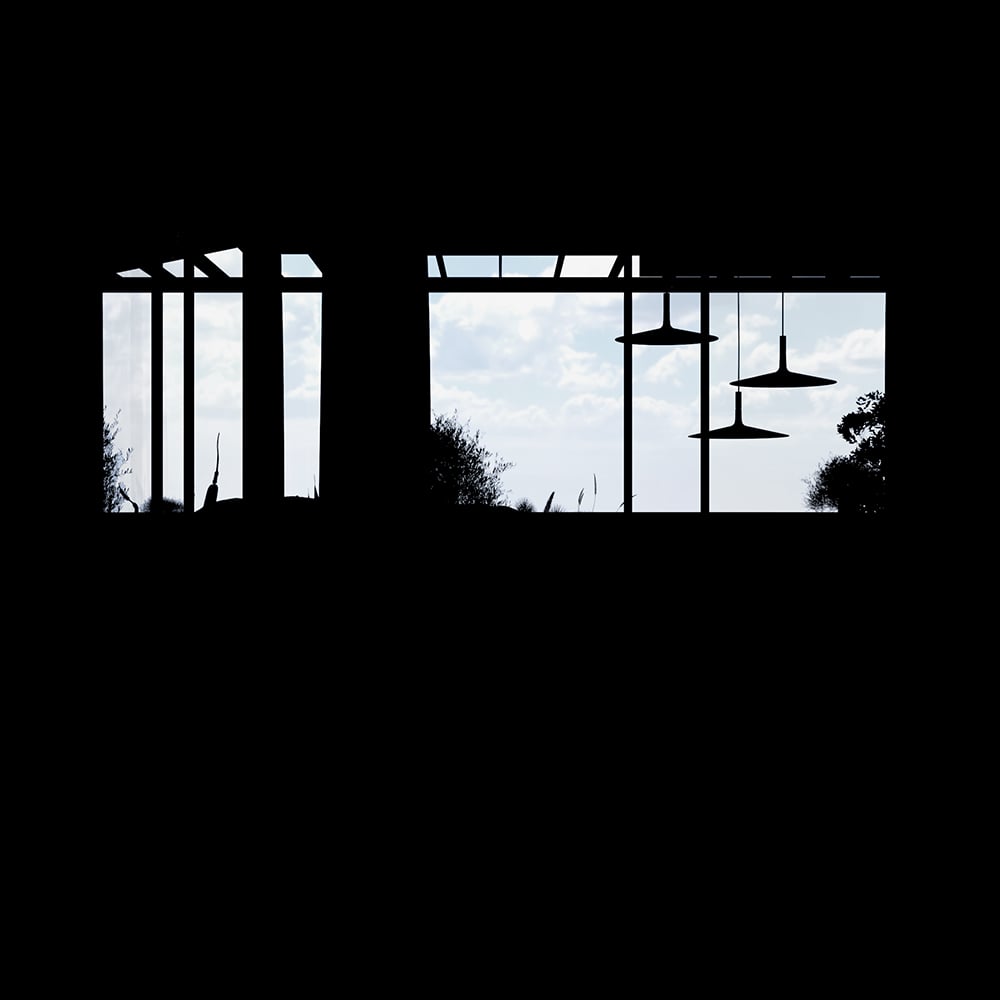
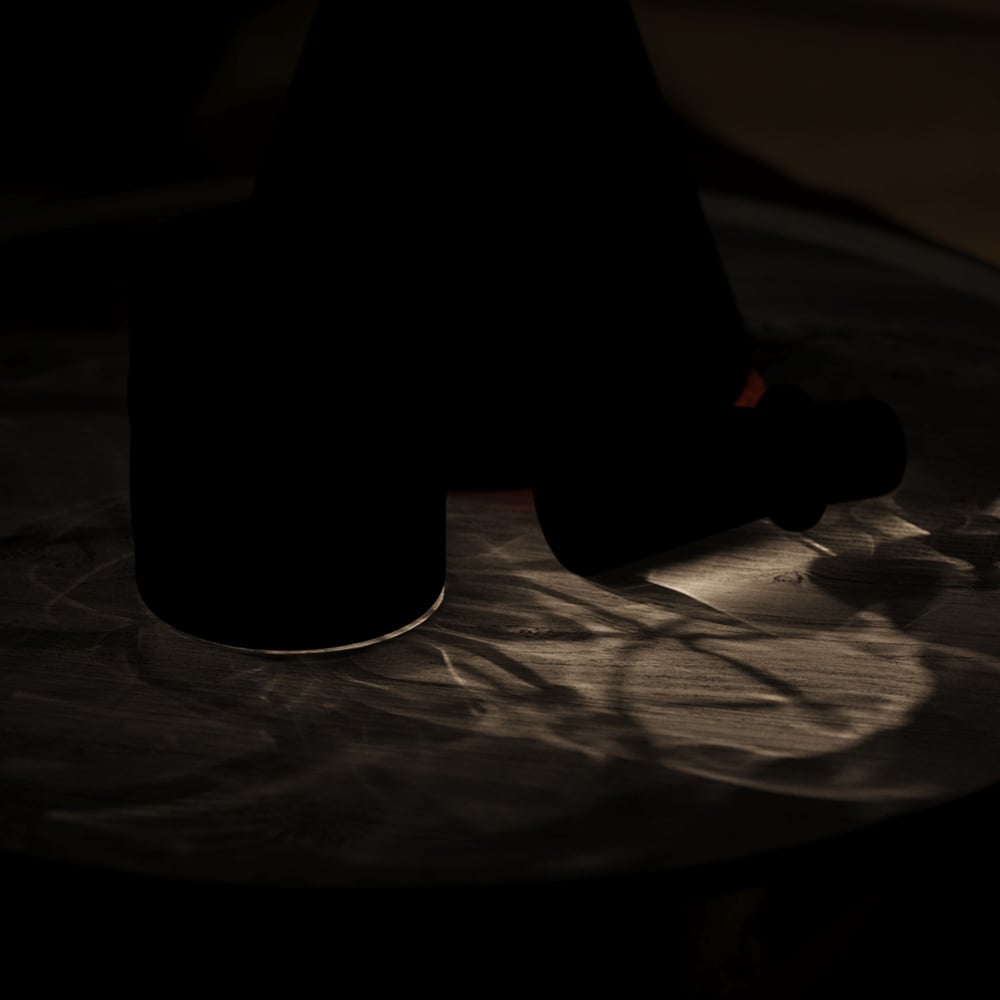
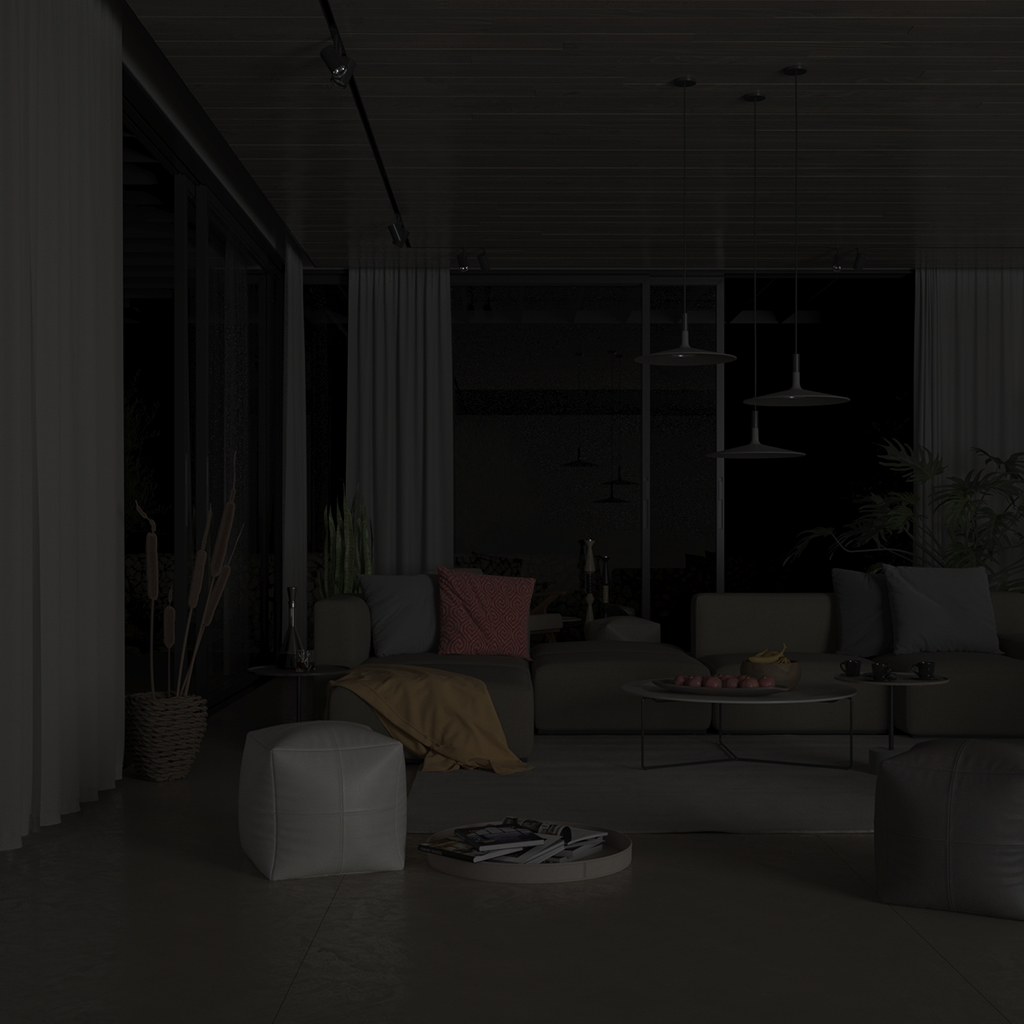
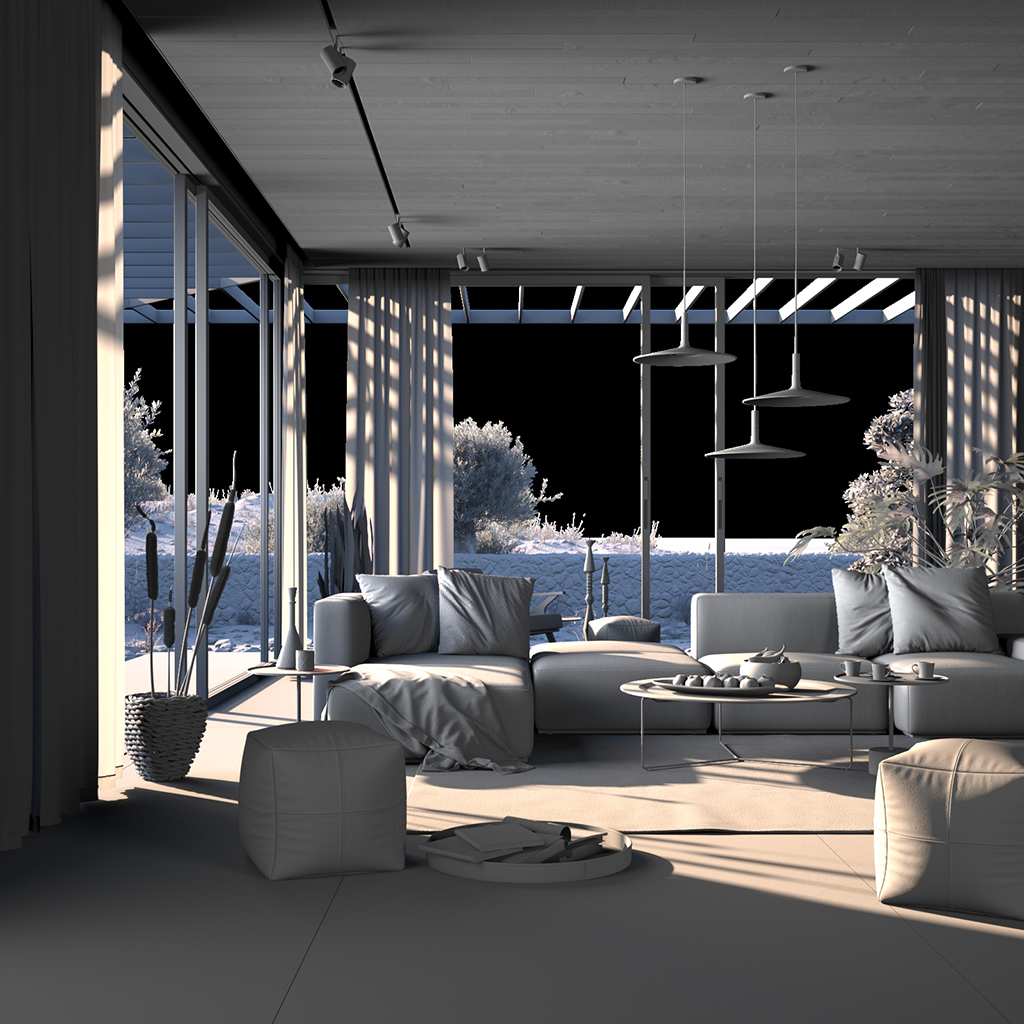
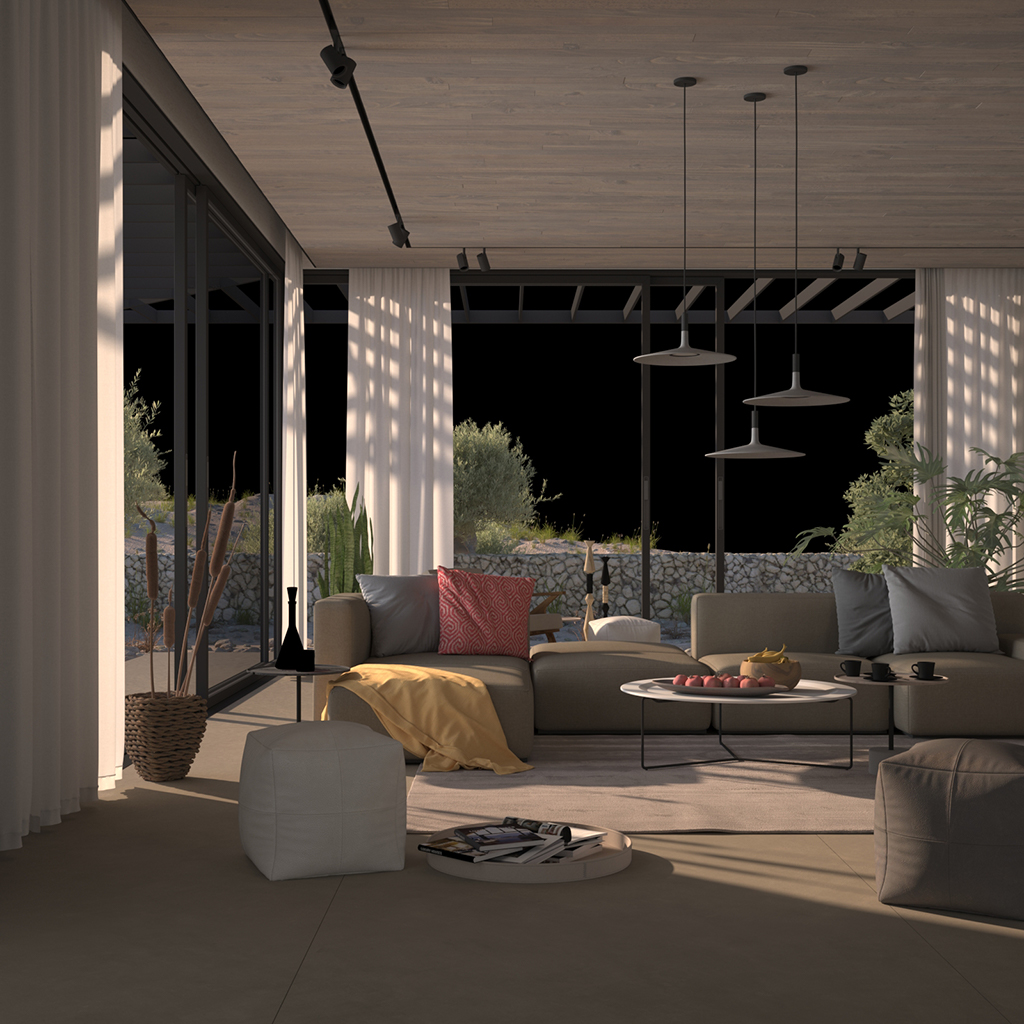
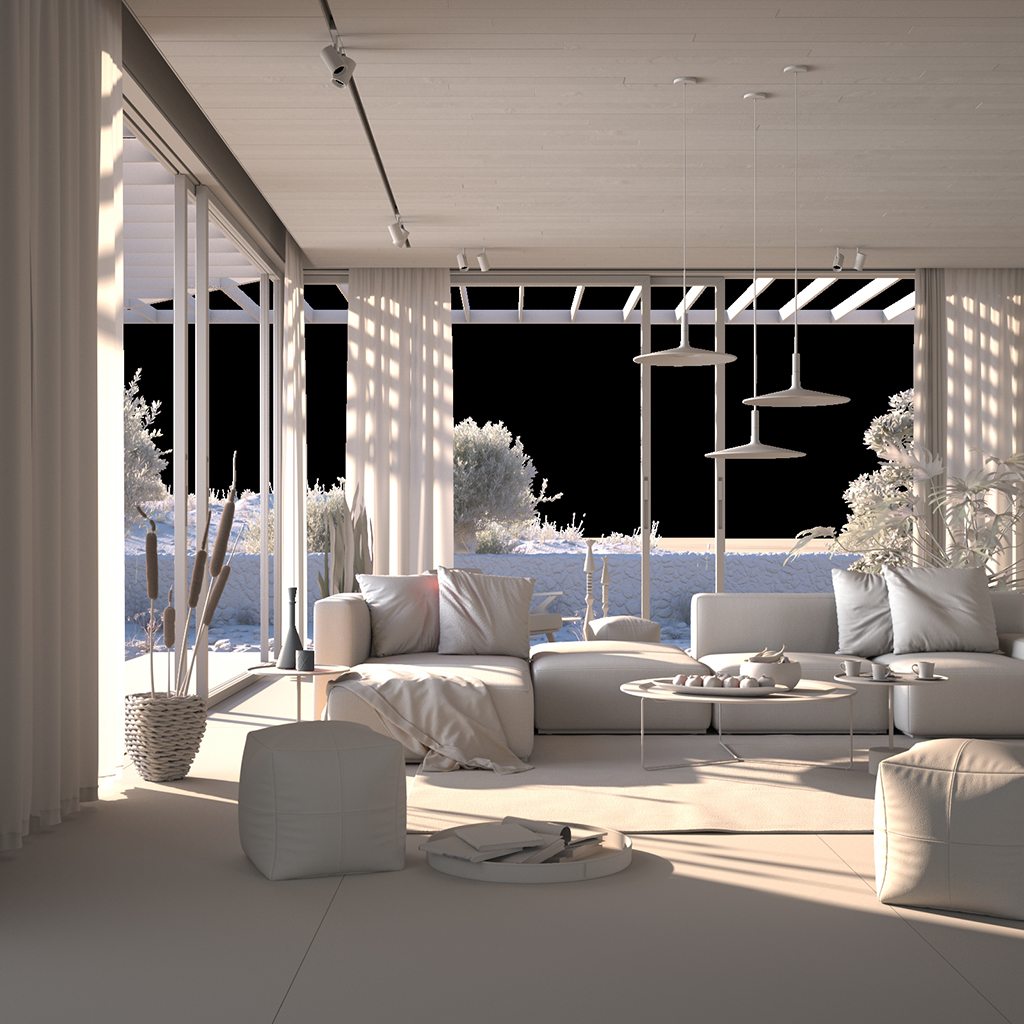
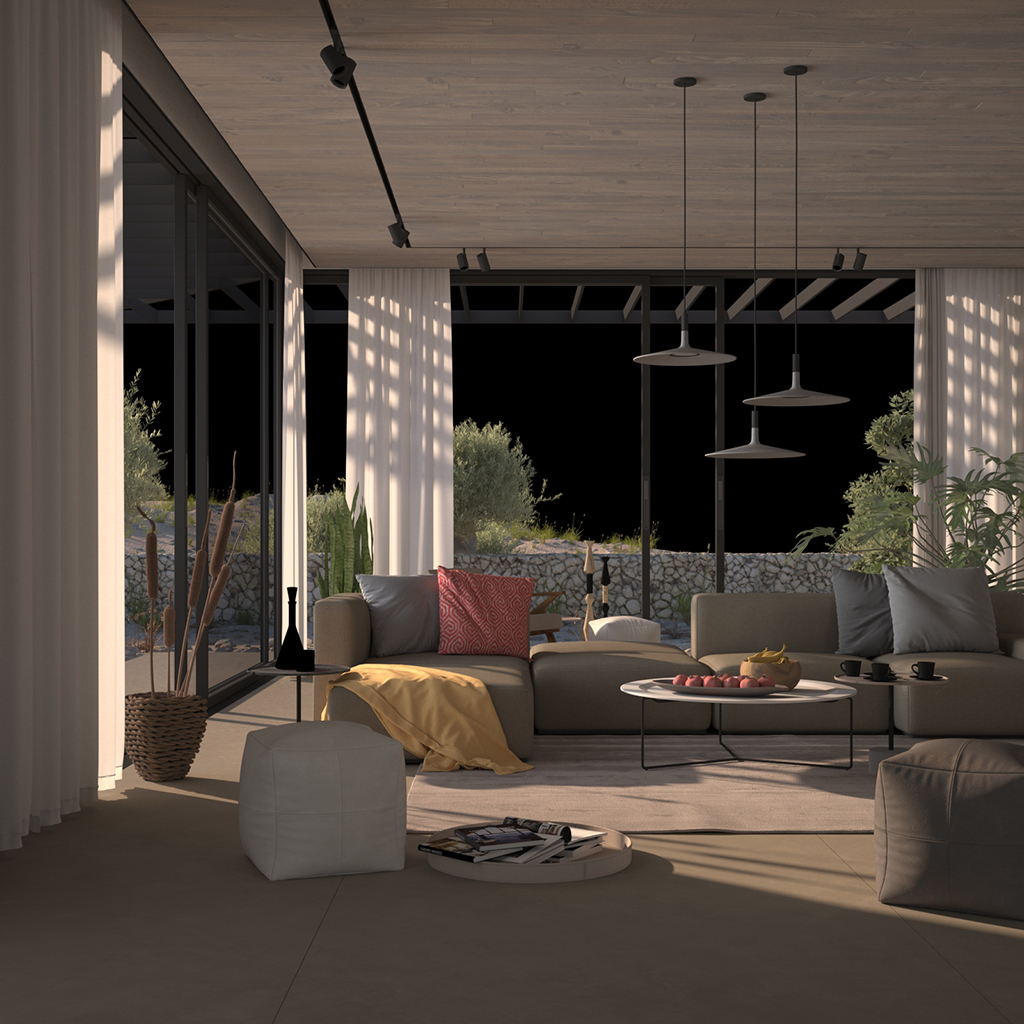
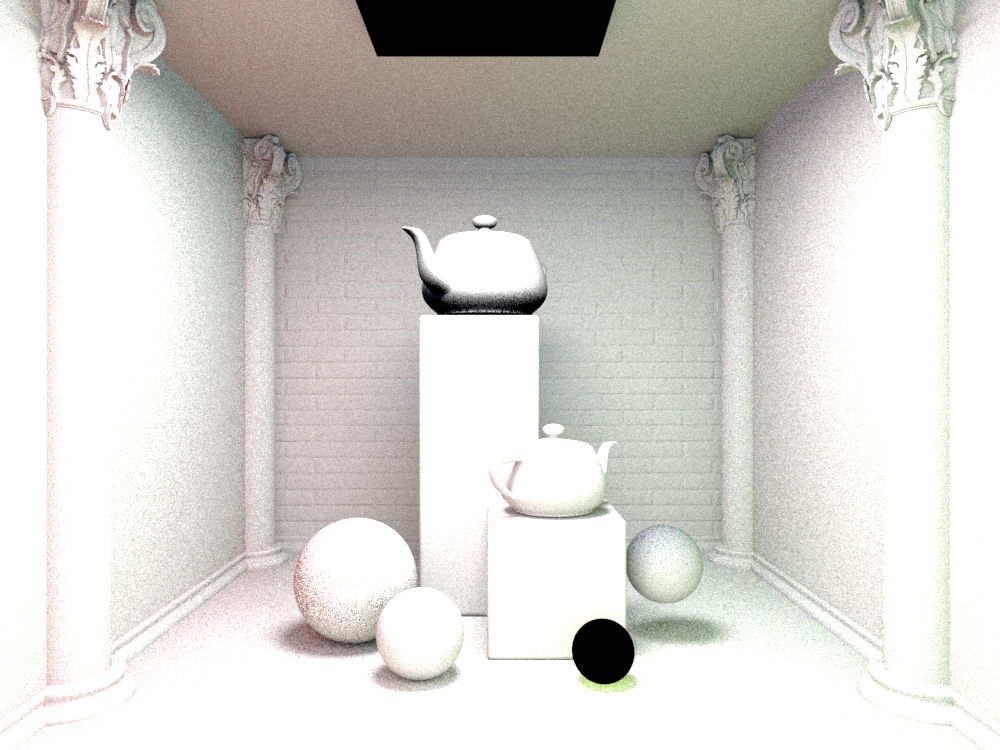
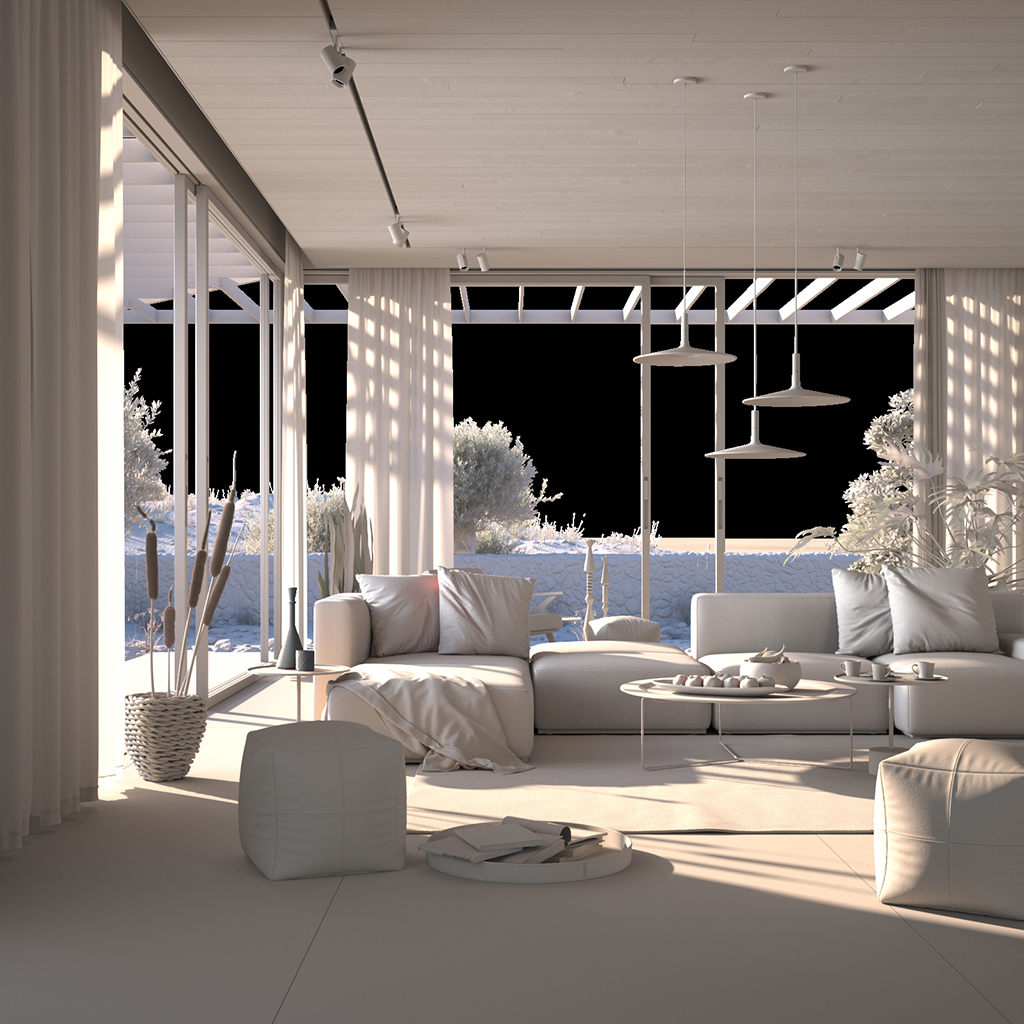
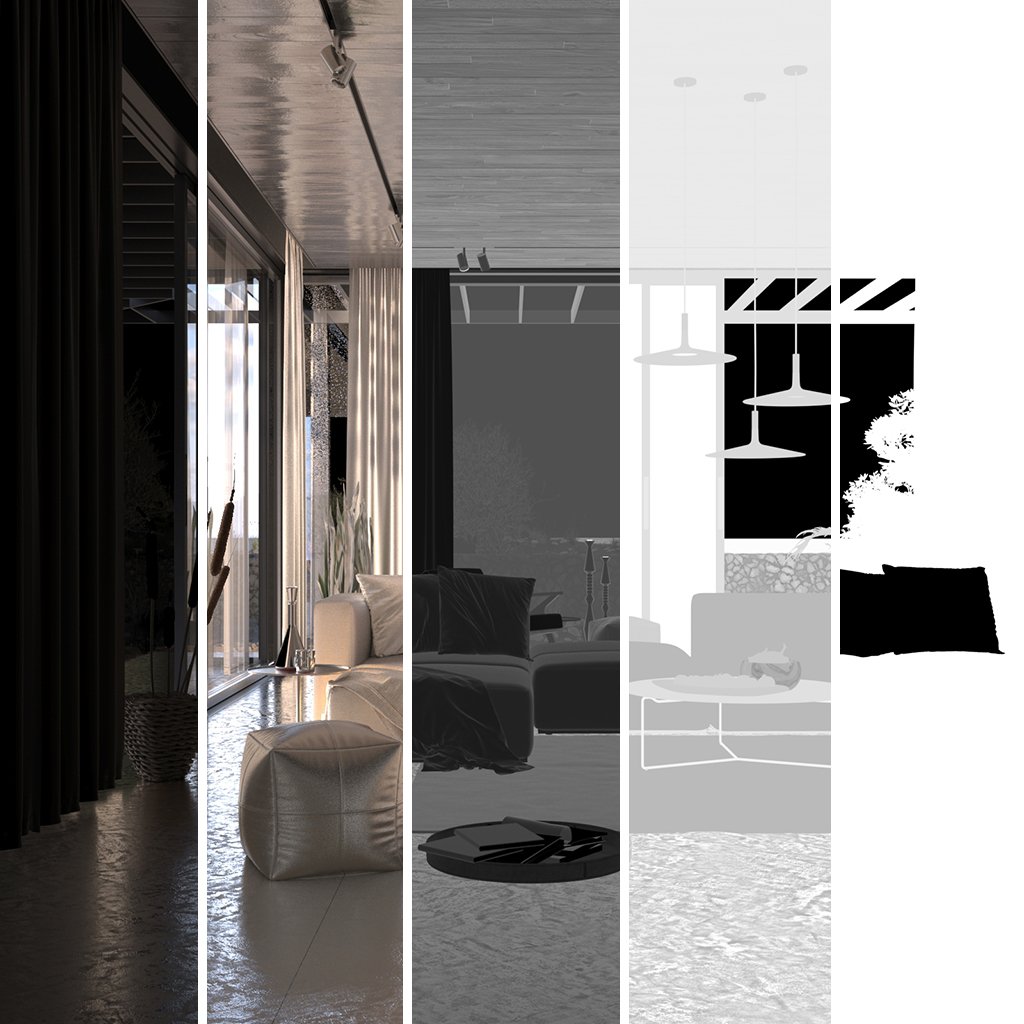
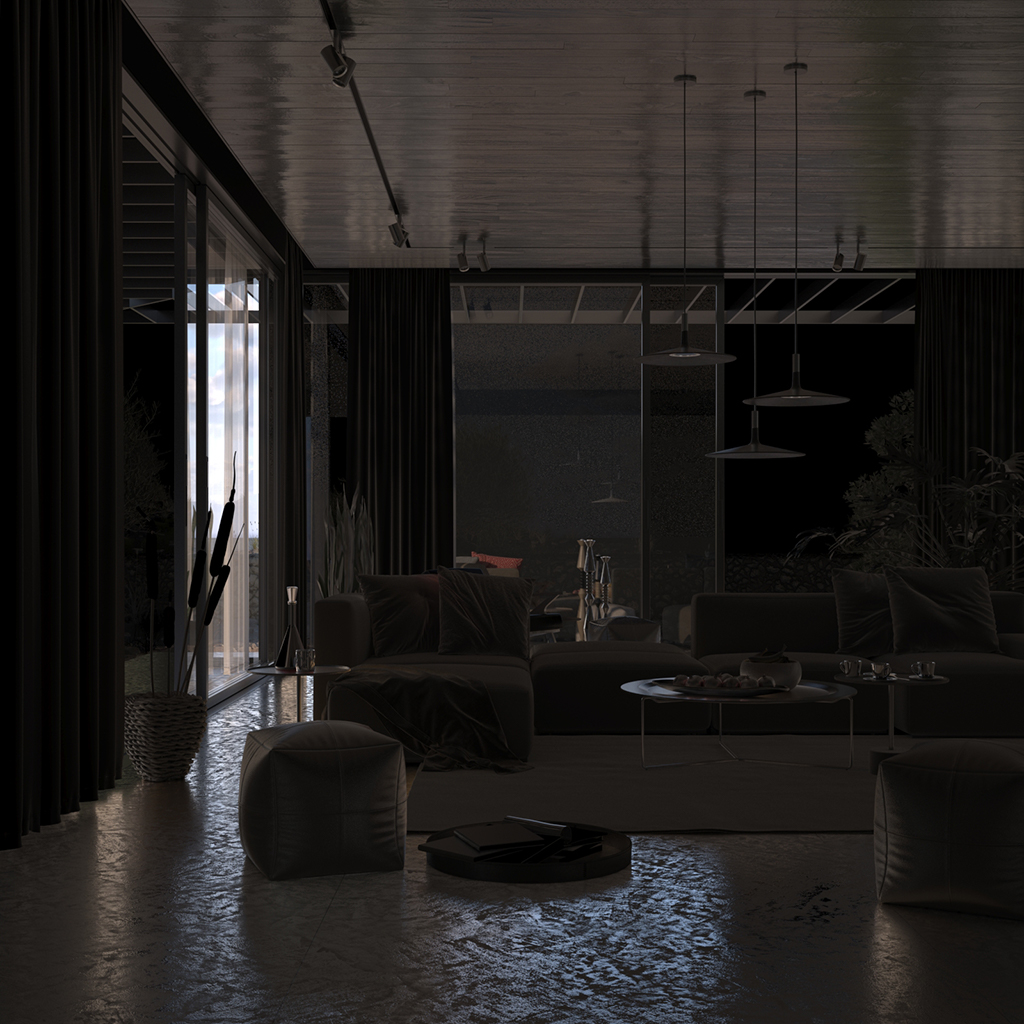
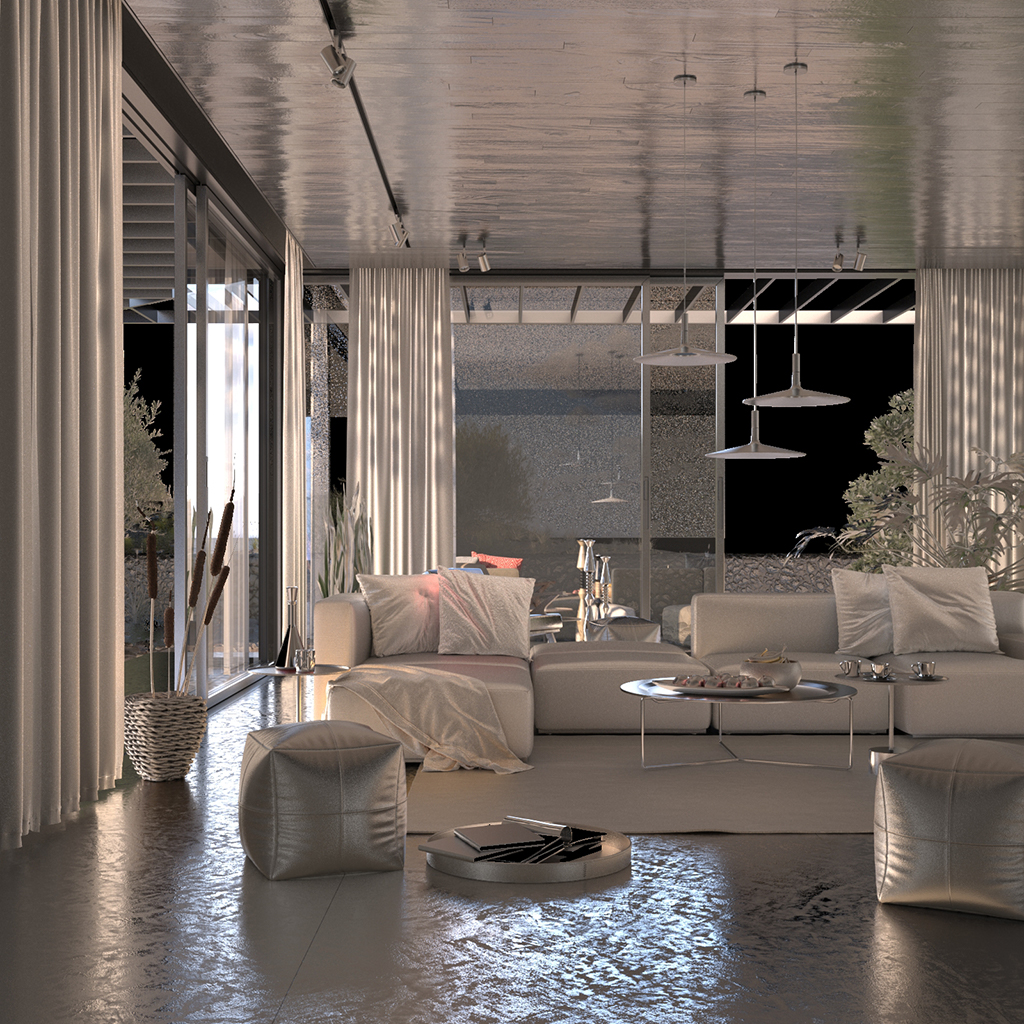
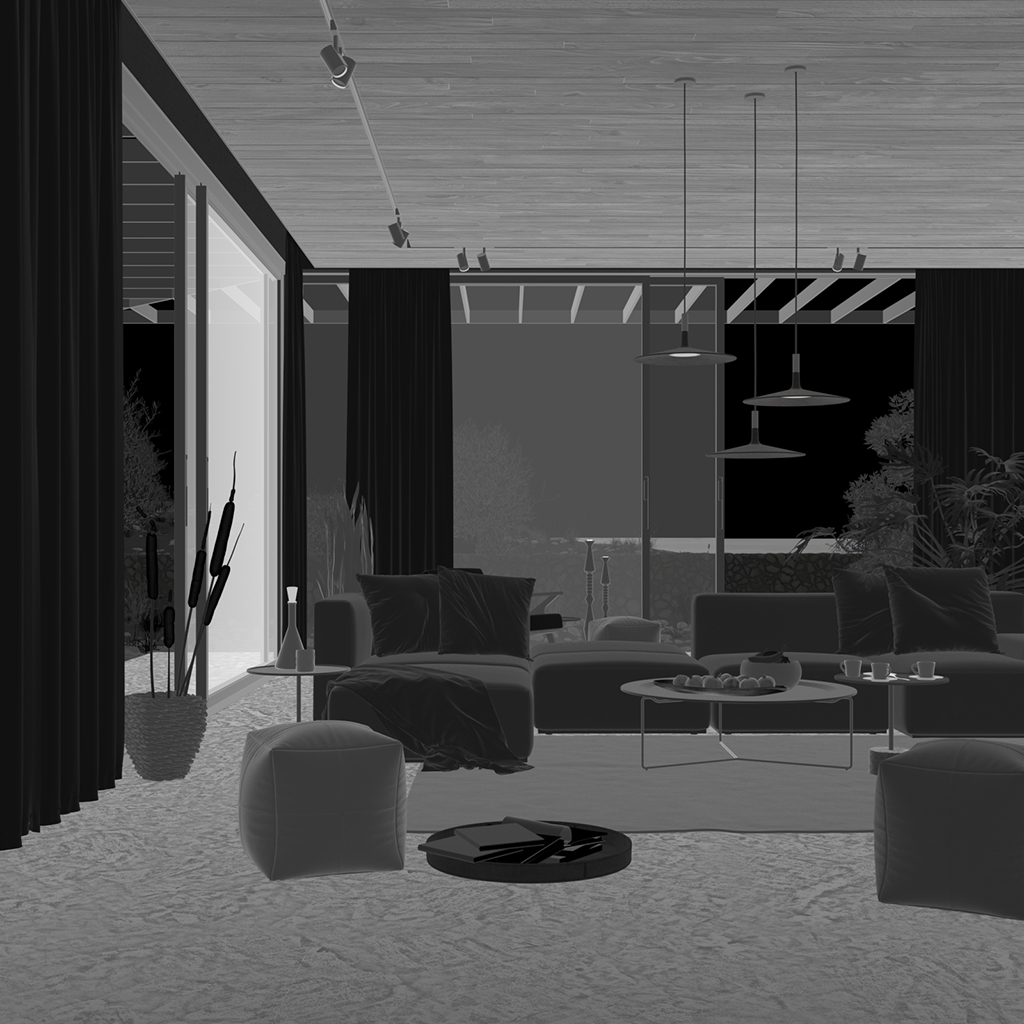
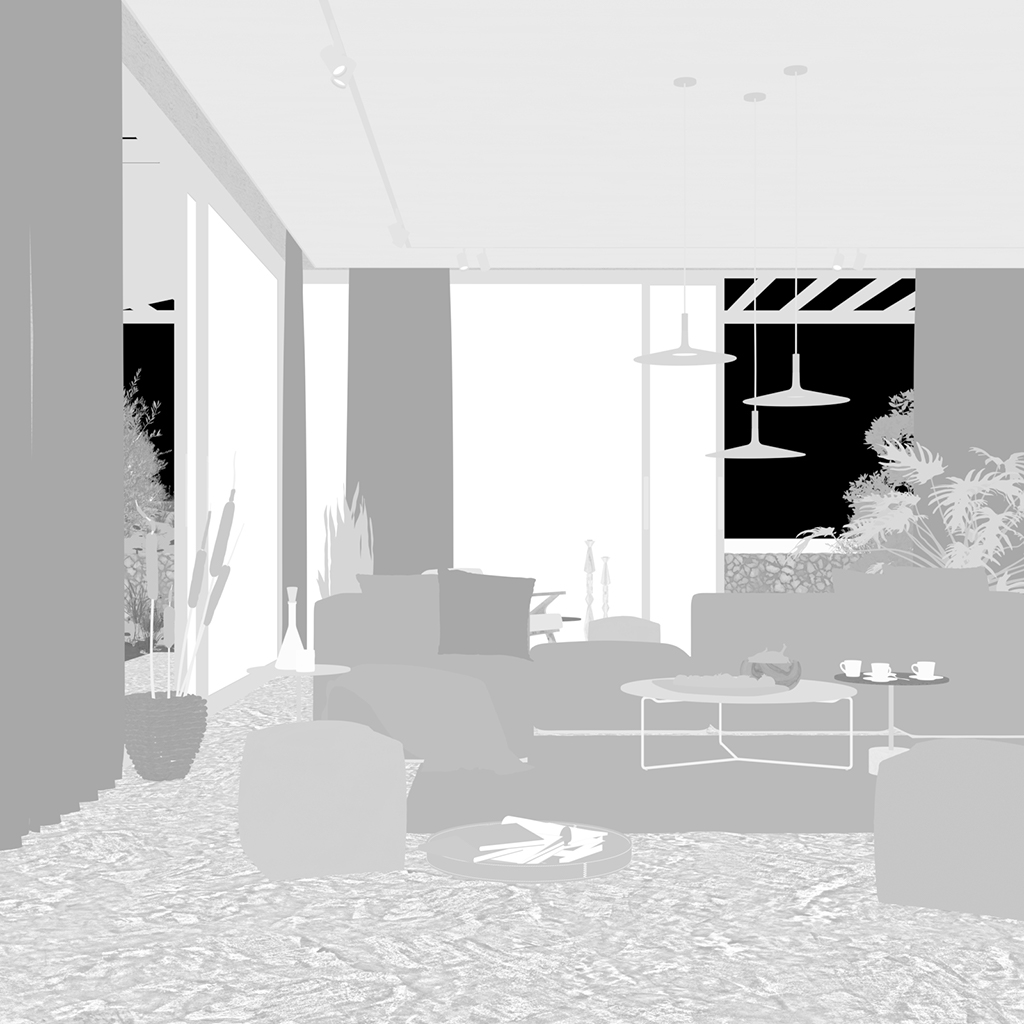
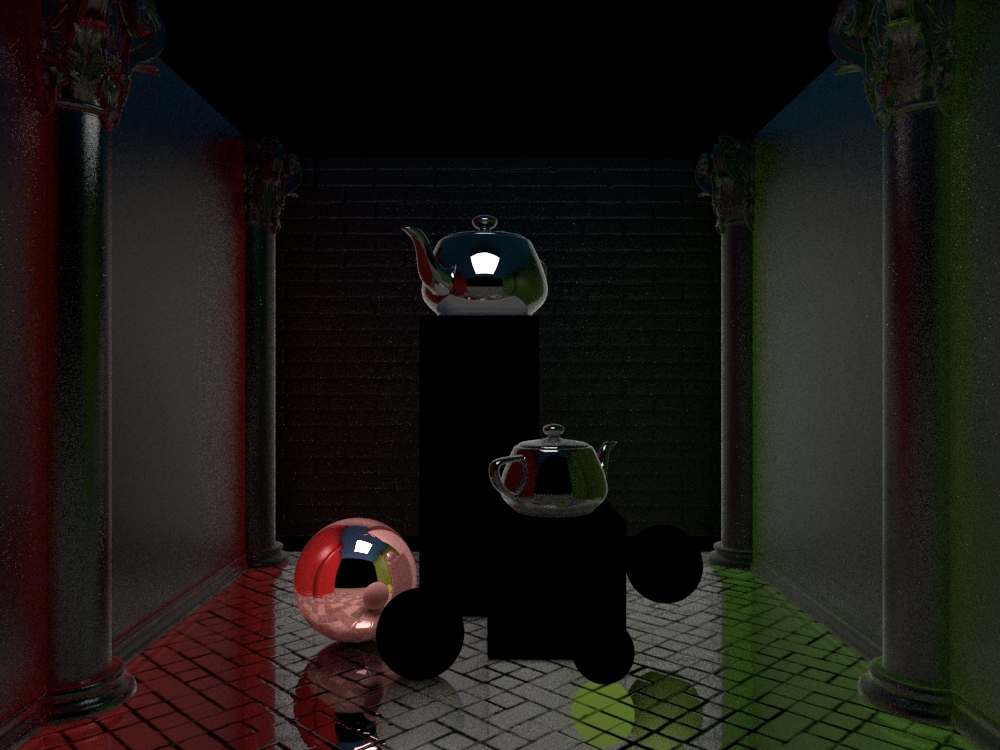
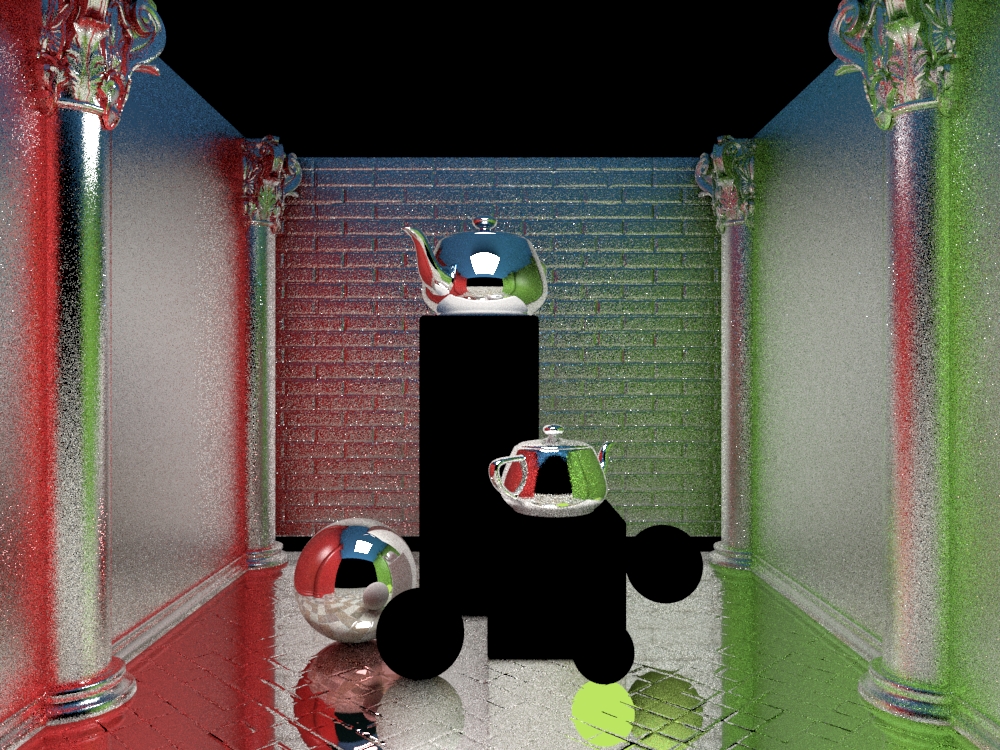
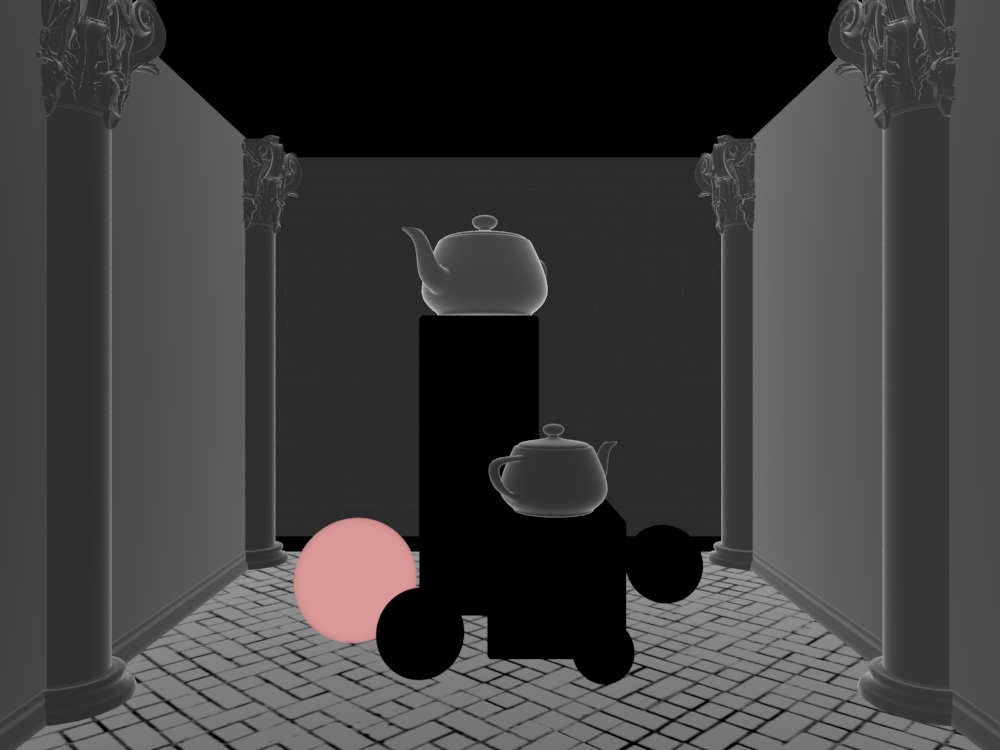
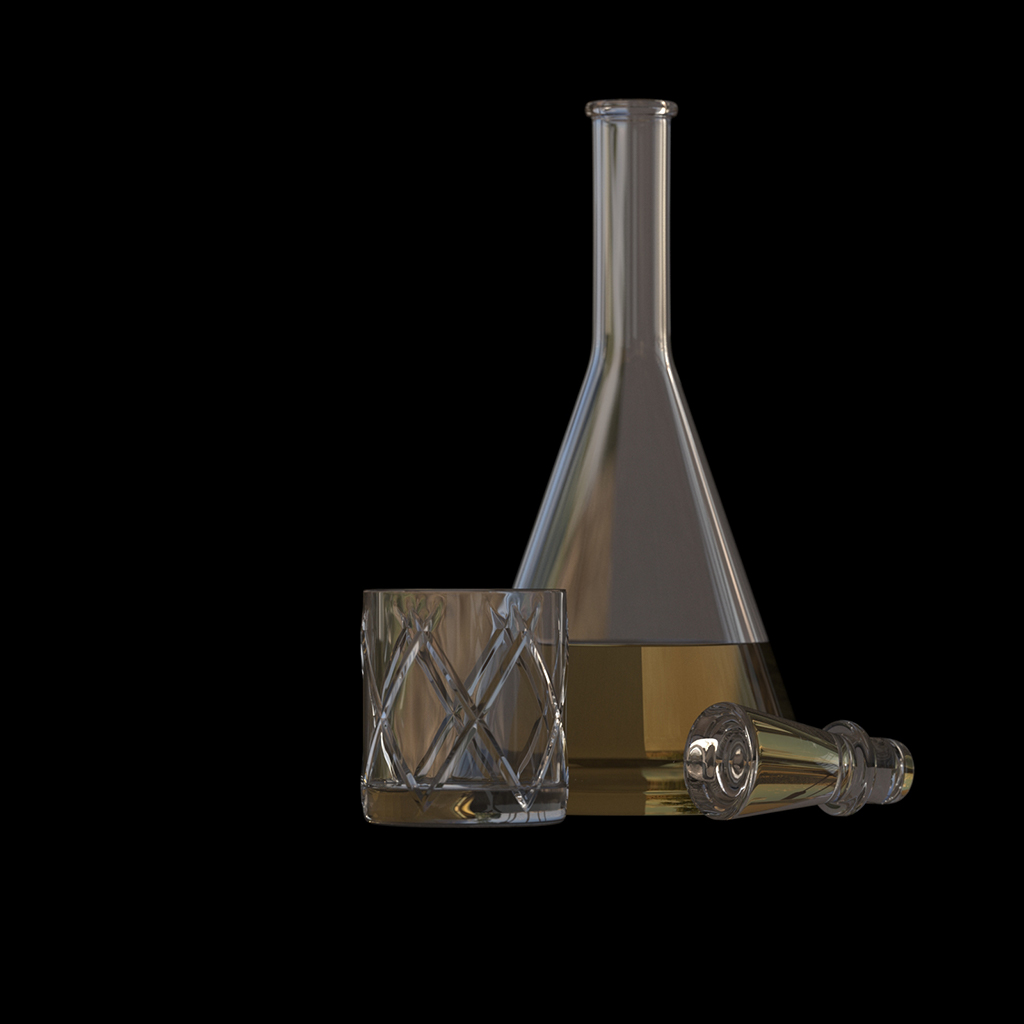
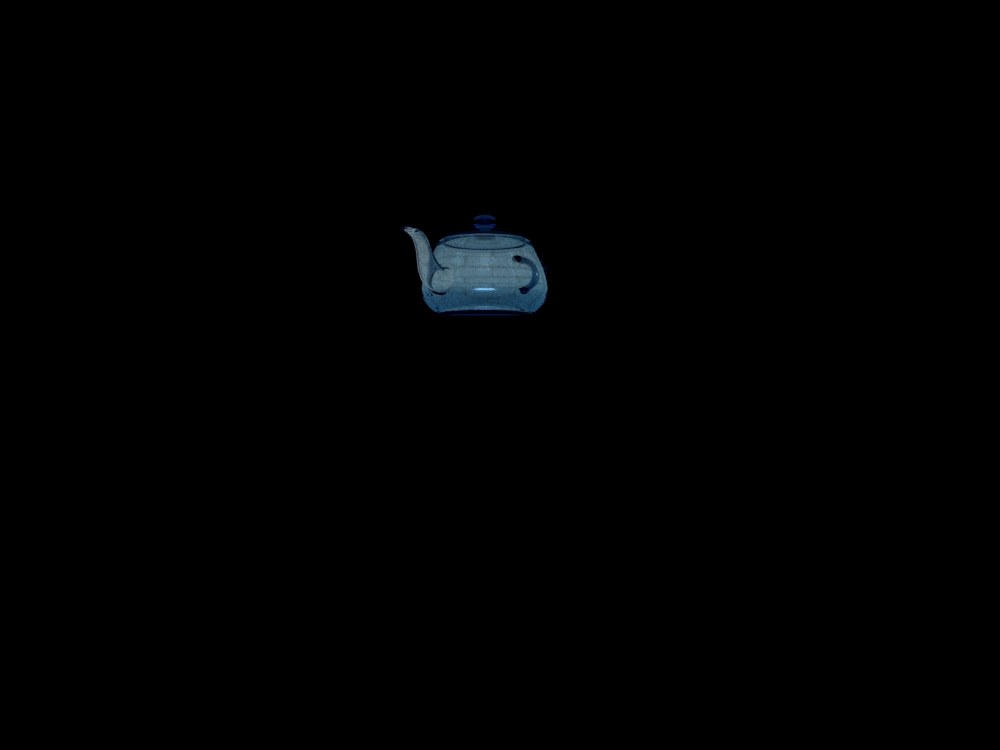
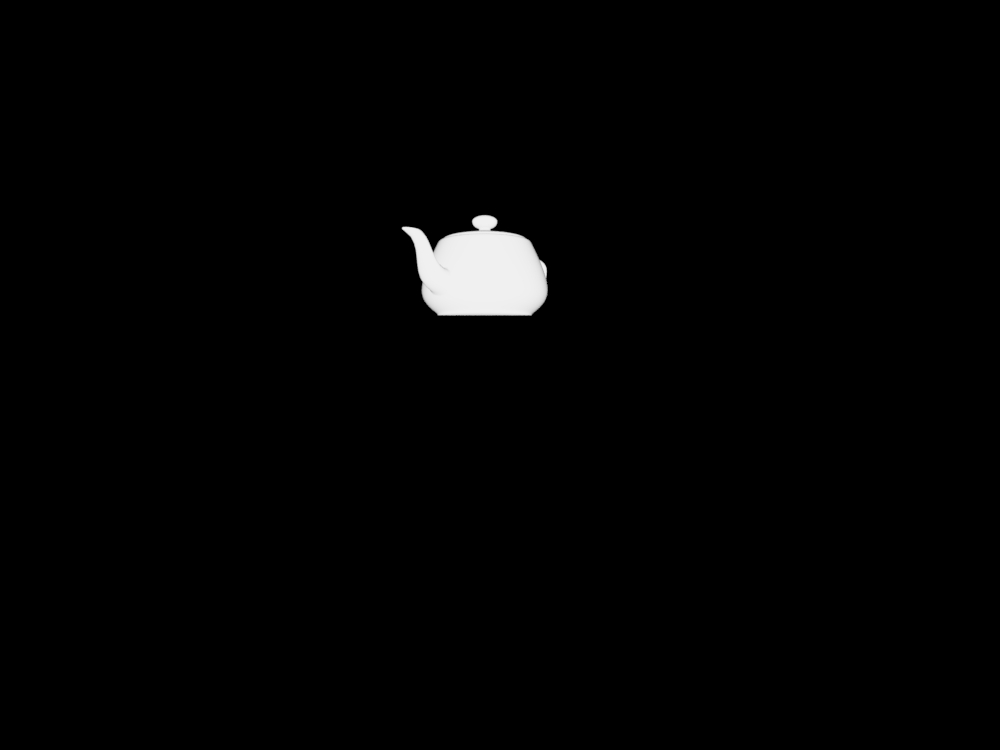
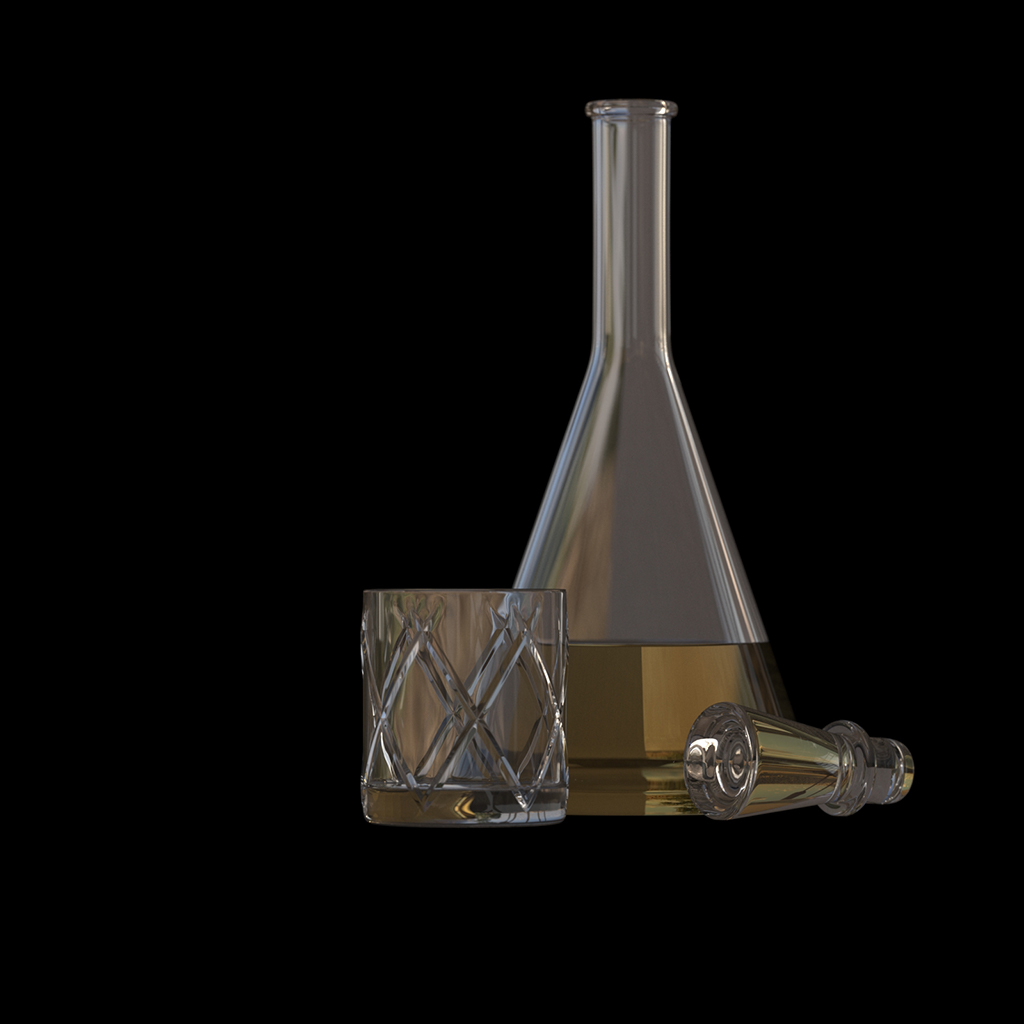
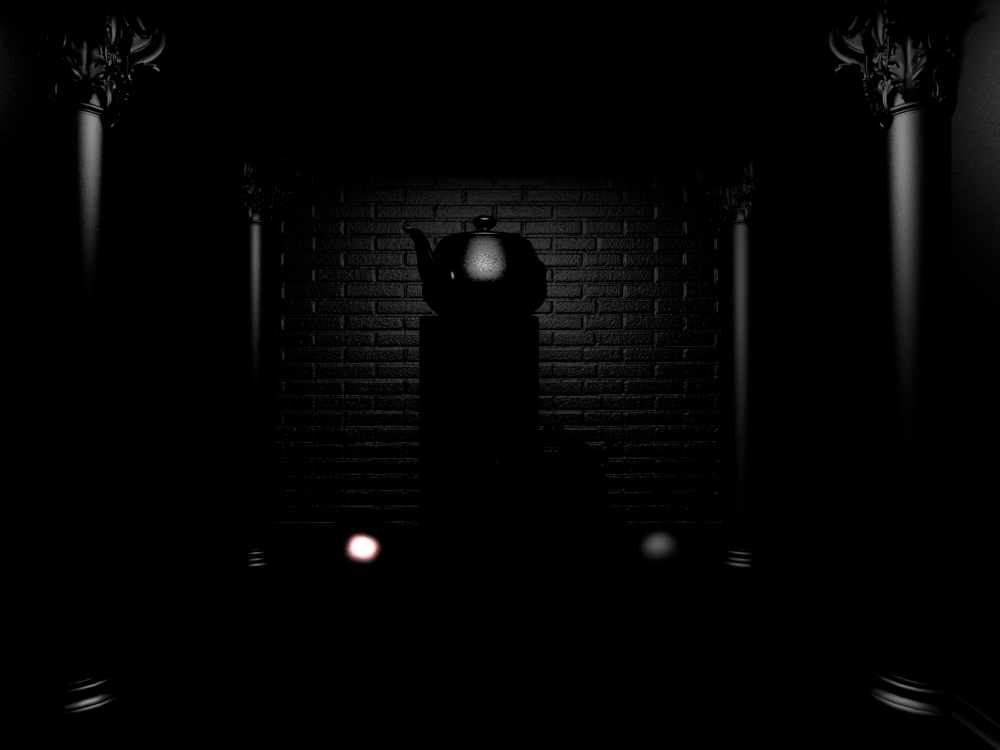
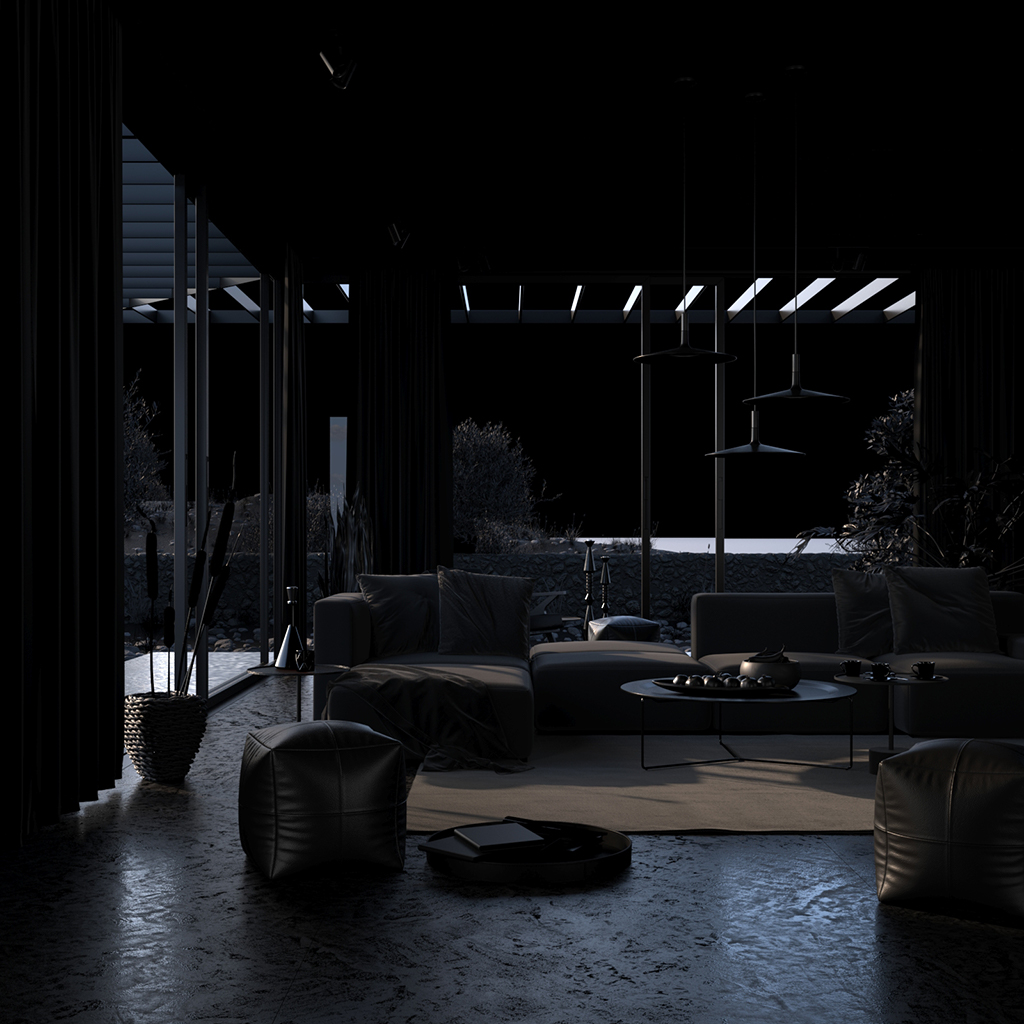
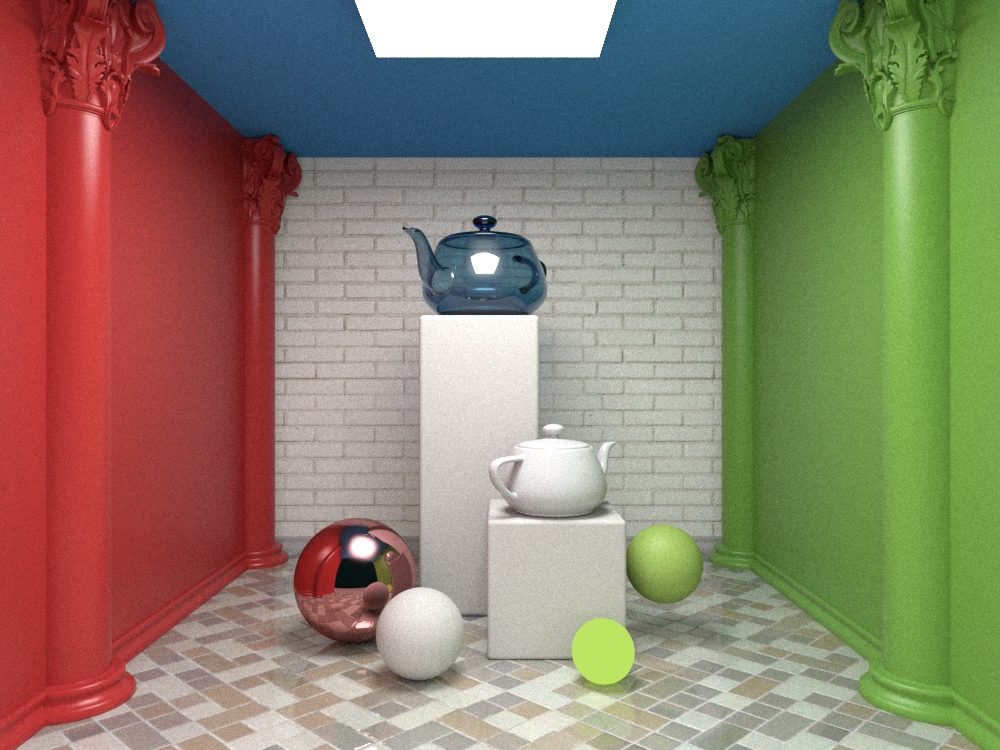
The Diffuse Filter Render Element is one of the basic render elements used to form many other render elements.
Last updated 10 April 2026
Overview
Python
C++
C#.NET
Node.js
Basic Render Elements
Diffuse
Type: RenderChannelColor
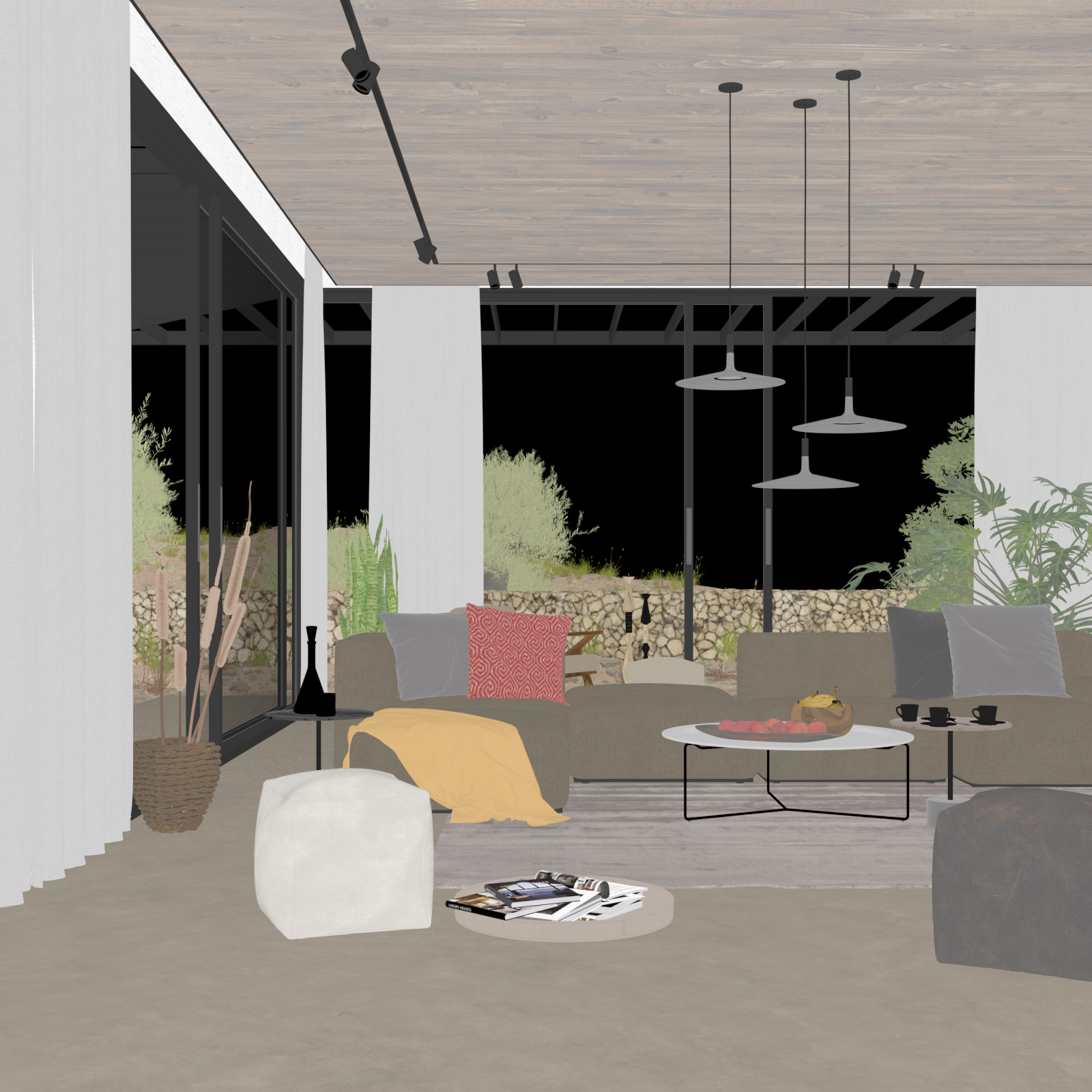
The Diffuse Filter Render Element is one of the basic render elements used to form many other render elements.
It shows the colors and textures used in materials, flatly applied to objects with no lighting information. The colors are the actual colors set in the material definition, and each texture appears as it does in the texture (file) itself. There are no highlights or shadows, and any background image is not included.
Other render elements that include colors from materials are said to include the diffuse contribution or the diffuse component of the rendered scene. The Diffuse Filter Render Element contributes to this diffuse component; any render element that includes this diffuse component is a combination of Diffuse Filter and other render element(s).
This render element is useful for making overall adjustments and enhancements to colors and textures during compositing.
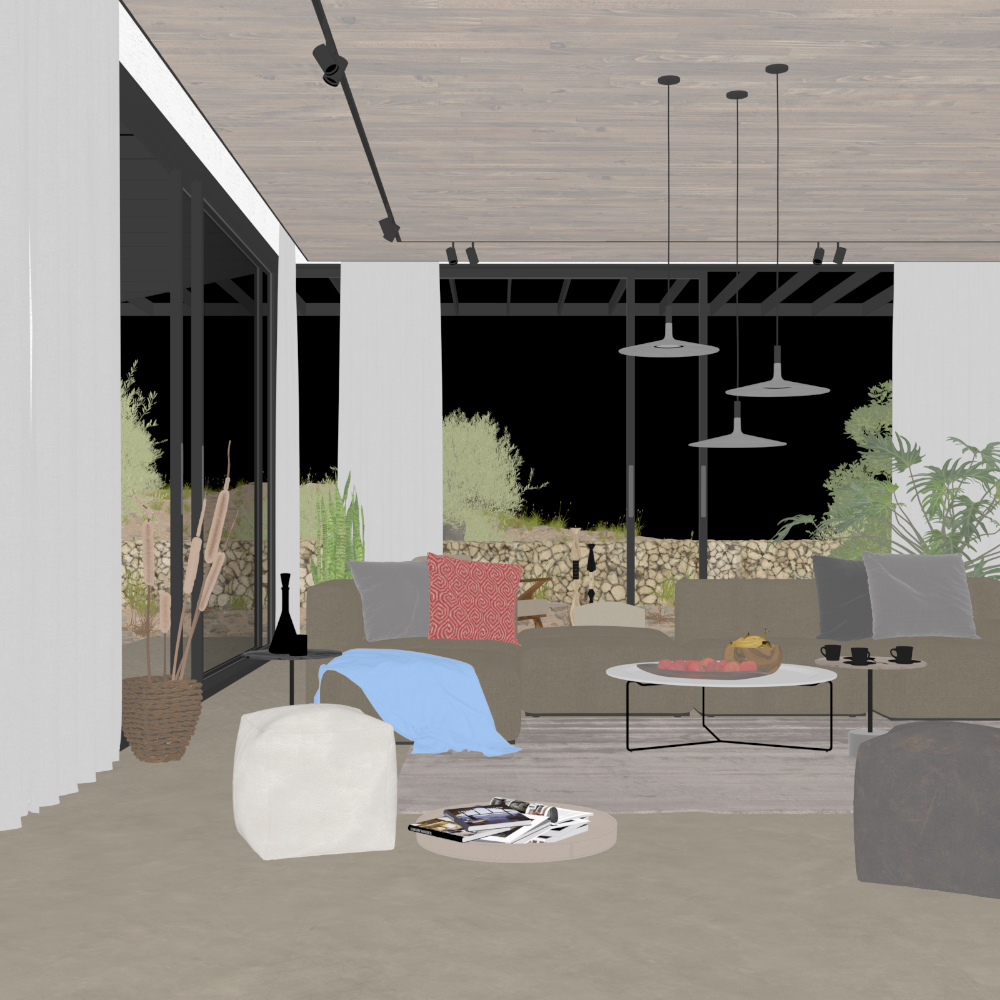
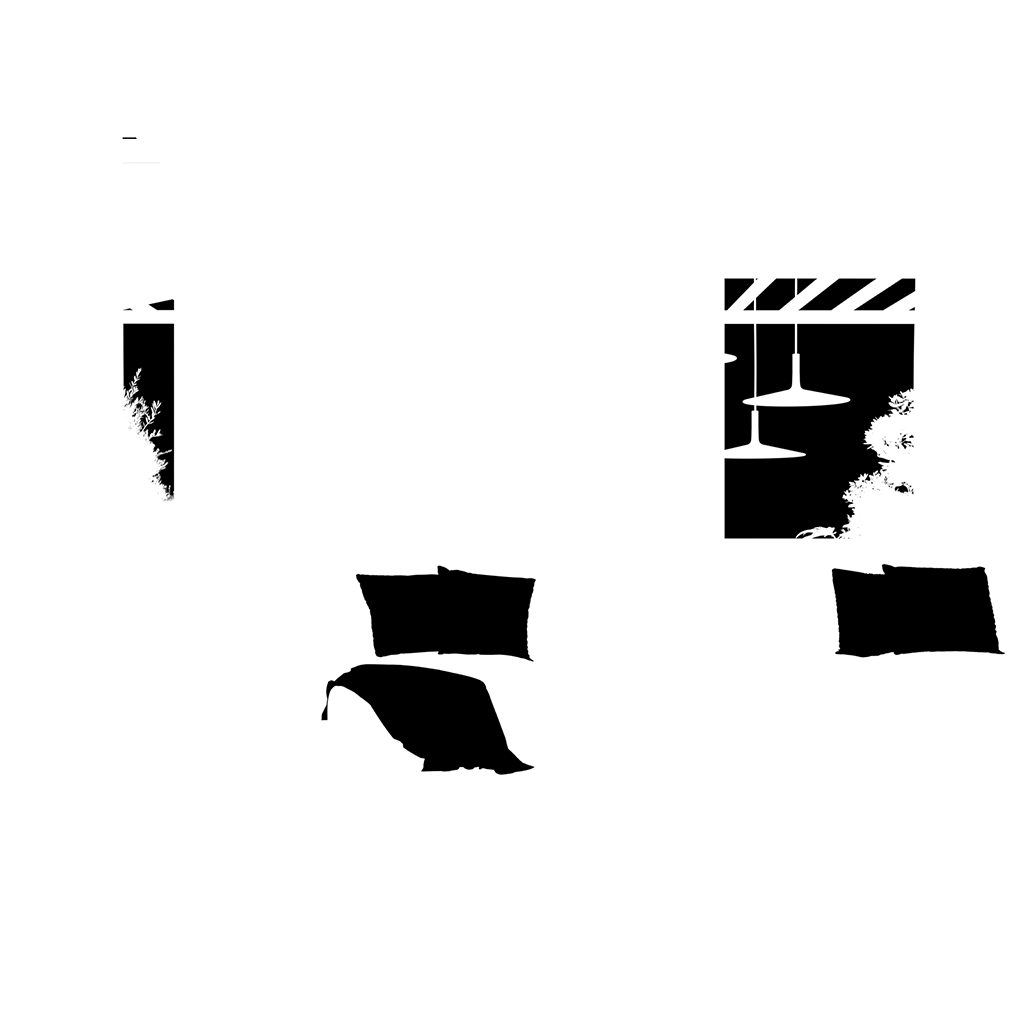
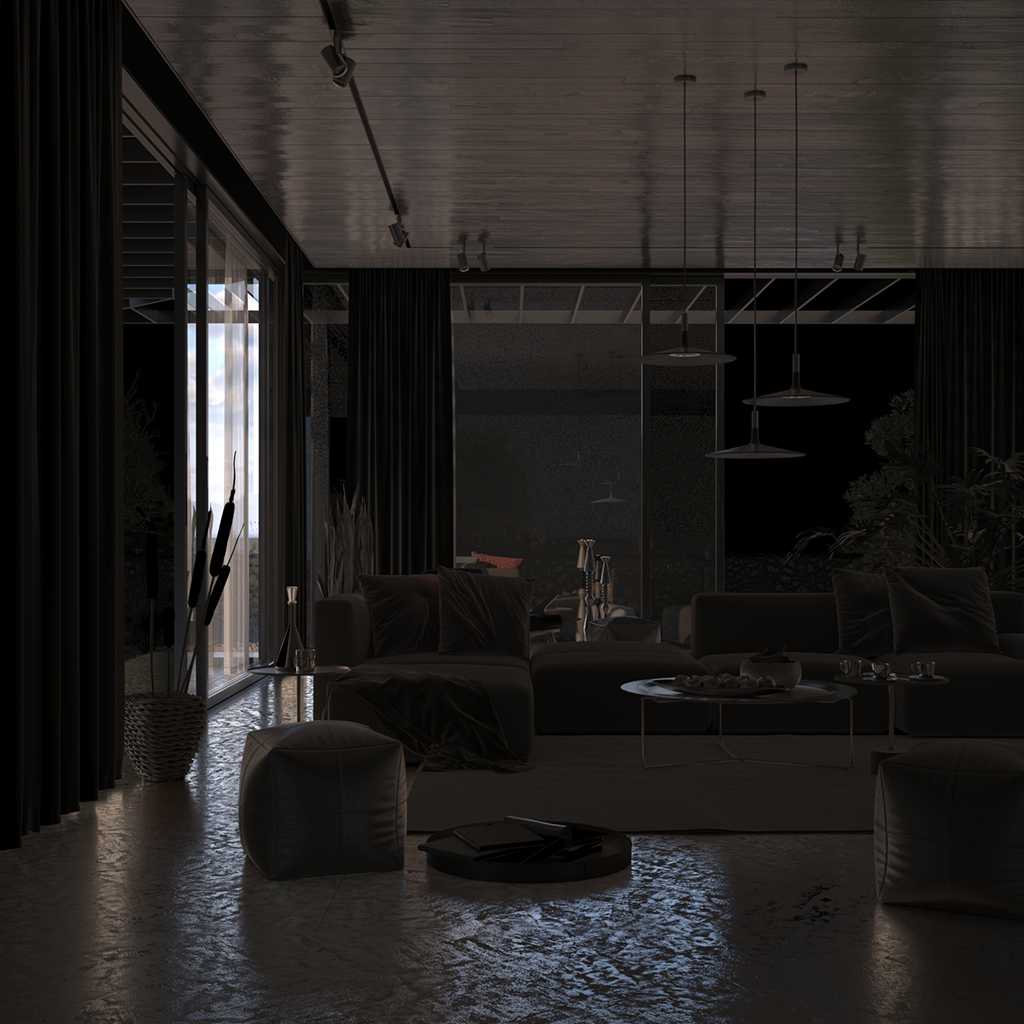
The Diffuse Filter is a handy render element due to the number of raw passes with which it can be combined, giving the ability to manipulate many areas of the render at the composite level. The Diffuse Filter pass can also be color-corrected, as shown in the example below. In this case, a Multimatte Render Element was used in conjunction with the Diffuse Filter render element to isolate the dangling light and change its color from white to blue without also tinting its lighting or shadowing in any way.
Diffuse Filter Render Element
Original Beauty Render Element
Diffuse Filter Render Element with color corrections
Resulting composite with color corrections
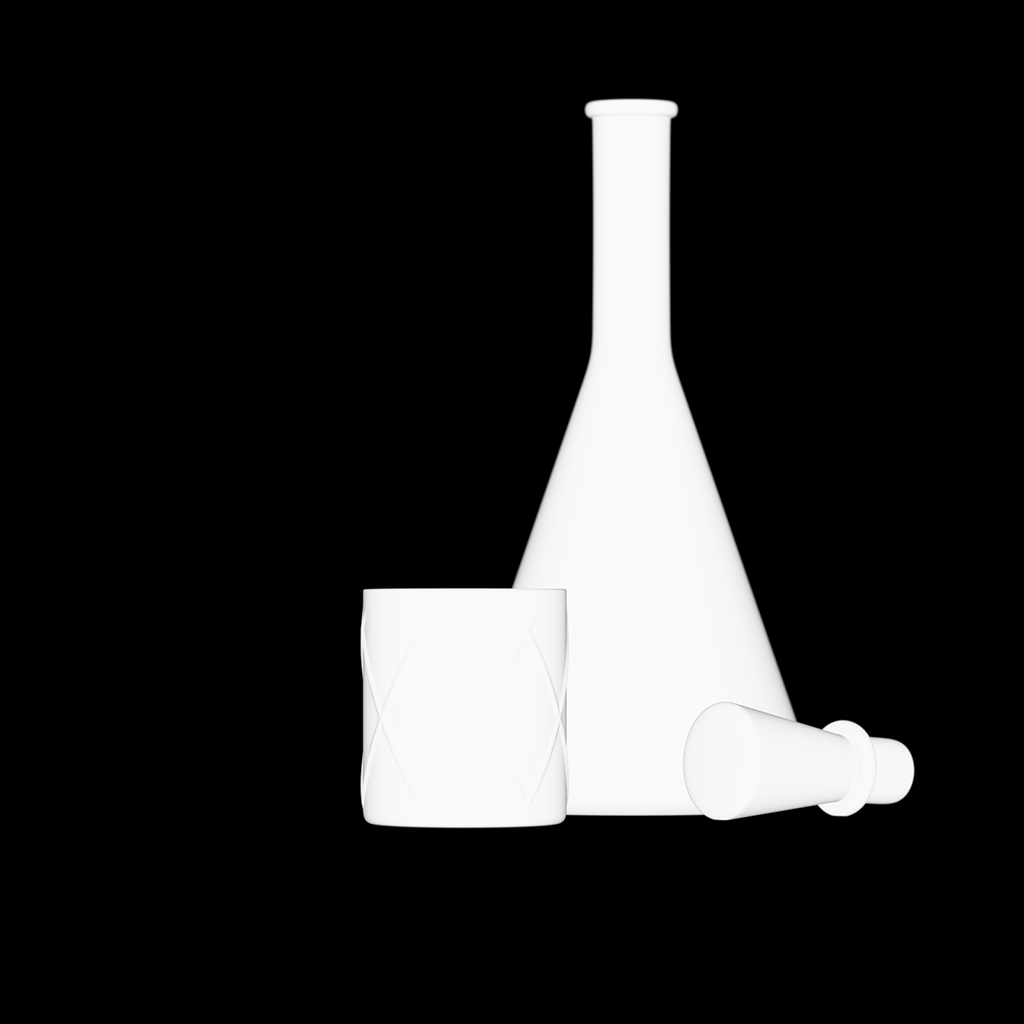
Alpha
Beauty composite with no background
Alpha Render Element
New Beauty composite with the Background Render Element behind the original Beauty composite
Atmosphere
Type: RenderChannelColor
The Atmosphere Render Element stores only atmospheric or volumetric participating media such as fog or Aerial Perspective. This render element can then be used to enhance or color-correct just the atmospheric component of the image during the compositing process.
When atmospheric effects or fog are included in a scene, they render into the Beauty|RGB channel and should also be output as the Atmosphere channel for compositing use.
Atmosphere Render Element, with fog generated by VRayEnvironmentFog
Original Beauty Composite
Color of atmosphere changed and intensity increased
Background
Type: RenderChannelColor
The Background Render Element stores an image of the texture used in the background behind geometry in a scene as seen from the camera. Geometry that blocks the background image renders as black.
This render element interprets a background texture, such as the texture set in the Environment settings, as the background; other types of manually created backgrounds, such as a plane mapped with a texture set outside a window, is not interpreted to be the "background" for this render element.
Beauty Render Element without Background Render Element
Background Render Element
Alpha Render Element
Caustics
Type: RenderChannelColor
Caustics is an effect that is produced when light rays are reflected or refracted by the materials within a scene, which can produce light patterns on the same object or on other objects. The Caustics Render Element stores the effects that are generated with Caustics photon mapping. This render element is useful for enhancing or toning down caustic effects in the composite.
Original Beauty Composite
Caustics Render Element
Brightened caustics
Self Illumination
Type: RenderChannelColor
The Self Illumination Render Element isolates self-illuminated materials, including V-Ray Mesh Lights, objects with the VRayLightMtl, and any objects with Self-Illumination enabled in their V-Ray material. This render element is useful for brightening or color-correcting self-illuminated materials in the final composite.
For example, the material VRayMtl has a parameter for self-illumination. If this parameter is set to a non-black color value, this render element shows the results of the self-illumination.
The Self Illumination Render Element is useful for changing the appearance of self-illuminated surfaces after rendering in compositing or image editing software. Below are two examples of its use.
Self Illumination Render Element
Original Beauty Composite
Color of self-illuminated surface changed in composite
Intensity of self-illuminated surface reduced in composite
Subsurface Scattering
Type: RenderChannelColor
The Subsurface Scattering Render Element stores subsurface information from VRaySSS2 materials as an image. This render element can then be used to enhance or color-correct just the subsurface scattering component of the image during the compositing process.
Subsurface Scattering Render Element
Original Beauty Composite
Color of Subsurface Scattering on the candles changed
Beauty Render Elements
Back to Beauty Compositing
Advanced Back to Beauty
Global Illumination Render Elements
GI
Raw GI
Overview
Global Illumination Render Element (VRayGlobalIllumination) - Stores the diffuse surface global illumination in a scene when Indirect Illumination is enabled. This pass is already attenuated by the diffuse contribution in the scene and can be used directly in the composite.
Raw Global Illumination Render Element (VRayRawGlobalIlumination) - Stores the raw information for the indirect lighting information calculated in the scene, untouched by the diffuse contribution. This pass is used to fine-tune the GI in a scene before attenuating it with the diffuse contributions of the scene.
Raw Global Illumination x Diffuse Filter = Global Illumination
Examples
Global Illumination Render Element
Raw Global Illumination Render Element
Global Illumination
The Global Illumination Render Element is useful for changing the appearance of indirect lighting after rendering in a compositing or image editing software. Below are a couple of examples of its use.
Global Illumination Render Element
Original Beauty Composite
Brightened GI
Tinted and Brightened GI
Raw Global Illumination
Once the scene is rendered, the Raw Global Illumination Render Element is useful for changing the appearance of indirect lighting in a compositing or image editing application. Below are examples of its use.
Raw Global Illumination Render Element
Original Beauty Composite
Brightened GI
Tinted and Brightened GI
Lighting Render Elements
V-Ray Lighting Render Elements are a group of elements that store lighting information from the scene. Each element can be individually adjusted during the compositing phase to change the Beauty Pass without rerendering.
The Lighting Render Elements are:
Lighting (VRayLighting) – Stores direct lighting information from lights in the scene, including the diffuse contribution.
Light Select (VRayLightSelect) – Stores direct lighting information from user-selected lights in the scene; can be limited to the light's raw, diffuse, or specular contribution.
Raw Lighting (VRayRawLighting) – Stores the effects of direct lighting on scene objects without the diffuse contribution.
Total Lighting (VRayTotalLighting) – Stores the effects of both direct and indirect lighting on materials in the scene, including the diffuse contribution.
Raw Total Lighting (VRayRawTotalLighting) – Stores the sum of both direct and indirect lighting in the scene without the diffuse contribution.
All of them are of the type: RenderChannelColor
Lighting
Light Select - dome light
Light Select - plane light
Raw Lighting
Total Lighting
Raw Total Lighting
Lighting
The Lighting Render Element is the same as Raw Lighting multiplied by Diffuse Filter. Lighting Render Element is provided as a convenience to the compositor.
Lighting Render Element
Original Beauty Composite
Brightened Lights
Tinted Lights
Light Select
Type: RenderChannelLightSelect
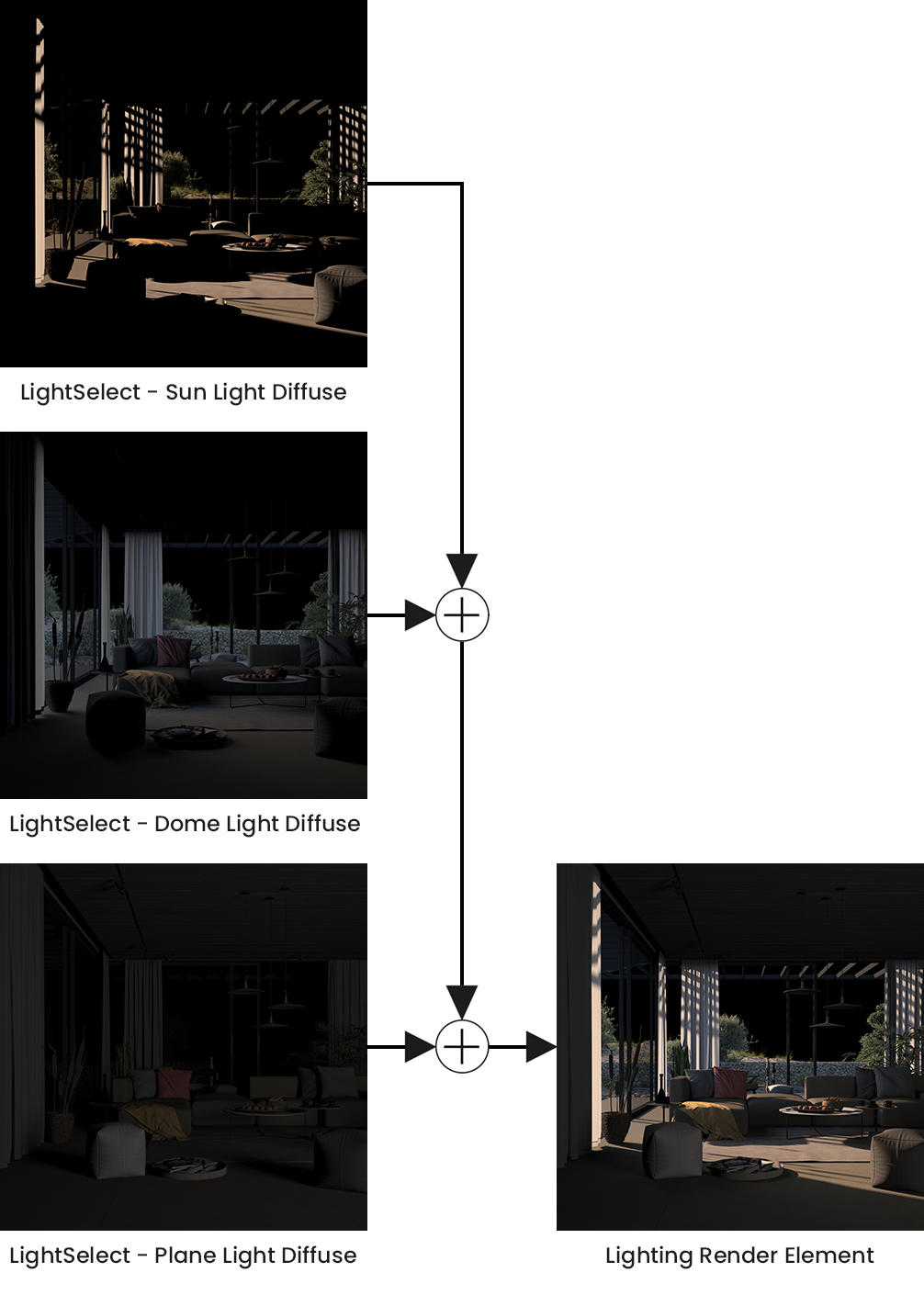
The Light Select Render Element represents the lighting contribution from one or more selected lights in the scene. Each Light Select channel can output selected lights' raw, diffuse, or specular contributions to the illumination or overall (normal) contribution. When multiple lights are selected, all the contributions from the selected lights are combined into a single render element. Multiple Light Select elements can be rendered for a single scene, and lights may be included in more than one Light Select element.
This element is similar to the Lighting Render Element. However, the Lighting element combines the effect of all lights in the scene, while the Light Select element allows for a user-selection light or set of lights to be broken out, showing their own individual effect(s) on the scene's illumination. Using these render elements, specific lights in the resulting render can be adjusted (color, temperature, brightness, etc.) in a composite without rerendering.
For example, by generating a Light Select element for all of the backlights in a scene, an artist may adjust the backlighting of the rendered scene easily in the composite without affecting the rest of the scene's illumination.
The following diagram shows the compositing formula to recreate all the light in a scene in its most basic form, but only when each light is accounted for in exactly one Light Select element for a particular mode. If a particular light is used in more than one Light Select element, this equation will result in brighter lighting than intended because that light will contribute to lighting more than once.
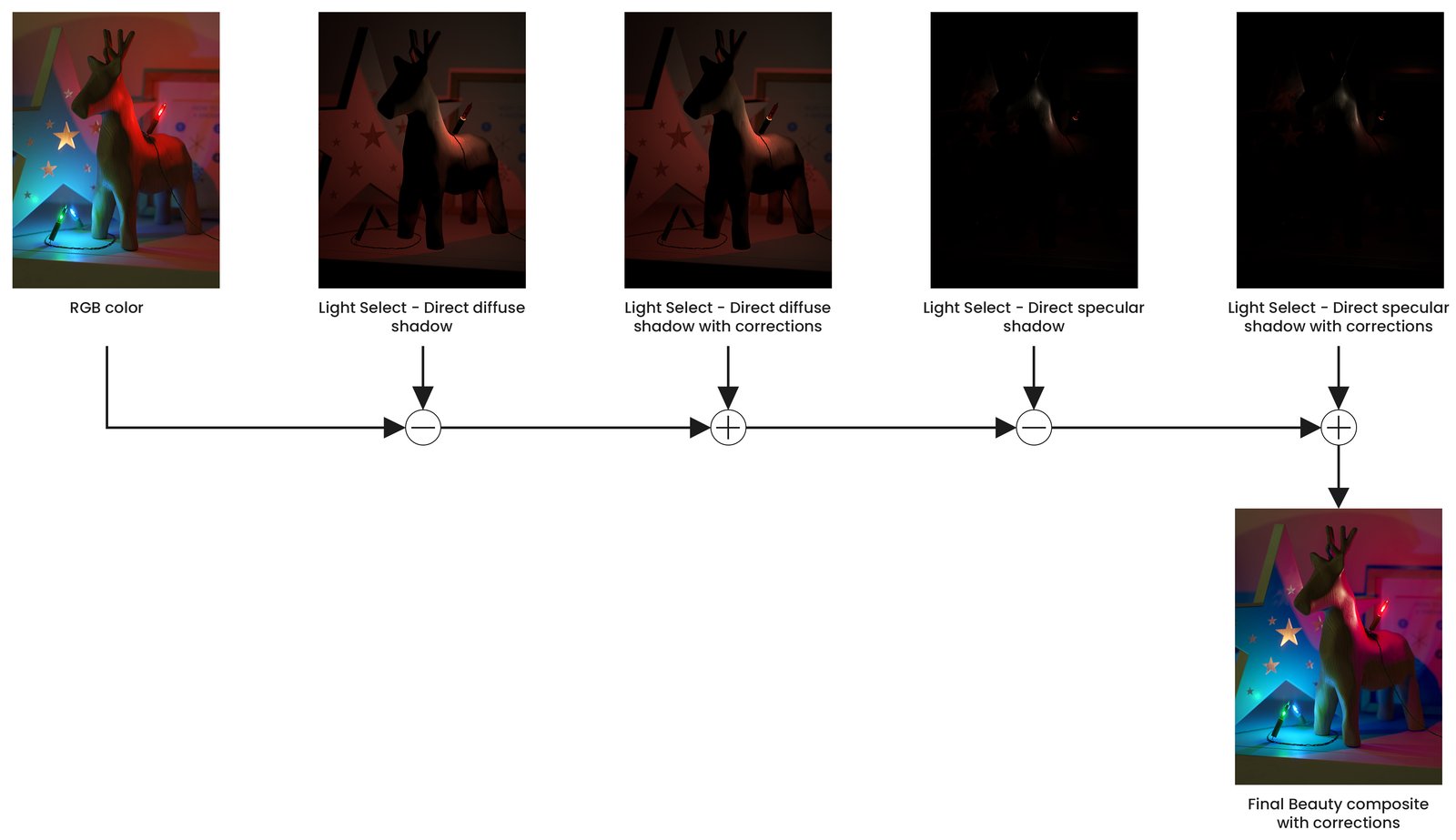
Shadow Select
Example: Shadow Select
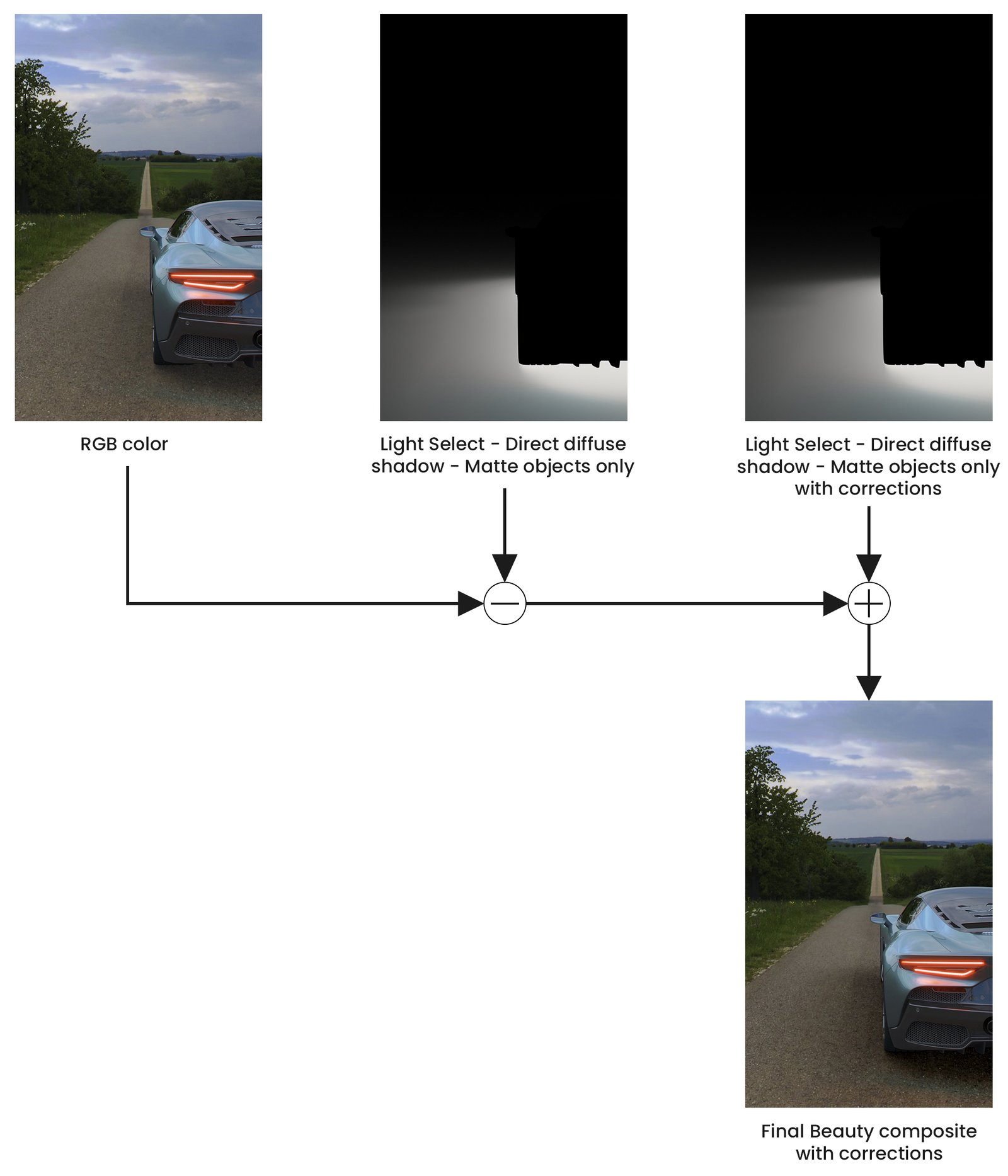
Example: Matte Objects Only
Raw Lighting
Type: RenderChannelColor
The Raw Lighting Render Element stores the effects of direct lighting on scene objects with no diffuse components. It is useful for adjusting the brightness of direct lighting during compositing.
Total Lighting
The Total Lighting Render Element is useful for brightening or dimming all lighting during compositing. Below are a couple of examples of its use.
Total Lighting Render Element
Original Beauty Composite
Brightened Lights
Tinted Lights
Raw Total Lighting x Diffuse Filter = Total Lighting
Raw Total Lighting
Type: RenderChannelColor
The Raw Total Lighting Render Element is the sum of all raw lighting (both direct and indirect) in the scene, without any diffuse details. This render element is useful for changing the appearance of the scene's lighting in a compositing or image editing application.
The Raw Total Lighting Render Element is useful for changing the appearance of the entire scene lighting after rendering, using a compositing or image editing application. Below are a couple of examples of possible uses. The first two images show the render element itself and the Beauty render put together. In the following examples, a Matte Render Element was used to isolate different parts of the scene. Then, the Raw Total Lighting Render Element was brightened and tinted differently to show the range of editing possible.
Raw Total Lighting Render Element
Original Beauty Composite
Brightened Lights with different brightening for the floor, wall, and ceiling
Tinted Lights with different tinting for the floor, wall, and ceiling
Raw Lighting + Raw Global Illumination = Raw Total Lighting
Reflection Render Elements
The Reflection Render Elements store reflection information calculated from the materials' reflection values in the scene. Surfaces with no reflection values set in their material(s) will contain no information in the render pass and render it black.
The Reflection Render Elements include:
Reflection – Stores reflection information calculated from the materials' reflection value in the scene. It is the product of Raw Reflection | VRayRawReflection and Reflection Filter | VRayReflectionFilter.
Raw Reflection – Gives the full reflection data of objects reflecting in the scene at the reflection's maximum possible intensity.
Reflection Filter – Sets how much raw reflection data should come through in the composite. It is designed to be used in conjunction with Raw Reflection.
All of them are of the type RenderChannelColor.
These three render elements are designed to be used together or separately to adjust the overall reflection in the scene.
In addition, several other render elements are available for adjusting reflection in a composite. These render elements can be used for texture baking when there is a need to recreate a shader in a real-time engine or to do relighting in a compositing package:
Reflection Glossiness – Returns a grayscale image corresponding to the value in the Reflection Glossiness of materials in the scene. It can be used for texture baking when it is necessary to recreate a shader in a real-time engine or to do relighting in a compositing package. Type: RenderChannelGlossiness
Reflection Highlight Glossiness – A grayscale image corresponding to the value in the Highlight Glossiness of the materials in the scene. Type: RenderChannelGlossiness
Reflection Index – A grayscale image corresponding to the Fresnel IOR value of the materials in the scene.
Reflection Render Element
Raw Reflection Render Element
Reflection Filter Render Element
Reflection Glossiness Render Element
Reflection Index Render Element
Reflection
The Reflection Render Element stores reflection information calculated from the materials' reflection values in the scene. Surfaces with no reflection values set in their materials contain no information in the render pass and render it black.
The Reflection Render Element is formed by multiplying the Raw Reflection (VRayRawReflection) Render Element by the Reflection Filter (VRayReflectionFilter) Render Element. So, while the raw reflection pass gives the full reflection of objects reflecting in the scene, the reflection filter sets how much of that reflection should come through in the composite. The two are multiplied together to create the Reflection Render Element, representing the scene's reflection.
The Reflection Render Element is a key component in the main Beauty Pass.
Type: RenderChannelColor
The Reflection Render Element is useful for changing the appearance of reflective elements after rendering using compositing or image editing software. Below are a couple of examples of its use.
Reflection Render Element
Original Beauty Composite
Brightened Reflections
Tinted Reflections
Raw Reflection x Reflection Filter = Reflection
Raw Reflection
Type: RenderChannelColor
The Raw Reflection Render Element stores reflection information calculated from the materials' reflection values in the scene. Surfaces with no reflection values set in their materials contain no information in the render element, meaning these areas are rendered black. When the Raw Reflection Render Element is multiplied by the Reflection Filter (VRayReflectionFilter), the Reflection (VRayReflection) Render Element is produced.
Raw Reflection gives the full reflection of objects reflecting in the scene, while the Reflection Filter sets how much of that reflection should come through in the composite. In other words, the filter defines the strength of the reflection, while the raw image defines what is being reflected in the image. When these two elements are multiplied, the true level of reflection is given as the Reflection Render Element. Using these component parts of the reflection, you can fine-tune the reflection in your final composite.
The Raw Reflection Render Element is useful for changing the appearance of reflective scene elements in compositing or image editing software after the scene is rendered. See below how a scene looks before and after post-production. The reflections are reduced by increasing the intensity of the Reflection Filter Render Element. The result is then multiplied by the Raw Reflection to achieve the full reflections.
Reflection Filter
Type: RenderChannelColor
The Reflection Filter Render Element stores reflection information calculated from the materials' reflection values in the scene. Surfaces with no reflection values set in their material(s) contain no information in the render pass and render it black.
While the Raw Reflection Render Element gives the full reflection of objects reflecting in the scene, the Reflection Filter shows how much of that reflection should come through in the composite. In other words, the filter defines the strength of the reflection, while the raw image defines what is being reflected in the image. When these two elements are multiplied, the true level of reflection is given and produces Reflection. Using these component parts of the reflection, you can better fine-tune the reflection in your final composite.
The reflection element is a key component in the main Beauty Pass.
The Reflection Filter Render Element is useful for changing the appearance of Reflective elements after rending, in a compositing or image editing software. In the example, the contrast of the Reflection Filter is increased, which makes reflective objects even more reflective. The Raw Reflection Render Element is used to colorize the reflections - the floor has a cool tint applied and the ceiling - a warm tint.
Reflection Glossiness
Type: RenderChannelGlossiness
The Reflection Glossiness Render Element stores the image's reflection glossiness as a grayscale image that represents the degree of Reflection Glossiness set for materials in the scene. White areas have the most reflection glossiness, while dark areas have little.
The amount of reflection glossiness for a material is set by its Reflection Glossiness parameter. For example, V-Ray Material (VRayMtl) has a Reflection Glossiness parameter.
Reflection Index
Reflection Highlight Glossiness
Type: RenderChannelGlossiness
The Reflection Highlight Glossiness Render Element returns a grayscale image that corresponds to the value in the Highlight Glossiness of the materials in the scene.
Refraction Render Elements
Refraction – This element is a key component in the main Beauty Pass. It displays the proper refraction according to the values set in the material. It is easy to adjust this element for brightness, coloration, etc., of the refractions in your scene without the need to rerender. This element is often used by itself but can be further controlled by the other two refraction elements listed below.
Raw Refraction – This element is a key component of the Refraction Render Element and contains the pure surface refraction before it is multiplied by the refraction filter color. This element must be multiplied by the Refraction Filter for proper refraction in the final composite as intended for the material.
Refraction Filter – This element is a key component of the Refraction Render Element. The refraction filter properly attenuates the amount of refraction a surface is designed to have by virtue of the Refraction Amount parameter set for its material. The refraction filter must be multiplied by the raw refraction in the composite.
Refraction Glossiness – Returns a float value that corresponds with the Reflection Glossiness value of an object's material.
Notes
Refraction
Type: RenderChannelColor
The Refraction Render Element stores refraction information calculated from materials--such as glass or water--that refract objects behind them in the camera's view. This means the brightness, coloration, etc., of the refractions can be adjusted without rerendering.
Any material in a scene with a value set for its Refraction parameter will generate refraction information that can be seen in this render element. A surface with no refraction values set in its material(s) will contain no information in the render element and render black.
The Refraction Render Element is a key component in the main Beauty Element and can easily be used to control the refractions in the Beauty composite.
The Refraction Render Element is already a composite of the Raw Refraction Render Element multiplied by the Refraction Filter Render Element. When finer control over refractions is needed in the composite, add these additional two channels to the output along with the Refraction render element channel.
The Refraction Render Element is useful for changing the appearance of refractive elements after rendering in a compositing or image editing application. Below are a couple of examples of possible uses.
Refraction Render Element
Original Beauty Composite
Brightened Refractions
Tinted Refractions
Raw Refraction x Refraction Filter = Refraction
Raw Refraction
Type: RenderChannelColor
The Raw Refraction Render Element is a color image that stores refraction information calculated from materials' refraction values in the scene. Surfaces with no refraction values set in their materials contain no information in the render element and render it black.
In comparison, the Refraction Filter Render Element (VRayRefractionFilter) is a render element that indicates varying degrees of refraction in the scene through brightness values in the image. Multiplying these render elements together produces the Refraction Render Element (VRayRefraction).
The Raw Refraction Render Element is useful for changing the appearance of refractive elements after rendering in a compositing or image editing application. Below are examples of possible uses.
Refraction Filter
Type: RenderChannelColor
The Refraction Filter Render Element is an image that stores refraction information calculated from the materials' refraction values in the scene. Materials with no refraction values appear black, while refractive materials appear white (maximum refraction) or gray (lesser amounts of refraction). If any hue (color) is specified in the material's Refractive Color parameter, that hue and value will be represented here in the Refraction Filter and affected by the refraction's Amount parameter.
In comparison, the Raw Refraction Render Element (VRayRawRefraction) is a color render element that considers materials and their colors when rendering refraction. Multiplying these render elements together produces the Refraction Render Element (VRayRefraction).
Refraction Render Element
Original Beauty Composite
Refraction Filter Render Element
Brightened Refractions
Tinted Refractions
Refraction Glossiness
Type: RenderChannelGlossiness
The Refraction Glossiness Render Element stores refraction information set in a V-Ray material's refraction Glossiness value in the scene. Materials with no refraction values appear as white, while refractive materials represent the value set in the Refraction Glossiness parameter of that material.
Note: To correctly calculate the Refraction Filter Render Element, the Refraction Render Element must also be added to the list of render elements being calculated during the rendering process to properly determine all the refraction information in the scene.
Specular
Type: RenderChannelColor
The Specular Render Element is an image that stores specular reflection (basically put, highlight) information calculated from the material's reflection value in the scene. Specular reflection is defined as the reflection of light from a surface in a single particular reflection, as opposed to a diffuse reflection, which is reflected at many angles.
The brighter the area, the more highlight reflection the object exhibits in the render. Specular highlights are colored if the Reflection Color parameter of a material is colored.
Evaluating the Specular Render Element
The Specular Render Element is useful for changing the final image's specular appearance during compositing. Below are a couple of examples of its use.
Specular Render Element
Original Beauty composite
Brightened Specular
Blurred Specular
Underlying Compositing Formula
Parameters
enableDeepOutput – (Boolean) Specifies whether to include this render element in deep images. The default value is 1.
name – (String) Displays the name of this render channel. The default value is ColorChannel.
alias – (Int) An internal unique identifier for this channel type.
color_mapping – (Boolean) True to apply color mapping to the channel; false otherwise.
consider_for_aa – (Boolean) True to consider this render element for anti-aliasing (may slow down rendering).
filtering – (Boolean) Whether the image filter is applied to this channel.
derive_raw_channels – (Boolean) True if raw channels should be derived from the respective color and filter channel.
vfb_color_corrections – (Boolean) False to disable ALL VFB color corrections(sRGB, curves, white balance, etc...) when saving the channel data to a file or showing it on a display. True to apply VFB color corrections when saving the channel data to a file or showing it on a display. If true, some color corrections might still be disabled, based on the type of file being saved.
denoise – (Boolean) True to denoise the channel; false otherwise.enableDeepOutput – (Boolean) Specifies whether to include this render element in deep images. The default value is 1.
name – (String) Displays the name of this render channel. The default value is ColorChannel.
alias – (Int) An internal unique identifier for this channel type.
color_mapping – (Boolean) True to apply color mapping to the channel; false otherwise.
consider_for_aa – (Boolean) True to consider this render element for anti-aliasing (may slow down rendering).
filtering – (Boolean) Whether the image filter is applied to this channel.
derive_raw_channels – (Boolean) True if raw channels should be derived from the respective color and filter channel.
vfb_color_corrections – (Boolean) False to disable ALL VFB color corrections(sRGB, curves, white balance, etc...) when saving the channel data to a file or showing it on a display. True to apply VFB color corrections when saving the channel data to a file or showing it on a display. If true, some color corrections might still be disabled, based on the type of file being saved.
denoise – (Boolean) True to denoise the channel; false otherwise.
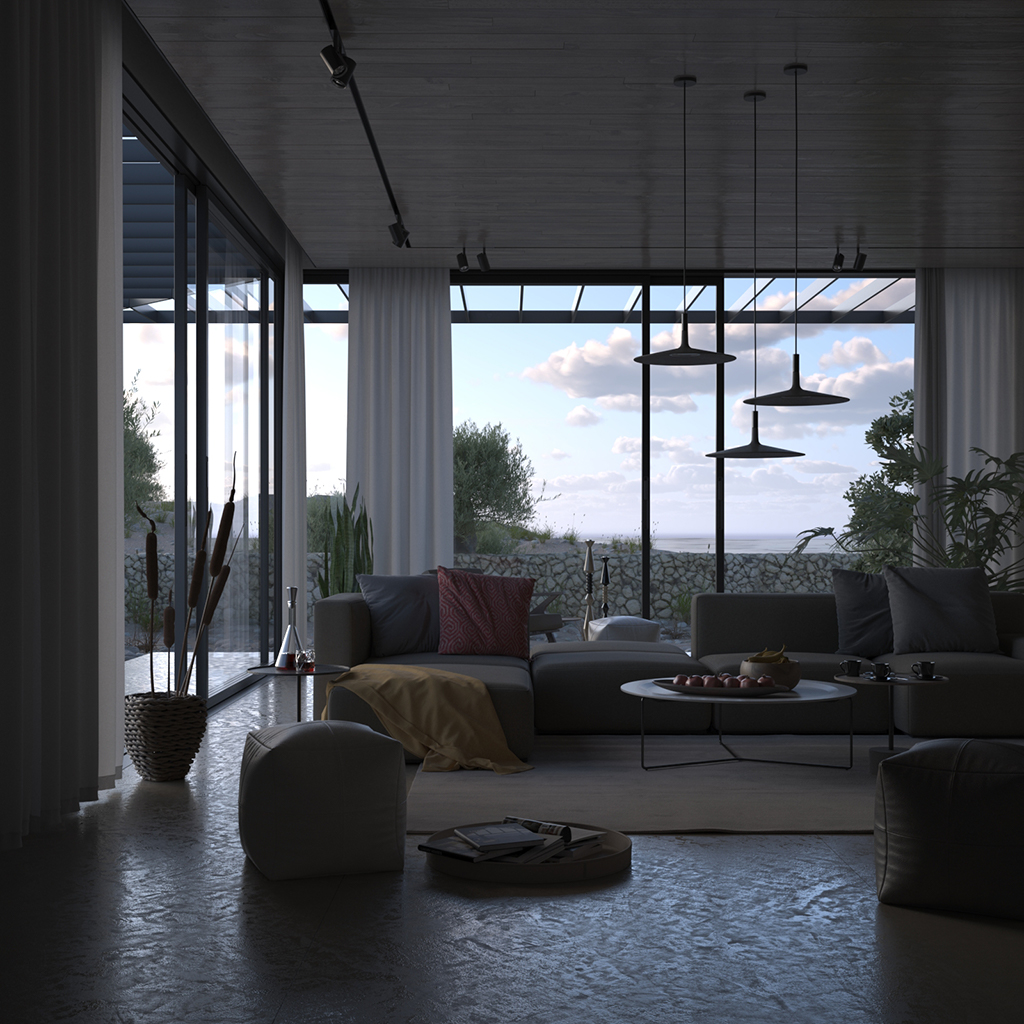
Examples
The above example renders (not the comparison schematics) are rendered using the file "Render_Elements.vrscene" from the scene bundle. See the comments inside the scene file and comment/uncomment respective #includes for generating advanced render elements, which we'll cover in the next section. Here's the final composited Beauty renderer: