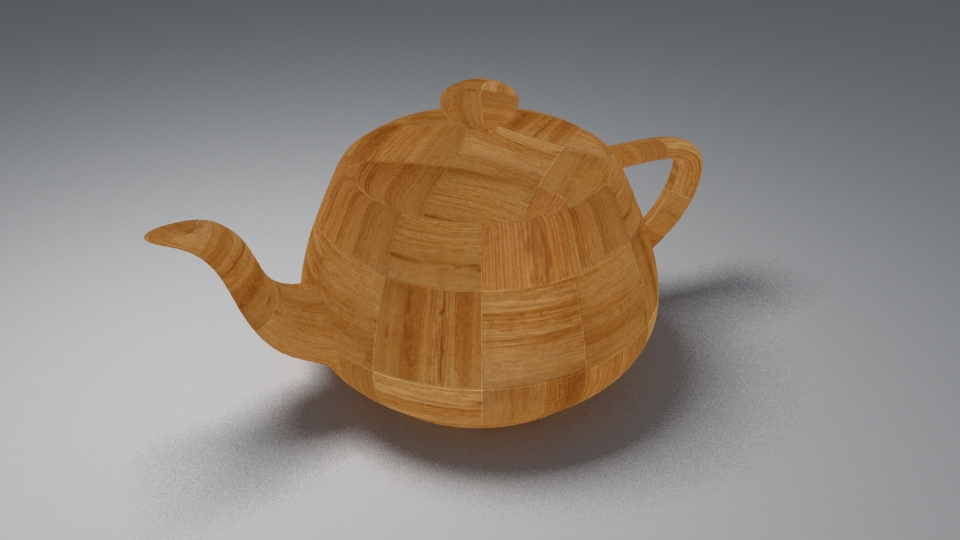
In this chapter we'll cover the V-Ray textures that load and present in various ways different file formats. The BRDFs (and some lights) have many Color, AColor and Float parameter slots that can be textured. You will usually just load texture files, but V-Ray also offers many procedural textures, as well as texture...
Last updated 7 April 2026
Introduction
In this chapter we'll cover the V-Ray textures that load and present in various ways different file formats. The BRDFs (and some lights) have many Color, AColor and Float parameter slots that can be textured. You will usually just load texture files, but V-Ray also offers many procedural textures, as well as texture pluginsthat serve as modifiers (i.e. apply some simple function, combine textures, extract data from one of the channels etc.). There are over 200 texture plugins, so we will only look at the most important ones. Many of the plugins are made for specific host applications. Apart from the texture data itself, V-Ray uses UVW generator plugins to generate UVW mapping coordinates or modify the original data from the geometry source. Using a UVWGen plugin is not obligatory.
TexBitmap
This texture uses the data from a bitmap buffer (see the next two points) with some additional parameters, like color multipliers, tiling etc.
Parameters
compatibility_with - This is used to differentiate between textures exported from different applications. The value means : 0 - 3ds Max (this is also the default), 1 - Maya, ...
alpha_from_intensity - If 2 - the alpha is forced to 1.0f; 1 - the resulting alpha is the color intensity (if compatibility_with is 0) or the color luminance (if compatibility_with is 1); 0 - the alpha is taken from the bitmap alpha
invert - If true, the resulting texture color will be inverted
invert_alpha - If true and invert is on, the resulting texture alpha will be inverted too. If false, just the color will be inverted
color_mult - A multiplier for the texture color
color_offset - An additional offset for the texture color
alpha_mult - A multiplier for the texture alpha
alpha_offset - An additional offset for the texture alpha
nouvw_color - The color when there are no valid uvw coordinates
color - The resulting color
out_transparency - The resulting transparency
out_alpha - The resulting alpha
out_intensity - The resulting intensity
uvwgen - The uvw generator for the texture
tile - 0: not tiling; 1: tile in UV; 2: tile in U; 3: tile in V; 4: tile in UV, but not filter tiling;
placement_type - The way the valid portion of the texture is applied. This parameter lets you crop the texture or reduce its size for custom placement. Cropping and placement settings affect the texture only as it's used for this map and any instances of the map. They have no effect on the texture file itself. Possible values are:
default (0) - the whole texture is valid
crop (1) - Cropping a texture means reducing it to a smaller rectangular area than it originally had. Cropping doesn't change the scale of the texture.
place (2) - Placing a texture lets you scale the map and place it anywhere within its tile. Placing can change the texture's scale, but shows the entire texture. The four values that specify the placement and size of the cropping or placement region are all animatable.
u - U coordinate of the valid texture sector
v - V coordinate of the valid texture sector
w - Width of the valid texture sector
h - Height of the valid texture sector
jitter - Amount of random placement variation
tile_u - If true there is horizontal tiling
tile_v - If true there is vertical tiling
uv_noise_on - If true the noise is enabled.
uv_noise_animate - If true the noise is animated. Use "UV noise phase" to animate the noise.
uv_noise_amount - UV noise amount
uv_noise_levels - UV noise iterations
uv_noise_size - UV noise size
un_noise_phase - UV noise phase
bitmap - The BitmapBuffer for the texture
Examples
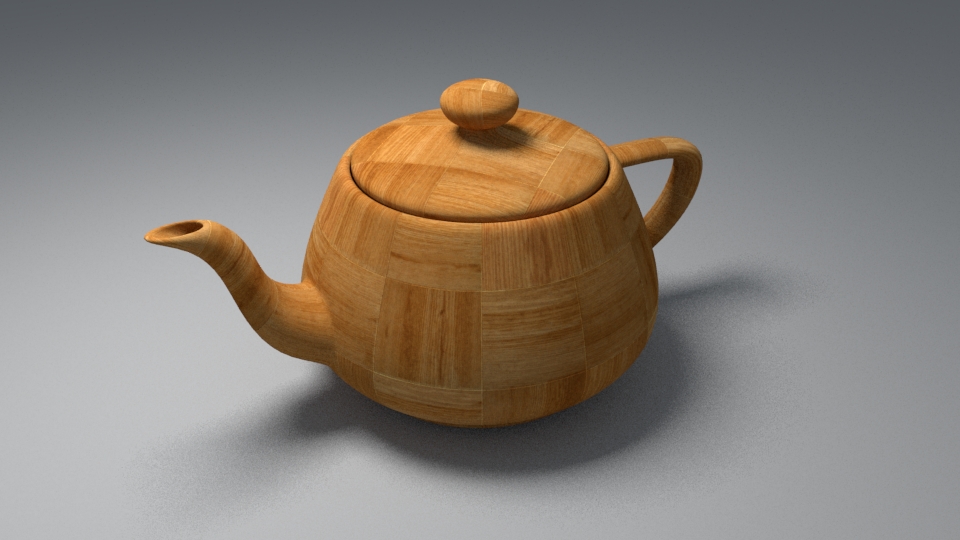
All following examples are rendered using the scene bundle, by uncommenting the following #include in the main .vrscene file.
Simple bitmap texture
The scene is "vrscenes/map_01 TexBitmap.vrscene".
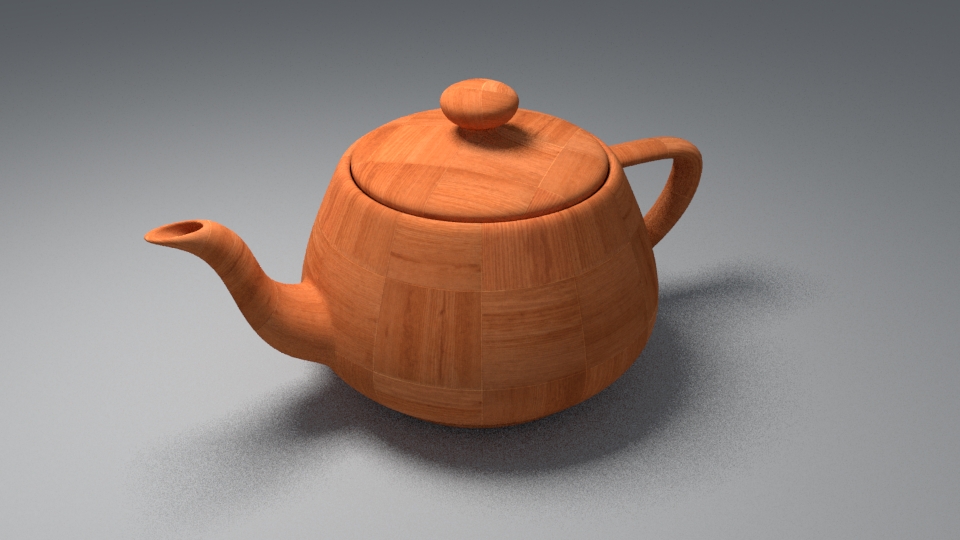
Texture color-corrected using gain and lift
The scene is "vrscenes/map_02 TexBitmap corrections.vrscene".
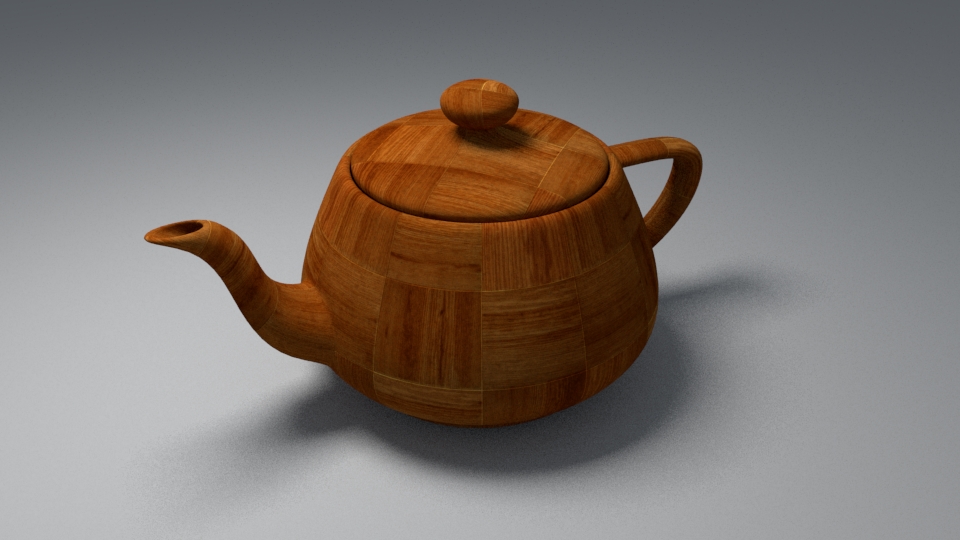
Texture gamma-corrected using BitmapBuffer
The scene is "vrscenes/map_03 TexBitmap & BitmapBuffer gamma.vrscene".
Texture gamma-corrected using MayaGamma
The scene is "vrscenes/map_04 TexBitmap & MayaGamma.vrscene".
BitmapBuffer
This plugin loads an image file. A large number of formats are supported - lossy/lossless, from 8-bit to 32-bit. This is not a texture plugin and its only purpose is to feed data to TexBitmap. It has some options for filtering and gamma. Currently supported formats are HDR, EXR, PNG, BMP, TGA, SGI, JPG, PIC, TIF, PSD, VRIMG. Image file lists in the form of IFL files are also supported.
Parameters
filter_type - -1 - nearest; 0 - no filtering; 1 - mip-map filtering; 2 - summed area table filtering; 3 - elliptical filtering; 4 - deprecated, do not use; 5 - sharp mip-map filtering
filter_blur - blur parameter used for filtering
color_space - Specifies the color space of the .hdr image so that the inverse curve can be applied to make the image in a linear color space. Possible values are:
linear (0) - No correction is applied.
gamma corrected (1) - The color space is controlled through the Gamma parameter.
sRGB (2) - The .hdr image is in sRGB color space.
auto (3) - Automatic corrections are applied.
gamma - A gamma–correction value for the image. For example, if the bitmap was saved to disk with a 2.2 gamma correction, you need to enter 0.4545 to remove that correction for the rendering.
allow_negative_colors - if false negative colors will be clamped
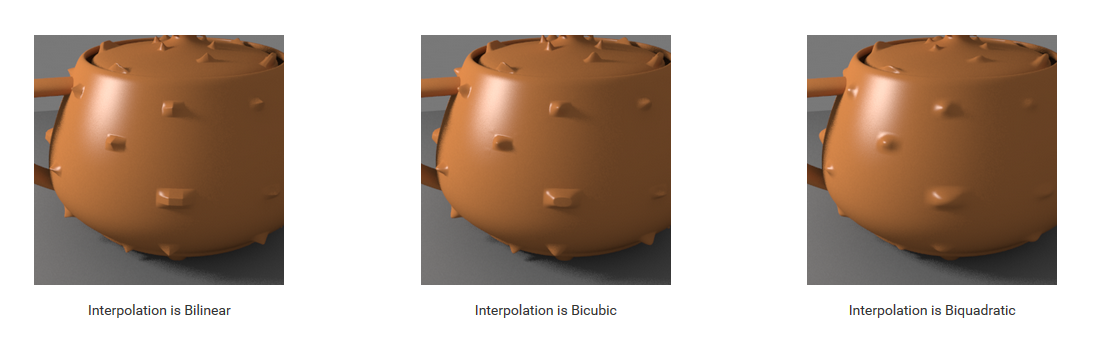
interpolation - Interpolation method for the mip-map filtering. See the example below. Possible values are:
bilinear (0) - Image values are interpolated from four pixels in the bitmap. This is the fastest interpolation method, but the result is not continuous (non-smooth) and may produce artifacts when the map is used for displacement or bump mapping.
bicubic (1) - Image values are interpolated from sixteen pixels in the bitmap. This is the slowest method, but the results are smooth without too much blur.
biquadratic (2) - Image values are interpolated from nine pixels in the bitmap. This method is faster than the Bicubic interpolation, but may smooth the image too much.
file - The file name; can contain or tags for Mari or Mudbox tiles respectively,or $nU and $nV for explicit tiles; lower-case tags consider the tiles as starting from 0 whereas upper-case tags start from 1
load_file - if set to false, the file would not be loaded
frame_sequence -True if there are multiple files for animation with frame number in their names. Enables replacing "<frameNum>" in the given 'file' string with current frame number.
frame_number -When working with image sequences, this parameter specifies which image out of the sequence should be used. If the parameter is omitted or defaulted (-2147483648), the frame number depends on the current frame time value.
frame_offset -Start frame offset for image sequences
use_data_window - true to use the data window information in e.g. OpenEXR files; otherwise false
ifl_start_frame - Specifies the beginning of the texture animation. The frame number specified here will be played at the first frame of the scene animation
ifl_playback_rate - Controls the animation speed of the texture as fraction of the actual animation speed. A value of 1 means that the texture animation will run at regular speed. A value of 2 means that the texture animation will run twice as fast as the scene animation.
ifl_end_condition - Image file list (IFL) end condition. This option allows you to control what happens when the last frame of the animated texture is reached. The available options are:
Loop (0) - The animation will start again from the frame specified in the Start Frame option
Ping Pong (1) - The animation will be played backwards until it reaches the the frame specified in the Start Frame option and then play forward again
Hold (2) - The animation will stop at the last frame and it will be displayed until the end of the scene animation.
Example - Image file list (IFL) sequence
Below is an example vrscene with assets for an image file list (IFL) sequence. It can be rendered as a standard animated scene in V-Ray.
A note about the BitmapBuffer settings in the vrscene:
BitmapBuffer::frame_sequence is set to 1, which should automatically set the BitmapBuffer::frame_number from the IFL in BitmapBuffer::file
The following SettingsOutput parameters are also worth mentioning:
anim_start – Start of animation range in time units, e.g. frame_start / frames_per_second.
anim_end – End of animation range in time units, e.g. frame_end / frames_per_second.
frame_start – The frame number at the start of the animation range.
frames_per_second – The requested number of frames per unit time (related to SettingsUnitsInfo::seconds_scale, which should be equal to 1.0f / frames_per_second).
frames – List of key frames.
Code Example for BitmapBuffer with IFL sequence
Python
C++
C#.NET
Node.js
Example - The Interpolation Parameter
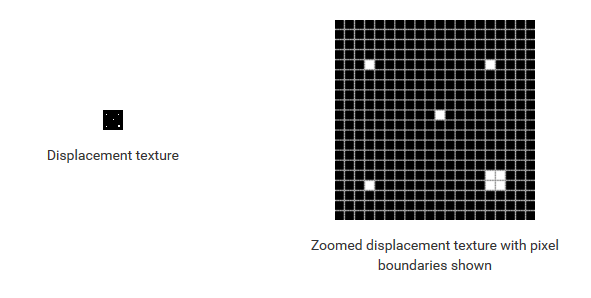
This example shows the effect of the different interpolation methods. The images below show a teapot displaced with this texture:
Notice how the different interpolation methods produce slightly different results depending on the level of smoothness.
Code Example for TexBitmap and BitmapBuffer
Python
C++
C#.NET
Node.js
RawBitmapBuffer
Same as BitmapBuffer, but uses uncompressed data from memory, instead of a file on disk.
Parameters
filter_type - 1 - nearest; 0 - no filtering; 1 - mip-map filtering; 2 - summed area table filtering
gamma - A gamma–correction value for the image. For example, if the bitmap was saved to disk with a 2.2 gamma correction, you need to enter 0.4545 to remove that correction for the rendering.
allow_negative_colors - if false negative colors will be clamped
interpolation - Interpolation method for the mip-map filtering (0 - bilinear, 1 - bicubic, 2 - biquadratic)
Texture loaded from a PTex file. This doesn't use BitmapBuffer. PTex is a mapping system that applies a separate texture to each face of a subdivision or polygon mesh and therefore requires no UV assignment. A PTex file can store an arbitrary number of textures along with mipmaps and adjacency data used for filtering across face boundaries. For more information on the PTex concept, see the Notes section.
Parameters
ptex_file - The Ptex texture file
use_image_sequence -
image_number -
image_offset -
ifl_start_frame - The following 3 parameters are the same as in BitmapBuffer
ifl_playback_rate -
ifl_end_condition -
filter_type - Type of filter used for the texture
width - width parameter used for filtering
blur - blur parameter used for filtering
sharpness - This option is only available when the Filter Type is set to Bicubic and controls the amount of sharpening applied by the filter.
lerp - Interpolation between mipmap levels. A ptex texture may have several mipmap levels, which are basically versions of the texture at different resolutions. This allows a higher resolution texture to be applied to parts of the object closer to the camera and a lower resolution version to be applied to parts of the object that are far away. When this option is enabled, V-Ray will interpolate between different mipmap levels to create a smooth, seamless texture in the end.
anisotropic_filtering - Enables anisotropic filtering, which improves the rendering of textures when viewed at sharp angles.
reverse_vertices - Reverses the order of vertices. A ptex is generated for a specific mesh. Sometimes the program generating the ptex numbers the vertices of the mesh in the reverse order. When this happens, the object is not properly textured, and enabling this option fixes the issue.
cache_size - The information in a PTex file is compressed for storage. In order to be used, it has to be uncompressed and stored in the RAM. This parameter controls how much memory (in MB) is available for the current texture. If the value is large enough for the whole texture, the information is extracted only once and is stored during the entire rendering. Otherwise, the information is constantly read from the hard drive, extracted, and used when necessary. A low value for this parameter may cause large PTex files to render slowly.
auto_color - Use automatic color channel selection. A ptex may have an arbitrary number of channels, and there is no sure way to determine which channel contains which information. When this option is enabled, V-Ray tries to select the correct channel for Red, Green, and Blue. When this option is off, the user manually specifies which channel contains which information.
r_channel - The index of the channel which will be used as a red channel.
g_channel - The index of the channel which will be used as a green channel.
b_channel - The index of the channel which will be used as a blue channel.
auto_alpha - Use automatic alpha channel selection.
a_channel - The index of the channel which will be used as an alpha channel.
gamma - A gamma–correction value for the image. For example, if the bitmap was saved to disk with a 2.2 gamma correction, you need to enter 0.4545 to remove that correction for the rendering.
color - The final texture color
color_gain - A multiplier for the texture color
color_offset - An additional offset for the texture color
PTex files are strongly connected to the topology of an object's mesh. Therefore, any modifiers that change the topology (including TurboSmooth and MeshSmooth) will break the rendering of the PTex texture. If you want to smooth the object, you can use the Displacement Modifier | GeomDisplacedMesh modifier with Subdivision Type and 0.0 for Displacement amount.
When using PTex textures for displacement, small cracks might appear along polygon edges because of slightly different filtering applied to the PTex texture on adjacent polygons. Setting the filter width to 0.0 will improve the situation, but will cause the most detailed mip-map level of the PTex file to be loaded, thus increasing the required memory.
When using PTex textures for displacement, it might be necessary to adjust the min_bound and max_bound parameters of the GeomDisplacedMesh modifier, especially if the texture has negative colors. Otherwise, the texture values might be clipped away.