Chaos Vantage
Live Link from Cinema 4D
This guide shows you how to set up a Live Link from Cinema 4D to Chaos Vantage. For more information about Live Link, see the Tools in Cinema 4D page.
Last updated 10 July 2026
This guide shows you how to set up a Live Link from Cinema 4D to Chaos Vantage. For more information about Live Link, see the Tools in Cinema 4D page.
Overview
The Live Link feature makes it possible to instantly see changes made in Cinema 4D without the need to export and import .vrscenes in Chaos Vantage.
Additionally, you can export and send an animation for rendering directly from Cinema 4D.
With V-Ray 7.4 and newer versions, a Live Link session can also be started from the Cinema 4D viewport. See the V-Ray for Cinema 4D page for information.
www.youtube.com
Live Link Setup
For Live Link to function properly, please follow the steps below.
I. Installation
1. Download and install the latest official V-Ray for Cinema 4D build from the download button. Make sure you have appropriate licenses. If you experience problems, please contact Chaos Support using the online form.
2. Download the latest Chaos Vantage build from the download button. Make sure you have appropriate licenses. If you experience problems, please reach us using the Support Form.
II. Initiation
A. Initiating Live Link from Cinema 4D
Live Link can be initiated from the V-Ray menu > Chaos Vantage > Vantage Live Link button.
This initializes a Live Link session between Cinema 4D and Chaos Vantage. It automatically:
- Starts Chaos Vantage if it is not already running;
- Sends the scene to Chaos Vantage on 20701 port for DR or 20703 for DR2.

www.youtube.com
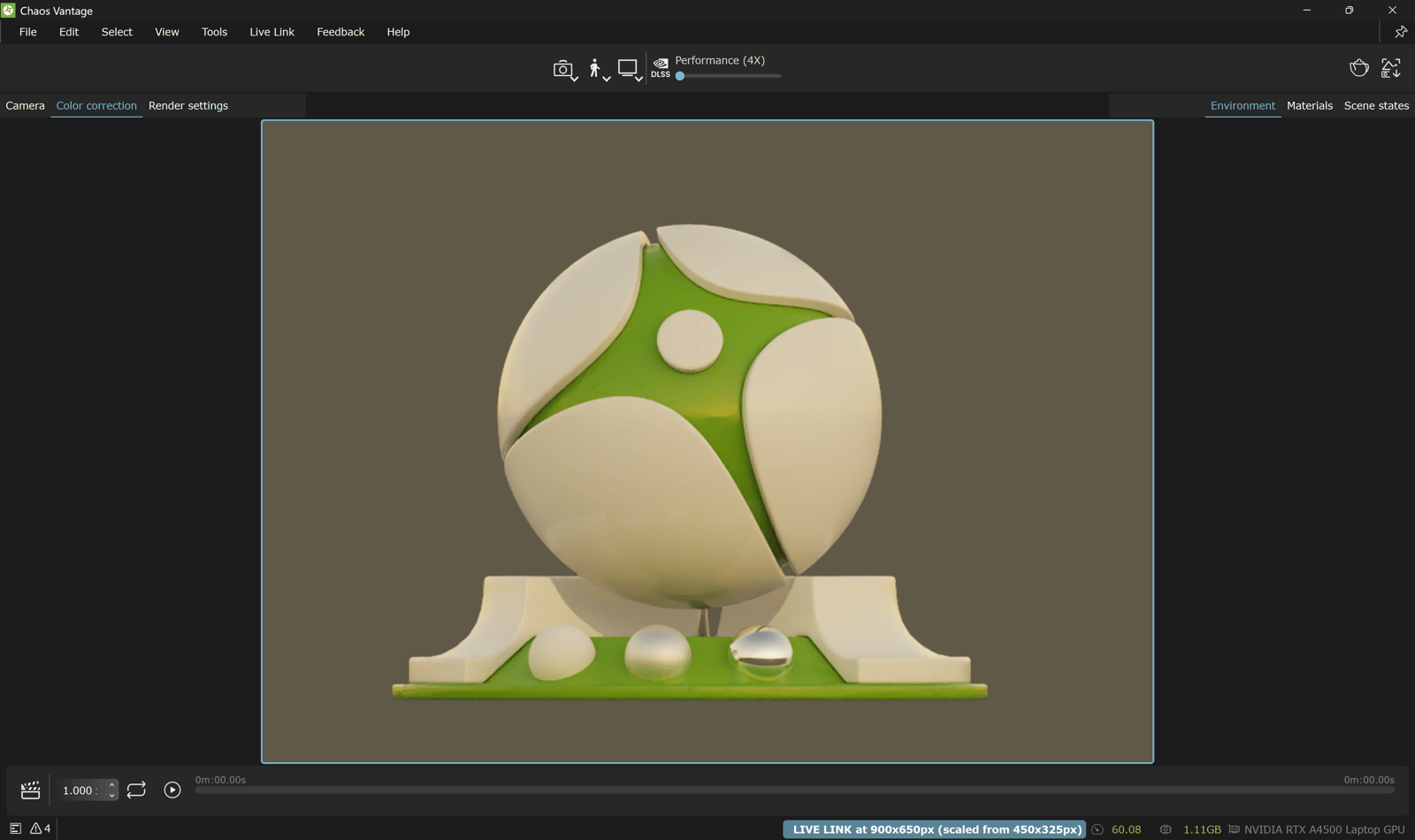
Once a Live Link session is started, the scene is transferred to Chaos Vantage. A thick blue contour line appears around the viewport and the status message in the lower right changes to [LIVE LINK].
In Cinema 4D's viewport, the Vantage icon ( ) appears in the lower right corner.
To stop a Live Link session, click again the Vantage Live Link button in the V-Ray menu.
B. Initiating Animation Rendering
Vantage Live Link supports animation from Cinema 4D.

In Cinema 4D, go to V-Ray menu > Chaos Vantage menu and select the Vantage Animation option ( ). It sends the current animation range to Chaos Vantage and redirects you to Vantage detailed render settings.
Set the frames sequence for rendering, the rendering and output settings if needed.
Click Start, and Chaos Vantage immediately starts rendering the animation. Note that the Cinema 4D interface is locked during rendering.
Once the Render animation with Chaos Vantage button is clicked and the render settings are set, the rendering process in Chaos Vantage begins. After a successful rendering, Chaos Vantage remains in a Live-Link connection.
To terminate the Live Link connection, click the Vantage Live Link button in Cinema 4D.
Notes
- Live Link is not supported on macOS.