Chaos Vantage
Live Link from SketchUp
This guide shows you how to set up Live Link from SketchUp to Chaos Vantage. For more information about Live Link, see the Tools in SketchUp page.
Last updated 1 September 2026
This guide shows you how to set up Live Link from SketchUp to Chaos Vantage. For more information about Live Link, see the Tools in SketchUp page.
Overview
The Live Link feature makes it possible to instantly see changes made in SketchUp without the need to export and import .vrscenes in Chaos Vantage.
www.youtube.com
Live Link Setup
For Live Link to function properly, please follow the steps below:
I. Installation
1. Download and install the latest official V-Ray for SketchUp build from the download button. Make sure you have appropriate licenses. If you experience problems, please contact Chaos Support using the online form.
2. Download the latest Chaos Vantage build from the download button. Make sure you have appropriate licenses. If you experience problems, please contact Chaos Support using the online form.
II. Initiation
After installation, Live Link can be initiated in one of the following 2 ways:
A. Start Chaos Vantage
Use the Start Vantage tool in SketchUp. It can be accesses either from:
- the Start Vantage button in the Chaos Vantage toolbar which is hidden by default but can be enabled from View > Toolbars > Chaos Live Link
- the Start Vantage option accessible from Extensions > V-Ray > Live Link > Start Vantage
Using either of the two initializes a Live Link session between SketchUp and Chaos Vantage. It automatically:
- Starts Chaos Vantage if it is not already running;
- Sends the scene to Chaos Vantage on 20701 port for DR or 20703 for DR2.
www.youtube.com
B. Start Custom Live Link
Start a Custom Live Link session in SketchUp.
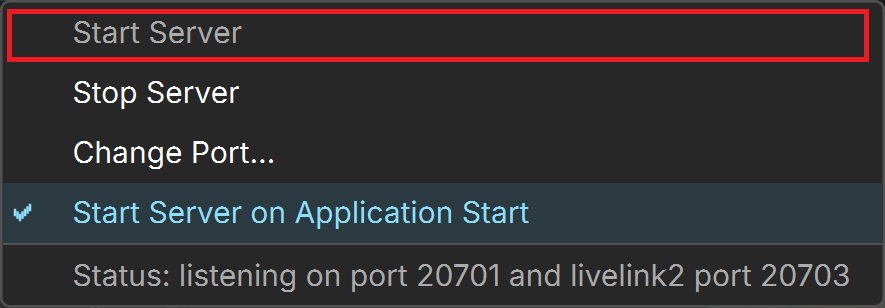
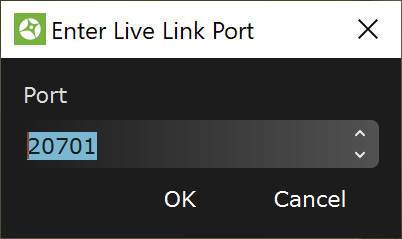
Click here to expand for manual Live Link setup
III. Pause and Termination
Once a Live Link session is started, the scene is transferred to Chaos Vantage and a thick blue contour line appears around the viewport and the status message in the lower right changes to [LIVE LINK]
To stop a Live Link session, either click again the Start Vantage button, Start Custom Live Link option, or open the VFB and stop the Interactive rendering.
