Chaos Vantage
Textures
This page provides details about textures in Chaos Vantage.
Last updated 17 June 2026
This page provides details about textures in Chaos Vantage.
Overview

Chaos Vantage allows you to create a variety of textures that add detail, variation, and adjustments to scene materials. The textures can be created only through the materials' interface in the Material Editor, using the button, available next to most material parameters. Clicking this button attaches a texture node directly to the corresponding parameter of the material.
All textures in Vantage are organized into the following categories:
- Bitmap
- Special
- Procedural
- Constant
- Correct
- Combine scalar
- Combine color
- Convert
youtu.be
Bitmap
The Bitmap texture can be used to load high dynamic range images (HDRI) and map them onto the environment. Vantage supports most of the standard HDRI-environment mapping methods. The Bitmap texture can also be used to load other file formats.
Special
Special textures include:
- 2Sided
- ComplexFresnel
- Dirt
- Edges
- Falloff
- Fresnel
- Multi
- MeshVertexColorChannel
- Parallax
- ScatterSurfaceColor
- ThinFilm
- TriPlanar
Procedural
Procedural textures include:
- BerconTile
- Bulge
- Cellular
- Checker
- Cloth
- GradRamp
- Gradient
- Granite
- Grid
- Leather
- Marble advanced
- Marble simple
- Noise
- Ramp
- Rock
- SimplexNoise
- Smoke
- Snow
- Speckle
- Splat
- Stucco
- Swirl
- Tiles
Constant
Constant textures include:
Correct
Correct textures include:
- ColorCorrect
- ColorCorrection
- BezierCurve
- BezierCurveColor
- Clamp
- Invert
- InvertFloat
- MayaContrast
- RGBTintMax
- SetRange
Combine Scalar
Combine Scalar textures include:
Combine Color
Combine Color textures include:
Convert
Convert textures include:
Texture parameters are organized into tabs. Some tabs are common for a group of textures.
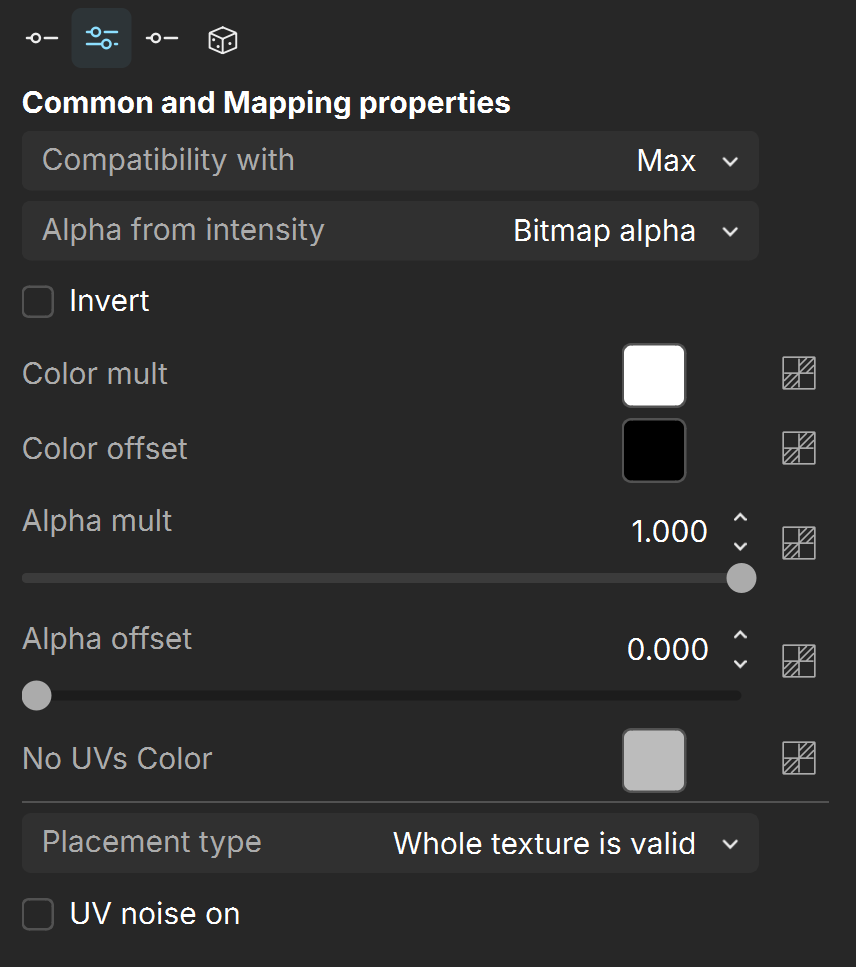
Common and Mapping Properties
Some textures have tabs for common and mapping properties.
Compatibility with – Used to differentiate between textures exported from different applications: Max or Maya.
Alpha from intensity –
Invert – When enabled, inverts the texture color values.
Invert alpha – When enabled, inverts the texture alpha values. When disabled, only the color is inverted. Invert alpha is available only when the Invert parameter is on.
Color mult – Corrects the color of the texture by multiplying the RGB color values in the texture with the RGB color values specified here. A texture map can be assigned here.
Color offset – Corrects the color of the texture by adding the RGB color values specified here to the RGB color values of the texture. A texture map can be assigned here.
Alpha mult – A multiplier for the texture alpha.
Alpha offset – An additional offset for the texture alpha.
No UVs Color – Specifies the color when there are no valid UV coordinates.
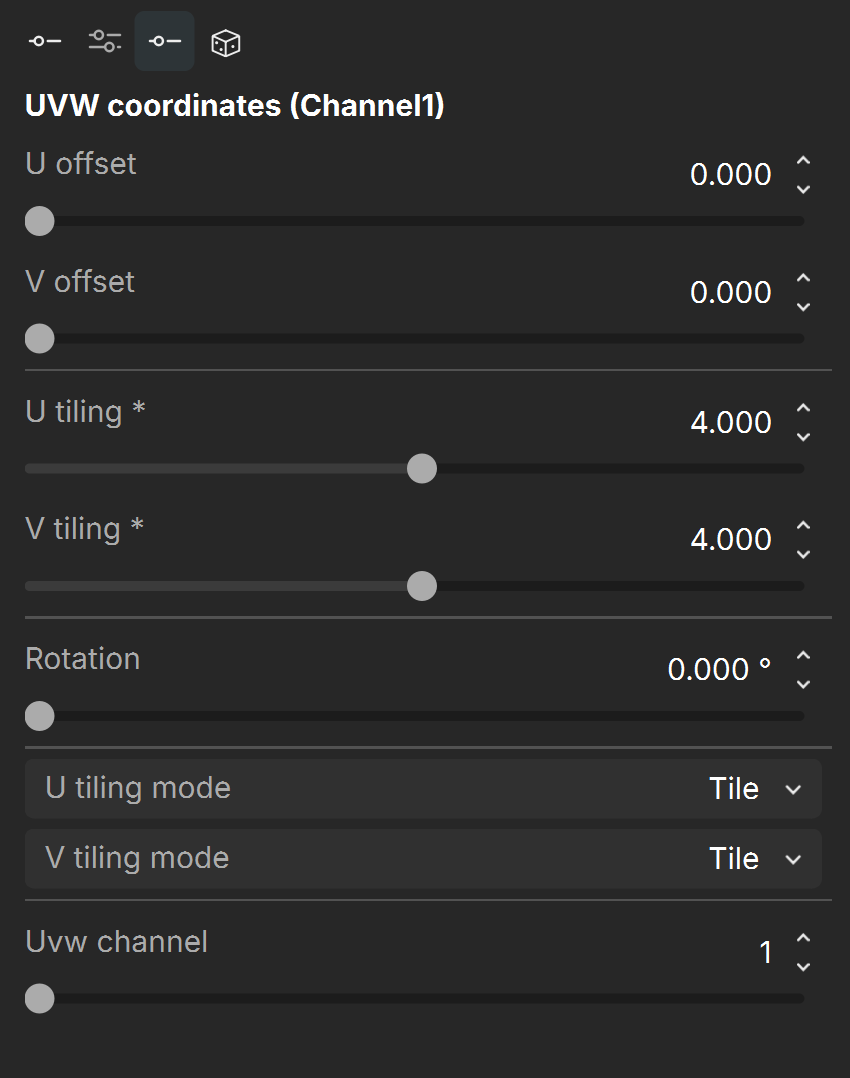
UVW Coordinates
U offset – Offset added to U before mirroring (after wrap, coverage, clamp).
V offset – Offset added to V before mirroring (after wrap, coverage, clamp).
U tiling – When enabled, there is horizontal tiling.
V tiling – When enabled, there is vertical tiling.
Rotation –
U/V tiling mode –
Uvw channel –
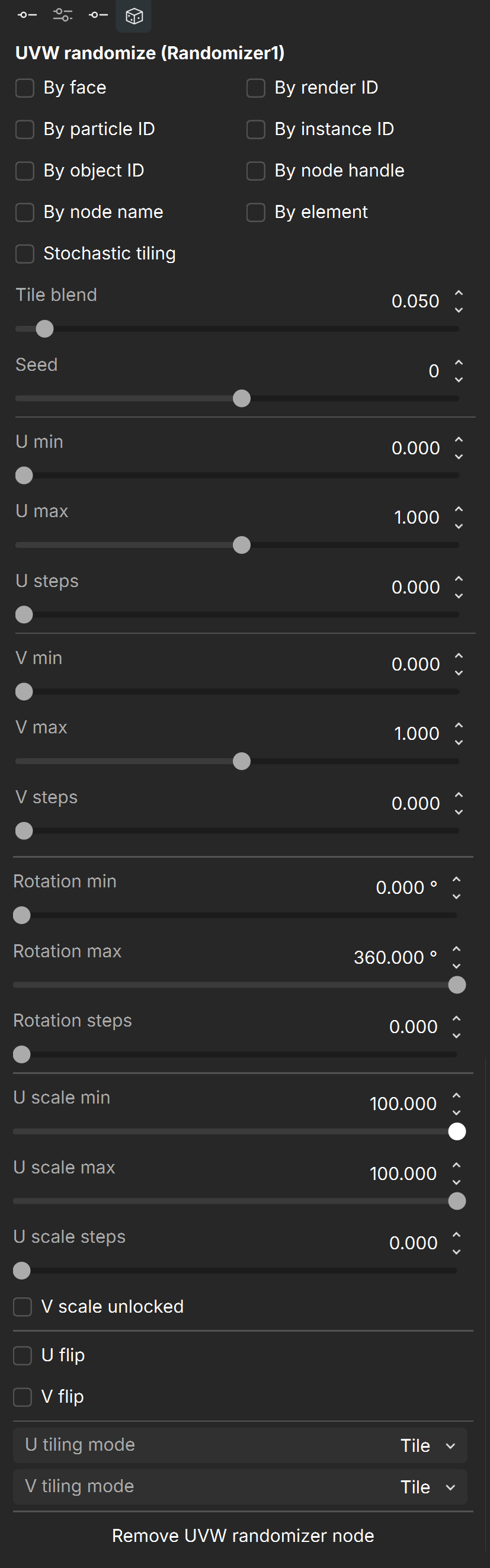
UVW Randomize
Randomize – Specifies a mode for randomization. Multiple modes can be combined.
By face – Considers the face IDs of the object when feeding the data (color or texture) to the material.
By render ID – Assigns random colors based on RenderIDs.
By particle ID – Assigns random colors based on ParticleID.
By instance ID – Assigns random colors based on InstanceID.
By object ID – Considers the Object IDs of the object when feeding the data (color or texture) to the material.
By node handle – Each node is assigned a unique number (a handle) when it is created. This option generates the color index based on that node ID. It is useful because the node handle survives through scene editing - e.g. if you add/remove other objects, or rename them, you still get the same colors.
By node name – Generates a color index based on the name of the node that the texture is applied to. This allows the color to remain consistent if the object is merged into another scene, or X-Ref'd etc.
By element – Assigns random colors based on element (e.g. teapot lid, etc.) IDs of the object.
Stochastic tiling – Changes the mapping based on the UV tile.
Tile blend – Edge blending between adjacent tiles when Stochastic tiling mode is used.
Seed – Changes the randomization pattern when one or more of the randomization modes are used.
U min/max – Controls the position of the texture along the U axis. U min is the minimum of the U offset variance range, while U max is the maximum of the U offset variance range.
U steps – Specifies the number of steps in which the variance interval is achieved.
V min/max – Controls the position of the texture along the V axis. V min is the minimum of the V offset variance range, while V max is the maximum of the V offset variance range.
V steps – Specifies the number of steps in which the variance interval is achieved.
Rotation min/max – Rotates the texture along the U or V axis.
Rotation steps – Specifies the number of steps in which the variance interval is achieved. For example, if rotation is set from 0 to 360 with a step of 5, the texture is rotated at an angle that is a multiple of 72 degrees (e.g. 72, 144, 216..).
U scale min/max – Scales the texture along the U axis.
U scale steps – The number of steps in the U scale variance range.
V scale unlocked – Specifies whether the V scale has variance or is the same as the U scale.
V scale min/max – Scales the texture along the V axis.
V scale steps – The number of steps in the V scale variance range.
U/V flip – Flips the texture on a random principle along the U or V axis.
U/V tiling mode –