Corona for 3ds Max
Corona Skin Material
This page provides information on the Corona Skin Material, its settings and usage.
Last updated 12 January 2026
This page provides information on the Corona Skin Material, its settings and usage.
Overview
CoronaSkinMtl has all necessary SSS effects enabled by default and works out of the box, so there is virtually no action required from the user to set it up. The available properties do, however, allow for the creation of various types of materials:
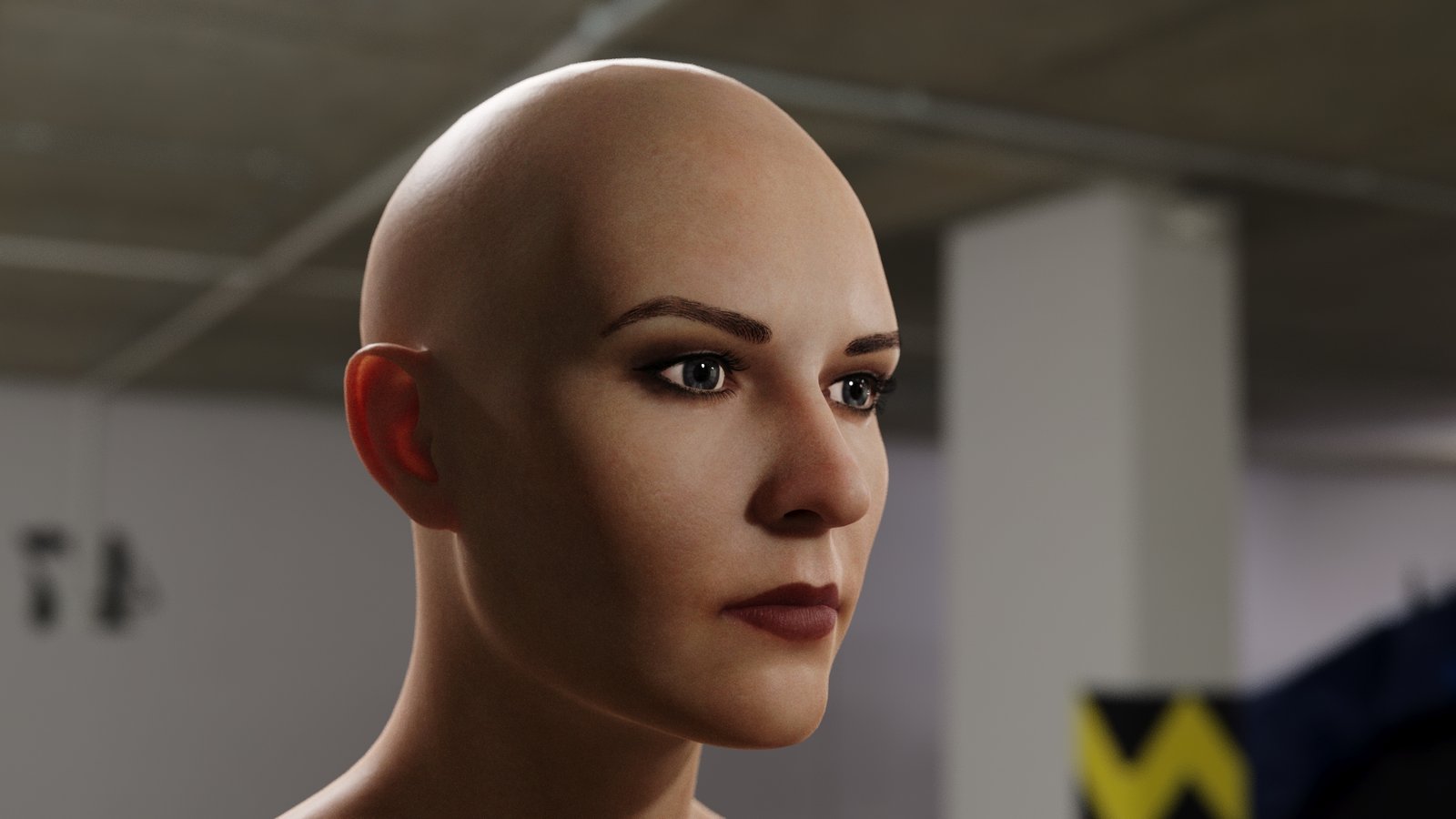
Textured skin
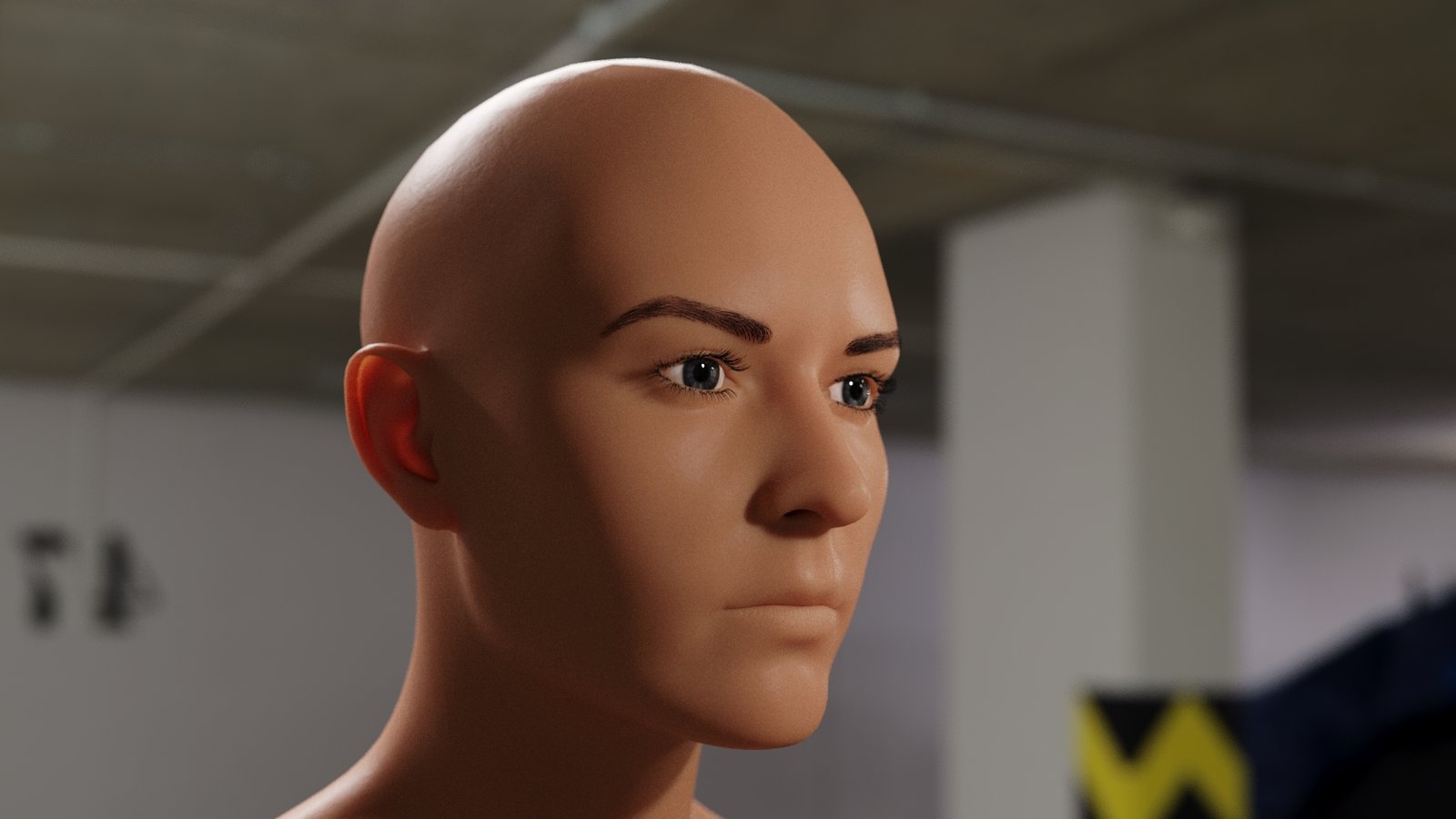
Default skin

Alien skin
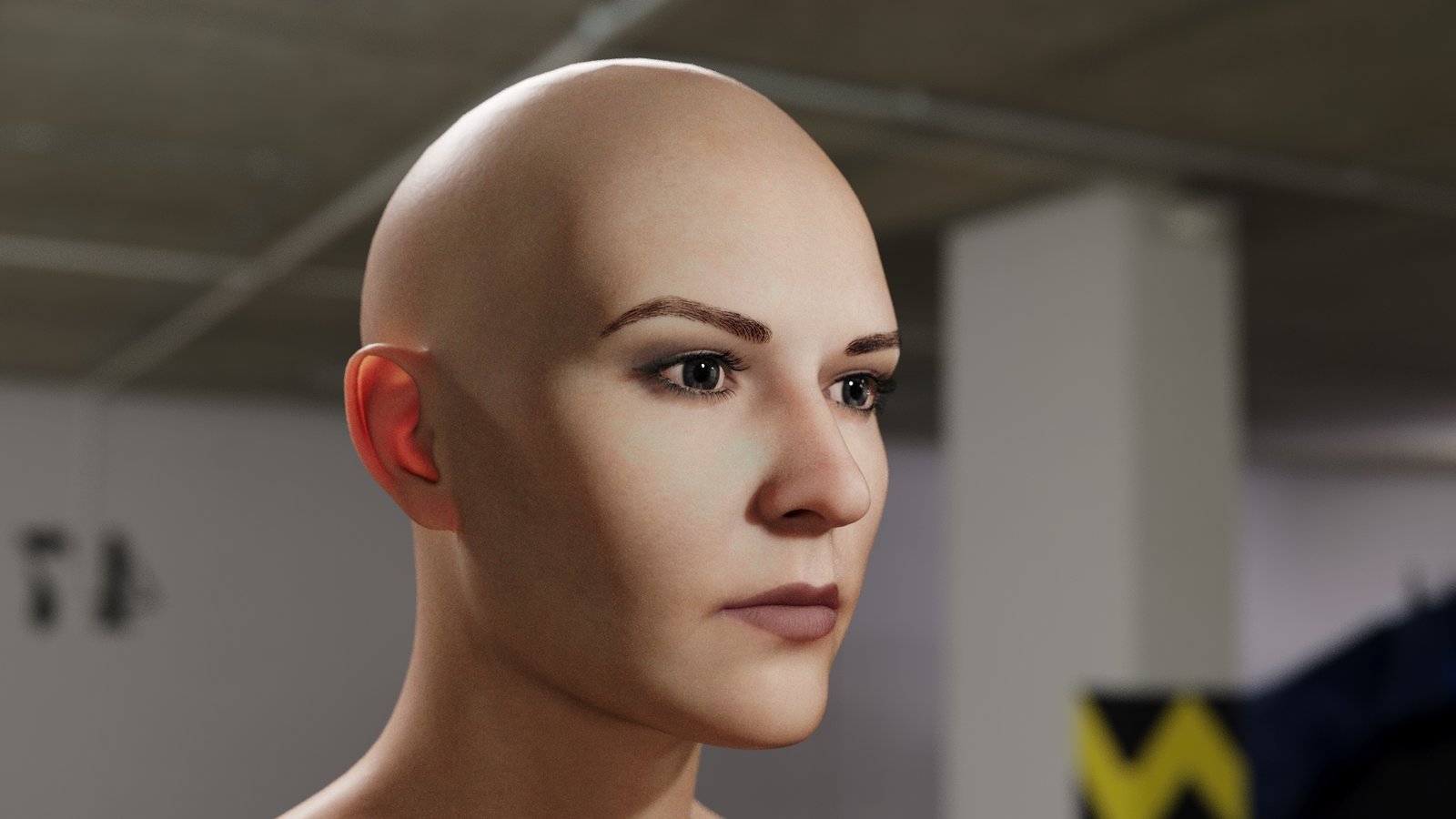
Pale textured skin
Basic options
Overall Color
Level – Both the constant color and texmap are multiplied by this number. Setting 0.5 and using white-color is equal to using 50% gray color or using texmap with output level of 0.5.
Color – Specifies the color of the skin on lit parts of a surface.
Subsurface Scattering
Amount – Controls how much the skin is defined by subsurface scattering as opposed to the diffuse component. A value of 0 results in no subsurface scattering, while a value of 1 results in full subsurface scattering and no diffuse component.
Radius scale – Controls the size of the subsurface scattering of all layers. Works as a multiplier of each layer radius.
Layer 1
Weight – Defines how much this subsurface layer affects the material. A value of 1 means that the color scattering defined by this layer is fully applied, while a value of 0 means the layer is not used at all.
Scatter color – Defines the scatter color of subsurface scattering, i.e. the color that can be observed in the shadowed parts of the material.
Radius – Defines the subsurface scattering radius, i.e. how far the color scatters from a place that was hit by a light beam.
Layer 2
Weight – Defines how much this subsurface layer affects the material. A value of 1 means that the color scattering defined by this layer is fully applied, while a value of 0 means the layer is not used at all.
Scatter color – Defines the scatter color of subsurface scattering, i.e. the color that can be observed in the shadowed parts of the material.
Radius – Defines the subsurface scattering radius, i.e. how far the color scatters from a place that was hit by a light beam.
Layer 3
Weight – Defines how much this subsurface layer affects the material. A value of 1 means that the color scattering defined by this layer is fully applied, while a value of 0 means the layer is not used at all.
Scatter color – Defines the scatter color of subsurface scattering, i.e. the color that can be observed in the shadowed parts of the material.
Radius – Defines the subsurface scattering radius, i.e. how far the color scatters from a place that was hit by a light beam.
Reflection
Layer 1
Level – Both the constant color and texmap are multiplied by this number. Setting 0.5 and using white color is equal to using 50% gray color or using texmap with output level 0.5.
Color – Allows to choose specific reflection color using Color Picker.
Glossiness – Controls how sharp or blurred the reflection is. A value of 1 (white if a map is used) gives completely sharp reflections, while a value of 0 (black if a map is used) gives completely blurred reflections. Glossiness is the inverse of the Roughness value used in some other applications.
IOR – Index of refraction (IOR) for Fresnel reflections. This controls the amount of material reflection in a physically plausible way. Higher values create stronger reflection. Set this to 999 to disable the fresnel effect (i.e. to create a mirror-like material).
Layer 2
Level – Both the constant color and texmap are multiplied by this number. Setting 0.5 and using white color is equal to using 50% gray color or using texmap with output level 0.5.
Color – Allows to choose specific reflection color using Color Picker.
Glossiness – Controls how sharp or blurred the reflection is. A value of 1 (white if a map is used) gives completely sharp reflections, while a value of 0 (black if a map is used) gives completely blurred reflections. Glossiness is the inverse of the Roughness value used in some other applications.
IOR – Index of refraction (IOR) for Fresnel reflections. This controls the amount of material reflection in a physically plausible way. Higher values create stronger reflection. Set this to 999 to disable the fresnel effect (i.e. to create a mirror-like material).
Opacity
Level – Both the constant color and textmap are multiplied by this number. Setting 0.5 and using white color is equal to using 50% gray color or using texmap with output level 0.5.
Color – Allows to choose specific opacity color using Color Picker.
Displacement
Min level – Displacement distance applied to areas with black (0.0) texture. Measured in world-space units.
Texture – Allows to load displacement map.
Max level – Strength of the displacement effect. It is the world-space displacement distance applied to areas with white (1.0) texture.
Water level – Displacement cutoff threshold. Any microtriangles with displacement texture value below this level are removed.

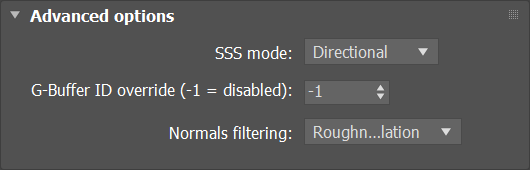
Advanced options
SSS mode – Switches between different SSS models. Diffusion is simpler, faster model, while Directional is more complex, slower, and more realistic model recommended for human skin.
G-buffer IDoverride(-1 = disabled) – If set to anything other than -1, this value overrides the 3ds Max gbuffer property. This allows you to set values outside of the 0-15 range permitted in the 3ds Max property.
Normals filtering – Determines how normal and bump maps are filtered:
None – No filtering is applied to normal and bump maps, providing high accuracy but potential noise and flickering.
Linear – Normal and bump maps are filtered linearly, just like other map types, potentially affecting material appearance with varying camera distance and render resolution.
Roughness Modulation – Utilizes linear filtering for normal and bump maps while also adjusting material roughness to maintain consistent material appearance regardless of camera distance and render resolution. Default filtering method in Corona 11 and newer.