Corona for 3ds Max
Corona Sun
This page provides information on the Corona Sun, its settings and examples of usage.
Last updated 1 September 2026
This page provides information on the Corona Sun, its settings and examples of usage.
Overview
Corona Sun allows you to add a realistic and physically correct source of day light for illumination of the scene.
By default, the sun height in the sky adjusts the color of the sun realistically. It always generates "soft" shadows since it is physically realistic.
You can adjust the size of the sun if required, with a larger sun creating softer shadows. Rather than have the sun color and intensity controlled automatically, you can choose to manually override it and set it to a specific color and/or intensity.

Corona Sun
On – Turns on and off the sunlight.
Targeted – Makes the Corona Sun targeted.
0 object excluded – Excludes objects from illumination/shadow casting for the sunlight.
Add Corona Sky environment – Adding the Corona Sky Map procedural texture map to illuminate the scene with a realistic skylight.
Intensity – Specifies an intensity multiplier for the Corona Sun.
Size – Makes the shadows softer/sharper.
Shadowing from clouds – If enabled and the sun is selected in a sky map with enabled clouds, the sun will be shadowed by these clouds.
Color
Realistic – Changes Corona Sun color, depending on the position of the sun.
Textured – When enabled, there are subtle color differences towards the borders/horizon. Enabling this option can slow down the rendering and produces no visible differences, except when the sun is viewed directly in detail, so there is usually no need to enable it. When disabled, the sun disc has uniform color on its entire surface.
Direct input – Specifies color using the Corona Color Picker.
Kelvin temp – Adjusts the Corona Sun color temperature according to the Kelvin Temperature Scale.
Visibility
Visible directly – Makes the Corona Sun directly visible to the camera.
Visible in reflection – Makes the Corona Sun directly visible in reflections.
Visible in refraction – Makes the Corona Sun directly visible in refractions.
Generates caustics – Enabling this option generates caustics.

Examples
Corona Sun Size
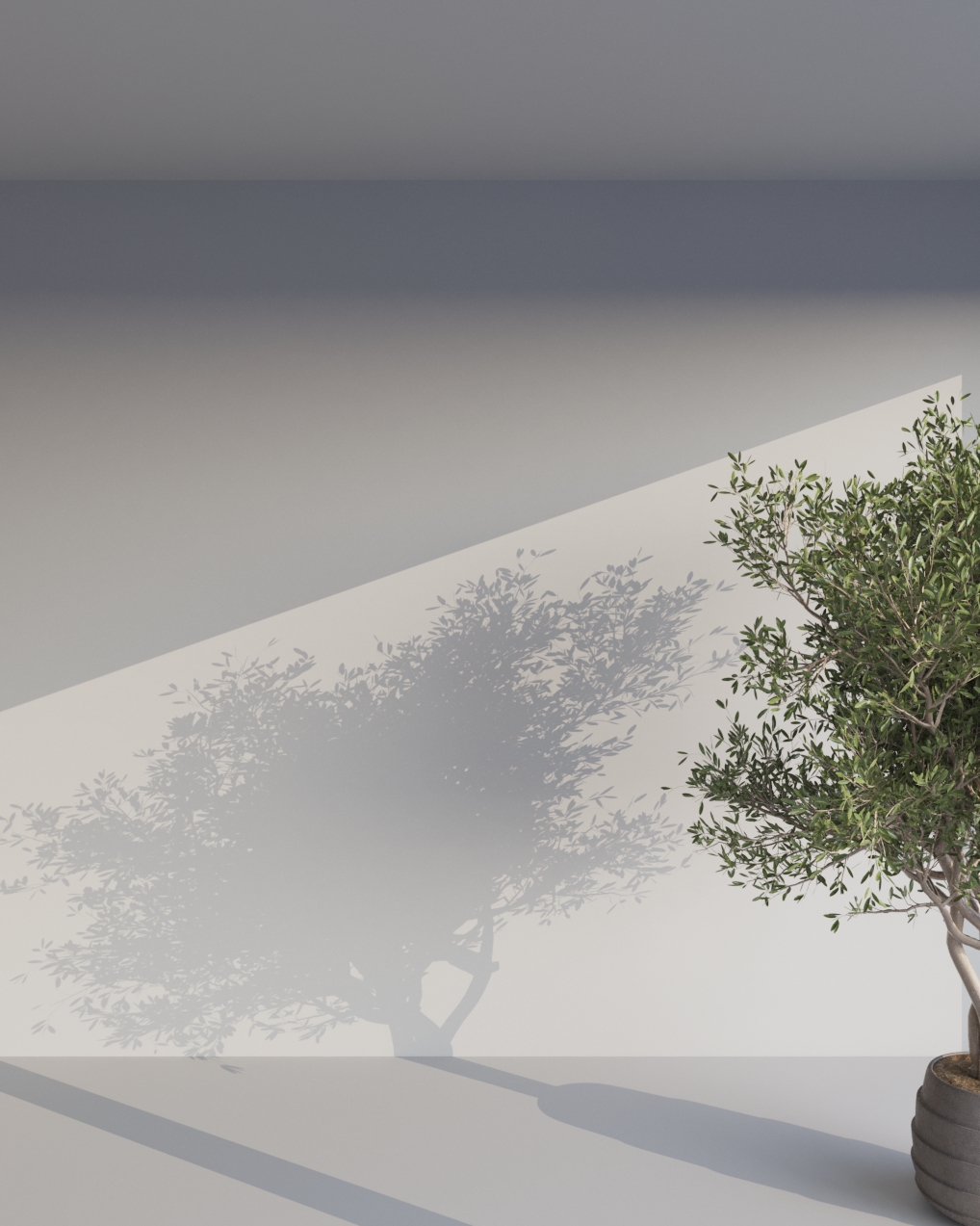
Sun size 0.1 (min value)

Sun size 1 (the default value)

Sun size 5

Sun size 10
Corona Sun Intensity

Sun intensity 0.1

Sun intensity 0.5

Sun intensity 1 (the default value)

Sun intensity 5
Corona Sun Kelvin temperature

Kelvin temp - 6500 (default value)
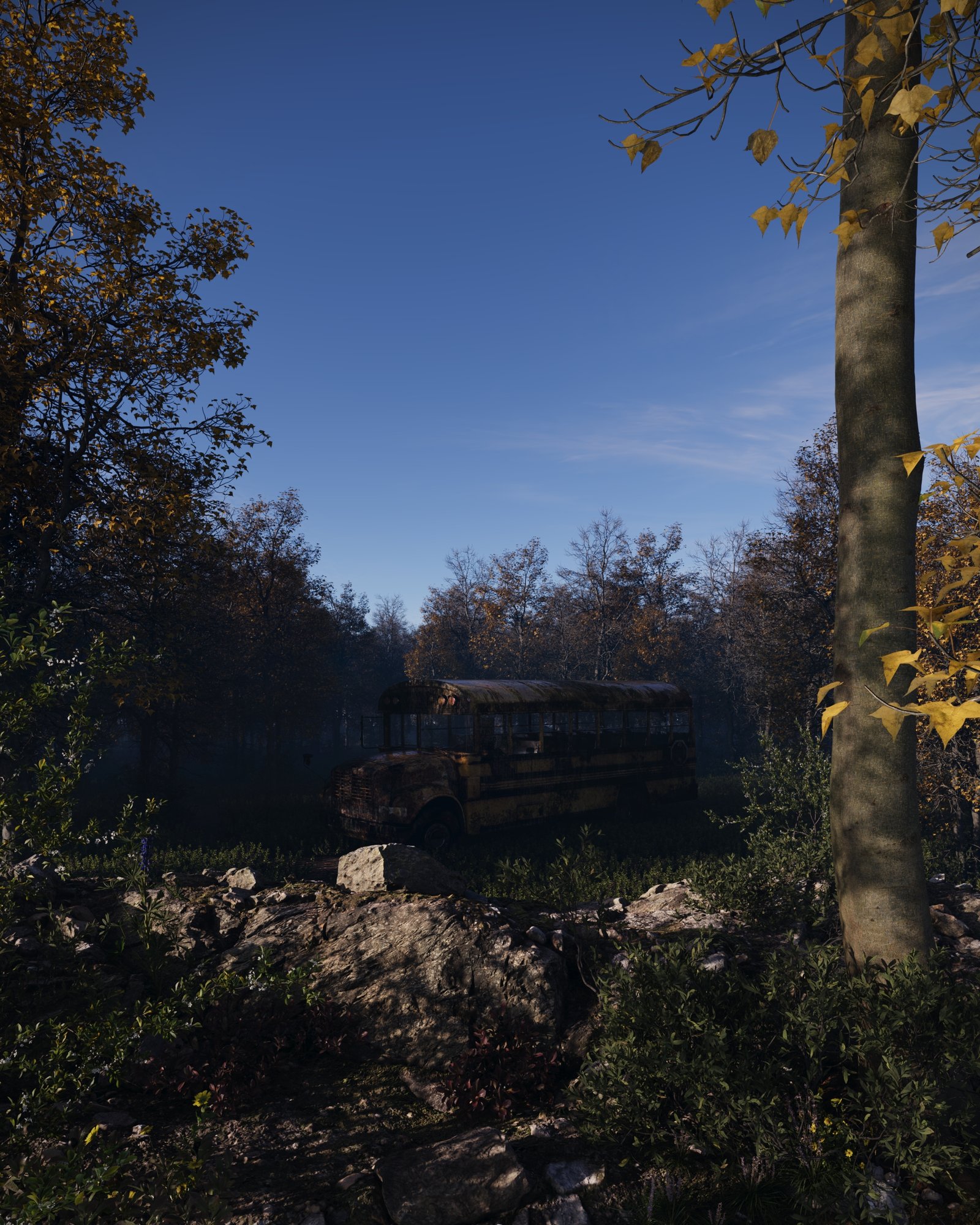
Kelvin temp - 5000

Kelvin temp - 4000

Kelvin temp - 3000

Kelvin temp - 2000

Kelvin temp - 1000 (min value)
Corona Sun position

Sun position 1

Sun position 2
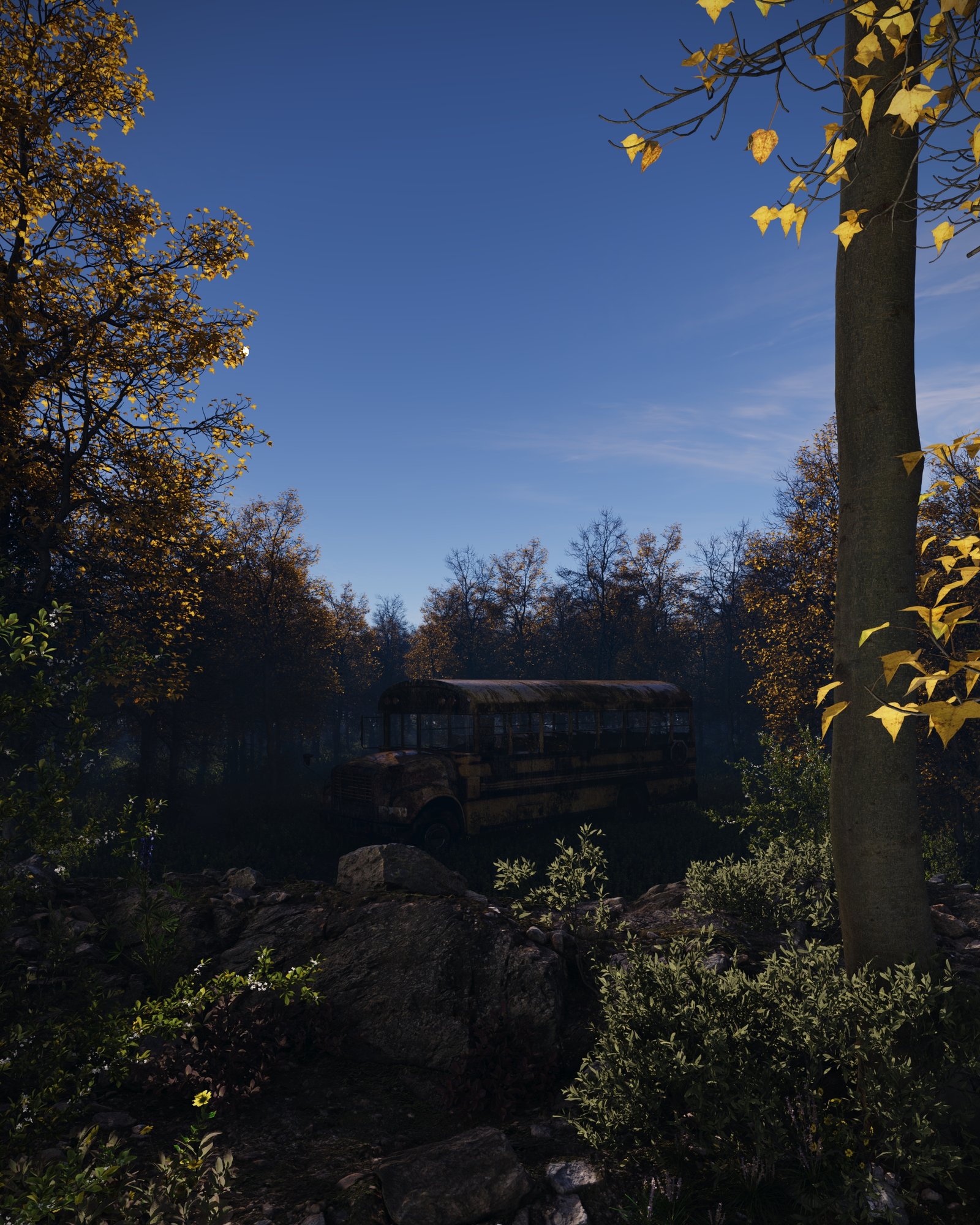
Sun position 3
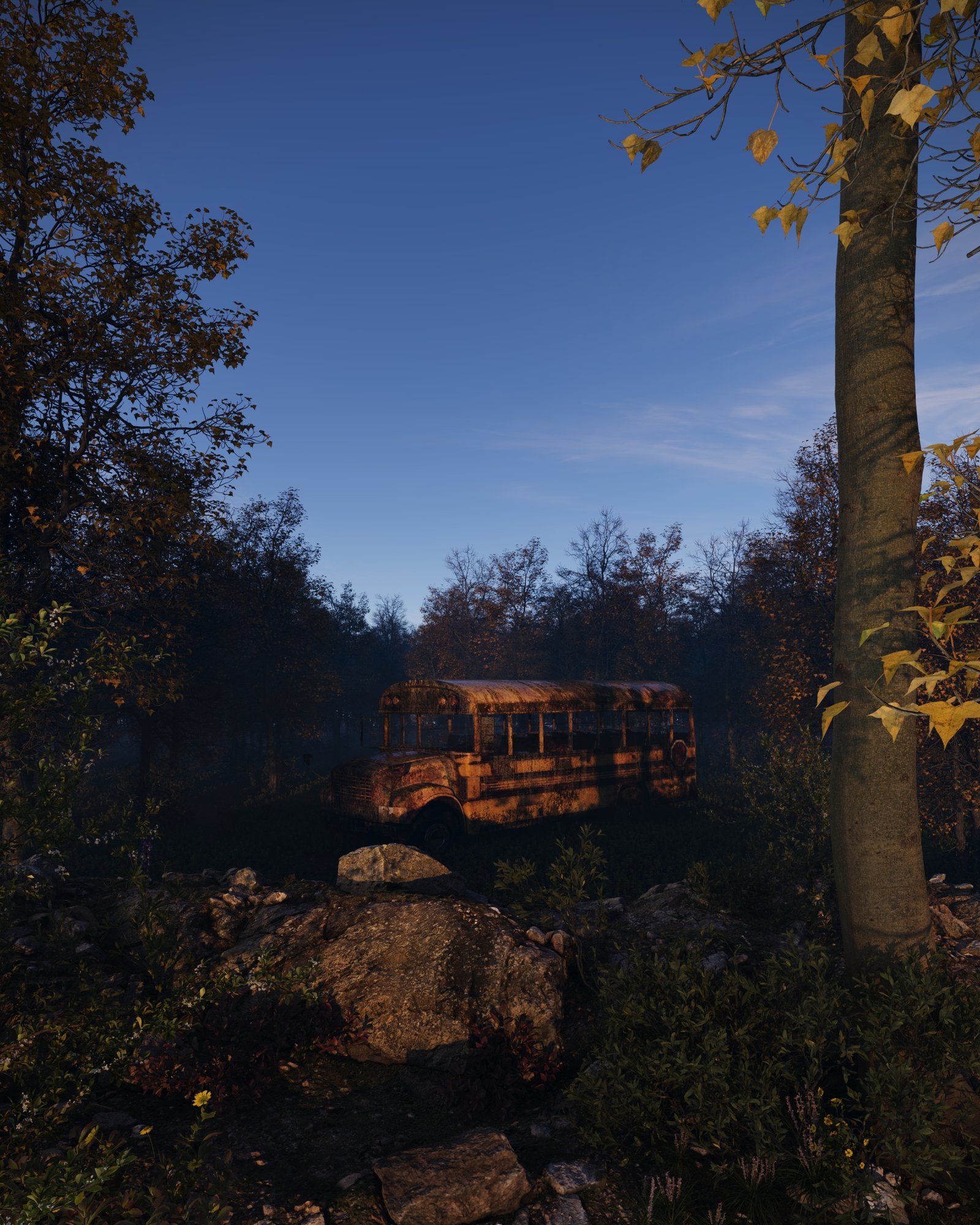
Sun position 4
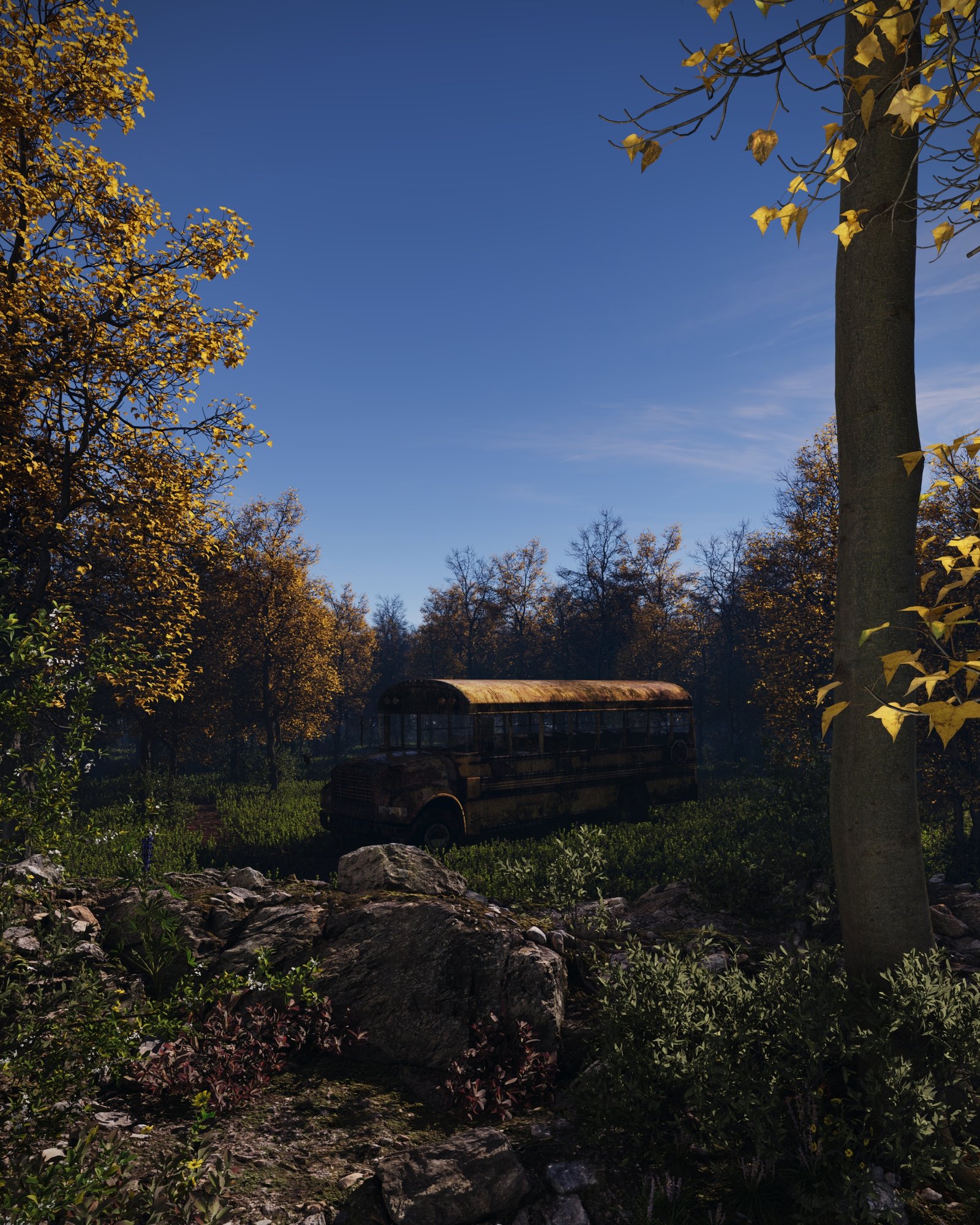
Sun position 5
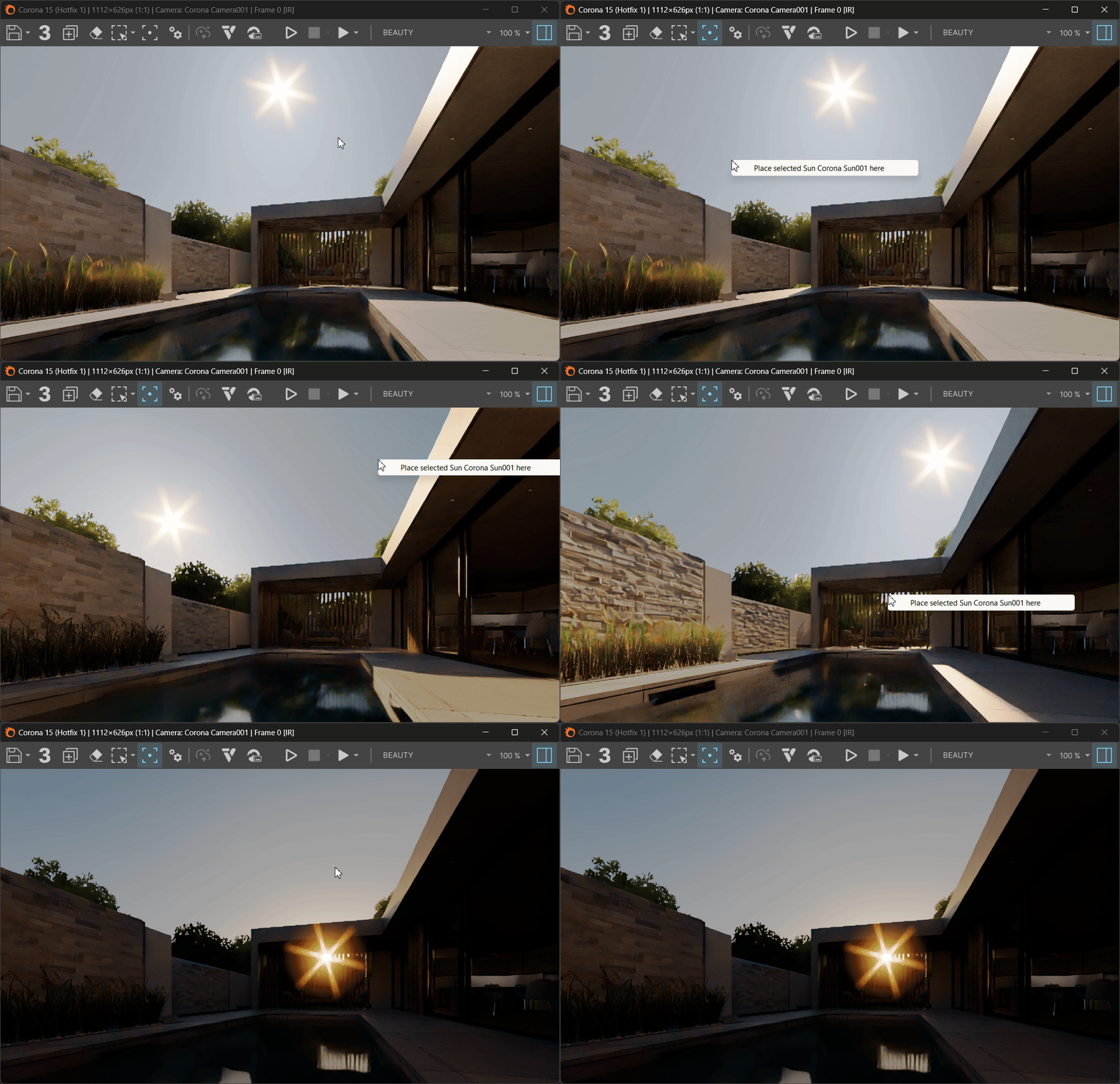
Positioning via the Corona VFB
In Corona 15, you can position the Corona Sun / Corona Moon dynamically by picking its exact location directly within the rendered image. This allows for intuitive, visual lighting placement without manually adjusting coordinates or rotating light sources.
Workflow:
- Set up your scene – Add a Corona Sun/Moon to your scene.
- Start rendering – Launch your render (preferably Interactive Rendering) in the Corona Virtual Frame Buffer (VFB).
- Activate Pick Mode – Click the Pick button (pointer icon) in the Corona VFB toolbar.
- Select location – Right-click on the exact point in your rendered image where you want the light source to appear.
- Position the light – From the context menu, select the Corona Sun or Corona Moon.
The light source is automatically repositioned in 3D space to align precisely with the pixel coordinates you selected.

Example: Corona Sun Position