Enscape for Vectorworks
Select Projection Type
This page provides information about the projection modes in Enscape.
Last updated 1 September 2026
This page provides information about the projection modes in Enscape.
Overview
Enscape offers three projection modes to choose from:
By default, the Projection mode is set to ‘Perspective’.
Select a Projection Mode
To be able to change the Projection mode you will need to have Enscape open and in focus. You can then select which Projection mode you would like to use in one of two ways:
You can select from the Projection options in one of two ways.
Firstly, via the Enscape Visual Settings window.
NOTE: only the ‘Perspective’ Projection option is available in VR.

The button to open the Visual Settings dialog

Projection menu in the Visual Settings dialog
Or, you can directly select Projection via its associated button, located in the Enscape Viewport User Interface (UI) which should be found at the top of the Enscape Viewport.
If you can not see these UI, make sure to click on the small chevron located mid top of the Enscape Viewport to expand the toolbar.

Projection mode button and menu in the Enscape User Interface
Perspective Projection
By default Projection is set to Perspective, as shown in the following screenshot. Click on the symbol to reveal the other two options for Projection.

Enscape in Perspective Projection mode
Two-Point Projection
Projection set to Two-Point:
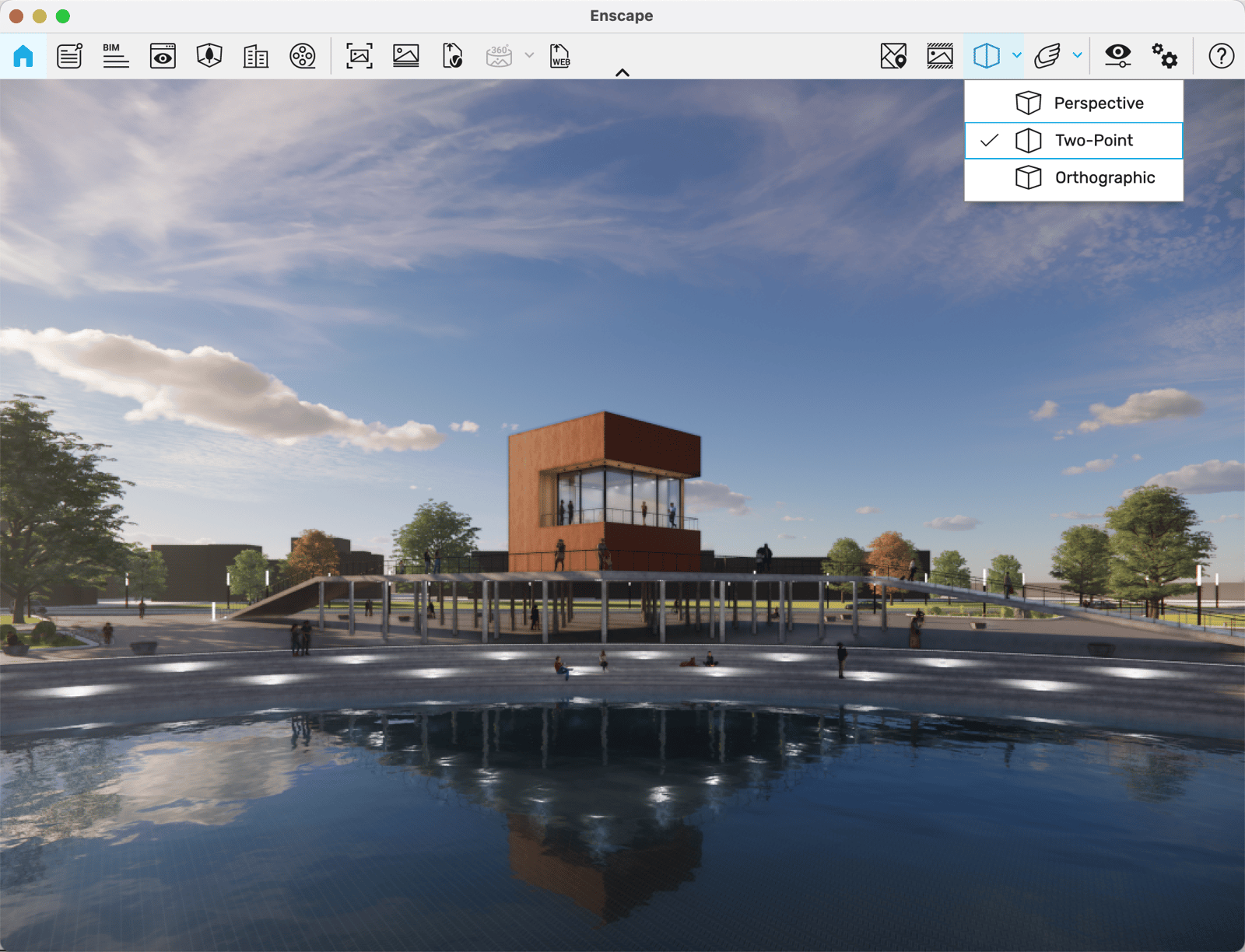
Two Point Projection Mode.
Orthographic Projection
Here, you can see Projection set to Orthographic:

Orthographic Projection Mode
When Orthographic is selected, the Depth of Field, Focal Point, and Field of View options, under the Enscape Visual Settings’ Main tab, will be disabled or will not be available at all.
Furthermore, the buttons for the Video Editor, Panoramas, Minimap, and Navigation Mode will be disabled in the Enscape viewport UI.

Enscape Toolbar buttons disabled when in Orthographic Projection mode
The options for Projection will only take affect when Synchronize Views is disabled.
When Synchronize Views is enabled, this will result in the Projection being always synchronized from the CAD application and being automatically locked in Enscape for as long as Synchronize Views is enabled.
Disabling Synchronize Views will unlock the Projection options again and return it to whichever Projection had previously been set by the user.

Synchronized Views is enabled resulting in Projection Type buttons being locked