Enscape for Vectorworks
Sun, Geolocation and Time of Year
The sun can have a dramatic effect on your project’s look and feel. Additionally to being able to quickly adjust the sun directly in the Enscape window, Enscape can also interpret the Geolocation and Time of Year settings from Vectorworks for the sun to be positioned correctly. You can quickly adjust the sun setting...
Last updated 1 September 2026
Overview
The sun can have a dramatic effect on your project’s look and feel. Additionally to being able to quickly adjust the sun directly in the Enscape window, Enscape can also interpret the Geolocation and Time of Year settings from Vectorworks for the sun to be positioned correctly. You can quickly adjust the sun settings in Enscape by using various key combinations listed below.
Controls | Action |
|---|
Controls | Action | |
|---|---|---|
Time of day | / | Press U or I to adjust the time of day. |
You can also use Shift + Right Mouse Button while dragging the mouse right or left. | ||
Solar angle | / | Press Shift + U or I to adjust the Solar angle. |
Solar rotation | / | Press Ctrl + U or I to adjust the Solar rotation. |
Reset Sun Position | Press the Home key to reset modifications made to the sun position. |
Generally speaking the Sun Settings and Geolocation are adjusted in Vectorworks, and the Geolocation will affect the position of the Sun when adjusting the time of year. You can also adjust the time of day in the Enscape window and save those settings for each view.
Sun Settings in Vectorworks
In addition to the Enscape sun position controls, sun position and geolocation can be controlled using the native Vectorworks Heliodon tool. For a full description of the scope of this tool and how to place a heliodon, please also reference the Vectorworks Online Help system.
In the Heliodon Tool settings, you can determine the sun position by selecting a city in the Location section. If needed you can then further edit the city or time zone by activating the Edit City checkbox.

Determine location to set sun position

Edit city or time zone for further control
If you would like to set an exact time of day in Enscape, you can also do this by adjusting the Solar Time in the heliodon’s settings. Please note that the Renderworks Only settings are not respected by Enscape.
While it is possible to insert multiple heliodons in one Vectorworks file, Enscape will only display one. If multiple heliodons are placed, Enscape will display the heliodon which is alphabetically first.

Solar Time settings
Save Enscape Sun Position
While you are adjusting the time of day in Enscape. You can save the Enscape Sun Position by going into the View Management tab – Select the view you would like to save the sun position of.
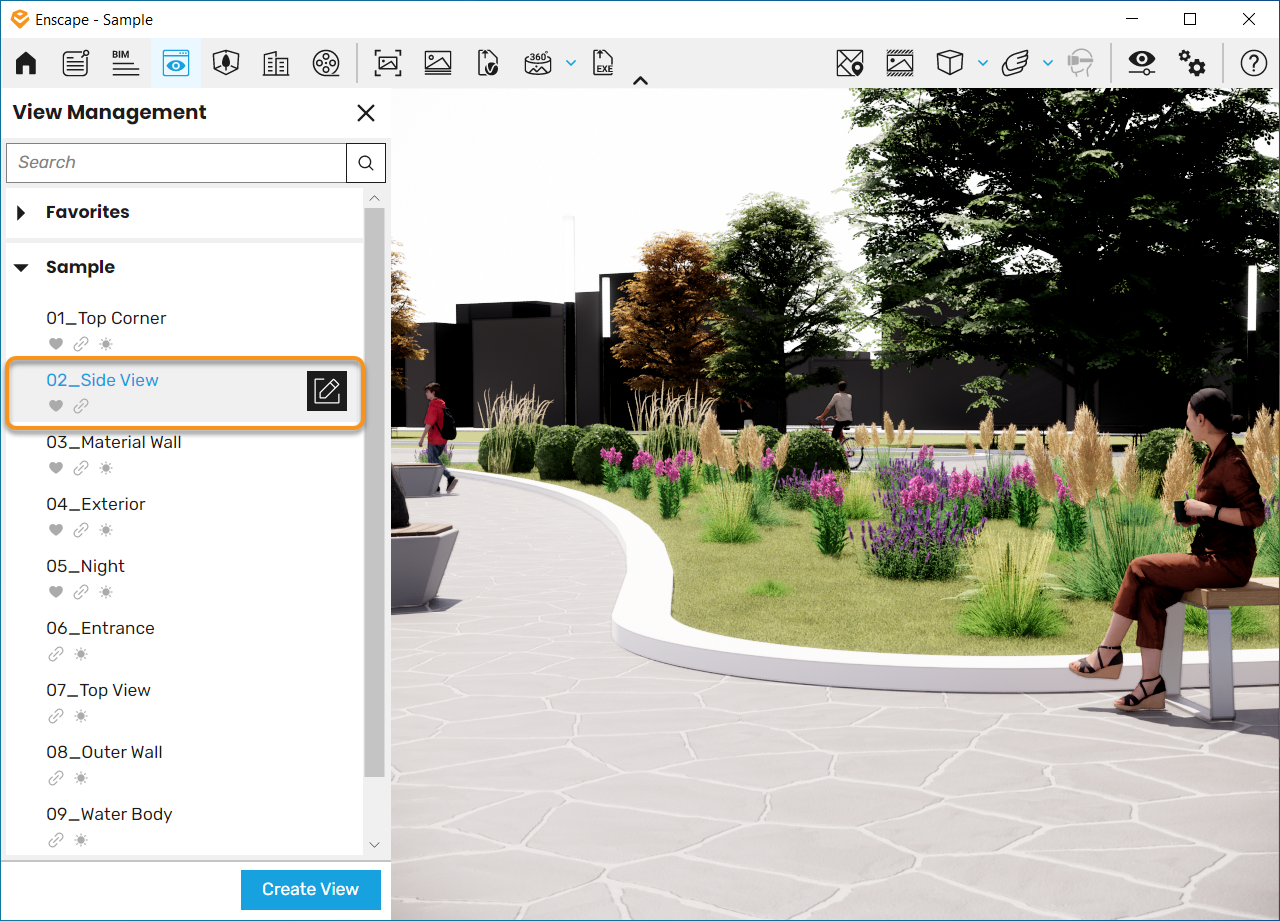
Manage Views
There will be a section for Sun Position, then click the box to open the Enscape Sun Position settings.

Sun Position Section
You will now have 2 options to control the Sun Position:
Azimuth – Rotation of the sun around the building
Altitude – Rotation above and below the horizon line
By adjusting these sliders you will see the time the time of day change to the desired result.
*If you need to undo the changes at any time, click the undo button.
Once you are happy with the adjustments, click the Save Button at the bottom of the window.

Azimuth and Altitude Settings
Now each time you go back to this view it the sun settings will stay the same.
*You can see if a view has the sun settings changed by the little sun icon under the views name

Updated Sun Position