Enscape
Customize Enscape
This page provides information about the Enscape Customization and Preferences options.
Last updated 4 June 2026
This page provides information about the Enscape Customization and Preferences options.
Overview
Windows
The Enscape Customization and Preferences options adapt the Enscape Viewport window to be more specific to your project or company, as well as options to pin the Enscape window on top of the host application and enable sound. These changes take effect on any exported Images, Video, and Standalone Executable files (but do not affect Web Standalone exports).
To access the Customization or Preferences settings, start Enscape and in the Enscape Viewport toolbar, click on the gear icon. The Customization tab is then shown. The options to adapt your Enscape window are located in the Customization Settings.

Enscape Renderer Window Settings button
macOS
The Enscape Customization and Preferences options adapt the Enscape Viewport window to be more specific to the project or company. Changes to these settings take affect on any exported Images.
To access the Customization or Preferences settings, start Enscape and in the Enscape Viewport toolbar, click on the gear icon. The Customization tab is shown by default. The options to adapt your Enscape window are located there.

Enscape Window Settings button
How to Customize the Enscape Window in Windows
Loading Screen
Select a file (png, jpg, tga) to be used as theEnscape loading screen.
The recommended resolution is connected to your current screen resolution and aspect ratio.

Example of a custom loading screen for Enscape
Watermark
Use the Watermark option to first select a file, then choose from a set of nine predefined positions to set the image in the Enscape window. This could be your company logo and the name of the working architect, as seen in the example. Additionally, the overlay is contained in Screenshots, Videos, Standalone Executable files and Web Standalone files that you create.
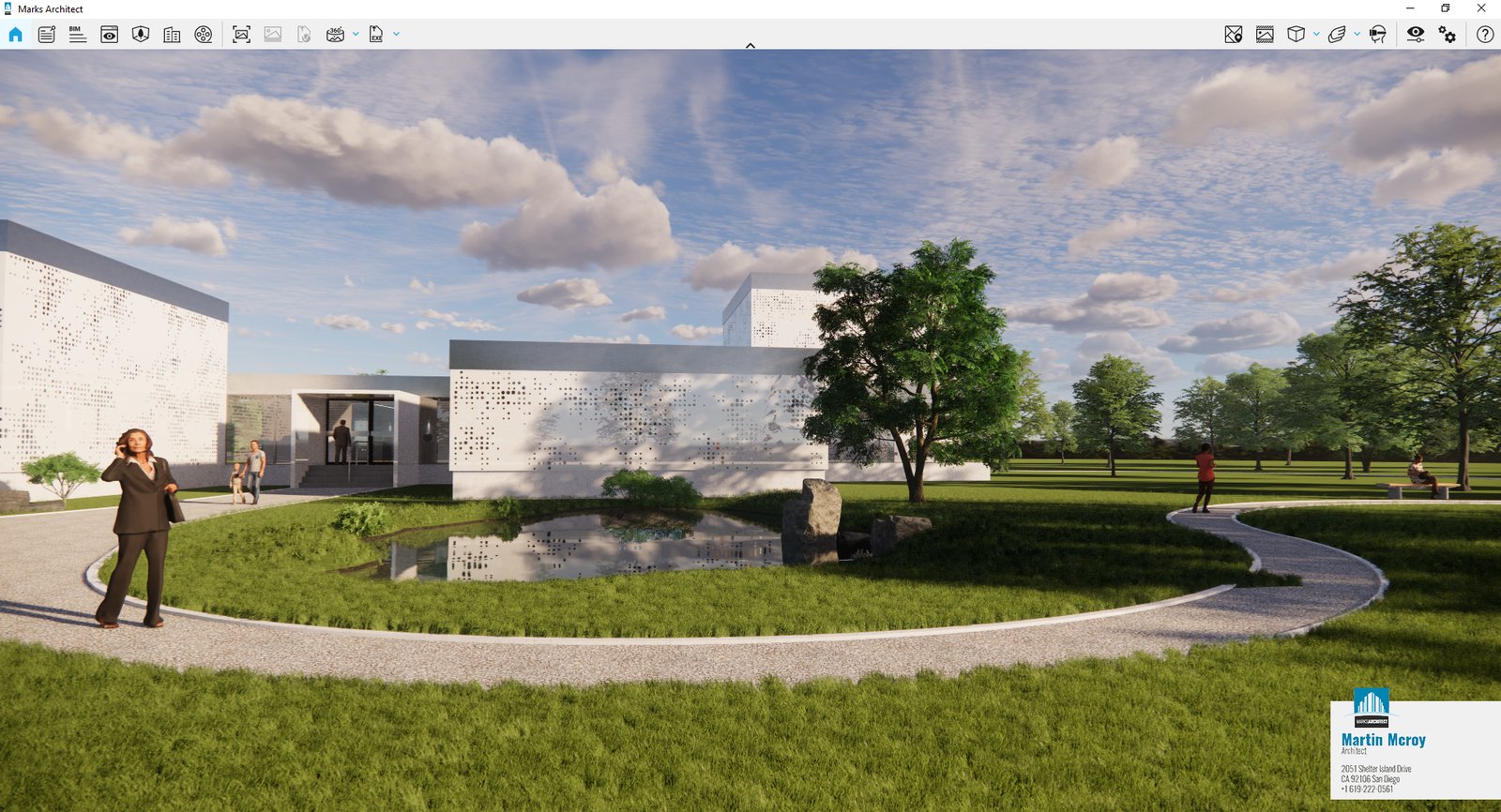
Example of a custom onscreen overlay for Enscape
Window Icon
Select a file for the window icon instead of the Enscape icon.
For Enscape versions prior to 4.0, the file has to be an Icon File (*.ico).
For Enscape 4.0 or newer versions, this can be any supported image format.
This option changes Enscape’s window icon. It affects any icon related to the Enscape window, including:
- The icon in the upper-left corner
- The taskbar icon
- Other Enscape window-related icons.
It affects Enscape when used from inside your CAD software and the standalone alike.
It also replaces the standalone file icon.
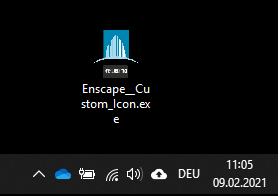
A customized Icon for the Standalone file
Window Title
This option enables you to change the text that appears in the title bar of the Enscape window.
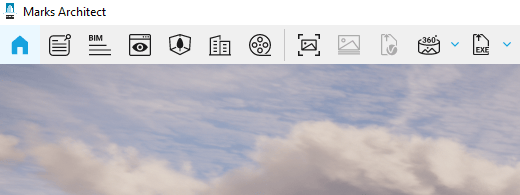
Customized Window Caption text
Preferences
By selecting the Preferences tab in the Enscape Window Settings dialog you can access the Window and Sound options.
The Show Sound Sources function is only available if the Enable Sound option is active. For more information about which CADs support sound, see the Enscape Objects page.
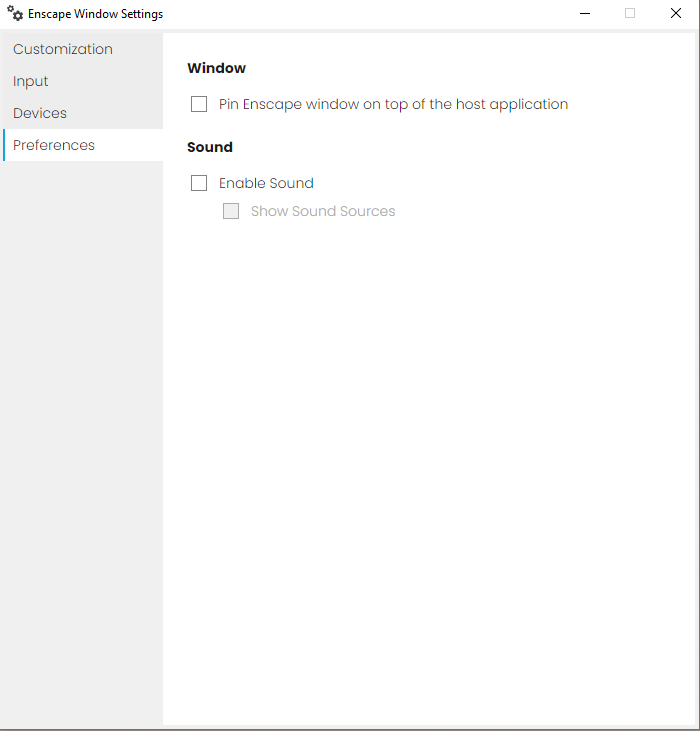
Enscape Window Settings Preferences options
How to Customize the Enscape Window in macOS
This section describes the customization options available for the Enscape Window in macOS. The Loading Screen, Watermark, and Window Title functions are identical to those in the Windows section.
Preferences
By selecting the Preferences tab in the Enscape Window Settings dialog, you can access the Sound options.
The Show Sound Sources option is available only when the Enable Sound option is enabled. More information on which CAD supports sound can be found on the Enscape Objects page.
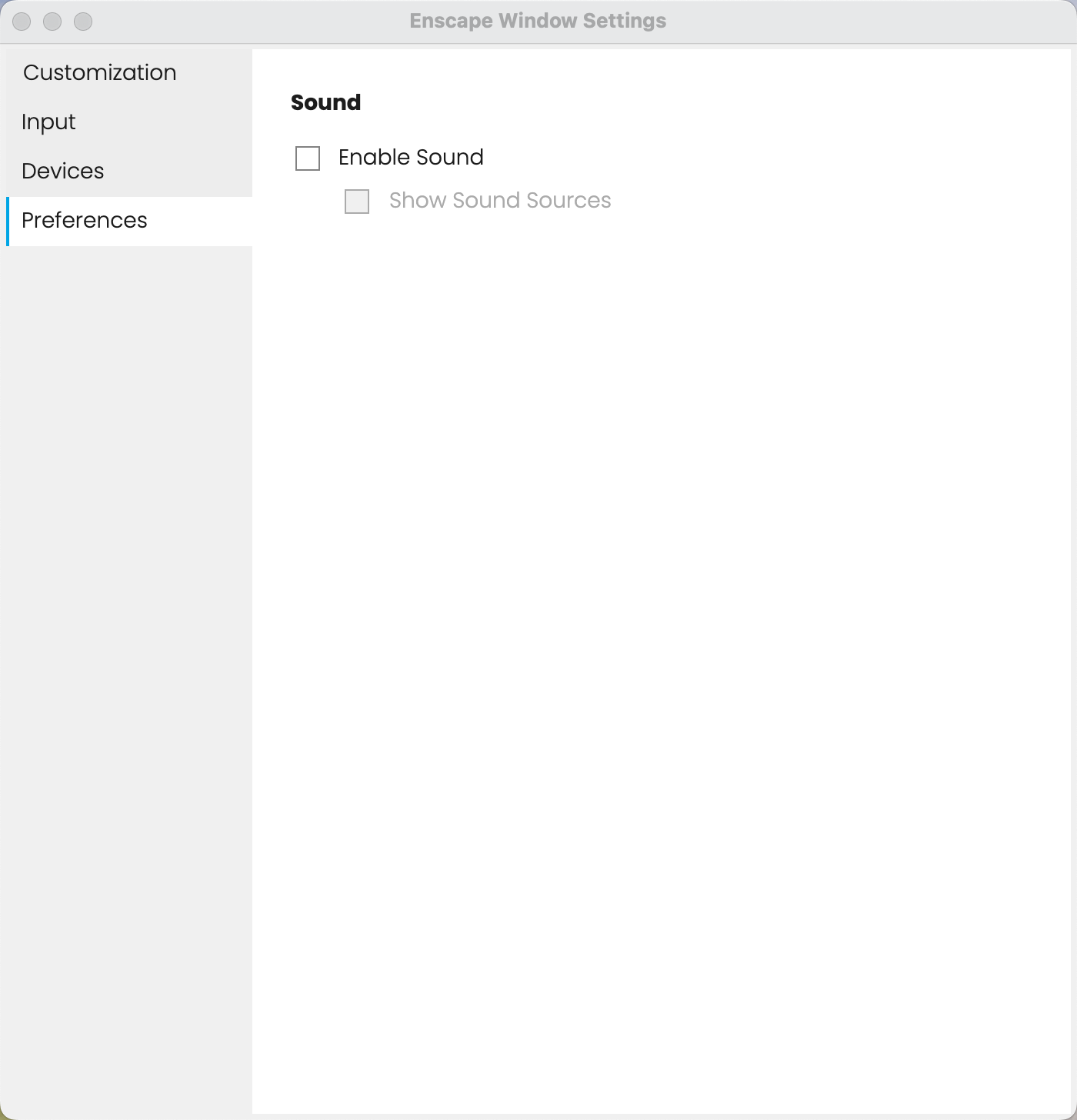
Enscape Window Settings Preferences options