Use this guide to resolve memory and performance issues in Enscape.
Resolve a low frame rate (FPS)
A low frame rate (fps) causes stuttering when you move in Enscape. The sections below explain how to improve performance. Ray-traced sun shadows use a lot of GPU memory. Enscape automatically disables them if there is not enough GPU memory. Free up GPU memory, then restart the renderer to enable them again.
Meet system requirements
Enscape renders using a dedicated GPU. Recommended GPUs include an NVIDIA GeForce GTX 900 series card or higher, an AMD Radeon Pro 5300m with 4GB, or an M1 with dedicated GPU cores. More VRAM generally improves Enscape performance. For Virtual Reality (VR), GPU clock speed is the more limiting factor.
Check the official System Requirements for your release, as requirements can change.
Simplify your scene
The amount of geometry in your scene affects memory use. Temporarily remove geometry you do not need for the current video or still image export.
Lower the quality level
Higher quality levels use more GPU memory. Reduce the quality level in Enscape if needed. Ray-traced sun shadows are available at all quality levels. A lower quality level frees GPU memory for ray-traced sun shadows.

Rendering Quality slider in the Main settings tab
Reduce screen resolution
Reduce the size of the Enscape window to improve real-time performance. Adjust the Resolution before rendering. In this example, the Resolution is FullHD, equivalent to 1080p. Higher resolutions increase GPU use. Changing the resolution scales both the rendered image and secondary resources stored on the GPU. These resources support lighting calculations, transparency and other rendering tasks.

Resolution settings in the Output tab
Other performance settings
Open the Rendering tab in General Settings for more performance options.
Image Quality Options
Ray-Traced Sun Shadows for captures enables ray-traced sun shadows and sunbeams through fog for screenshots, panoramas and videos. It uses ray tracing instead of shadow maps for more detailed shadows. This improves image quality but reduces performance.
Also apply for walkthrough applies ray tracing while you walk through scenes.
NVIDIA Shadow Denoiser reduces noise along soft shadow edges, particularly during camera movement, but increases rendering time. It is not used in rest mode or for captures. For the best rendering results, enable both Ray-Traced Sun Shadows and NVIDIA Shadow Denoiser.
Disable Grass/Carpet Rendering to stop rendering grass and carpet and improve performance.
Hardware features
Disable Hardware-accelerated Ray-Tracing if RTX causes memory issues. RTX is enabled by default. Restart Enscape after you change this setting.
Ray-Traced Artificial Light uses ray tracing for artificial light sources instead of shadow maps. This produces more detailed shadows. At High Rendering Quality or above, you can also see the effects of semi-transparent geometry.
NVIDIA DLSS (Deep Learning Super Sampling) is an RTX technology that uses AI to increase frame rates. It lets you use high resolutions while maintaining a steady frame rate.
Restmode stops animations a few seconds after you stop moving in the Enscape viewport. Animated models can use much more GPU memory than models without animation. Reduce wind intensity to zero in visual settings to switch off wind. Enscape can then handle animated vegetation like models without animation and use less memory.

DLSS troubleshooting
If DLSS does not work, check that you have the latest GPU drivers. See the GPU driver recommendations. Also check that Auto Exposure is enabled in Visual Settings.
If DLSS causes problems on a computer with a dedicated NVIDIA RTX 30XX GPU and an iGPU (CPU) from the AMD Ryzen 7 5800H or AMD Ryzen 9 5900 range, also install the AMD Q21.6.2 driver to resolve the issue.
DLSS and Hardware Accelerated Ray Tracing are not supported on the NVIDIA GTX 1660 product line. GTX 1660 cards can run RTX features, but these can cause performance issues. RTX is therefore disabled in version 4.0 and above. It remains available in earlier Enscape versions, where performance issues may occur. The same limitations apply to NVIDIA T1000 and T2000 graphics cards. Disable RTX for these GPUs.
Monitor your GPU's performance
Enscape has no built-in tool for monitoring GPU performance.
Use Task Manager on Windows or Activity Monitor on macOS to monitor GPU performance.
The screenshot shows the Windows Task Manager Process tab with SketchUp. Enscape runs as a process tied to your CAD application, so it is not listed separately. Look for your host CAD application, such as SketchUp, Revit, Rhino, Archicad or Vectorworks, to check its GPU use.

Windows Task Manager Process tab
Running applications share your computer's GPU memory. If several applications use GPU memory, closing some may free up enough for Enscape.
Click the Performance tab to view hardware performance. Focus on the GPU, as it is the main resource Enscape uses.
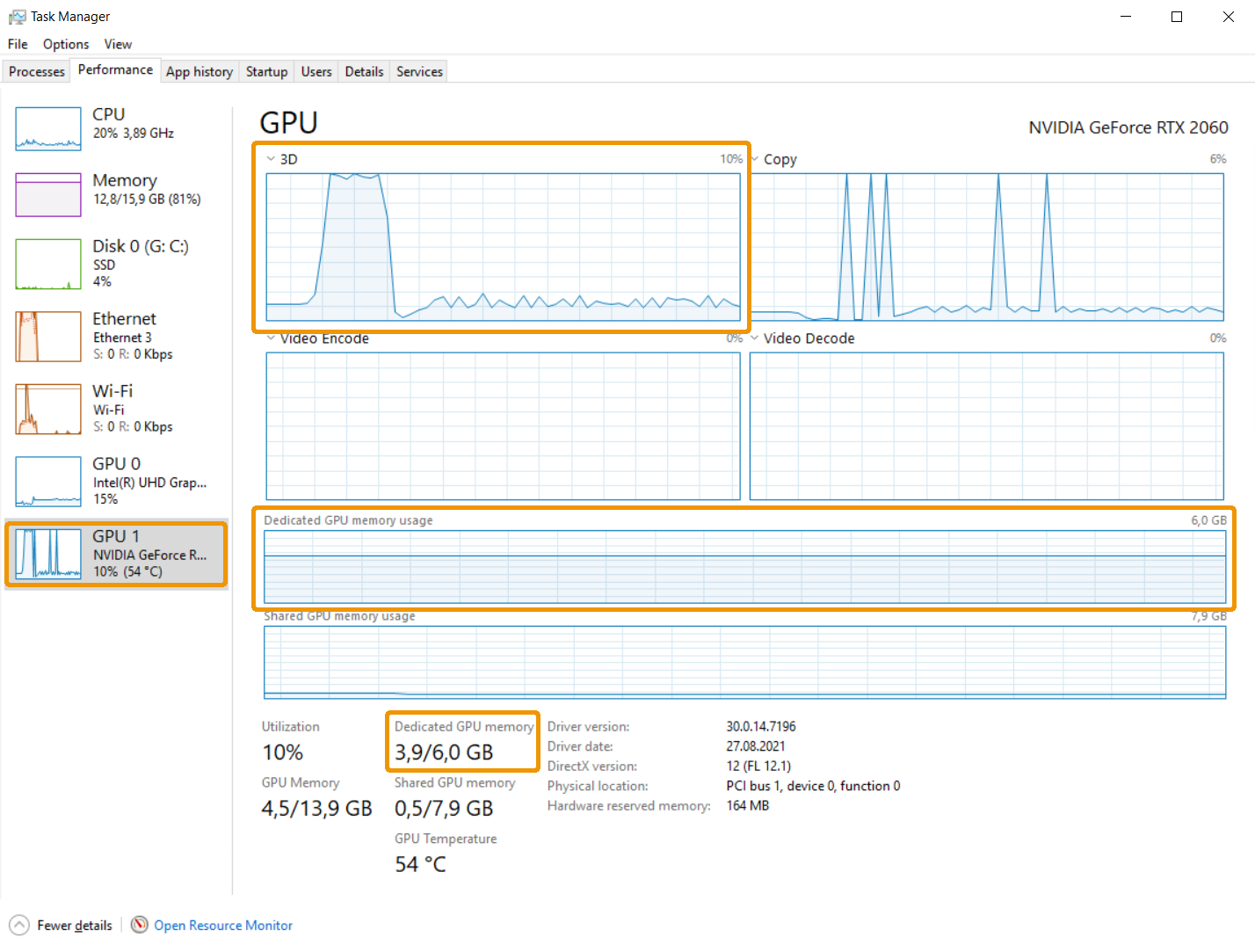
Windows Task Manager Performance tab
Task Manager takes up screen space and has no on-screen overlay. For an overlay, consider the GPU software provided by AMD or NVIDIA.
For NVIDIA, use the NVIDIA GeForce Experience package or the Quadro Experience package, depending on your GPU model.
For AMD, use the AMD Pro or Radeon software.
These GPU software packages have a Performance area that should also be available as an on-screen overlay. Use it to monitor GPU performance while Enscape runs and help diagnose problems.
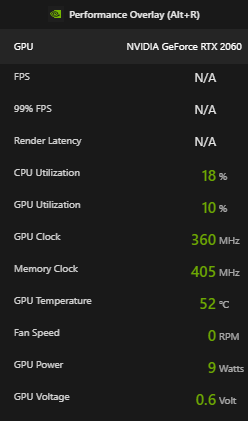
Example of an NVIDIA overlay
Reduce loading time
Enscape may take a few minutes to load all the information it needs for some projects.
Loading time also depends on how quickly your CAD software can send the project's content to Enscape. More complex projects may take longer to load. Try the following to reduce loading time:
- In Revit, use Section Box to reduce the amount of information sent to Enscape.
- Hide small, detailed objects such as cables, triggers and pipes.
- Use a dedicated SSD for your CAD installation and project files.
- Upgrade your computer. Your CPU, RAM and hard disk speed limit export speed.
- Download the latest version of Enscape to get loading time improvements.