V-Ray Benchmark
Using Benchmark
This page offers information on how to use V-Ray Benchmark.
Last updated 21 November 2025
This page offers information on how to use V-Ray Benchmark.
GUI Application
To launch the GUI and begin benchmarking your system's performance, run the application. There is no need to install it, it can run from anywhere, including USB keys and network locations.

You will be presented with an End User License Agreement window, where you should acquaint yourself with the License Agreement in order to proceed.
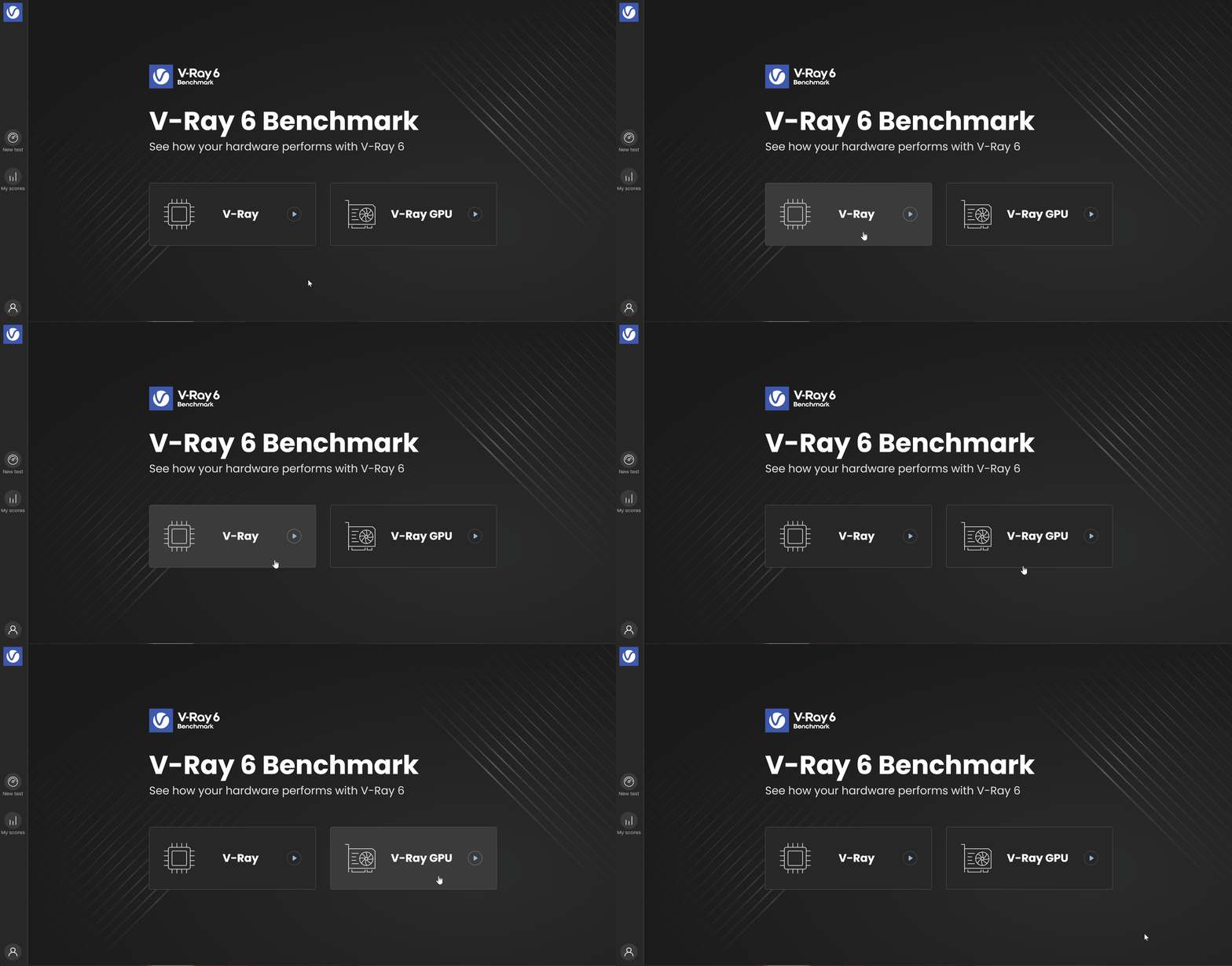
You are presented with two options: V-Ray (utilizing the CPU), V-Ray GPU (utilizing your RTX or CUDA devices). Note that V-Ray, and V-Ray GPU are different render engines in V-Ray Benchmark.
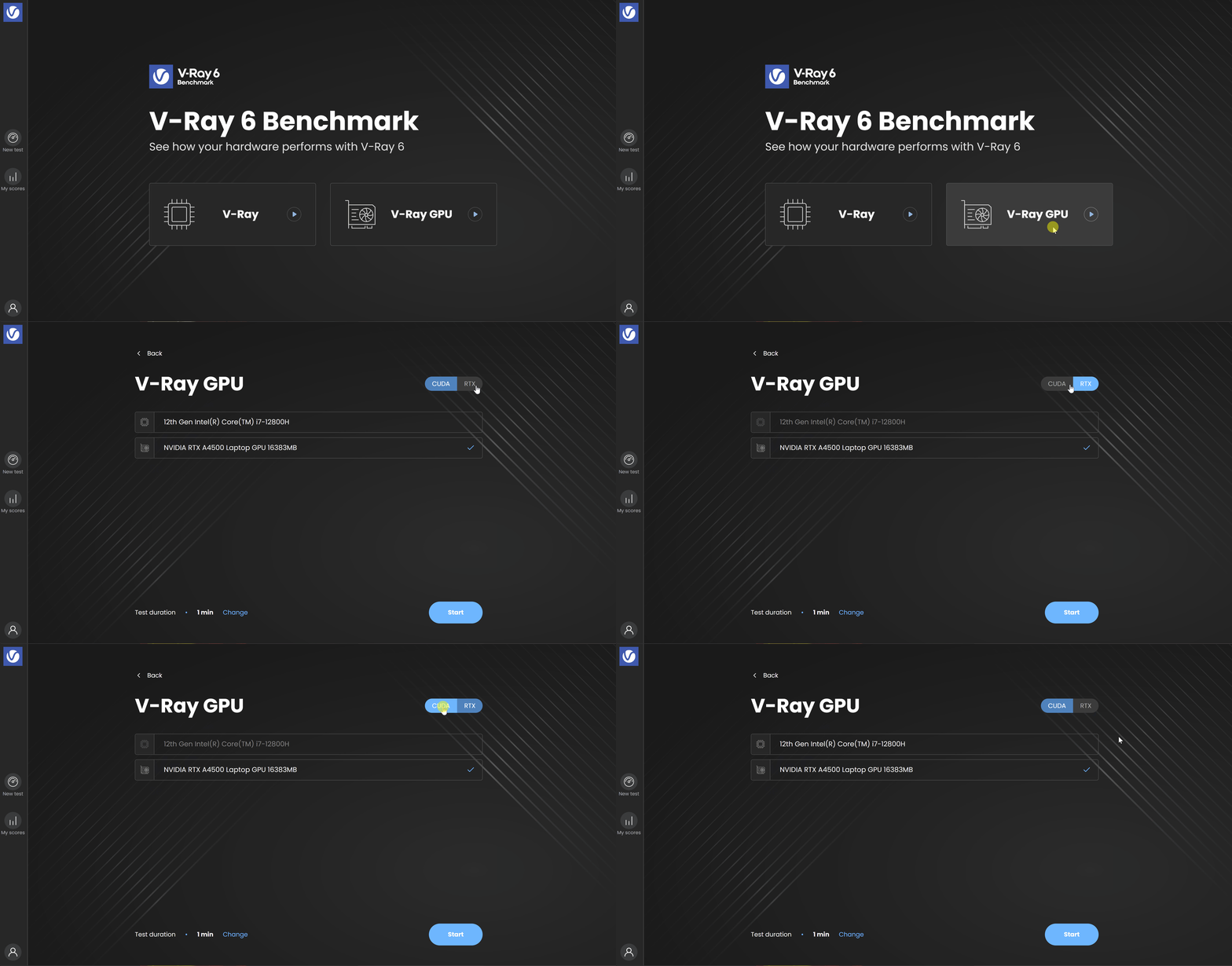
Under V-Ray GPU you have the freedom to choose which devices to benchmark - CUDA or RTX. Your CPU is also considered a CUDA device and can be tested in a hybrid mode.
Test duration
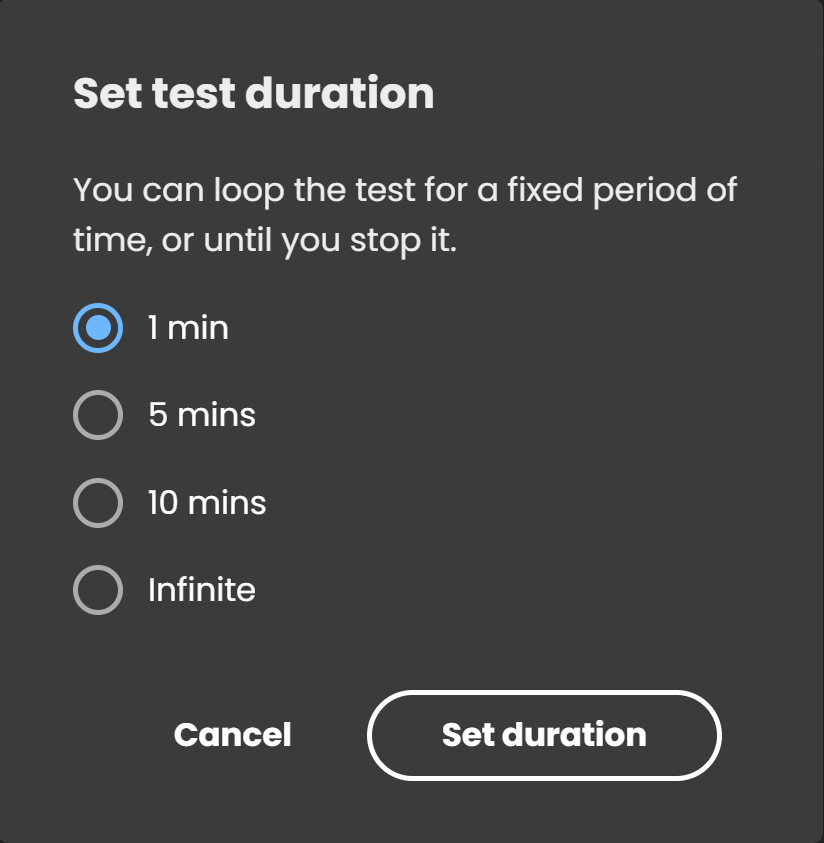
Each of the tests runs calculations for exactly 1 minute by default, but the duration can be changed. The Change option opens a popup window that prompts you to select a time frame in which the test is looped.
Command-line Usage
V-Ray Benchmark can also be used with a command-line interface, making it suitable for benchmarking machines that have no monitors connected, such as render farms. Navigate to the location of the OS-specific application using a system console (or terminal), and execute the benchmark application.
The table below contains a list of all available options for using V-Ray Benchmark:
Option | Option alias | Function | Examples |
|---|
Option | Option alias | Function | Examples |
|---|---|---|---|
--dump | -d | Logs debug output | vray-benchmark-6.00.00-cli.exe --mode vray --dump |
--list-devices | -l | Lists the available devices for the picked mode | vray-benchmark-6.00.00-cli.exe --mode vray-gpu --list-devices |
--with-devices DEVICES | -w DEVICES | Picks devices for rendering. DEVICES is a comma-separated list of device indices | vray-benchmark-6.00.00-cli.exe --mode vray-gpu --with-devices 0,1 |
--mode MODE | -m MODE | Picks a mode for rendering. MODE can be: vray, vray-gpu | vray-benchmark-6.00.00-cli.exe --mode vray vray-benchmark-6.00.00-cli.exe --mode vray-gpu |
--rtx | Renders using RTX | vray-benchmark-6.00.00-cli.exe --mode vray-gpu --rtx | |
--output FILE | -o FILE | Outputs the benchmark information to a .json file. FILE is an absolute path. | vray-benchmark-6.00.00-cli.exe --mode vray --output D:\CUDA_cards.json |
--version | -v | Provides information about the current version of V-Ray Benchmark. | vray-benchmark-6.00.00-cli.exe --version |
--help | -h | Displays a help message with the available command-line flags. | vray-benchmark-6.00.00-cli.exe --help |
To run V-Ray Benchmark through the command-line interface, just pick a rendering mode or run the file (in which case the all mode will automatically be chosen).
You will then be prompted to accept the End-User License Agreement, after which the benchmark will begin. Keep in mind that multiple flags can be used simultaneously.
Command-line Examples
Windows:
<code data-v-c2b1f83f=""><span data-v-c2b1f83f="" class="line">vray-benchmark-6.00.00-cli.exe --mode vray-gpu</span></code>
Linux:
<code data-v-c2b1f83f=""><span data-v-c2b1f83f="" class="line">$ ./vray-benchmark-6.00.00 --mode vray</span></code>
Notes
- If you experience trouble launching V-Ray Benchmark under Windows (GUI or CLI), it might be due to invalid performance counters. They can be reloaded by running the cmd as administrator and executing the following commands:<code data-v-c2b1f83f=""><span data-v-c2b1f83f="" class="line">lodctr /r </span><span data-v-c2b1f83f="" class="line">%windir%\SysWOW64\lodctr /r</span></code>