V-Ray for Blender
Chaos Cloud
This page provides information about submitting render jobs to Chaos Cloud from V-Ray for Blender.
Last updated 16 July 2026
This page provides information about submitting render jobs to Chaos Cloud from V-Ray for Blender.
Overview
Submitting render jobs to Chaos Cloud can be done easily and directly from V-Ray for Blender's interface. This page walks you through the steps.

Submitting Render Jobs
V-Ray provides built-in integration with Chaos Cloud, allowing you to submit render jobs directly to the cloud. Go to the V-Ray menu > Cloud Services > Submit to Cloud button.

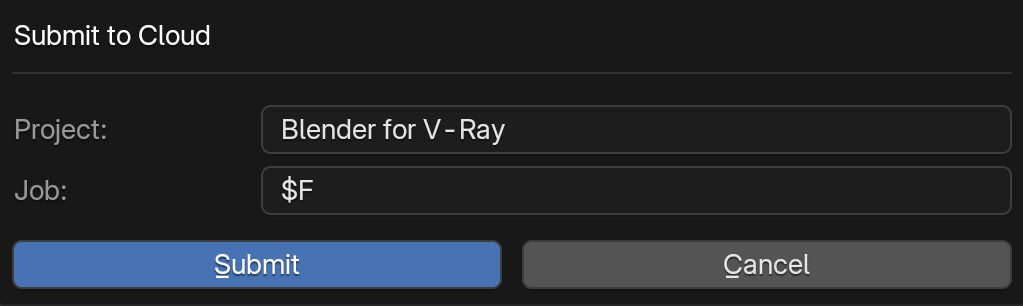
A Submit to Cloud window opens, where you can confirm the export of the current scene and submit the exported .vrscene to Chaos Cloud.
- Here you can specify the name of an already existing Project or create a new one. Then, give a name to this new Job.
- Once you click Submit, your project is submitted to Chaos Cloud. It starts rendering if you have enough Cloud Credits.
On the Chaos Cloud page, you can view details about your render.
When the render is complete, you can click Download to download the scene as an .exr.

Footnotes
- VRIMG is a Chaos proprietary file format used by the V-Ray Frame Buffer to store the rendered image incrementally (bucket by bucket) while rendering in full floating-point format, with all available render elements. It is used as a render output, but it is not recommended to use it as a texture file format. VRIMG contains metadata, i.e. render statistics. It supports dynamic bucket size.
- When a scene has no visible lights and GI is disabled, a default light is exported with the active camera. In the case of multiple camera exports, rendering from a different camera can have unexpected results.