V-Ray for Cinema 4D
Mesh
This page provides general information about the Mesh sub-section of the Rendering tab of the V-Ray Volumetric Grid.
Last updated 19 September 2025
This page provides general information about the Mesh sub-section of the Rendering tab of the V-Ray Volumetric Grid.
Overview
The options in this rollout are accessible when the Render Mode is set to Mesh, Ocean Mesh, or Cap Mesh.
Parameters
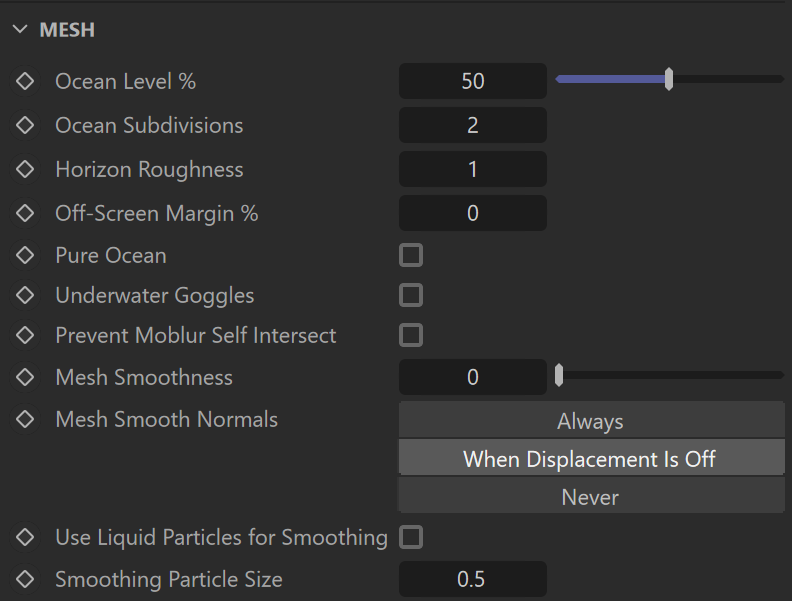
Ocean Level – Generates an infinite ocean plane, starting at the grid's boundaries. Specifies the water level as a percentage of the total grid height. The Ocean Level should remain constant and should not be animated for the duration of the render sequence.
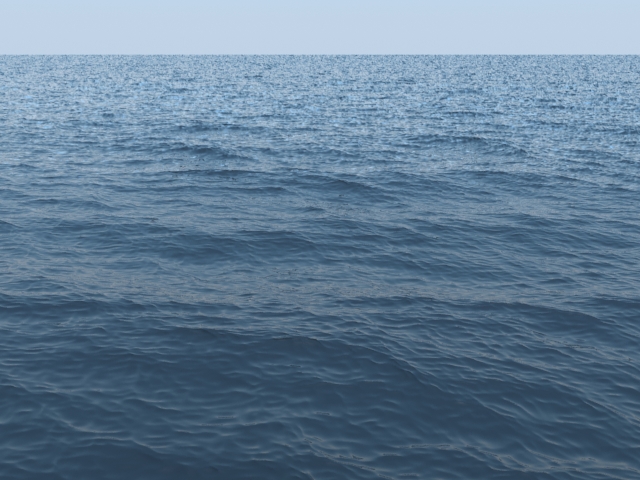
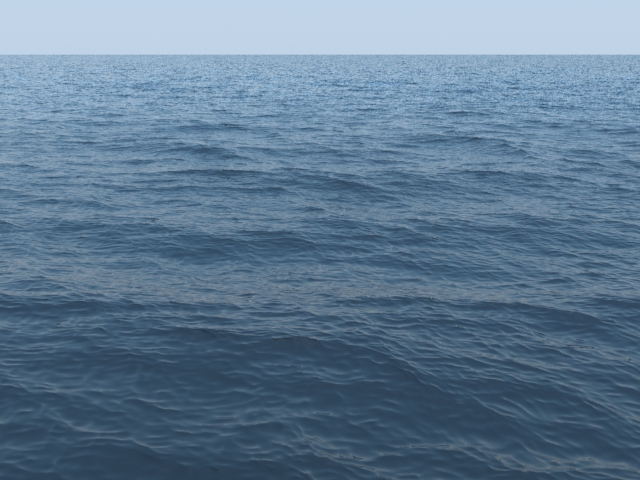
Ocean Subdivisions – When generating the far areas of the surface, this determines how many vertices are generated for each pixel of the image. Like with V-Ray subdivisions, the square of the parameter value is used. For example, if you increase the subdivisions twice, the vertices count grows four times. For more information, see the Ocean Subdivisions example below.
Horizon Roughness – Controls the roughness of the distant ocean surface near the horizon. Adds more detail to the waves, which is especially helpful when using a highly reflective material for the ocean surface. Increasing this value can potentially produce visible noise when rendering an animation. To counter this effect, increase the Ocean Subdivisions parameter.
Off-Screen Margin (%) – The ocean is generated only in the camera view, which can lead to problems when using camera motion blur, using reflections, or when the ocean casts shadows on objects underwater. This option allows you to extend the ocean further from the borders of the camera view in order to solve such issues. The value is a percentage of the image size.
Pure Ocean – Creates a flat ocean surface up to the Ocean Level height. It does not need loaded caches; if there are any, it ignores their content, so no simulation details show. Thus, changing frames and generating the ocean surface is very quick. This allows you to preview the behavior of the Phoenix Ocean Texture when Displacement is enabled. The option is available for both preview and rendering in Ocean Mesh or Cap Mesh modes. During preview, it requires the Show Mesh option to be enabled in the Preview tab.
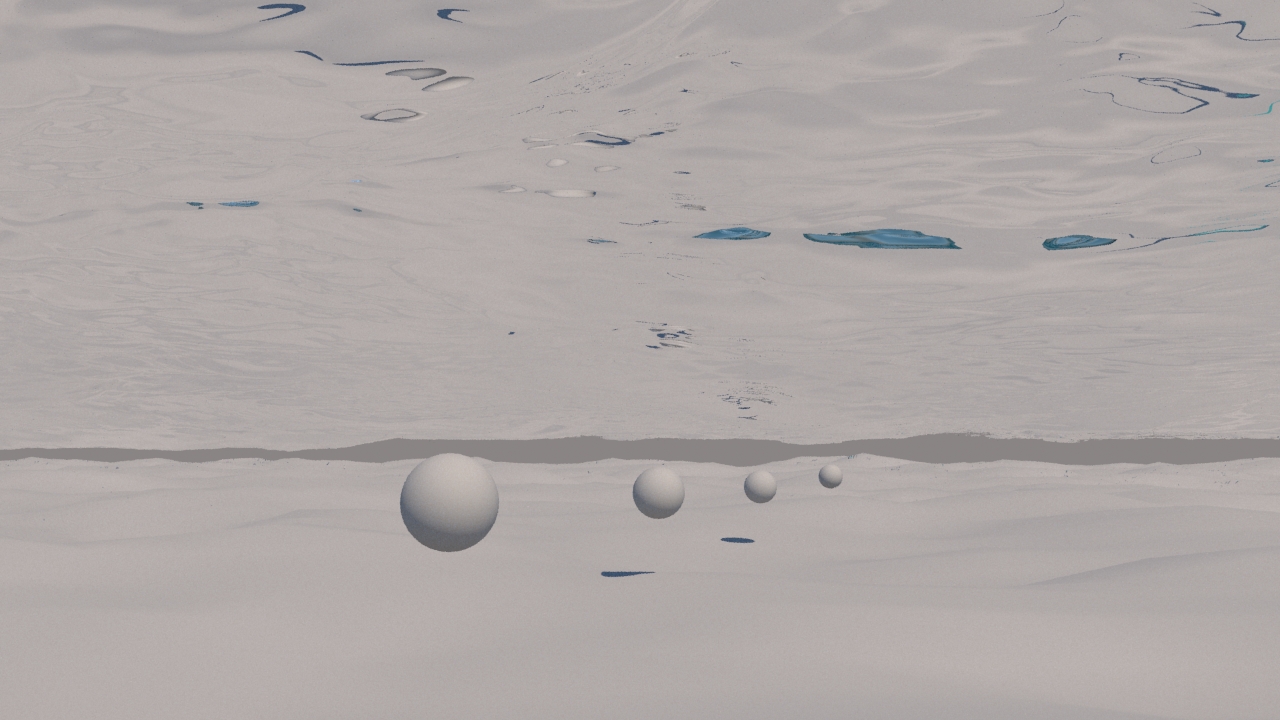
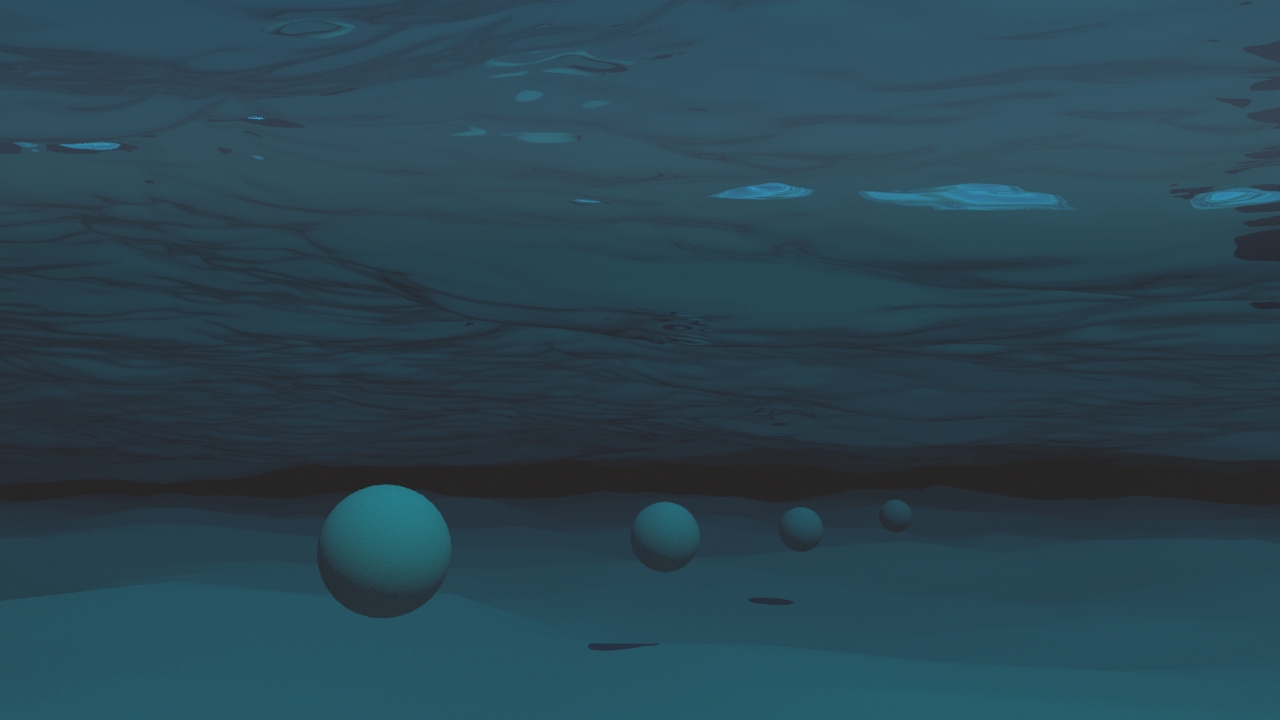
Underwater Goggles – This option is designed to be used when the camera is placed under the water in Ocean Mesh or Cap Mesh mode. When enabled, a surface gets automatically added in front of the camera, using the same material assigned to the Simulator, mimicking the effect of real-life underwater goggles. This way, the ocean volume receives the Fog color from the material assigned to the Simulator, and the field of view shrinks when the index of refraction of the material is above 1. For more information, see the Underwater Goggles example.
Prevent Moblur Self Intersect – Some motion-blurred vertices might penetrate the opposite side of the geometry. When enabled, this option prevents such situations. The self-intersection analysis is expensive, so enable this parameter only when an intersection is obvious.
Mesh Smoothness – Specifies the number of smoothing passes. The higher the value, the smoother the result, but the mesh will require more time to calculate. Used when Render Mode is set to Mesh, Ocean Mesh, or Cap Mesh to reduce the roughness of the mesh.
Mesh Smooth Normals – Smooths the normals of the mesh in order to get an even smoother-looking result, even if the mesh is with low resolution. However, when the Ocean displacement is used to add fine details, the smoothing of normals should not diminish that and can be turned off.
Always – The mesh normals are always smoothed out.
When Displacement is Off – The mesh normals are smoothed only when the Ocean displacement is off.
Never – The mesh normals aren't smoothed.
Use Liquid Particles for Smoothing – Enables particle-based smoothing of the mesh. It requires Liquid particles to be simulated and exported to the cache files. This method overcomes the limitations of basic smoothing without particles, which can flicker in animation and cause small formations in the mesh to shrink.
Smoothing Particle Size – Used to make the liquid thicker or thinner. Works only when Use Liquid Particles is enabled. This parameter specifies the distance from the mesh surface to the particle centers.
Example: Ocean Subdivisions
Example: Underwater Goggles
Notice how the field of view shrinks when the option is enabled due to using Refraction IOR = 1.33 in the Simulator's VRayMtl.