V-Ray for Cinema 4D
V-Ray Environment
This page provides information about the V-Ray Environment tool in Cinema 4D.
Last updated 19 September 2025
This page provides information about the V-Ray Environment tool in Cinema 4D.
Overview
The V-Ray Environment applies overrides to the background, GI, and reflection/refraction calculations. Assign the object to the V-Ray Environment slot in the Environment Overrides to apply the overrides to the scene. Create multiple V-Ray Environments and circle through various looks of your scene. These overrides are applied at render time.

UI Path: V-Ray menu > Lights > V-Ray Environment
Properties
Env. Matte Texture – This option allows you to override all override options with one texture at once. It is a useful feature when working with matte objects.
Rotation – Determines the degrees of rotation for the Env. Matte Texture.

Override Background

Make sure to enable the rollout from the tick.
Background – Sets a color or a map to act as background during rendering. When enabled, you can select a Texture. If a texture is selected, it overrides the selected color.
Texture – Specifies a texture map for the background.
Mix Strength – Determines the blend amount between the background texture and the color.
Rotation – Determines the rotation of the background texture.

Override GI
Make sure to enable the rollout from the tick.
Gi Color – Sets a color or a map to be used during Indirect Illumination(GI) calculation. The effect of changing the GI texture is similar to skylight. If a texture is selected, it overrides the selected color.
Texture – Specifies a GI map for the Gi Color option.
Mix Strength – Determines the blend amount between the GI texture and the color.
Rotation – Determines the rotation of the GI texture.

Override Reflection
Make sure to enable the rollout from the tick.
Reflect Color – Sets a color or a texture to be used during calculations of reflections. When enabled, you can select a Texture. If a texture is selected, it overrides the selected color.
Texture – Specifies a texture map for the Reflect Color option.
Mix Strength – Determines the blend amount between the reflection texture and the color.
Rotation – Determines the rotation of the reflection texture.

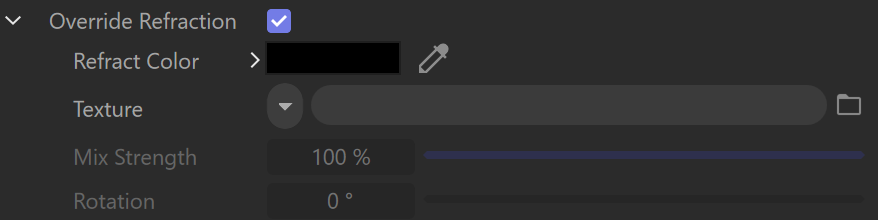
Override Refraction
Make sure to enable the rollout from the tick.
Refract Color – Sets a color or a texture to be used during calculations of refractions. When enabled, you can select a Texture. If a texture is selected, it overrides the selected color.
Texture – Specifies a texture map for the Refract Color option.
Mix Strength – Determines the blend amount between the refraction texture and the color.
Rotation – Determines the rotation of the refraction texture.
Use Secondary Matte
Make sure to enable the rollout from the tick.
Secondary Matte Color – Sets a color or a texture to be used during calculations of reflections/refractions of matte objects. If a Texture is assigned, it overwrites the color.
Texture – Specifies a texture map for the Use Secondary Matte option.
Mix Strength – Determines the blend amount between the secondary matte texture and the color.
Rotation – Determines the rotation of the secondary matte texture.
