V-Ray for Cinema 4D
V-Ray Material Refraction
The Refraction tab is part of the V-Ray Material parameters.
Last updated 10 July 2026
The Refraction tab is part of the V-Ray Material parameters.
Refraction
Color – Specifies the refraction color of the material. Note that the actual refraction color depends on the Reflection Color as well. See the Refraction Color example for more information.
Texture – A texture map can be specified here for the refraction.
Mix Strength – Specifies a blend amount between the texture map and the reflection color.
Refraction Glossiness – Controls the sharpness of refractions. A value of 1.0 creates perfect glass-like refraction; lower values produce blurry or glossy refractions. See the Refraction Glossiness example for more information.
Texture – Specifies a texture file to be used for the refraction glossiness.
Mix Strength – Specifies a blend amount between the texture map and the refraction glossiness value.
Refraction IOR – Index of refraction for the material, which describes the way light bends when crossing the material surface. A value of 1.0 means that the light does not change direction when hitting the material surface. See the Refraction IOR example for more information. A texture can be attached to this slot.
Affect Shadows – This parameter causes the material to cast transparent shadows. This creates a simple caustics effect, dependent on the refraction color and the fog color. Note: For accurate caustic calculations, disable this parameter and instead enable Caustics. Simultaneous usage of both Caustics and Affects Shadows can be used for artistic purposes but does not produce a physically correct result.
Refract Thin Walled – When enabled, the Fog Scattering mode is set to SSS. It simulates thin translucent surfaces such as soap bubble, leaves, curtains, etc. The SSS Color defines the backside color, while the SSS Amount controls the translucency effect.

Example: Refraction Color
This example demonstrates the effect of the Refraction Color parameter when creating glass materials. For the images in this example, the material has a gray Diffuse color, white Reflect color, and the Fresnel Reflections option is enabled.

Refraction Color = 0, 0, 0

Refraction Color = 153, 153, 153

Refraction Color = 255, 255, 255
Example: Refraction IOR
This example demonstrates the effect of the Refraction IOR parameter. Note how light bends more as the IOR deviates from 1.0. When the index of refraction (IOR) is 1.0, the render produces a transparent object. Note: in the case of transparent objects, it might be better to assign an opacity map to the material, rather than use refraction.
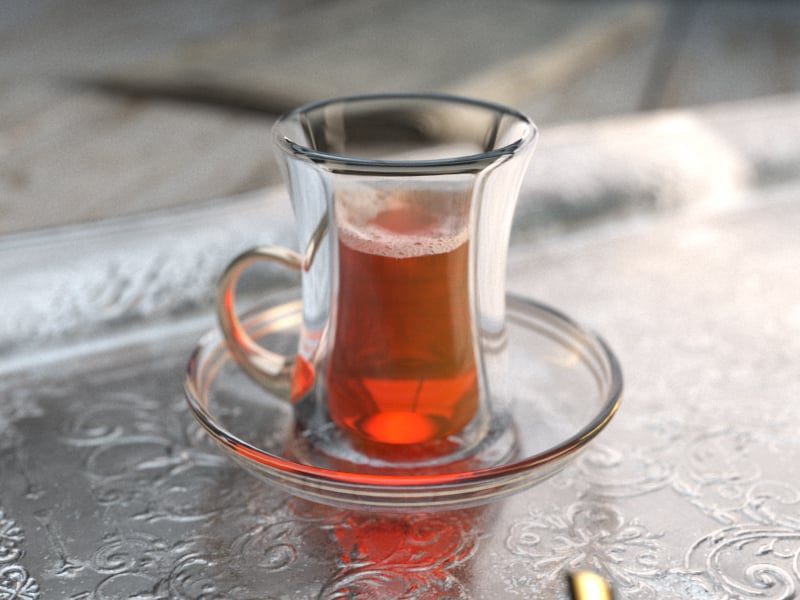
Refraction IOR =0.80
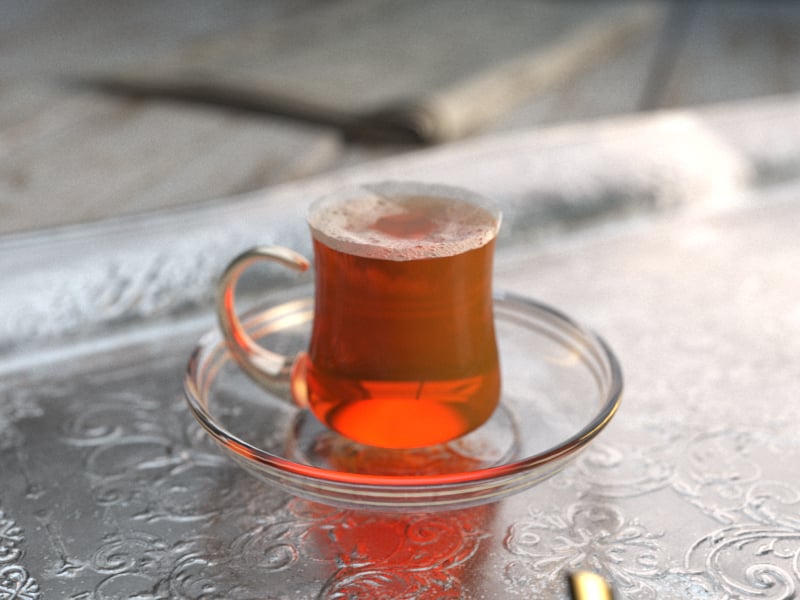
Refraction IOR = 1.00
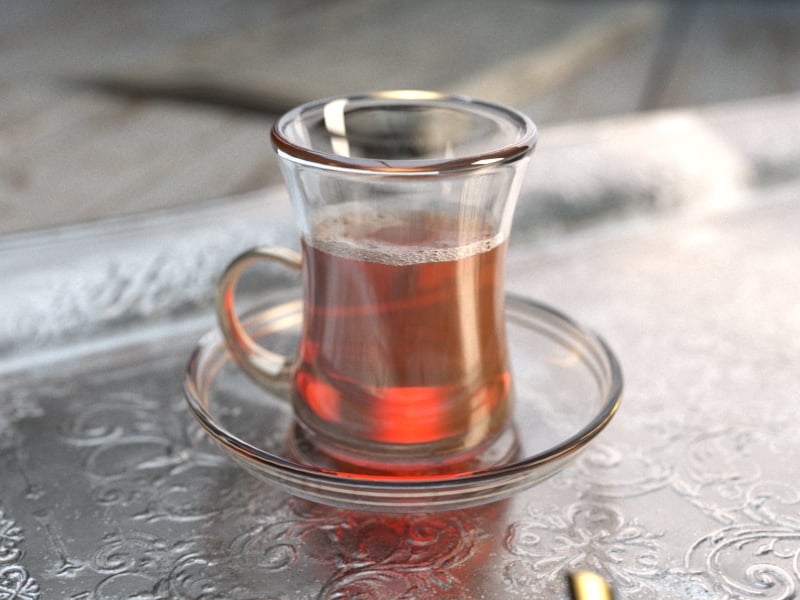
Refraction IOR = 2.80
Example: Refraction Glossiness

Refraction Glossiness = 0.0

Refraction Glossiness = 0.5

Refraction Glossiness = 1.0
Translucency

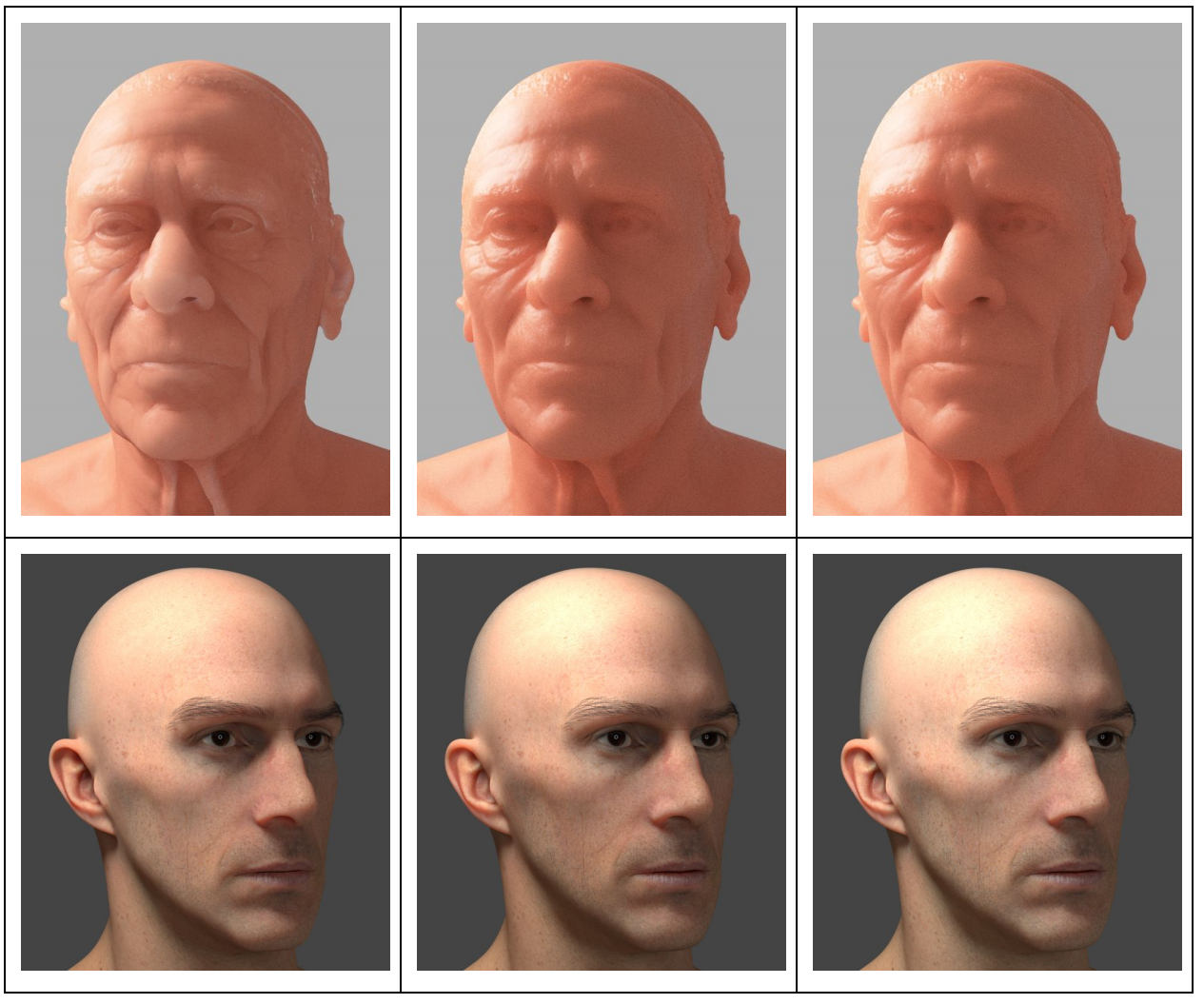
BF + LC (correct result)

GI is disabled

BF + None
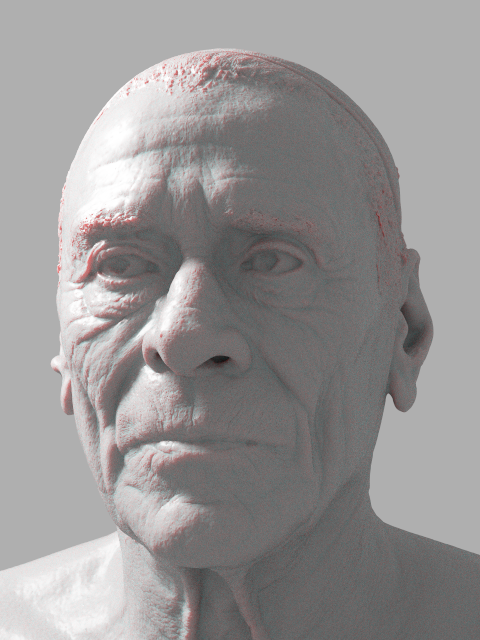
BF+BF (3 bounces)
Translucency Type – Selects the algorithm for calculating translucency (also called sub-surface scattering). Note that Refraction must be enabled for this effect to be visible.
None – When selected, the only available parameters are the Fog Color and Depth (cm). Together with the Refraction color, they determine the attenuation of light as it passes through the material. In this mode, there is no subsurface scattering.
Volumetric – Works together with the Refraction Color to scatter light inside the object. This is useful for liquids and other highly transparent materials. The Refraction Color and Refraction Glossiness determine respectively how much of the interior of the object is visible and how rays interact with the object’s surface.
SSS – Works independently of the Refraction Color/Glossiness and is useful for skin, wax, marble and other relatively opaque materials.
Illumination Method –Determines how direct illumination is computed for sub-surface scattering.
Directional – The directional method tends to propagate more light in the direction, from which the surface is lit.
Uniform – The uniform method spreads light more uniformly inside the material. Note that it is not supported on V-Ray GPU.

Translucency Types
None
The Depth (cm) parameter replaces the previous Fog multiplier with an easier to control value in centimeters.
For this example the Refraction Color is set to #FFFFFF and the Fog Color is set to #099E9E. The Translucency Type is set to None and the Depth is set to 50cm.

Volumetric
SSS Amount – Blends between full scattering and pure refraction.
Scatter Color – Controls the scattering. This parameter can be mapped with a texture. See the Scatter color example for more information.
Fog Color – Controls the absorption of the material. This parameter can be mapped with a texture. See the Fog color example for more information.
Depth (cm) – Controls the strength of the fog effect. Higher values reduce the effect of the fog, making the material more transparent. Smaller values increase the fog effect, making the material more opaque. The Fog Depth slot allows a texture to be attached for this parameter. See the Depth example for more information.
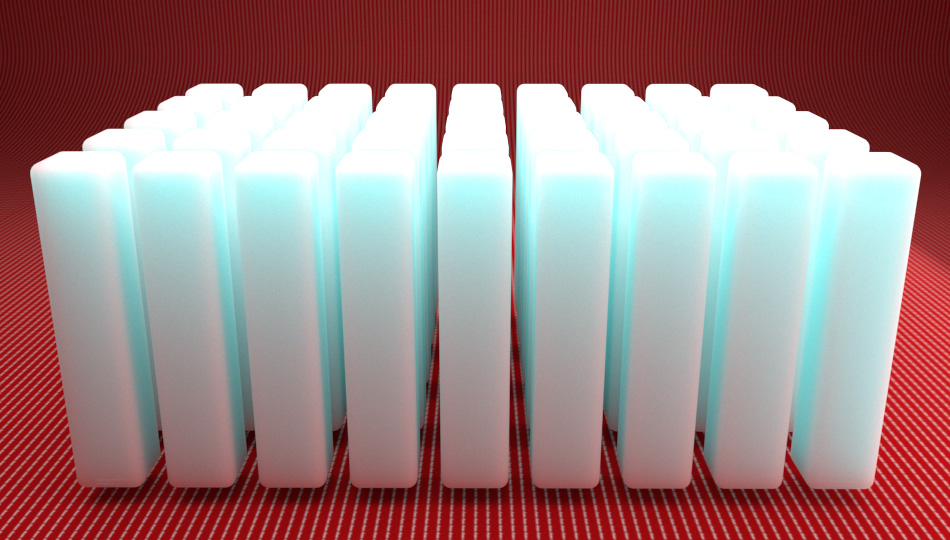
SSS amount = 1
SSS
SSS amount – Blends between the diffuse color of the material and the SSS effect by reducing the diffuse component of the material and replacing it with the sub-surface scattering effect.
SSS color – Determines the overall surface appearance. This parameter can be mapped with a texture.
Scatter radius – Controls how far each of the red/green/blue components travels inside the volume. This parameter can be mapped with a texture.
Scale (cm) – Controls the strength of the SSS effect. The Fog Depth slot allows a texture to be attached for this parameter.
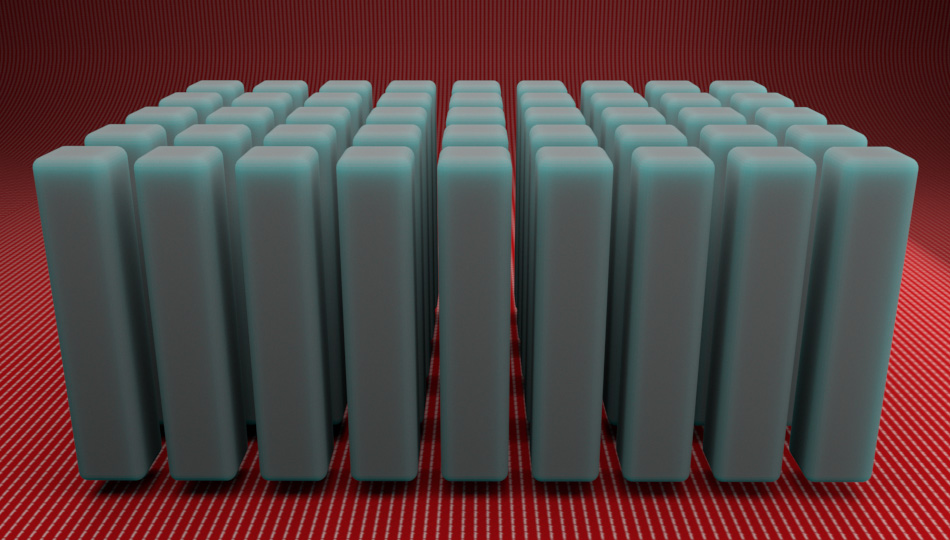
SSS amount = 1
Example: Depth
This example demonstrates the effect of the Depth parameter. Translucency is set to None.

Depth = 5

Depth = 0.5

Depth = 0.1
Example: Fog Color
This example demonstrates the effect of the Fog Color parameter. Notice that we are only changing the hue value of the Fog color. Translucency is set to None.

Fog Color (HSV) Hue = 42

Fog color (HSV) Hue = 245

Fog color (HSV) Hue = 128
Example: Scatter Color

Scatter Color = RGB (250, 20, 30)

Scatter Color = RGB (220, 115, 22)

Scatter Color = RGB (240, 202, 23)
Refraction Advanced
Trace Refractions – Enables refractions for the current material.
Max Depth – The number of times a ray can be refracted. Scenes with lots of refractive and reflective surfaces may require higher values to look correct. See the Max Depth example for more information.
Affect Alpha – Allows the user to specify which channels are going to be affected by the transparency of the material.
Color Only – The transparency affects only the RGB channel of the final render. This is the default value.
Color+alpha – This mode causes the material to transmit the alpha of the refracted objects, instead of displaying an opaque alpha.
All channels – All channels and render elements are affected by the transparency of the material.
Enable Dispersion – Enables the calculation of true light wavelength dispersion.
Aberration – Allows the user to increase or decrease the dispersion effect. Lowering it widens the dispersion and vice versa. See the Aberration example for more information.
Example: Aberration
This example demonstrates the dispersion capabilities of the V-Ray Material and the effect of the Abberation parameter.
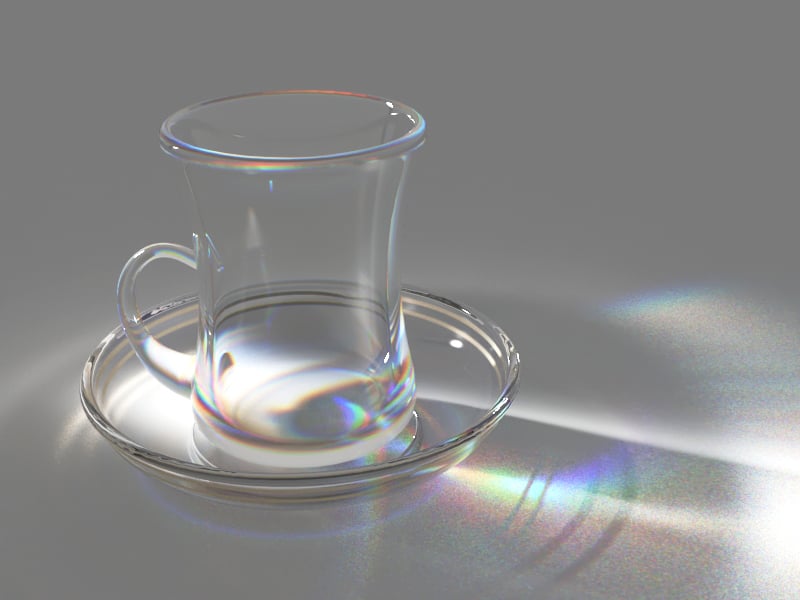
Aberration = 1
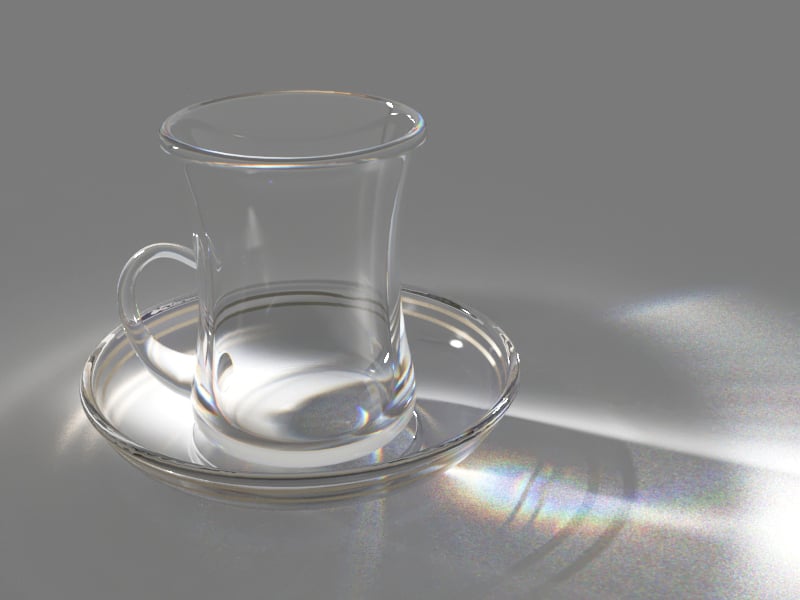
Aberration = 5

Aberration = 10
Example: Refraction Depth
This example demonstrates the effect of the Refraction Max Depth parameter. When the Max Depth value is too low, it produces incorrect results. Also, in the last two examples, see how areas with total internal reflection are also affected by the Refraction Max Depth.
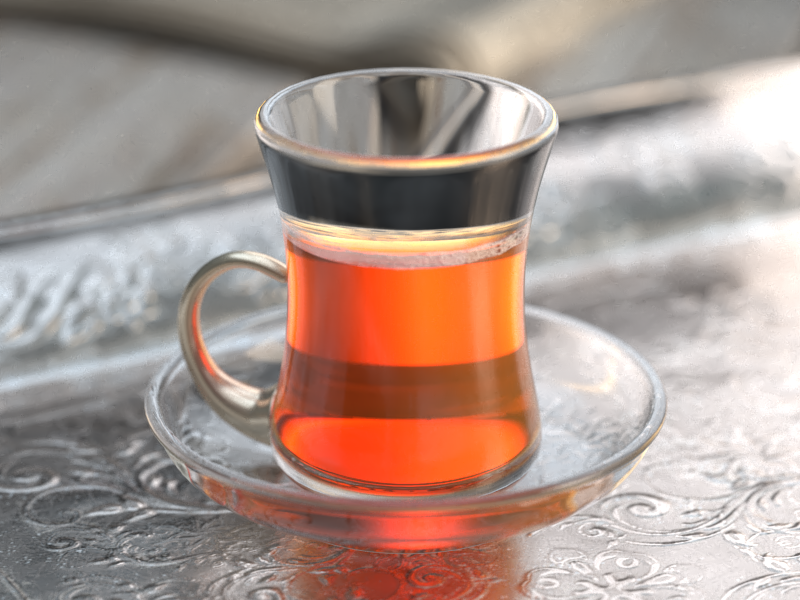
Refraction Max Depth = 1

Refraction Max Depth = 5

Refraction Max Depth = 10
Quick Caustics - Refraction
This rollout provides “quick” caustics settings. Useful when creating simple water scenes. The “quick” caustics are not as physically accurate as the normal V-Ray caustics, but they render quicker and are high-quality enough for simple scenes. Quick caustics are supported only with the Light Cache sampler. Light Cache is enabled for production rendering by default. To enable it for IPR, go to the Render Settings > Interactive Tab > Enable Light Cache in Interactive. For more details, see the Interactive Tab page.
Quick Caustics are not supported on V-Ray GPU.
Reflection Caustics – When enabled, “quick” refraction caustics are cast by the material.
Depth – Determines the maximum distance from the surface at which the effect is visible. Measured in scene units. Use the minimum required depth for optimal render times.

Notes
- The new translucency modes perform actual volumetric multibounce scattering inside the object, therefore they are influenced by the actual geometry quite a bit. Widely used “cheats” like smooth surface normals may not be enough for low-poly meshes, especially with a small scatter radius. In this case, subdividing the mesh either using V-Ray subdivision or e.g. the Turbosmooth modifier improves the results. V-Ray subdivision is slower to render, but is able to tessellate the mesh in a view-dependent manner without having to guess the number of subdiv iterations.
- V-Ray provides several other ways to achieve sub-surface scattering, for example the V- Ray Fast SSS2 and V-Ray ALSurface materials. These materials use various approximations for the sub-surface scattering effect in order to speed up the calculations. In many cases, they produce a decent result. However, in more complicated scenarios, the approximations may be inaccurate.
Comparison between sub-surface scattering methods