V-Ray for Cinema 4D
V-Ray Tab
This page provides information about the V-Ray tab in V-Ray Render Settings.
Last updated 10 July 2026
This page provides information about the V-Ray tab in V-Ray Render Settings.
Overview
The core of how V-Ray determines how to render your Cinema 4D scenes can be found within the VRay tab of the Render Settings window. Some basic information on each rollout can be found below, but for more details, please see the dedicated pages for each section.
UI Path: ||Render Settings|| > V-Ray > V-Ray tab

Render Engine
V-Ray allows you to use both CPU and GPU hardware for renders through the Render Engine rollout.

V-Ray GPU Engine
When the engine is set to V-Ray GPU, a number of options are exposed in the rollout.
Engine – Allows you to choose between the V-Ray and V-Ray GPU engines.
GPU Engine – Specifies which GPU platform to use for calculations - CUDA, AMD HIP or NVIDIA RTX.
Rendering Devices – This button opens a window where you can specify which GPU devices are used for rendering. See more information at Rendering with V-Ray GPU.
GPU Resize Textures –Determines how textures' resolution/size are handled to help optimize memory usage. The possible values are:
Full Size Textures – Textures are loaded at their original size.
Resize Textures – Adjusts the size of high-resolution textures to a smaller resolution to optimize render performance.
Compressed – Compresses the textures to optimize performance. Compression results in roughly a 75% reduction in memory usage. In some situations, VRayBitmaps cannot be compressed, such as when a bitmap is used both as a normal/bump map and a color map; when a bitmap is used as a displacement map; when a bitmap is used for lens effects. This option is not supported on macOS.
Hardware Textures (macOS only) – Optimizes the performance without compressing the textures, i.e., without loss in quality. This mode is recommended when working with V-Ray GPU on macOS.
GPU Texture Size – When GPU Resize Textures is enabled, this value specifies the resolution to which the textures are resized.
GPU Texture Format – The amount of bits per channel used to store the material texture information into memory. You can choose between 8 bit, 16 bit, and 32 bit. This does not affect textures used for lights and displacement.
Use System Memory for Textures – Lowers GPU memory usage significantly by offloading textures to system memory with little impact on performance. This option speeds up GI build-up and eliminates the risk of errors caused by memory insufficiency. Not compatible with On-demand, Compressed, and Resized textures.
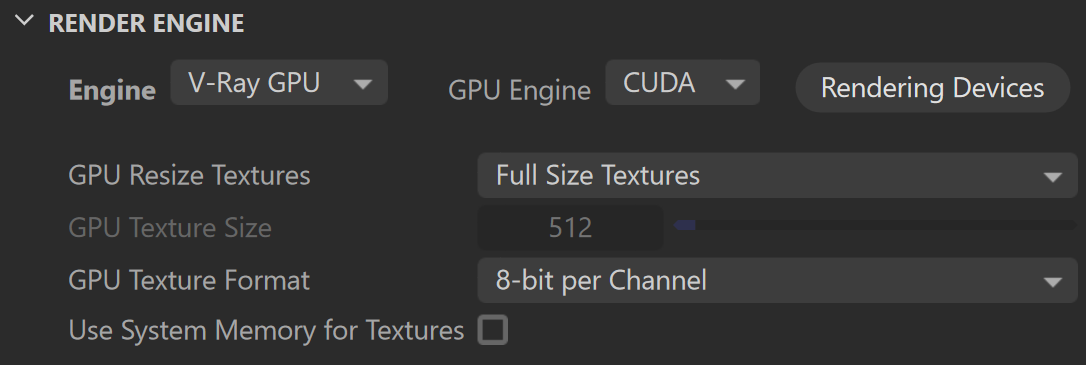
Image Sampler
Overall image sampling - Raytrace renders, like V-Ray, shoot rays out from the camera to sample what is found in the scene to help determine what color each pixel is in a rendered image. The settings used to adjust how V-Ray does this, and the relationship between pixels in the render can be found on the Image Sampler (Anti-Aliasing) page.
Region rendering - When V-Ray uses a bucket image sampler, the rendered image is broken up into small pieces, also known as buckets, to help calculate and complete the image faster. The settings for adjusting these buckets can be found within the Render Region Division section.
Color Mapping
A camera in the real world uses exposure controls to determine how it handles the brightest and darkest parts of a captured image. Similarly, V-Ray uses Color Mapping to help translate the information collected by the sample rays into usable pixels we see within our rendered image. For more details on how to control the way V-Ray maps these values, please see the Color Mapping page.
Color Management
The Color Management rollout allows you to switch between the sRGB and ACEScg color spaces. For further details, see the Color Management page.