V-Ray for Cinema 4D
VRayLayered
This page provides information about the VRayLayered texture in V-Ray for Cinema 4D.
Last updated 19 September 2025
This page provides information about the VRayLayered texture in V-Ray for Cinema 4D.
Overview
V-Ray Layered texture allows the stacking of multiple textures on top of each other to mix their outputs. The result of each layer depends on the blending mode with the next layer in the stack. You can also use a mask to control what parts of the texture appear in the render.
Note that the "upper" layer is the one with a higher number. That is, Layer 0 is the bottom layer.
UI Path: Texture > V-Ray > VRayLayered
Layers
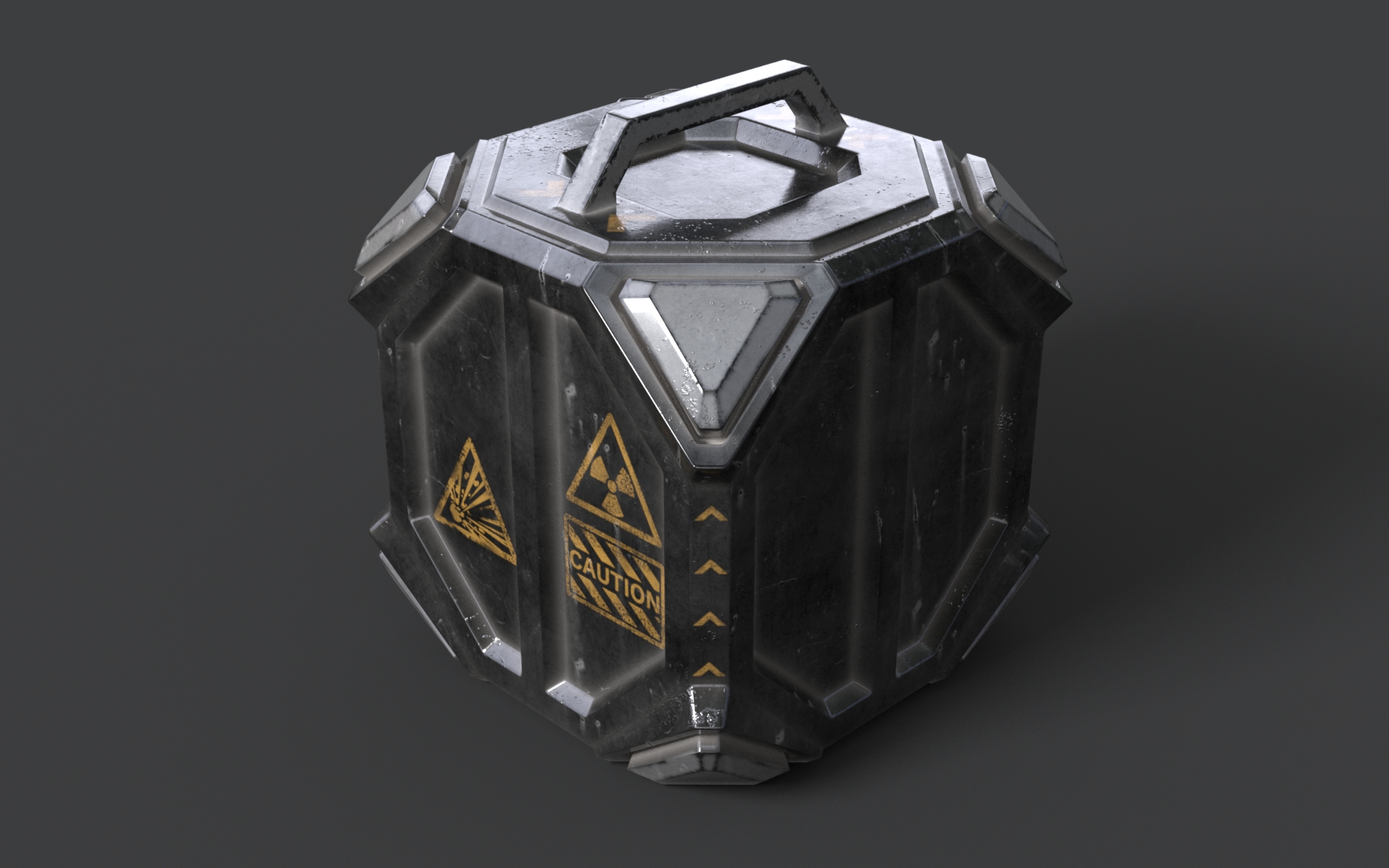
Add – Adds a layer in the stack.
Clear – Deletes all the layers altogether.
Enabled – Switch on to use the layer in the stack. When disabled, the layer has no effect on the output.
Move Up/Move Down – Allows you to move the layer up or down in the stack.
Remove – Deletes the layer.
Texture – Select the texture to be used in the layer.
Mask – Select a color to use as a mask. A Texture can also be attached.
Blend Mode – Specifies how the layer blends with the result from all layers above it:
Blend Mode | Description |
|---|
Blend Mode | Description |
|---|---|
Normal | Displays the current layer (FG) on top of all layers (BG) without blending. This is the default. |
Average | The average of the current layer (FG) and the result from the layers below it (BG). |
Add | Adds the FG to the BG. |
Subtract | Subtracts the FG from the BG. |
Darken | Compares the FG to the BG and takes the darker pixel values of the two. |
Multiply | Multiplies the FG by the BG. |
Color Burn | The color of the FG is applied to darker pixels in the BG. |
Linear Burn | Same as Color Burn but with less contrast. |
Lighten | Compares the FG to the BG and takes the lighter of the two. |
Screen | Makes both light and dark areas lighter. |
Color Dodge | The color of the FG is applied to lighter pixels in the BG. |
Linear Dodge | Same as Color Dodge but with less contrast. |
Spotlight | Same as Multiply, but with twice the brightness. |
Spotlight Blend | Same as Spotlight, but additionally brightens the BG. |
Overlay | Darker pixels become darker where the BG is dark and brighter pixels become brighter where the BG is bright. |
Soft Light | Darker pixels become darker where the FG is dark and brighter pixels become brighter where the FG is bright. |
Hard Light | Spotlight is applied to pixels where the FG is dark and Screen is applied to pixels where the FG is bright. |
Pin Light | Replaces the BG colors depending on the brightness of the FG color. |
Hard Mix | Adds the FG to the BG and for each color component returns a value of 255 if the result is 255 or greater, |
Difference | Compares the pixels in the BG and FG and subtracts the darker pixels from the brighter ones. |
Exclusion | Same as Difference but with less contrast. |
Hue | Uses the hue from the FG , while the value and saturation are taken from the BG. |
Saturation | Uses the saturation from the FG, while the value and hue are taken from the BG. |
Color | Uses the hue and saturation from the FG, while the value is taken from the BG. |
Value | Uses the value from the FG, while the hue and saturation are taken from the BG. |
Opacity – Adjusts the transparency of the layer in a 0 to 1 range, where 1 is fully opaque and 0 is fully transparent.
Properties
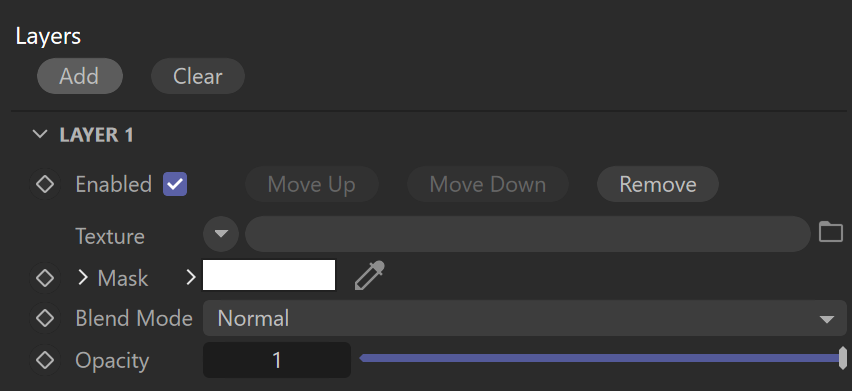
Color Mult – Specifies a strength multiplier for the texture color. This parameter can be specifies by a solid color or a Texture. You can toggle the blend between the texture and the color using the Mix Strength.
Color Offset – Color corrects the texture by adding the the RGB color values specified here to the RGB color values in the texture. This parameter can be specifies by a solid color or a Texture. You can toggle the blend between the texture and the color using the Mix Strength.
Alpha Mult – Specifies a multiplier for the texture alpha. This parameter can be specified by a value or a Texture. You can toggle the blend between the texture and the color using the Mix Strength option and determine how the two are blended using the Mix Type.
Alpha Offset – Specifies an additional offset for the texture alpha. This parameter can be specified by a value or a Texture. You can toggle the blend between the texture and the color using the Mix Strength option and determine how the two are blended using the Mix Type.
Invert – When enabled, inverts the resulting texture color.
Invert Alpha – When enabled and Invert from Color Tweaks is also enabled, the resulting texture alpha is inverted as well.
Allow Negative Colors – If disabled, negative colors are clamped. Enable to allow negative colors.