V-Ray for Maya
VRayToon
This page provides information on toon outline effect in V-Ray for Maya. For Toon Cel Shading, see the VRayToonMtl page.
Last updated 1 September 2026
This page provides information on toon outline effect in V-Ray for Maya. For Toon Cel Shading, see the VRayToonMtl page.
Overview
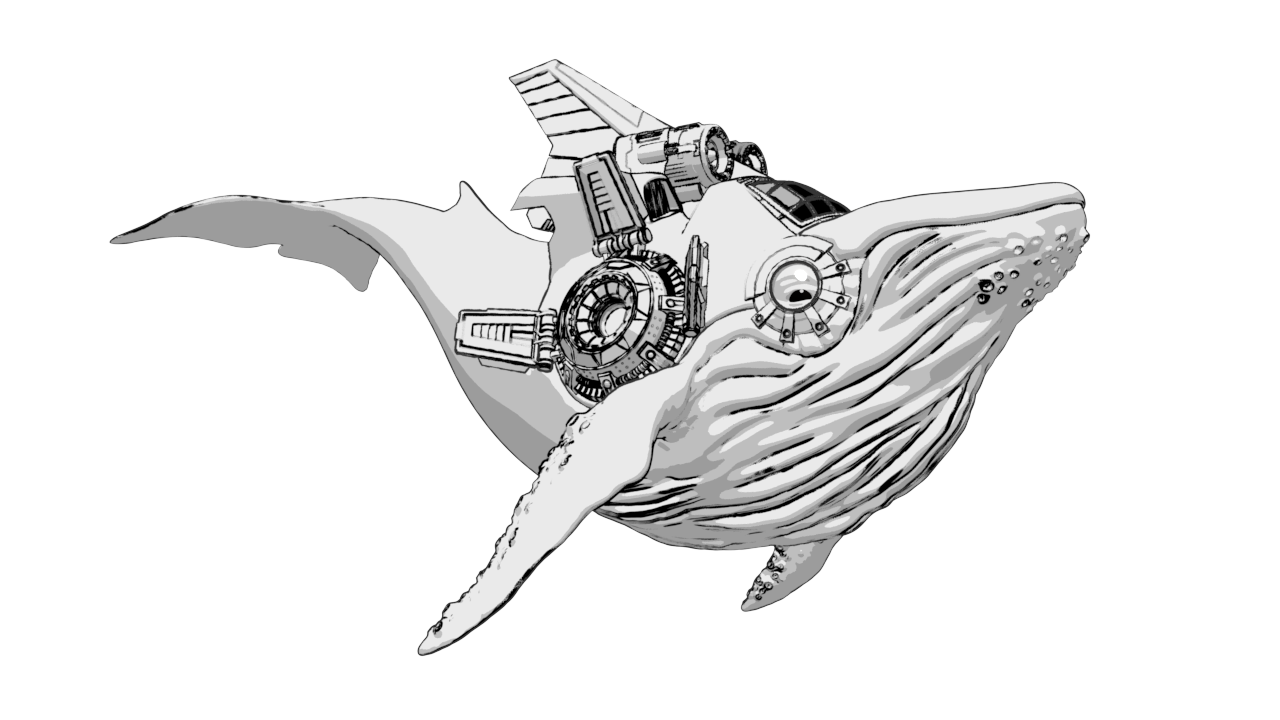
VRayToon is a very simple node that produces cartoon-style outlines on objects in the scene. This includes both simple, solid color shading but also outlined borders on the edges of the object(s).
The result of this rendering effect can now be stored in its own V-Ray Toon Render Element.
UI Paths
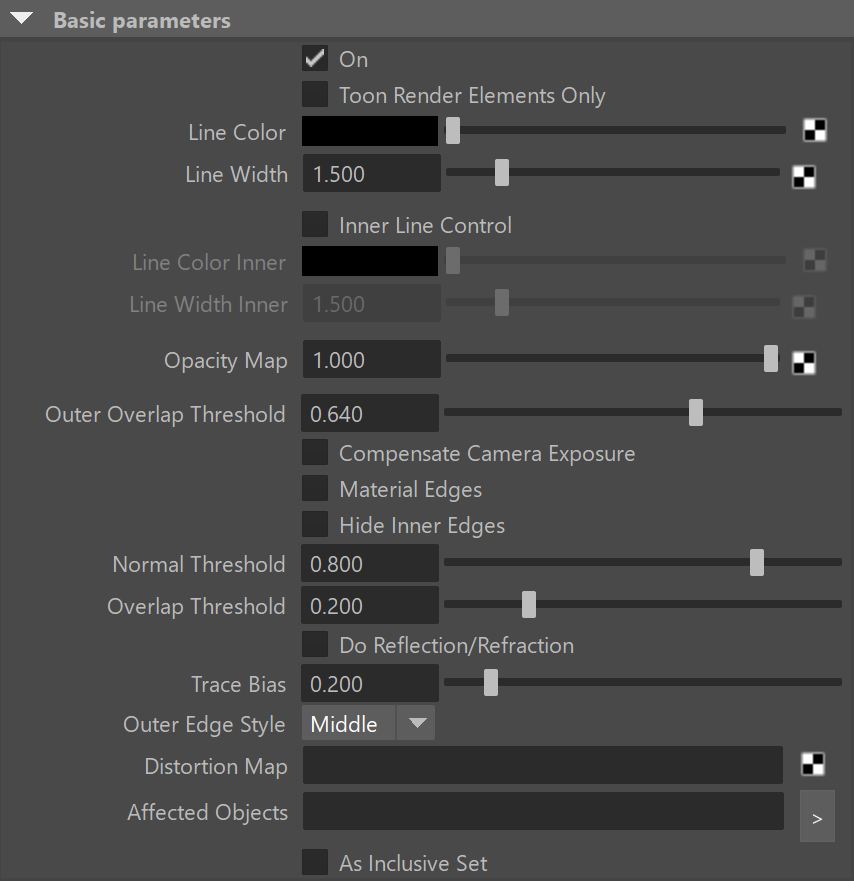
Basic Parameters
On – Enables or disables the VRayToon effect.
Toon Render Elements Only – When enabled, the Toon effect is visible in all Render Elements, except the RGB channel. To take effect, the VRayToon effect should be enabled.
Line Color – The color of the outlines.
Line Width – Specifies the width of the outlines in pixels. You can connect a texture map here to control the line width.
Inner Line Control – When enabled, it allows for adjustments to the color and width of the inner lines.
Line Color Inner – The color of the inner edges' outlines. Only active when Inner Line Control is enabled.
Line Width Inner – Specifies the width of the inner edges' outlines (in pixels). A texture map can be connected to this parameter. Only active when Inner Line Control is enabled.
Opacity Map – The opaqueness of the outlines. You can connect a texture map here to control the opacity.
Outer Overlap Threshold – Determines when outlines are created for overlapping parts of one and the same object. Lower values reduce the outer overlapping lines, while higher values produce more overlap outer lines.
Compensate Camera Exposure – When enabled, the VRayToon compensates the Line Color brightness to adjust for any Exposure correction from a VRayPhysicalCamera.
Material Edges – Renders lines on the material boundaries, when the mesh has multiple materials. This option requires that all materials have an assigned Material ID.
Hide Inner Edges – Determines whether lines are created for parts of the same object with varying surface normals (for example, at the inside edges of a box).
Normal Threshold – Determines at what point lines are created for parts of the same object with varying surface normals (for example, at the inside edges of a box). A value of 0.0 means that only 90 degrees or larger angles will generate internal lines. Higher values mean that smoother normals can also generate an edge. Don't set this value to pure 1.0 as this fills curved objects completely.
Overlap Threshold – Determines when outlines are created for overlapping parts of one and the same object. Lower values reduce the internal overlapping lines, while higher values produce more overlap lines. Don't set this value to pure 1.0 as this fills curved objects completely.
Do Reflection/Refraction – Causes the outlines to appear in reflections/refractions as well. Note that this may increase render times.
Trace Bias – Depending on the scale of your scene, this determines the ray bias when the outlines are traced in reflections/refractions.
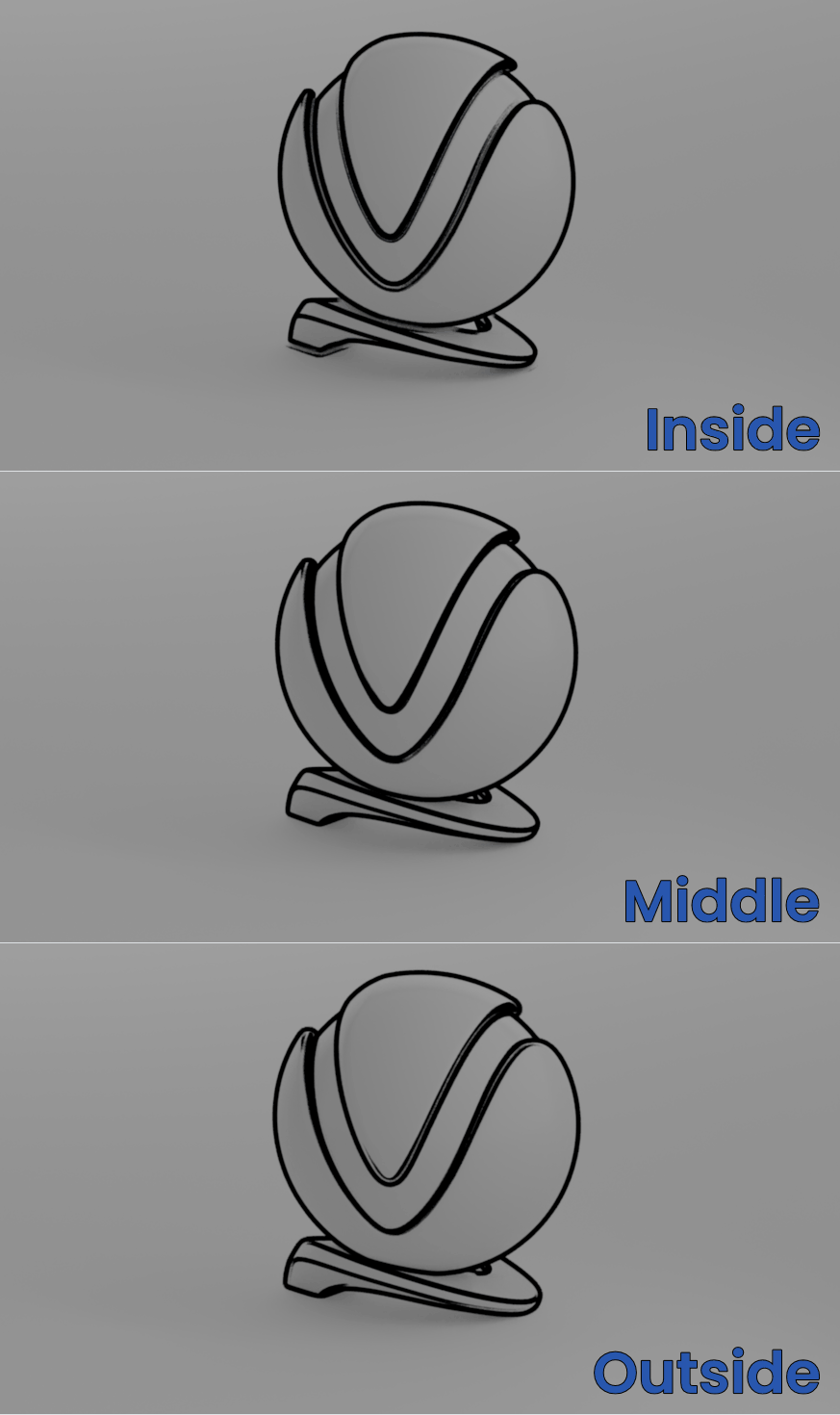
Outer Edge Style – Determines where the outer lines are placed. See the example.
Middle – Places the lines on top of the edges.
Inside – Places the lines on the inside of the edges.
Outside – Places the lines on the outside of the edges.
Distortion Map – The texture that is used to distort the outlines. This works similarly to bump-mapping and takes the gradient of the texture as the direction for distortion. Note that high output values may be required for larger distortion. Screen-mapped textures work best, although World XYZ mapping is also supported.
Affected Objects – Specifies a list of objects that are affected by the VRayToon. The expected input is a set. The arrow button automatically creates and connects a new set, but any other set can be connected here instead.
As inclusive set – Controls the meaning of the Affected Objects list. When enabled, the Affected Objects list is considered as an "Include list" and when disabled - as an "Exclude list."
Depth Curve
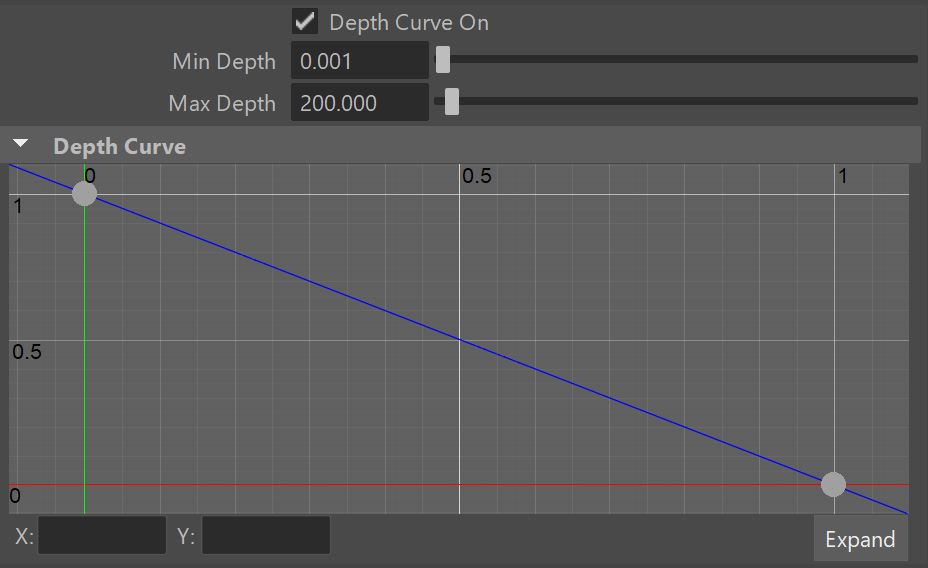
This rollout enables a curve for controlling the Line Width based on distance from the camera.
Depth Curve On – Enables a Depth Curve to specify the Line Width.
Min Depth/ Max Depth – Defines the minimum/maximum distance where the depth-based Line Width takes effect. Edges at points closer than the Min Depth are rendered with the Line Width at position 0. Edges further than the Max Depth are rendered with Line Width at position 1.
Angular Curve
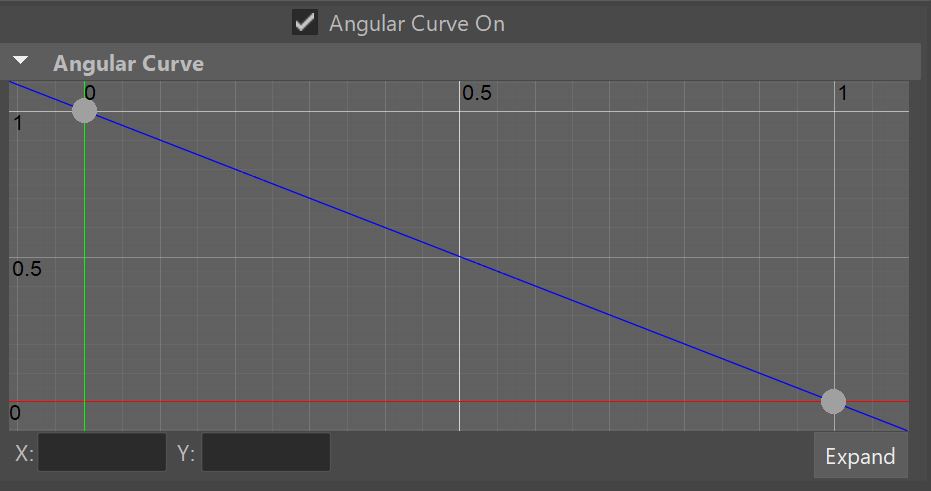
This rollout enables a curve for controlling the Line Width depending on the view angle.
Angular Curve On – Enables the Angular Curve.
A point at position 0 means that the angle between the normal and the view vector is 0 degrees. A point at position 1 means that the angle between the normal and the view vector is 90 degrees.
Example: Line Width
This example shows the effect of the Line Width parameter. The Inner Line option is also enabled.
Line Width = 0
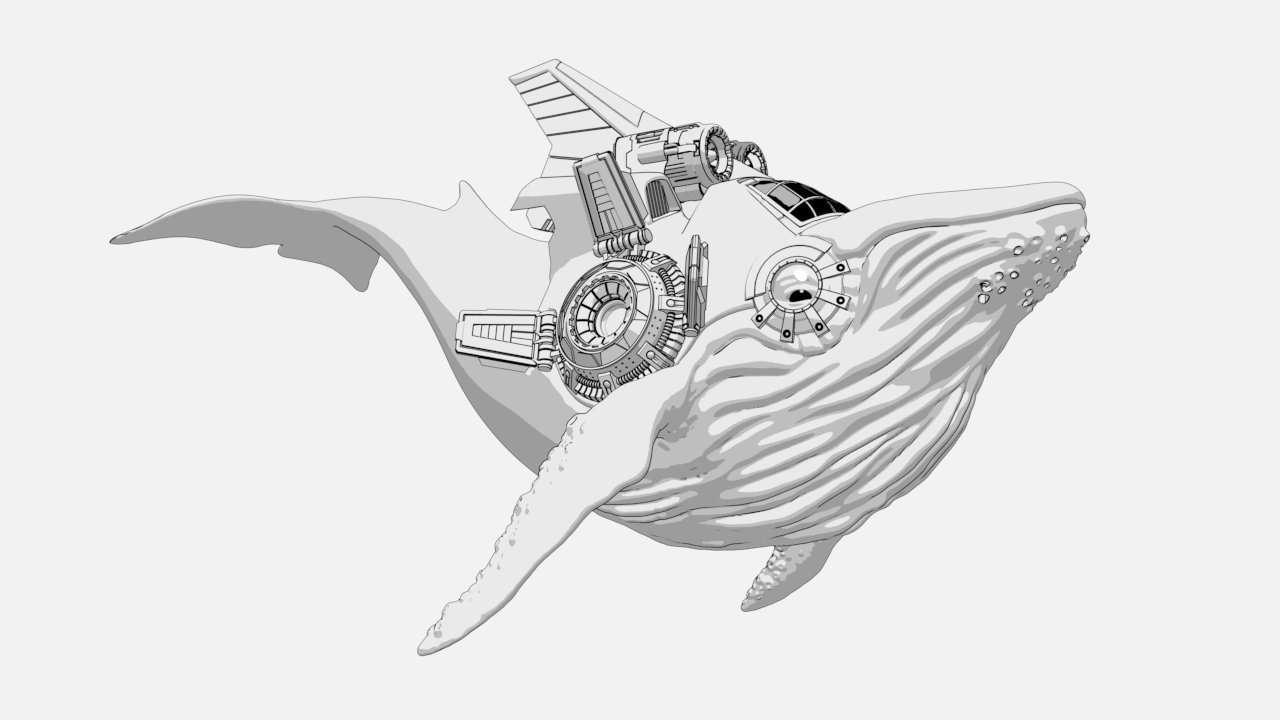
Line Width = 0.6
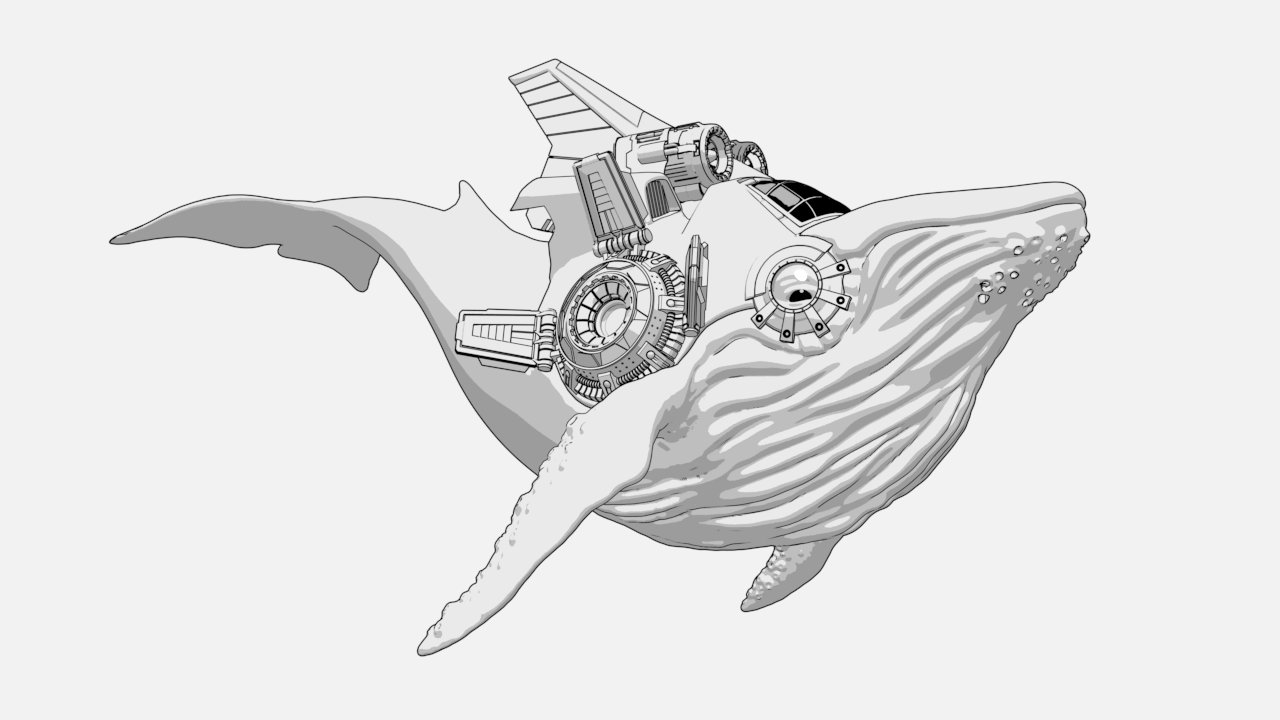
Line Width = 1.5
Example: Inner Lines
This example shows the effect of the Inner Lines parameter.
Line Width for both images is set to 1.2. In the second image, the Line Color Inner is red and Line Width Inner is set to 2.5.
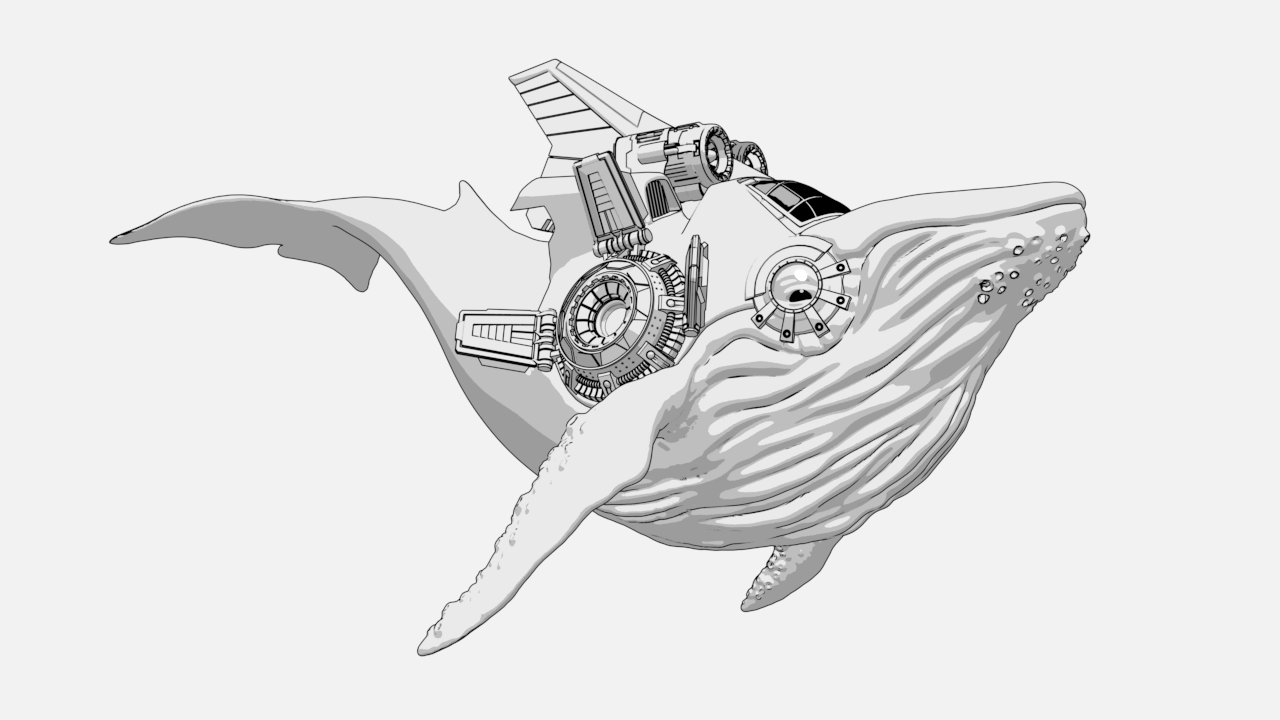
Before
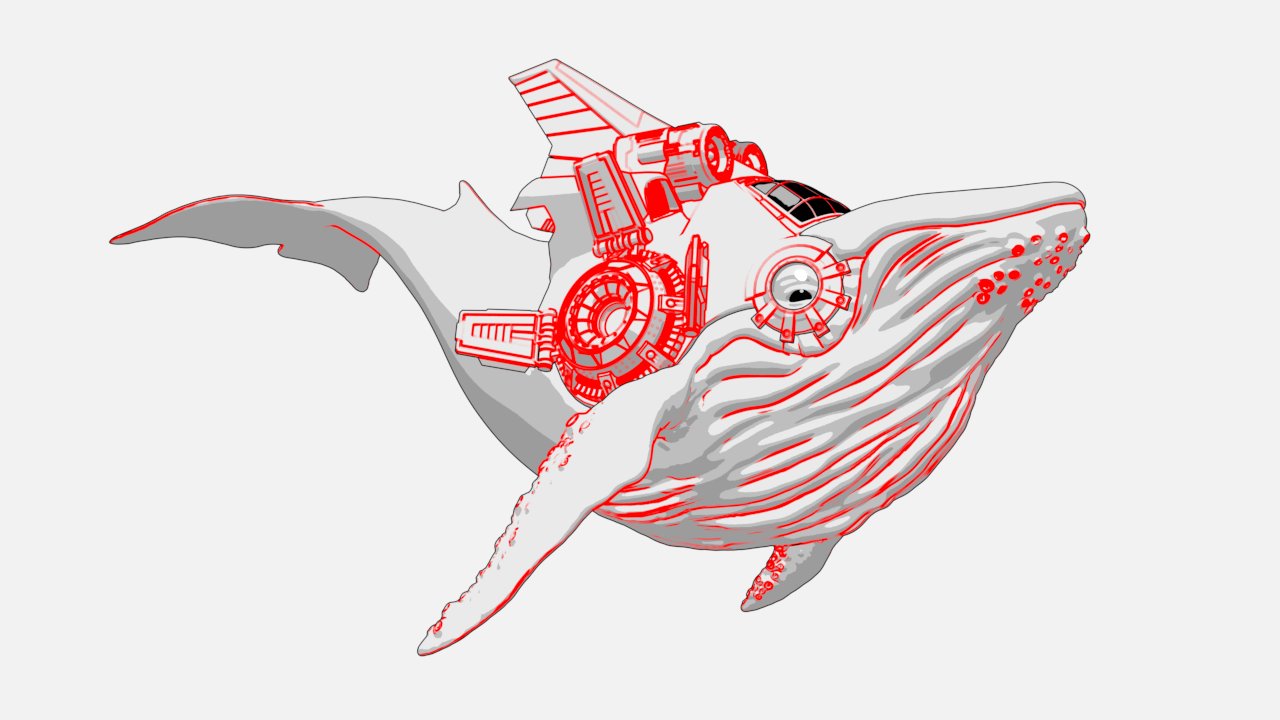
After
Example: Outer Edge Style
This example showcases how the different Outer Edges Style modes affect the VRayToon volumetric. The different modes place the lines at different positions relative to the object edges.
Notice how the rendered geometry appears larger the more the lines are directed outward from the object.
The red line in the illustrations represents the object edge. The blue line is the Toon line.
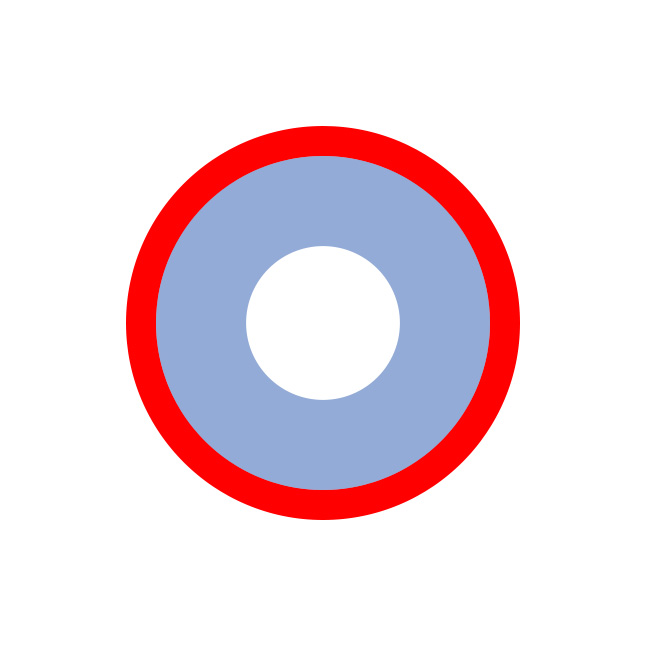
Inside
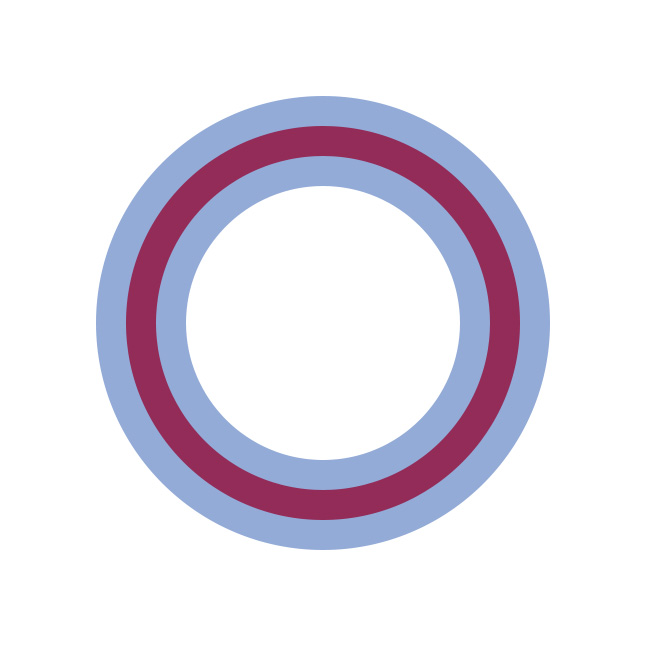
Middle
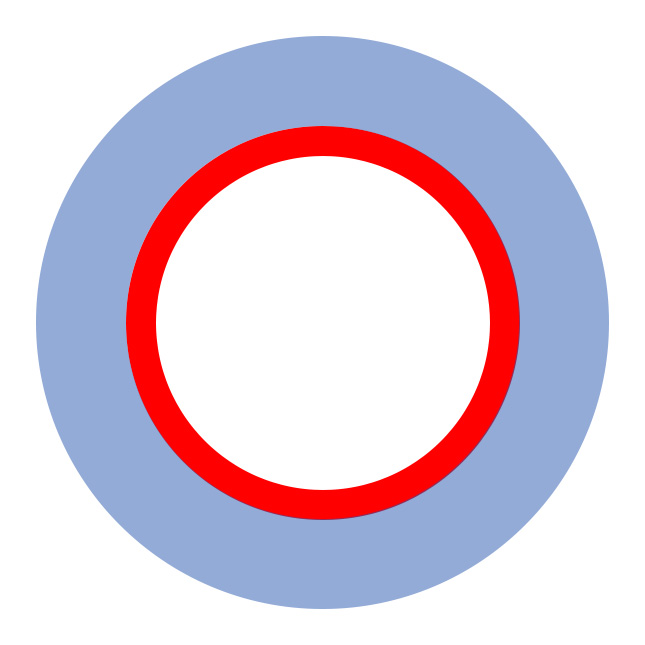
Outside
Example: Affected Objects
This examples demonstrates how the toon effect can be applied only on specific objects in the scene. In addition, different objects in the scene can get different toon effects.
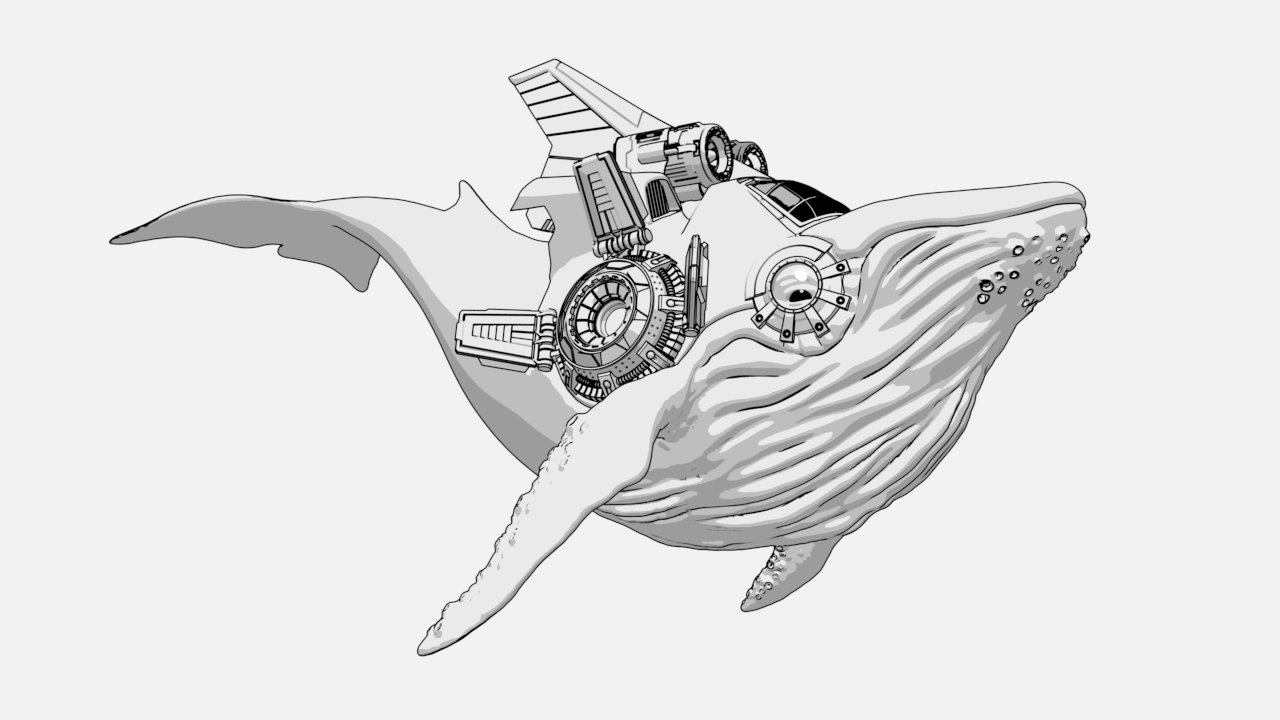
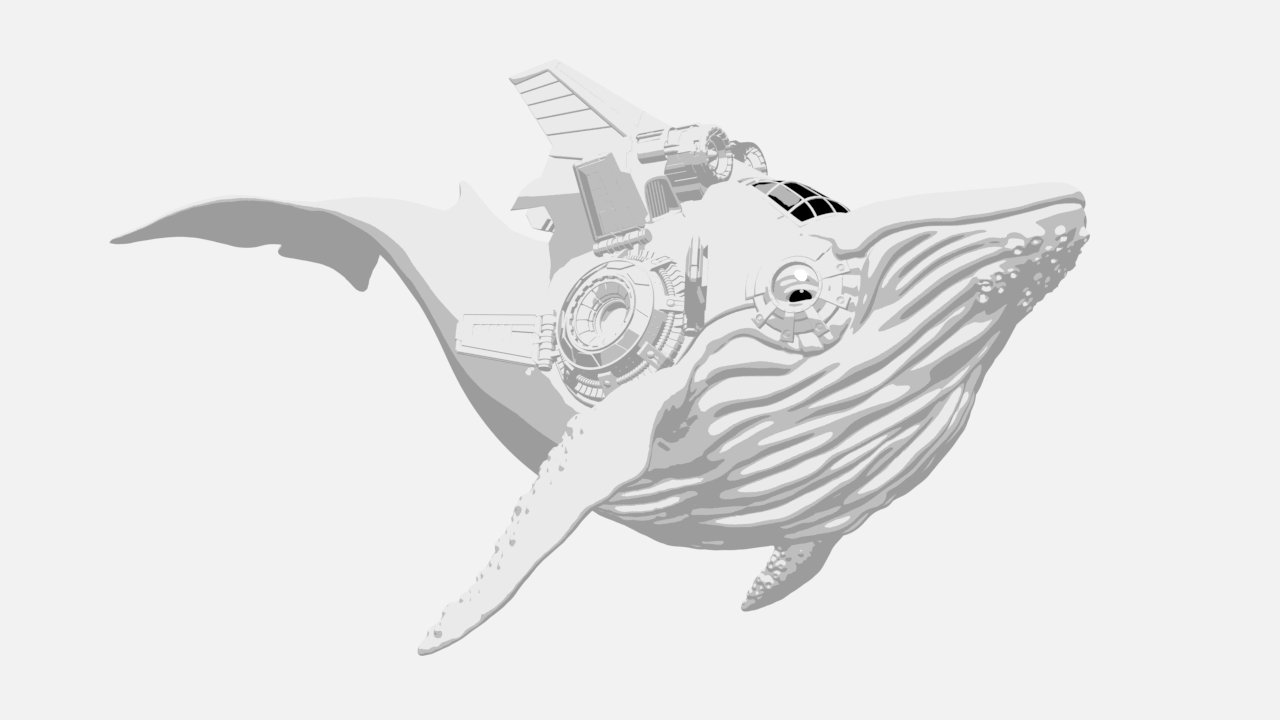
A single VRayToon effect is applied on all geometry in the scene. Line Width is set to 1.5 and Line Color is set to black.
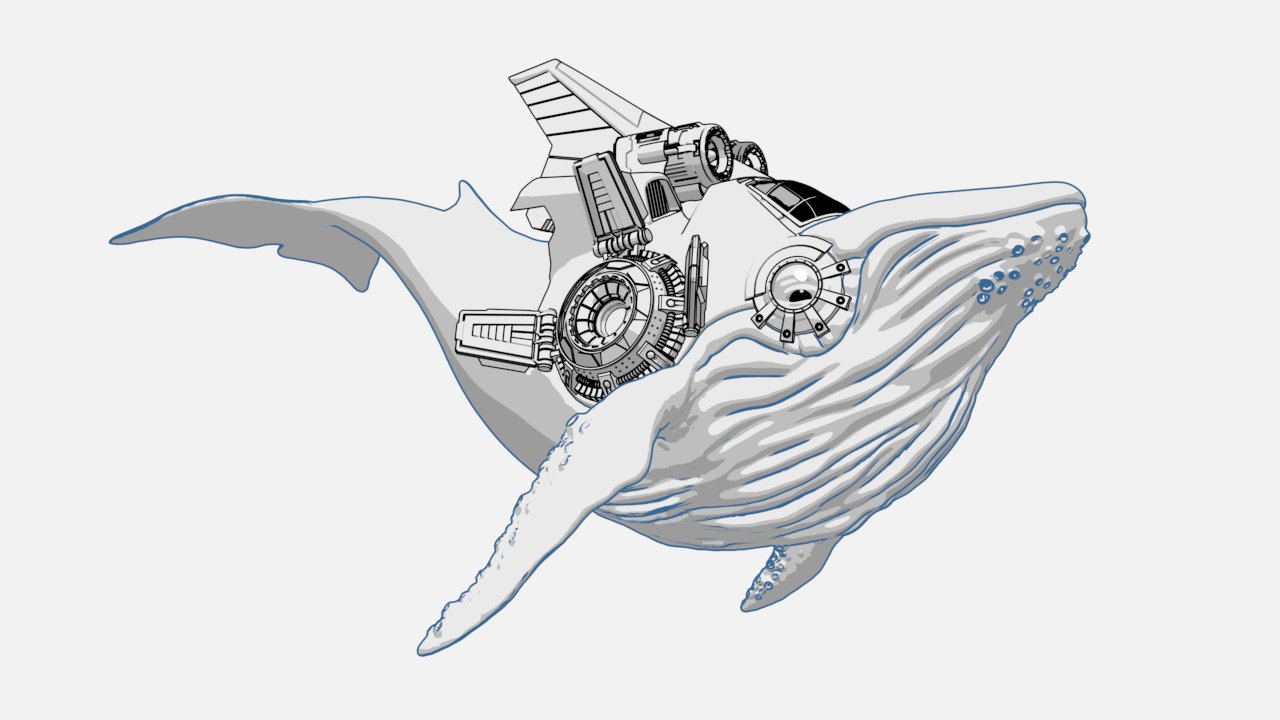
One VRayToon effect is applied on the whale's eye and cabin, and another toon effect is applied on the whale's body.
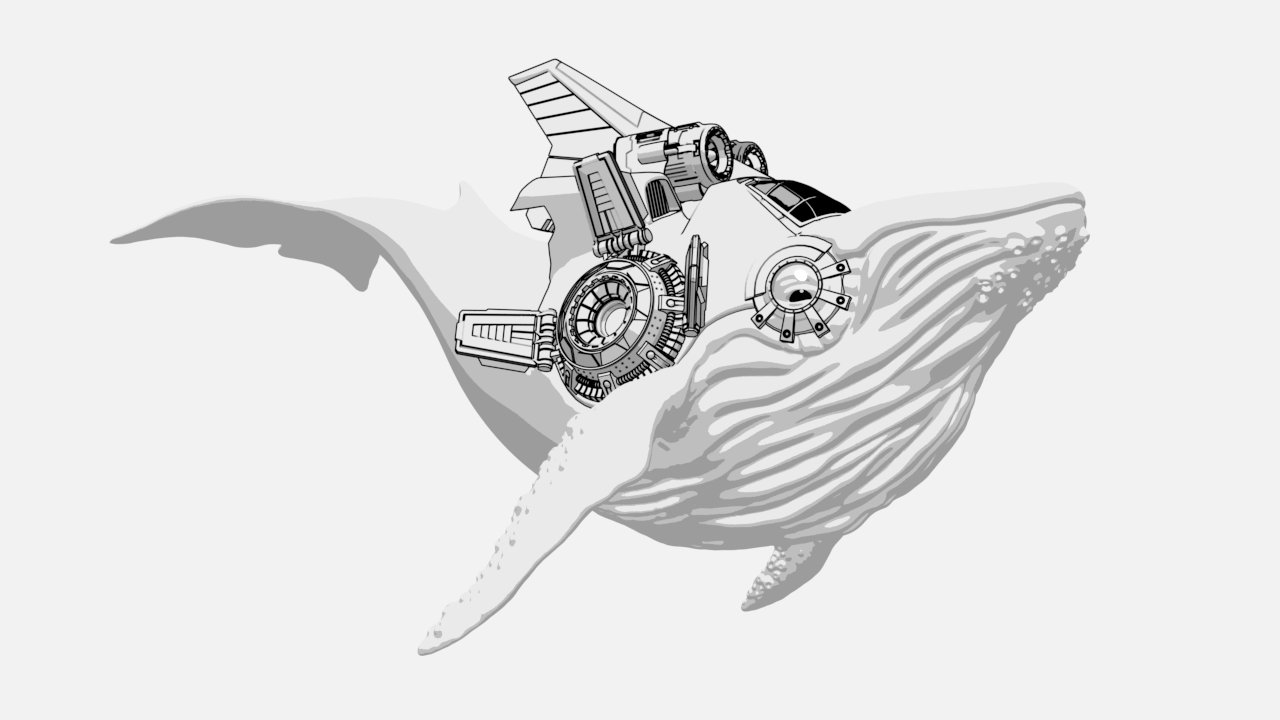
VRayToon effect is applied only on the whale's eye and cabin. Line Width is set to 1.5 and Line Color is set to black.
Example: Depth Curve
This example shows the Depth Curve effect. Notice that the curve used here makes the toon lines at the front thinner, while those on the tail are much more pronounced.
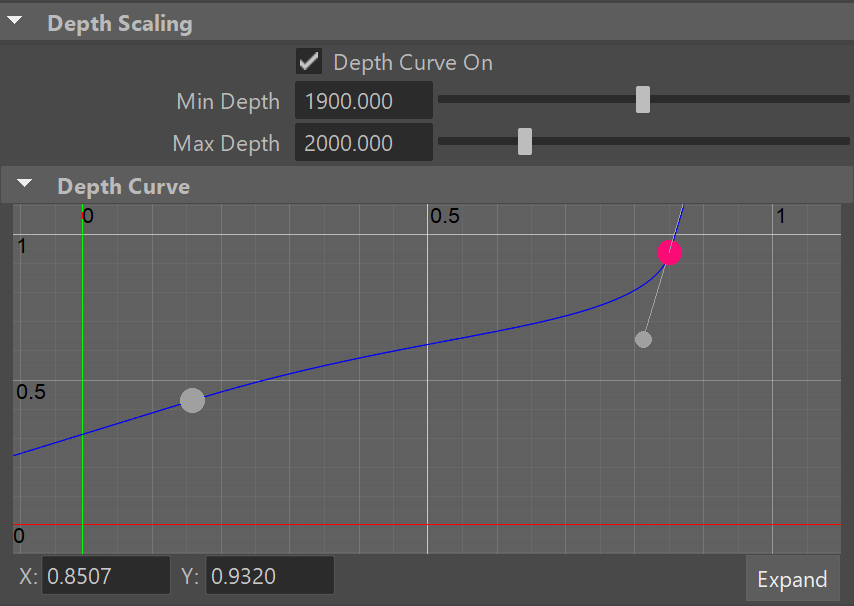
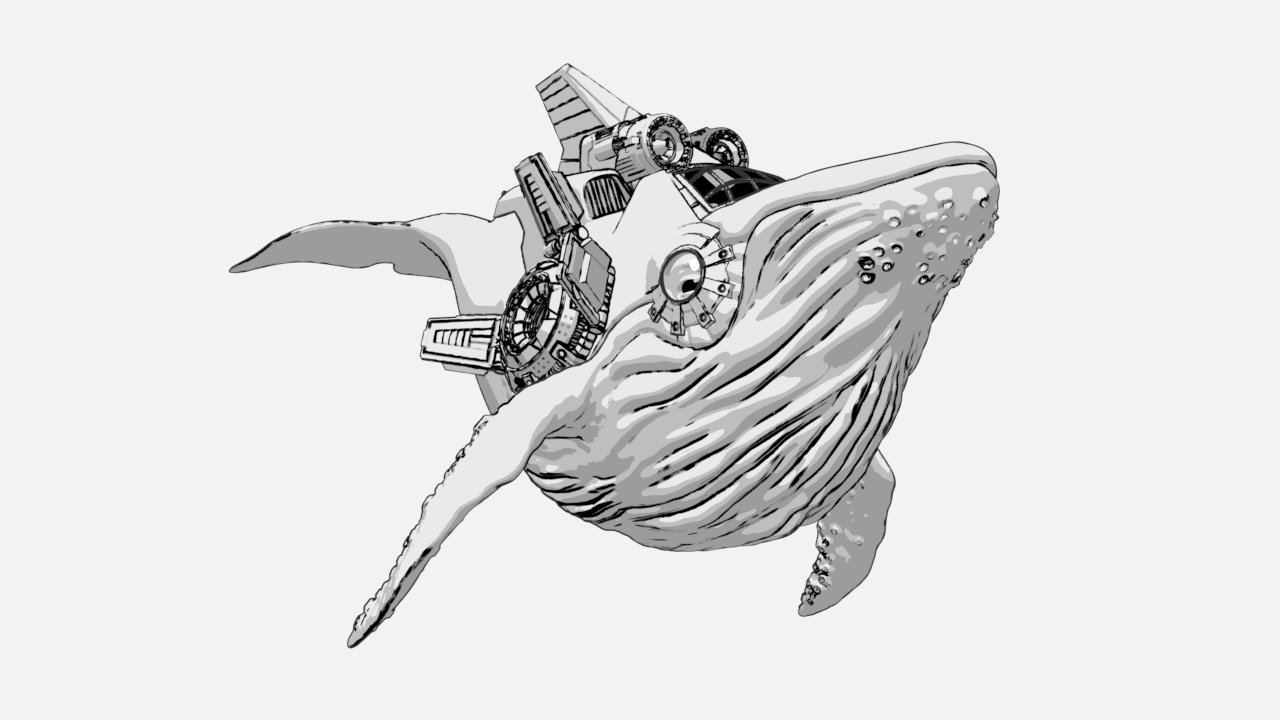
No curve applied
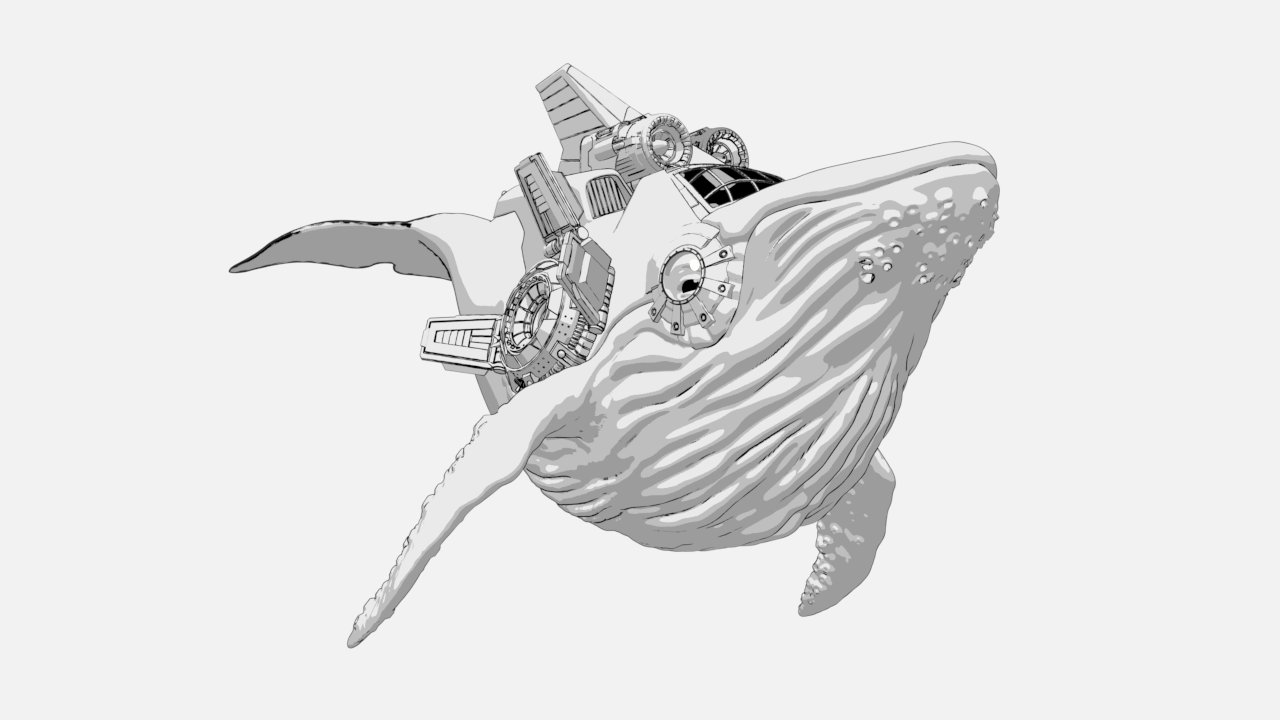
Min Depth = 1900; Max Depth = 2000
Notes
- Right-clicking on the V-Ray Shelf button provides options for selecting any Toon nodes that exist in the Maya scene.
- Please note that rendering of older scenes (saved with versions prior to V-Ray Next, Beta 2) with the VRayToon effect will look differently in V-Ray Next, due to the different calculating approach of the line width.
- You can override the parameters of this node from the VRayToonMtl, provided it is assigned to the same object.