V-Ray for Rhino
Chaos Cloud Rendering
This page provides information about submitting render jobs to Chaos Cloud from V-Ray for Rhino.
Last updated 1 September 2026
This page provides information about submitting render jobs to Chaos Cloud from V-Ray for Rhino.
Overview
V-Ray for Rhino provides in-built integration with Chaos Cloud Rendering, allowing you to submit render jobs to the cloud directly from Rhino, using the dedicated Render in Chaos Cloud and Chaos Cloud Batch Render buttons. This page walks you through the steps of doing so.
UI Paths
||V-Ray Asset Editor|| > Render Menu > Render with Chaos Cloud

Rhino Menus Ribbon
||V-Ray|| > Rendering > Render on the Cloud
||V-Ray|| > Rendering > Batch Render...
||V-Ray Toolbar|| > Chaos Cloud (left-click starts a Render on the Cloud)
||V-Ray Toolbar|| > V-Ray Batch Render (left-click shows the V-Ray Batch Render panel)

||V-Ray Batch Render|| > Chaos Cloud (Active only in case the views are uploaded in the Batch Render panel. Opens the Chaos Cloud Batch Render window)

Render With Chaos Cloud
Use the Render with Chaos Cloud button to render the current scene view or animation. After adjusting the settings, use the Submit button to submit the job to the Cloud for rendering. Once a job has been submitted it gets analyzed and sent to Chaos Cloud for rendering. Press the Submit new button to submit another job. Press the View job button to view your job on the Cloud.
Select project – Select from your existing projects.
Create New - Creates a new project.
Job name – Sets your job name.
Job credit limit – Specifies the maximum amount of Cloud Credits that can be used for this job.
Upload only – Uploads your job to Chaos Cloud Rendering on status Paused. Resume the process manually when you want to render it.
Ignore warnings – Submits your job directly, ignoring all warnings, except fatal errors.
Render & output settings – Shows the render settings for this job. Adjust the rendering settings from the Render Settings menu in the host app.
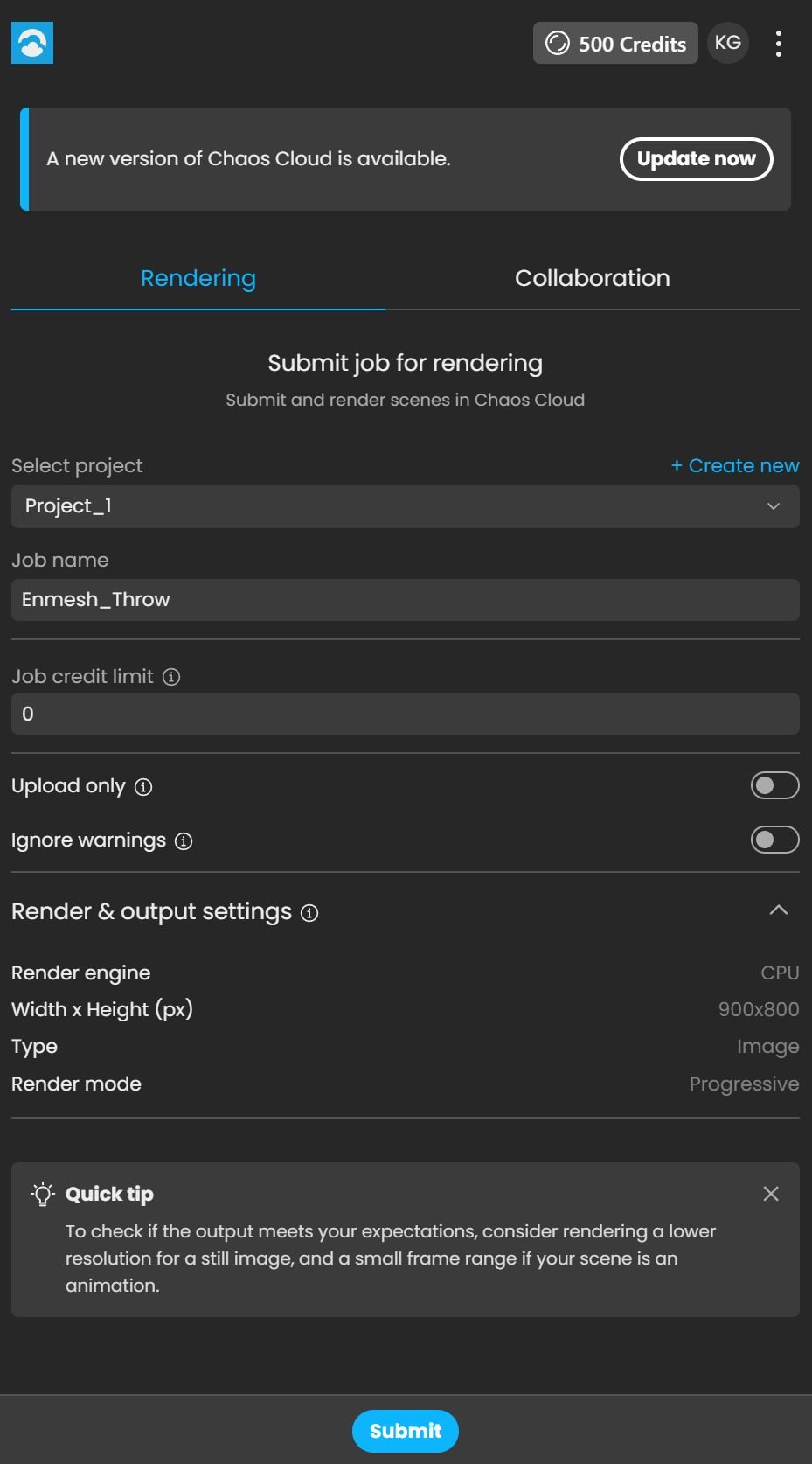
Still Image Example
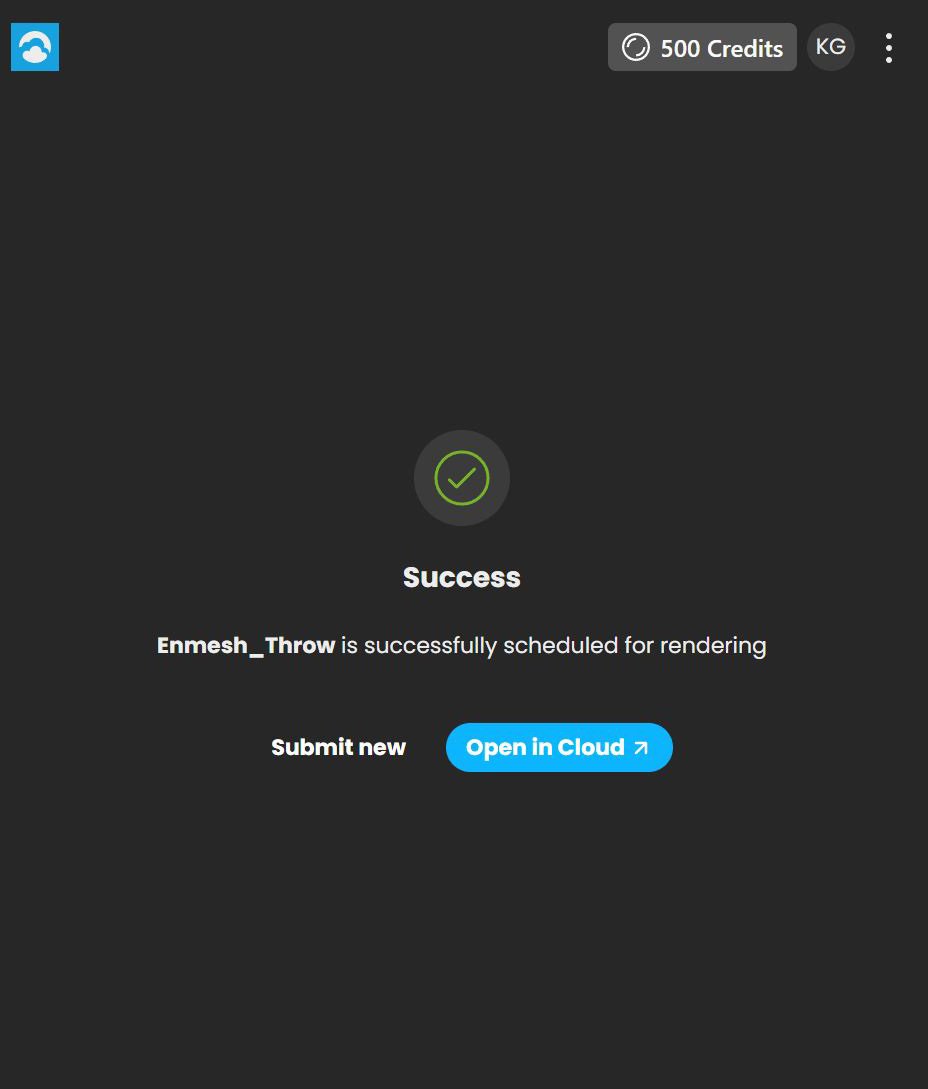
Scheduled Job Example
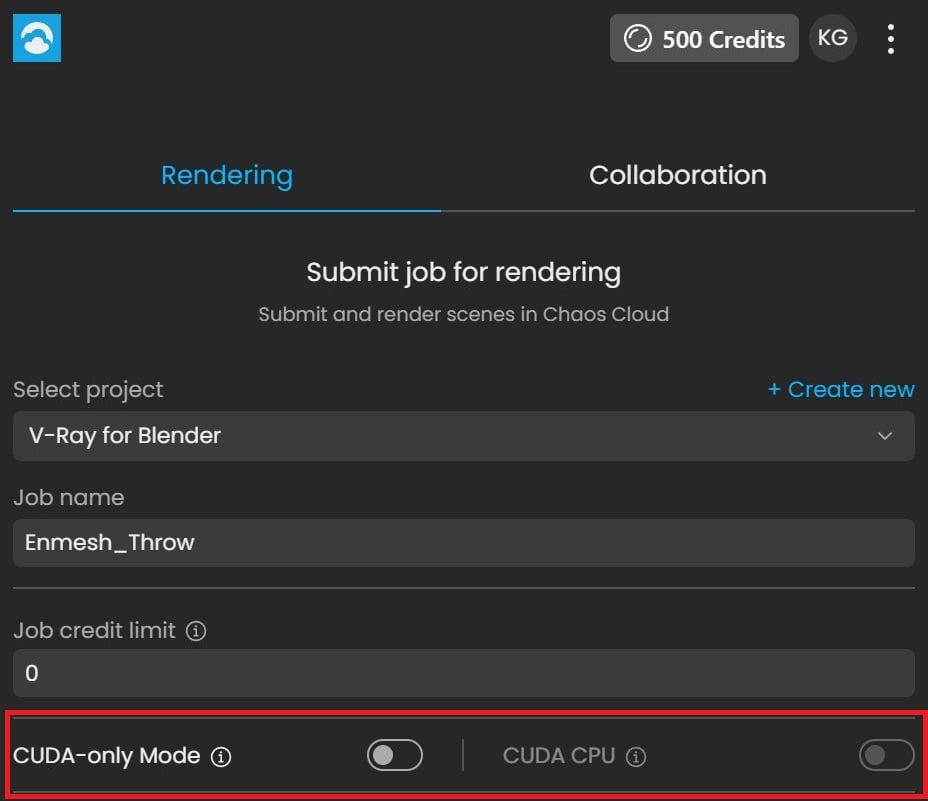
This option is available when the Engine is set to GPU.
The Collaboration tab in Chaos Cloud allows you to upload scenes for 3D streaming, enabling real-time exploration and team collaboration. This feature makes it easy to review, present, and interact with scenes from anywhere, without needing local rendering or powerful hardware.
For more information, visit Chaos Cloud Collaboration 3D Streaming.

Frame range – Specifies a frame range to be rendered. You can specify non-sequential animation frames, e.g. 1-3,7,9,12-15.
Frame step – Specifies a frame step in the frame range for rendering. For example, writing 8 in the Frame step box will render every eighth frame, hence the eighth, the sixteenth, the twenty-fourth, etc. Note that the first frame is always rendered.

Animation Example
Chaos Cloud Batch Render
Batch Render can be directed to use the views from both the current and other existing Rhino projects as well as .vrscene files. Named Views can also be added.

Choose as many files or views as needed and use the button in order to open the Chaos Cloud window for further adjustments before submission.
Use the Chaos Cloud Batch Render button to render multiple scenes simultaneously. After adjusting the settings use the Submit button to submit the job to the Cloud for rendering. Once a job has been submitted it gets analyzed and sent to Chaos Cloud for rendering. Press the Submit new button to submit another job. Press the View project button to view your project jobs on the Cloud.
Select project – Selects from your existing projects.
Create New - Creates a new project.
Batch upload only – Uploads your jobs to Chaos Cloud Rendering on status Paused. Resume the process manually when you want to render them.
Ignore warnings – Submits your jobs directly, ignoring all warnings, except fatal errors.
Rendering jobs
Shows a list of all scenes selected for rendering with their rendering settings adjusted from the Render Settings menu in the host app.
Name – Sets your job name for this render.
Job credit limit – Specifies the maximum amount of Cloud Credits that can be used for this job render.
Upload only – Uploads your job to Chaos Cloud Rendering on status Paused. Resume the process manually when you want to render it.

Batch Image Render Example
Scheduled Batch Render Example
Notes
- .vrimg is a Chaos proprietary file format used by the V-Ray Frame Buffer to store the rendered image incrementally (bucket by bucket) while rendering in full floating-point format, with all available render elements. It is used as a render output but it is not recommended to use it as a texture file format. VRIMG contains metadata, i.e. render statistics. It supports dynamic bucket size.
- The Batch Render tool only supports animation jobs for rendering on the local machine. Animations are omitted from batch jobs to Chaos Cloud.