V-Ray for Rhino
Chaos License Quick Start Guide
This page provides information on how to use the Chaos License Server.
Last updated 15 June 2026
This page provides information on how to use the Chaos License Server.
Steps
Load Rhinoceros.
Set V-Ray as a renderer through Render > Current Renderer > V-Ray for Rhino.
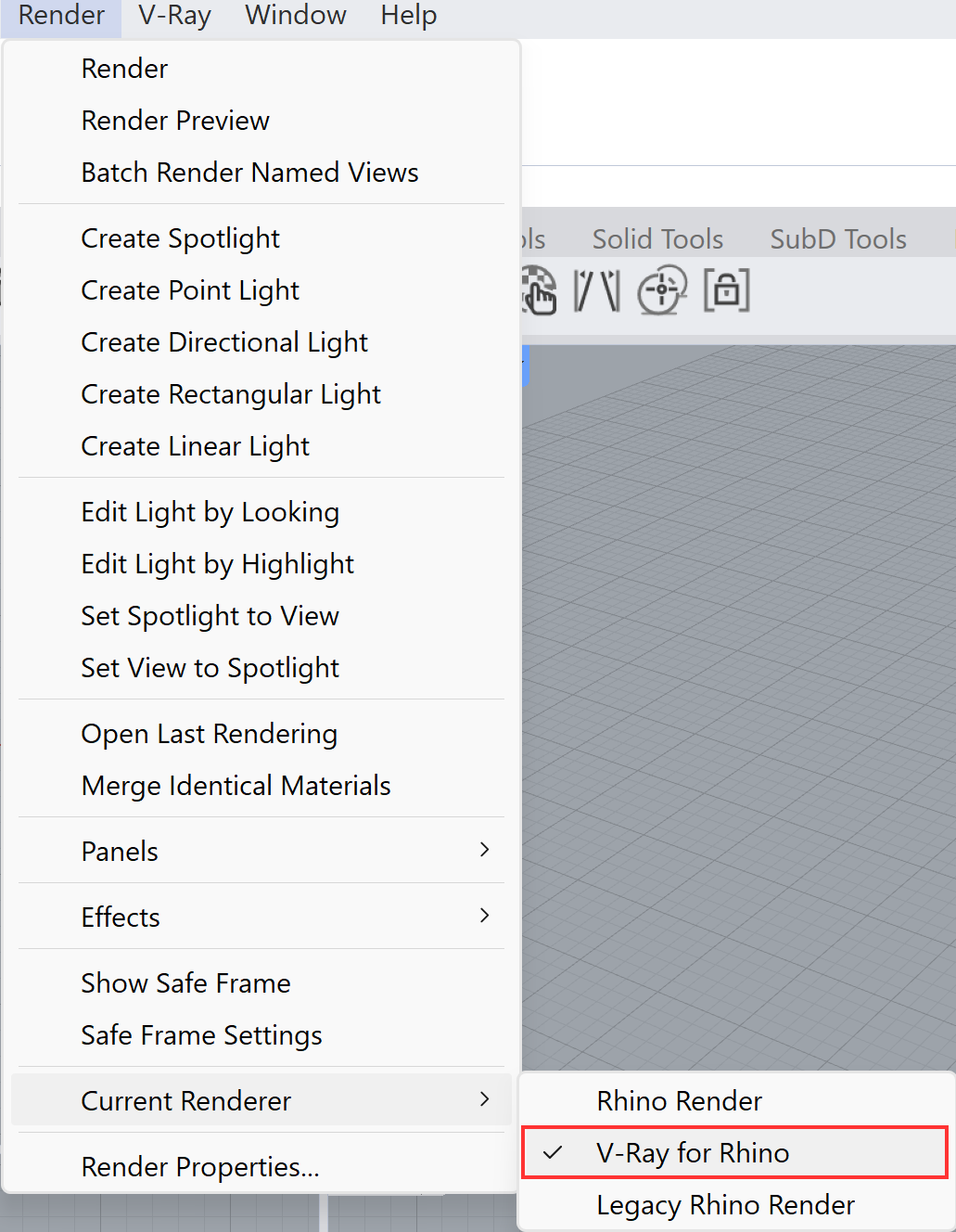
The first time you use V-Ray, a prompt to log in with your Chaos account may appear.

Alternatively,
- Open Rhino and go to V-Ray > Help > Chaos Account.
- Select Sign in from this dialog.

Enter your Chaos credentials.

Close the login page after seeing the confirmation for a successful login.
Start using your Chaos product.

Floating Licenses
Floating Licenses can be shared between multiple users and can be used completely online or within a local network, depending on the setup.
To use an online floating pool, your Administrator needs to add you to their Organization. This sends an automatic email confirmation, which also contains a link you can use to create an account, if you don't have one yet.
After that, you can follow the same activation steps as above to connect to the online floating pool.
- Proceed with a default installation.
- Sign in with your Chaos Account when prompted.
If you are an Administrator in an Organization, see the Cloud-Based Floating Licensing page for a guide on how to share licenses through the my.chaos portal.
Troubleshooting
If you are experiencing any difficulty installing or running the Chaos License Server, please refer to the Troubleshooting page for possible solutions.
Notes
If you are using V-Ray version 7.0 or earlier, the activation of your license is part of the installation process. At the end of the installation you are prompted to sign in with your Chaos account in the web browser.