V-Ray for Rhino
Distance
This page provides information on the V-Ray Distance Texture.
Last updated 18 May 2026
This page provides information on the V-Ray Distance Texture.
Overview
The VRayDistanceTex is a V-Ray specific procedural texture that returns a different color based on a point's distance to an object(s) specified in a selection list.

UI Paths
||V-Ray Asset Editor|| > Textures (right-click) > Distance
||V-Ray Asset Editor|| > Create Asset (left-click) > Textures > Distance
Parameters
Distance – The map specifies a texture to multiply the distance value. Black colors in the distance map shade the points inside the radius with Far Color. White colors shade them with Near Color. See the Distance Texture example below.
Far Color – The color returned by the texture for points that are at a greater distance than the Distance value from objects specified in the list. See the Far Color example below.
Near Color – The color returned by the texture for points that are right at the edges of the object(s) specified in the list. See the Near Color example below
Add Objects – Adds preselected objects from the scene.

Example: Distance Noise Texture
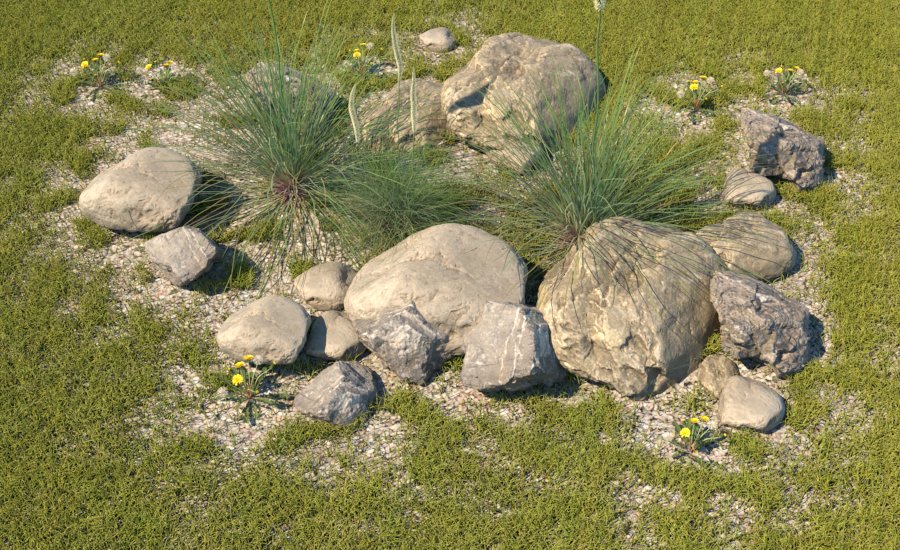
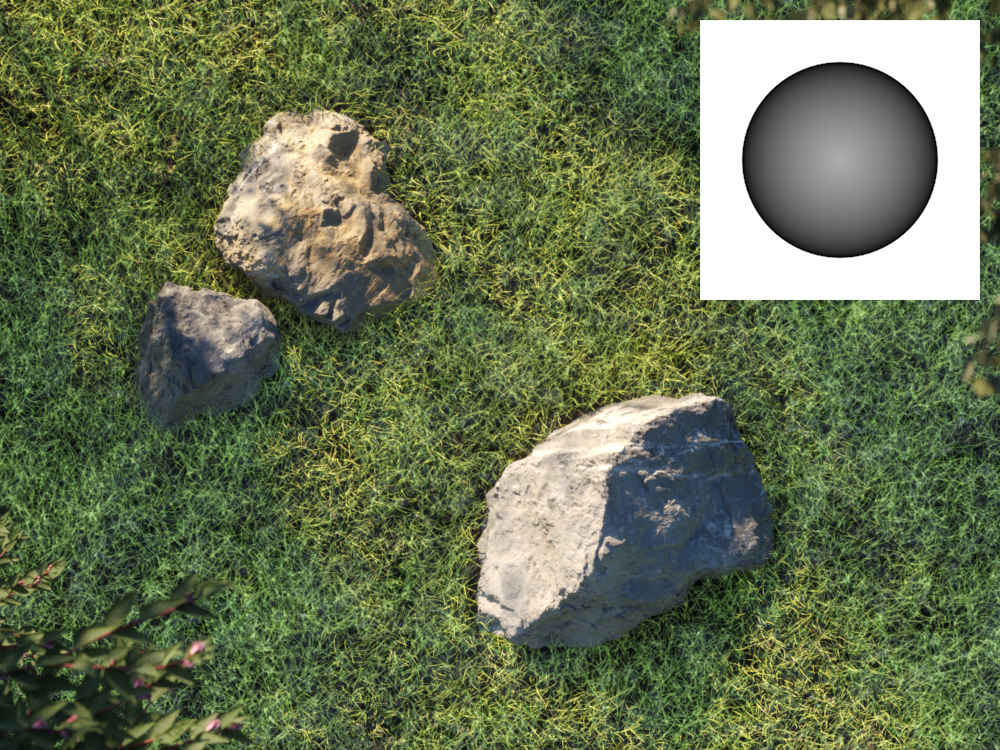
In this example the Fur geometry has a Distance texture used as a Density map. The Distance texture has a Distance value of 60 with a Noise map.
The objects added in the Distance texture Add Objects list are rocks and grass Assets. The Fur geometry has zero Density within the radius of 60 units from the objects
and normal Density (specified in the Fur Count parameter) outside this radius. The Noise texture multiplies the Distance value so that inside the radius of 60 units
of the Noise texture, black points result in zero Fur Density and white points result in normal Density. This gives the grass a more natural look.

Example: Far Color

Far Color
= R1G1B1

Far Color
= R04G04B04

Far Color
= R06G06B06

Far Color
= Noise

Far Color
= R08G08B08
Example: Near Color

Near Color
= R0G0B0

Near Color
= R02G02B02

Near Color
= R04G04B04

Near Color
= R06G06B06

Near Color
= Noise
Inside Separate
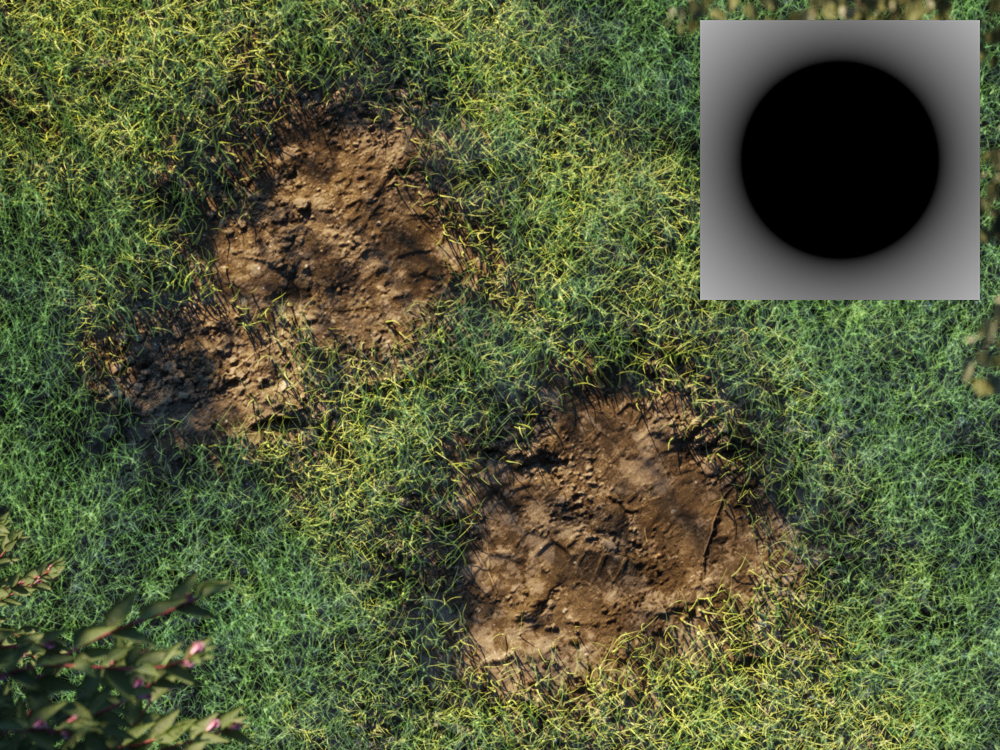
Inside Separate – When enabled, the Near Color is overridden by the Inside Color value for points that are inside the specified geometry.
Inside Color – The color returned by the texture for points that are right inside the object(s) specified in the list.
Inside Solid – When enabled, all points inside the specified geometry are given the Inside Color and no blending is performed.

See the Inside Separate example below.
Example: Inside Separate
The stones are made invisible by adding Raytrace Properties Attribute and turning off all the visibility options.
When Noise map is used as a texture for either Inside or Outside colors, the preview swatch does not display the end result distance texture
(no noise is visible in the swatch), so in those particular cases only the Noise texture is showed on the render.

Color = R0G0B0

Color = R04G04B04

Color = R08G08B08
Color = R0G0B0; Inside Solid = On

Color = R1G1B1; Inside Solid = On

Color = Noise Texture; Inside Solid = On
Outside Separate
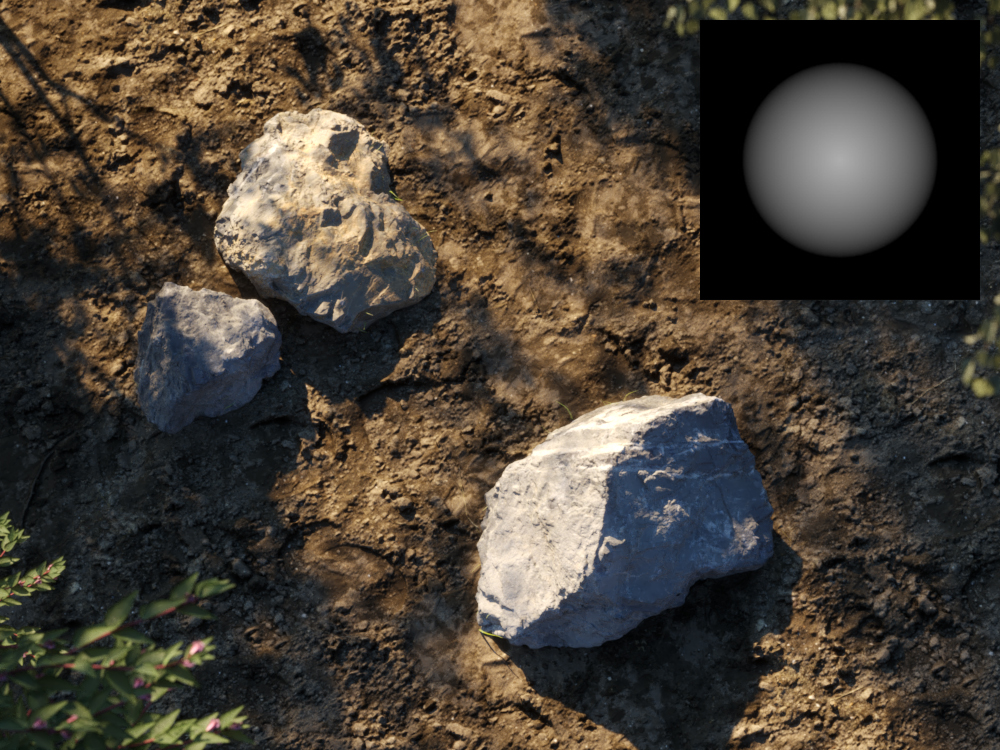
Outside Separate – When enabled, the Near Color value is overridden by the Outside Color value for points that are outside the specified geometry.
Outside Color – The color returned by the texture for points that are outside the object(s) specified in the list.
Outside Solid – When enabled, all the points outside the specified geometry are given the Outside Color value and no blending is performed.
See the Outside Separate example below.

Example: Outside Separate

Color = R0G0B0

Color = R04G04B04

Color = R08G08B08
Color = R0G0B0; Outside Solid = On
Color = R1G1B1; Outside Solid = On

Color = Noise Texture; Outside Solid = On
Example: Refine texture placement with Distance texture
www.youtube.com
Example: Displacement
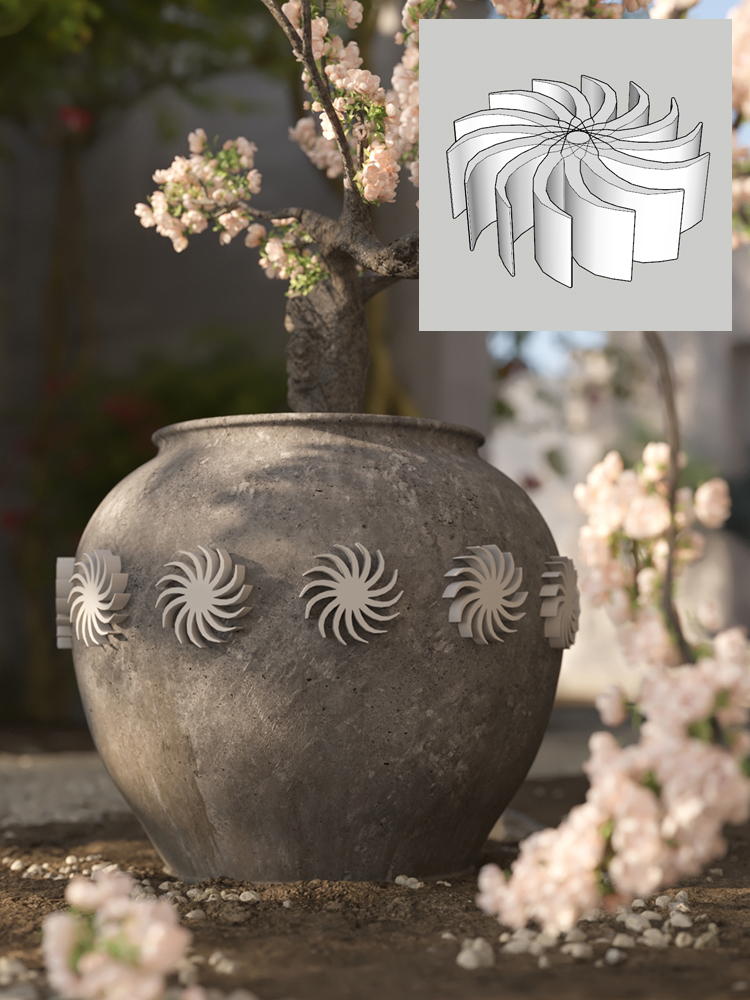
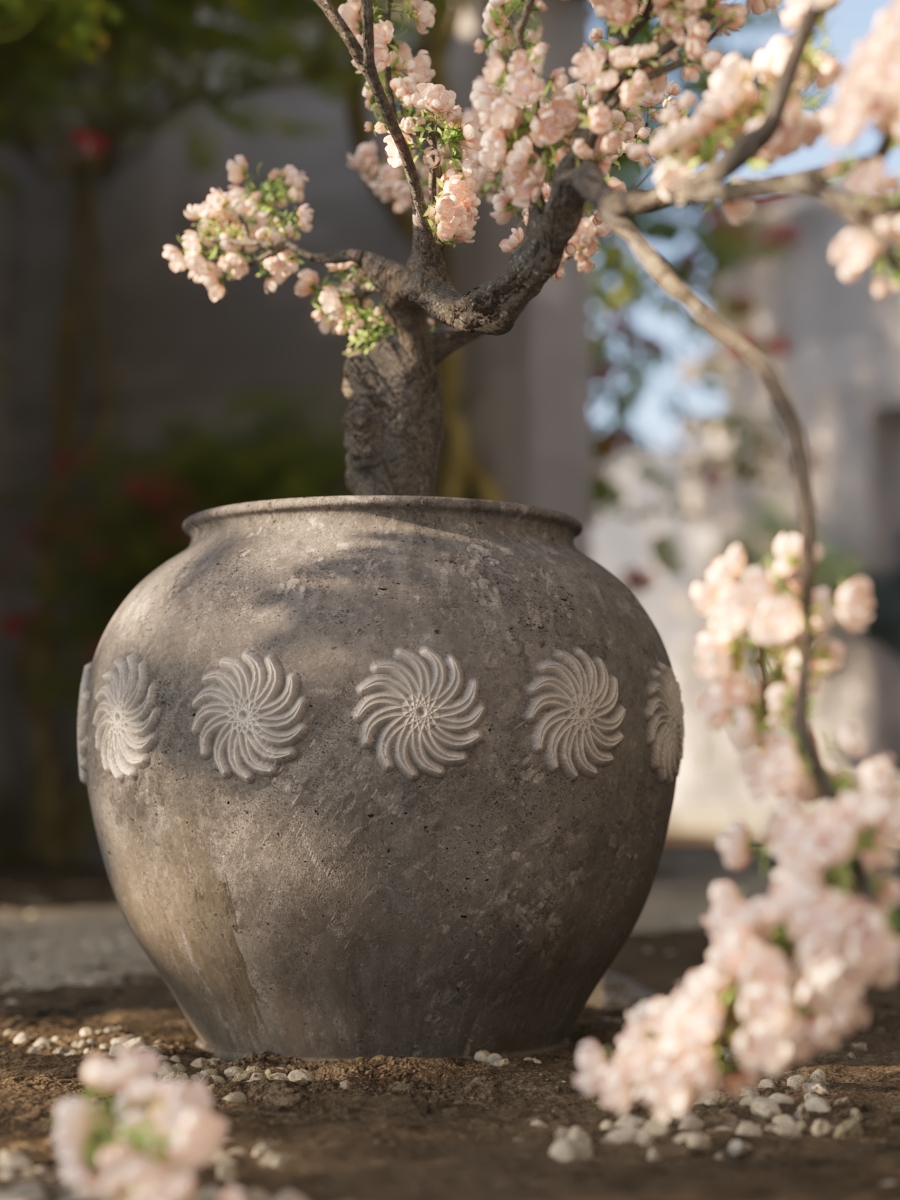
The example shows how to use geometry to create the Distance map used for Displacement.
A Displacement geometry tool is added to the pot, and the Distance texture created from the intersection is used as Displacement.

Displacement:
Off
Distance:
Geometry
Distance Displacement
,
White Ceramic:
On
Example: Fur
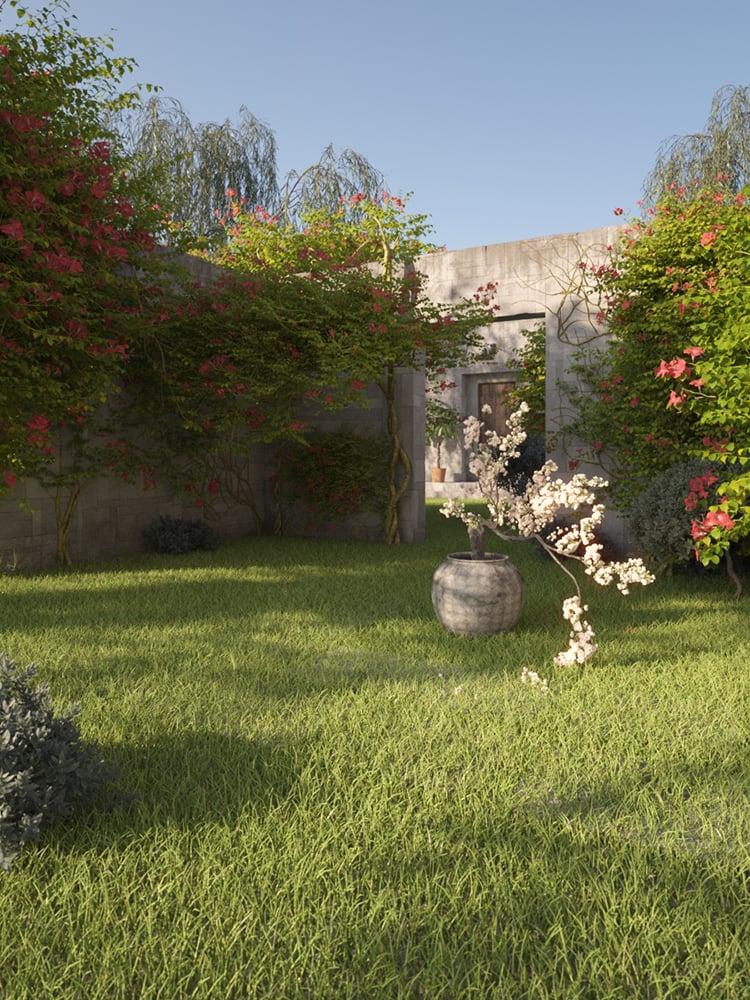
The Density image shows how the Distance texture can control the density of the grass.
The Inside Separate and Inside solid options are turned On and a black color is used for the Inside Separate parameter.
The final image shows how the Distance texture can control the grass density length using a map connected to the Length parameter.

Fur:
Off
Distance:
Off

Distance:
Density
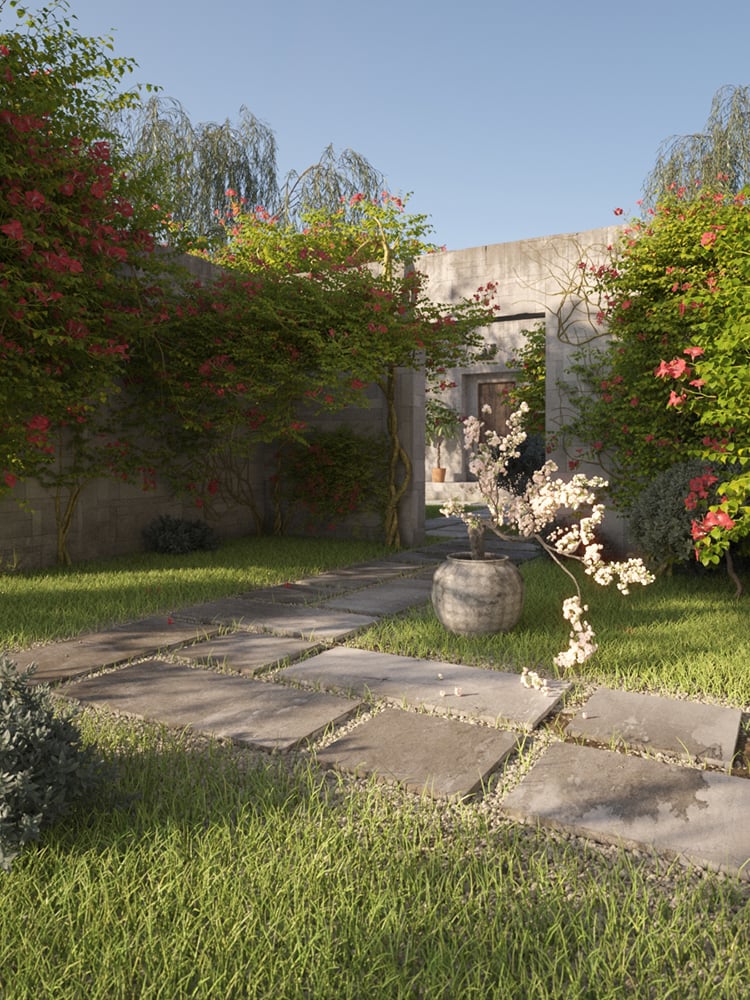
Distance Inside Separate:
Density
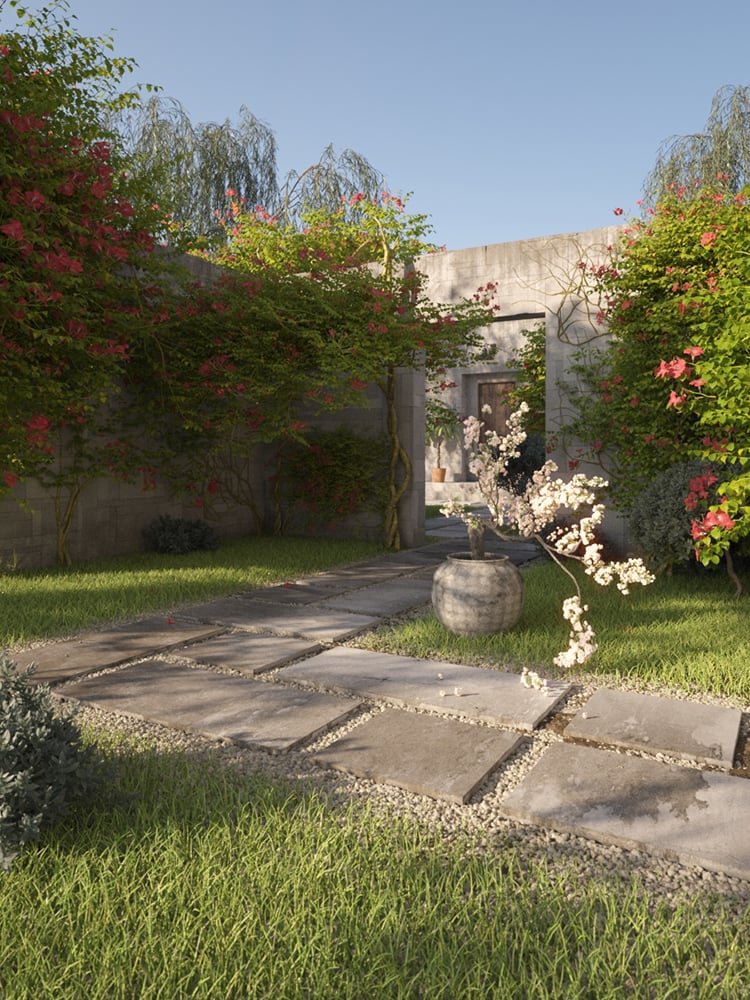
Distance Inside Separate:
Density Length