V-Ray for Rhino
Edges
This page provides information on the V-Ray Edge Texture.
Last updated 18 May 2026
This page provides information on the V-Ray Edge Texture.
Overview
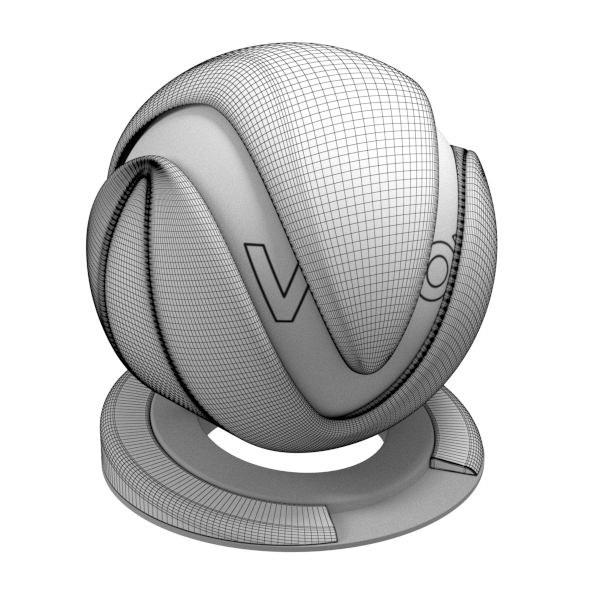
The Edges texture achieves an effect similar to wireframes. Since it is a texture, it allows for interesting effects that are not possible with the standard materials.

UI Paths
||V-Ray Asset Editor|| > Textures (right-click) > Edge
||V-Ray Asset Editor|| > Create Asset (left-click) > Textures > Edge
Parameters
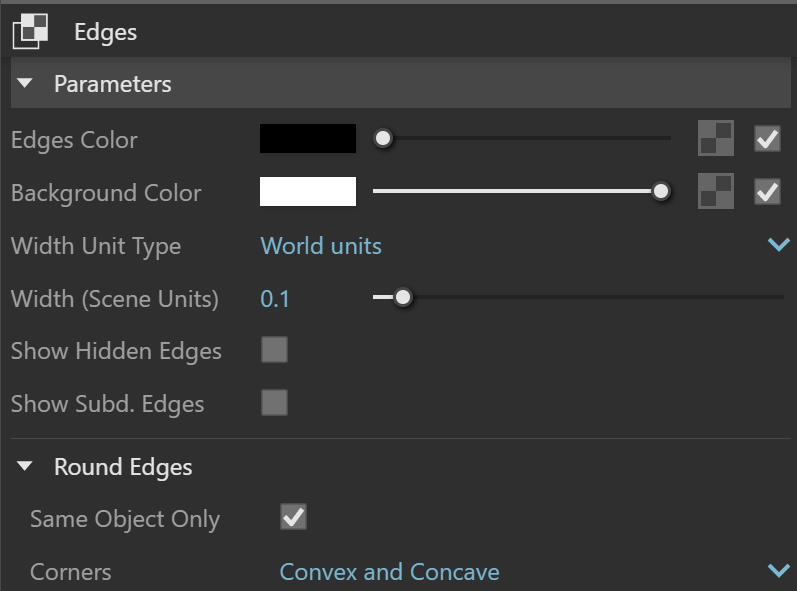
Edges Color – Specifies the color of the edges. If a texture is selected, it overrides the color as long as the texture checkbox is enabled.
Background Color – Specifies the color of the faces. If a texture is selected, it overrides the color as long as the texture checkbox is enabled.
Width Unit Type –Specifies the unit of measurement for the thickness of the edges.
World units – Thickness of the edges is measured in world (scene) units.
Pixels – Thickness of the edges is measured in pixels.
Width (Scene Units) – When the Width Unit Type is set to World Units, this parameter specifies the thickness of the edges in world (scene) units.
Width (Pixels) – When the Width Unit Type is set to Pixels, this parameter specifies the thickness of the edges in pixels.
Show Hidden Edges – When enabled, this renders all edges of the object. When disabled, only edges marked as "visible" are rendered. See the Show Hidden Edges example below.
Show Subdivision Edges – When enabled, edges generated by displacement mapping or render time subdivision are visible.
Round Edges
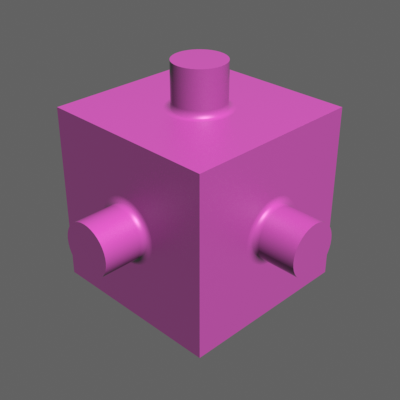
Same Object Only – When enabled, the rounded corners are produced only along edges that belong to the same object which has the map applied. When disabled, rounded corners are produced along edges formed when the object with the edges map intersects other objects in the scene. See the Same Object Only example below.
Corners – Specifies the type of edges that are rounded. See the Corners example below.
Convex and Concave – The effect is applied to both convex and concave edges.
Convex only – The effect is applied only to convex edges.
Concave only – The effect is applied only to concave edges.
Example: Show Hidden Edges
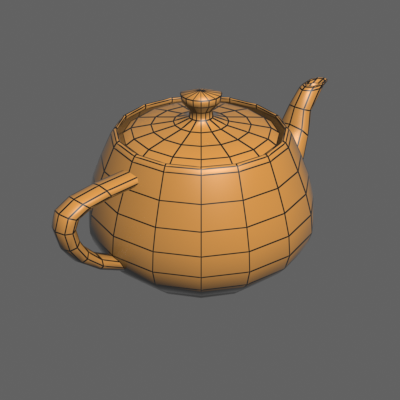
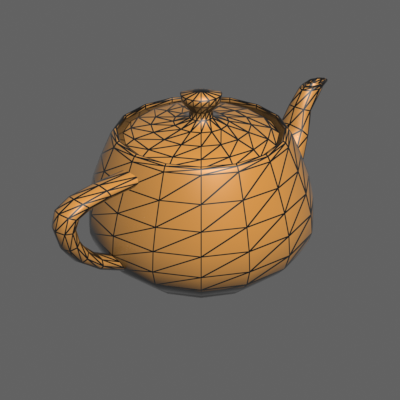
Show Hidden Edges
= on
Example: Same Object Only
In this example, the cube and the cylinders are separate objects in the project. Material bump is enabled and set to Bump Texture Channel mode.
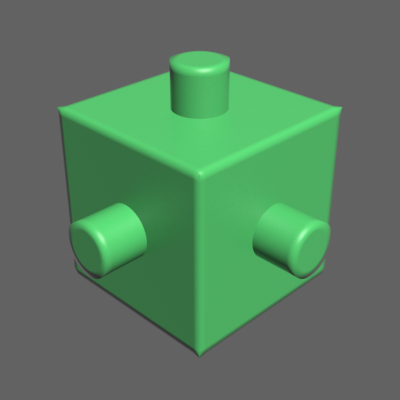
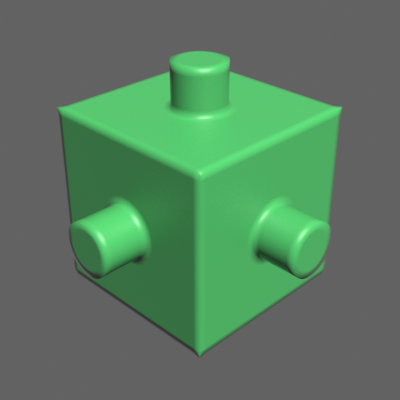
Example: Corners
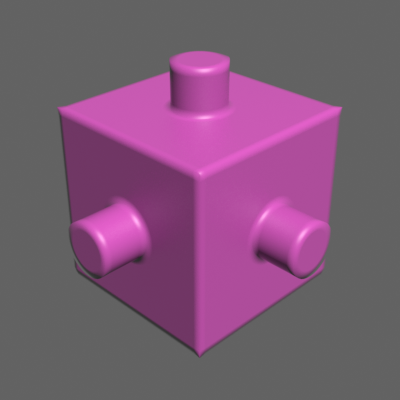
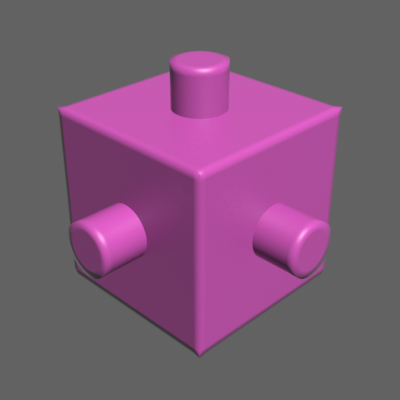
Multipliers
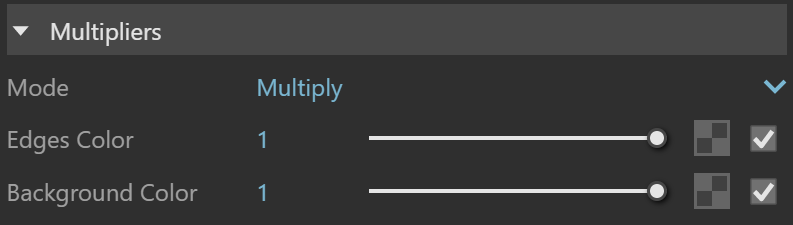
Mode – Specifies the multiplication mode of the colors.
Multiply – The color used for blending is black.
Blend Amount – The color used for blending is the one specified in the color slot.
Edges Color – Blends between a color and a texture, if specified.
Background Color – Blends between a color and a texture, if specified.
Notes
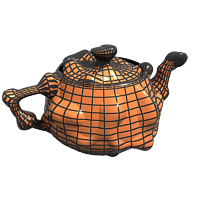
- When applied to displaced or subdivided objects, the Edges normally show the edges of the original mesh:
- Edges cannot simulate outlines on the objects; you can use Outline Override to add outlines.
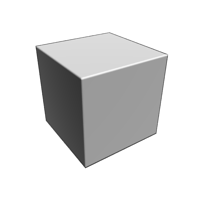
- Currently, when used as a bump map in glossy materials with Blinn or Ward BRDF, Edges may lead to dark edges; to avoid this, use the Phong BRDF instead.
Blinn BRDF
Phong BRDF