V-Ray for Rhino
Granite
This page contains information about the V-Ray Granite Texture.
Last updated 1 September 2026
This page contains information about the V-Ray Granite Texture.
Overview
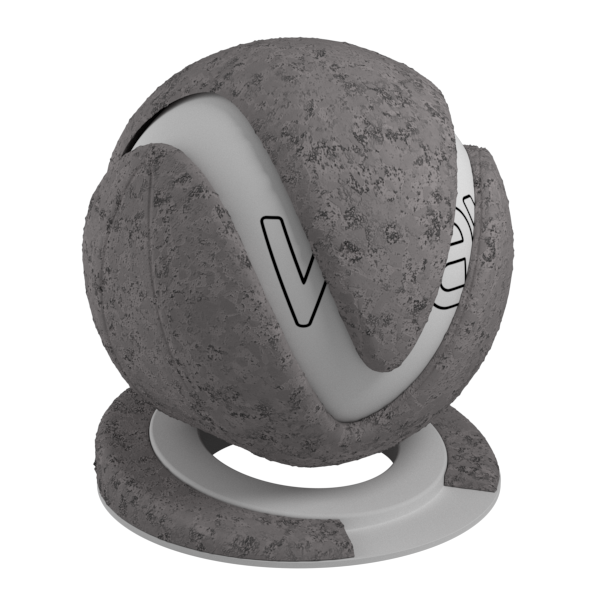
The Granite texture map generates a procedural Granite texture. It uses four colors that can be changed or assigned to texture maps.

UI Paths
||V-Ray Asset Editor|| > Textures (right-click) > Granite
||V-Ray Asset Editor|| > Create Asset (left-click) > Textures > Granite
Parameters
Color Base – Specifies the color that fills in the area surrounding the spots. A texture map can be used for all parameters in this section, as long as the checkbox is enabled.
Color A – Specifies the first color of the spots.
Color B – Specifies the second color of the spots.
Color C – Specifies the third color of the spots.
Cell Size – Controls how large or small the cells are. See the Cell Size example below.
Density – Controls how closely packed the spots are. See the Density example below.
Mix Ratio – Controls the prominence of each color relative to the others. See the Mix Ratio example below.
Threshold – Controls the transition between the filler color and Color 1, Color 2, and Color 3.
Spottiness – Controls how circular the spots are. Lower values make the spots more circular, and higher values make them less circular.
Randomness – Varies the distribution of the spots on the granite. Lower values show more spots, higher values also make them more sparse. See the Randomness example below.
Creases – Enables or disables crease patterns.
Color Manipulation
Invert Texture – Inverts the RGB texture values.
Alpha from Intensity – Uses the texture RGB intensity/luminance as alpha channel.
Color Gain – Corrects the color of the texture by multiplying the RGB color values in the texture with the RGB color values specified here. When a texture is selected, it overrides the color as long as the texture checkbox is enabled.
Color Offset – Corrects the color of the texture by adding the RGB color values specified here to the RGB color values in the texture. When a texture is selected, it overrides the color as long as the texture checkbox is enabled.
Default Color – Specifies a default color used for polygons with no valid UVs. In case the map is not tiled, specifies a default color that is used outside the texture square. When a texture is selected, it overrides the color as long as the texture checkbox is enabled.

Example: Cell Size
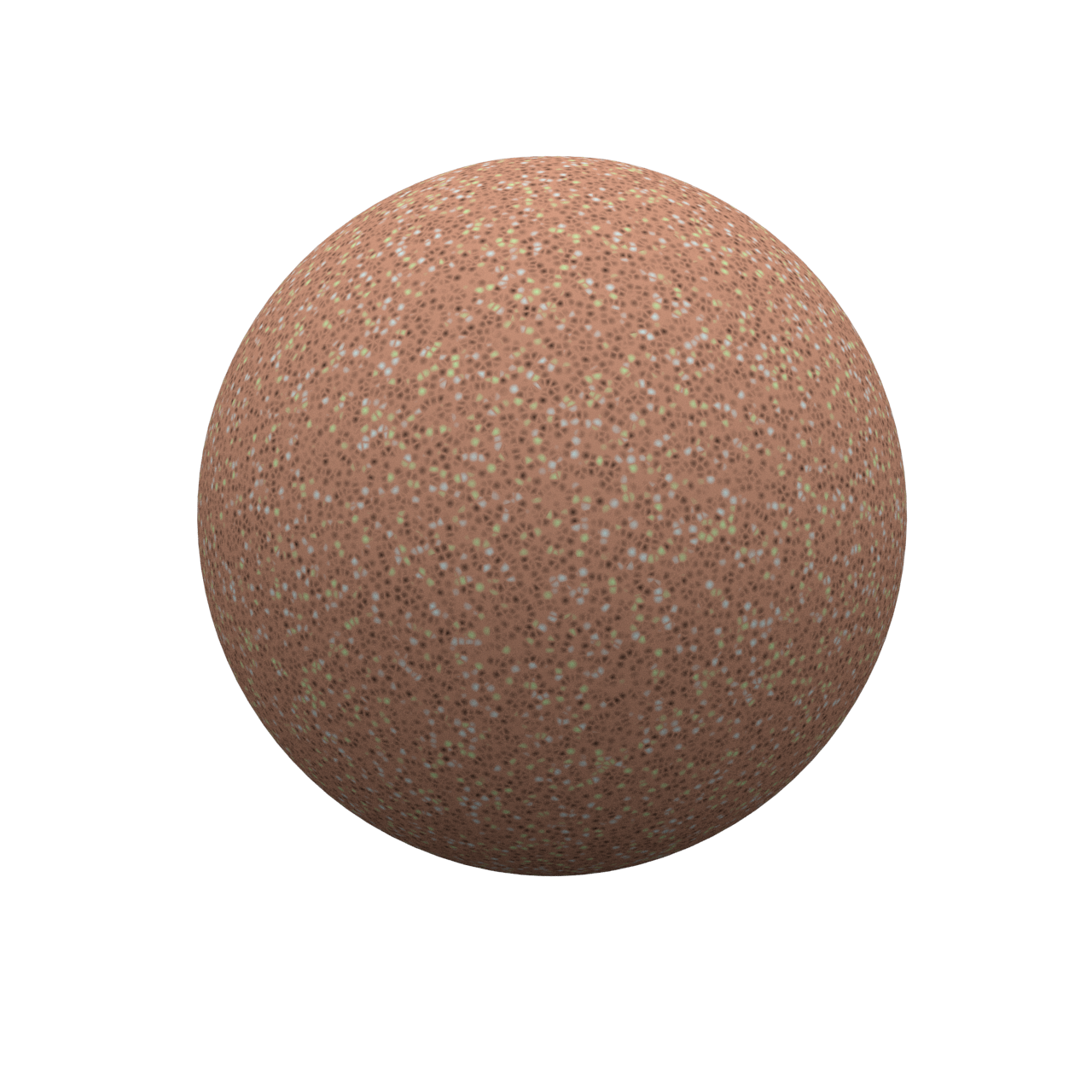
Cell Size
= 0.25

Cell Size
= 0.5
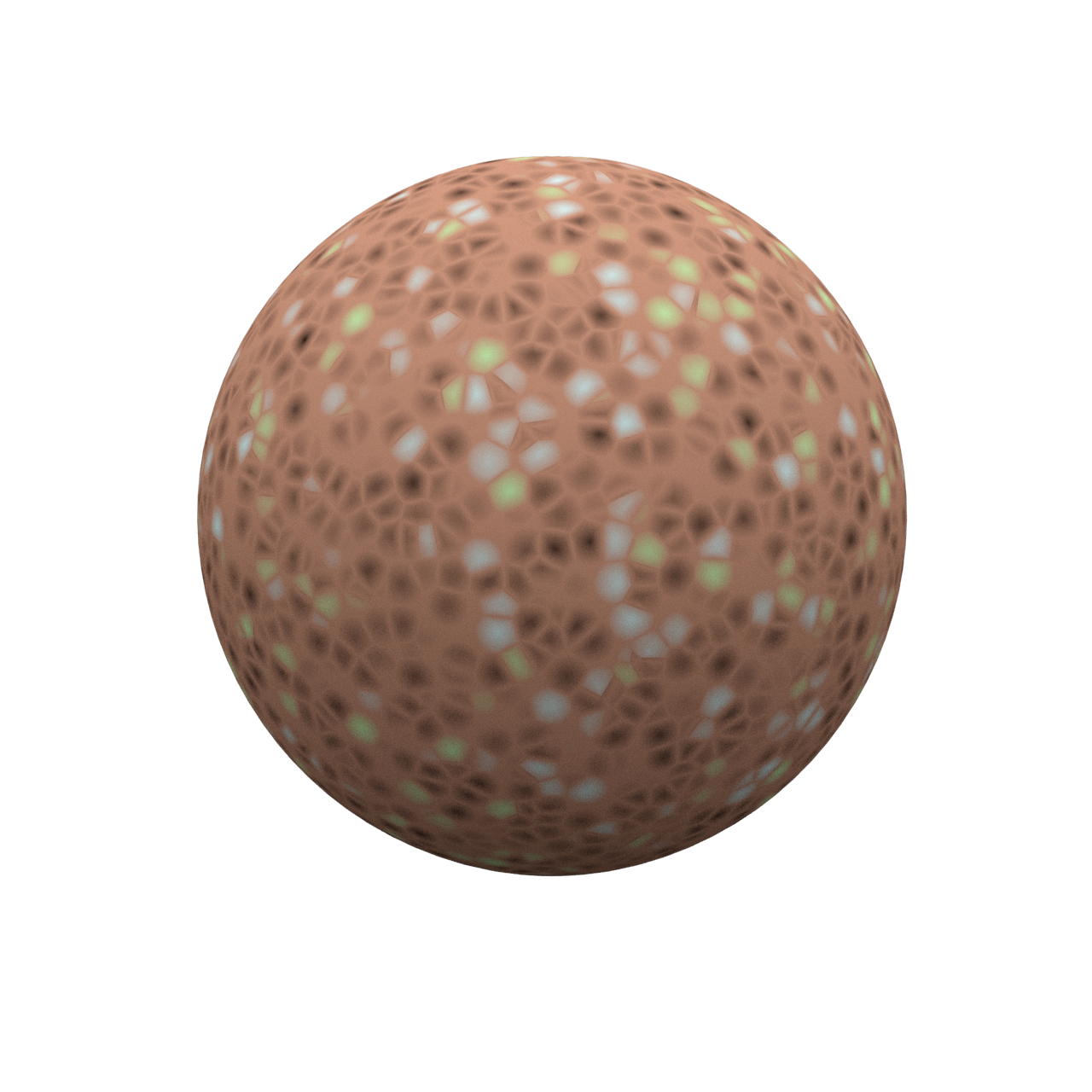
Cell Size
= 1
Example: Density
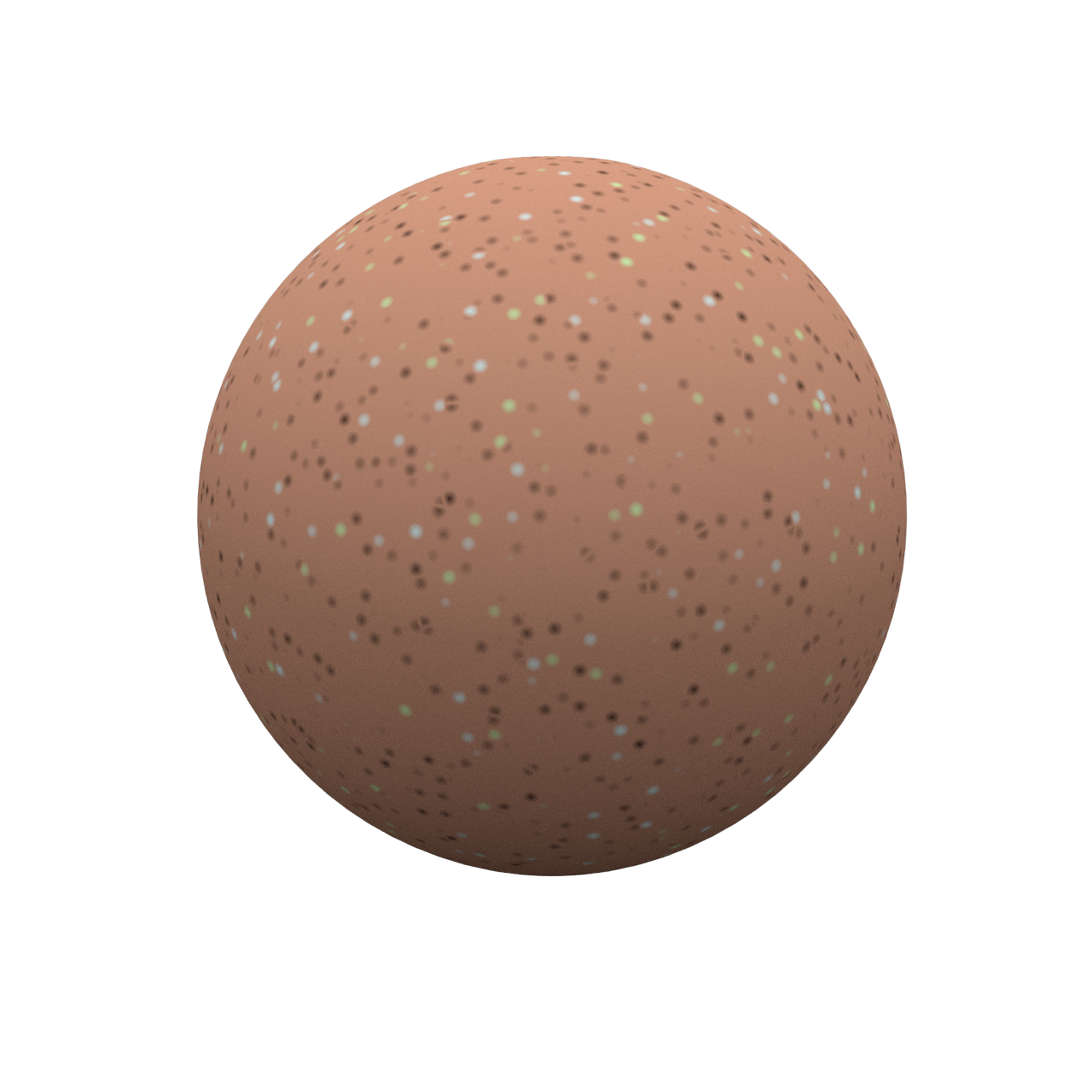
Density
= 0.25

Density
= 0.25

Density
= 0.75
Example: Mix Ratio
These examples use a Density of 1 and a Cell Size of 0.75.
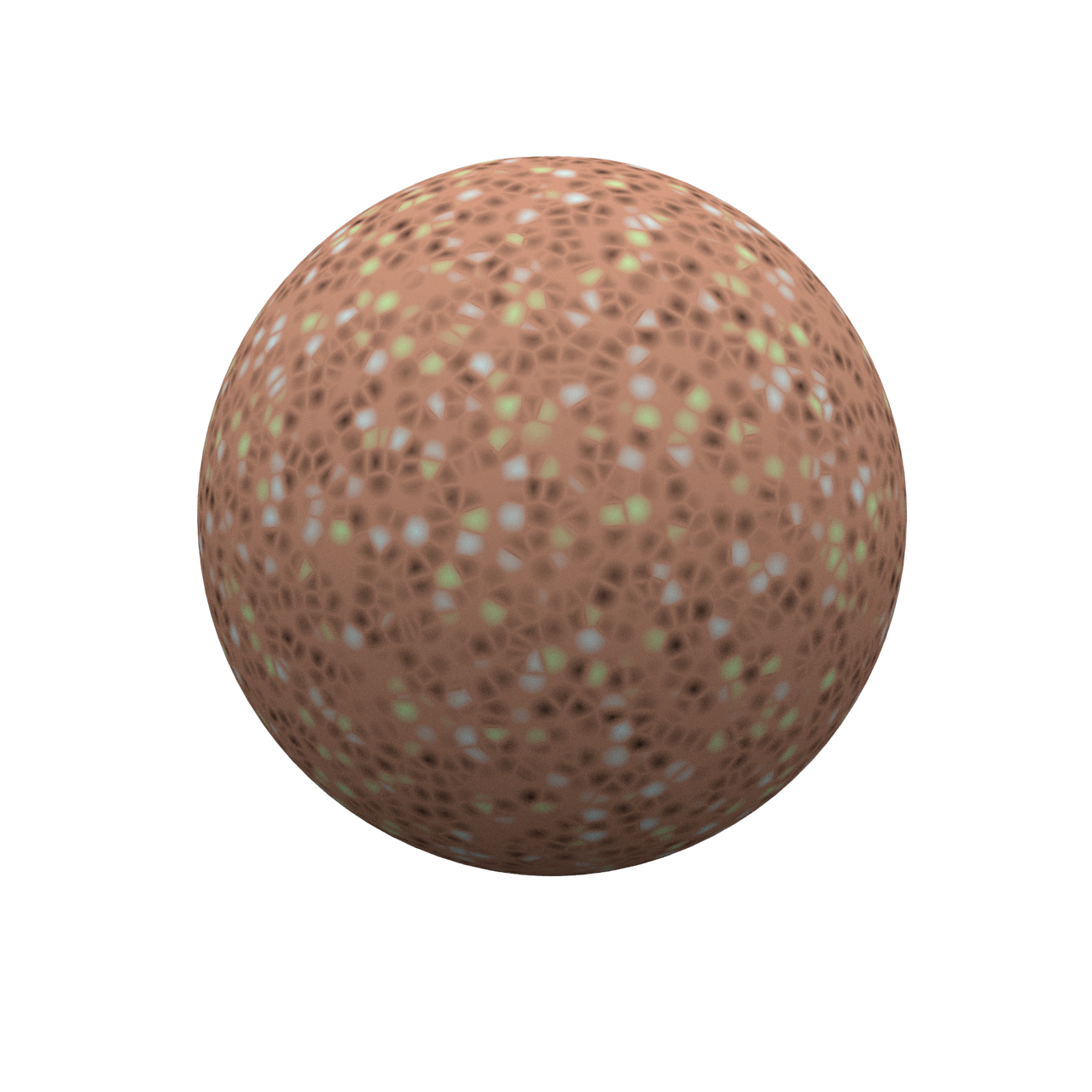
Mix Ratio
= 0.5
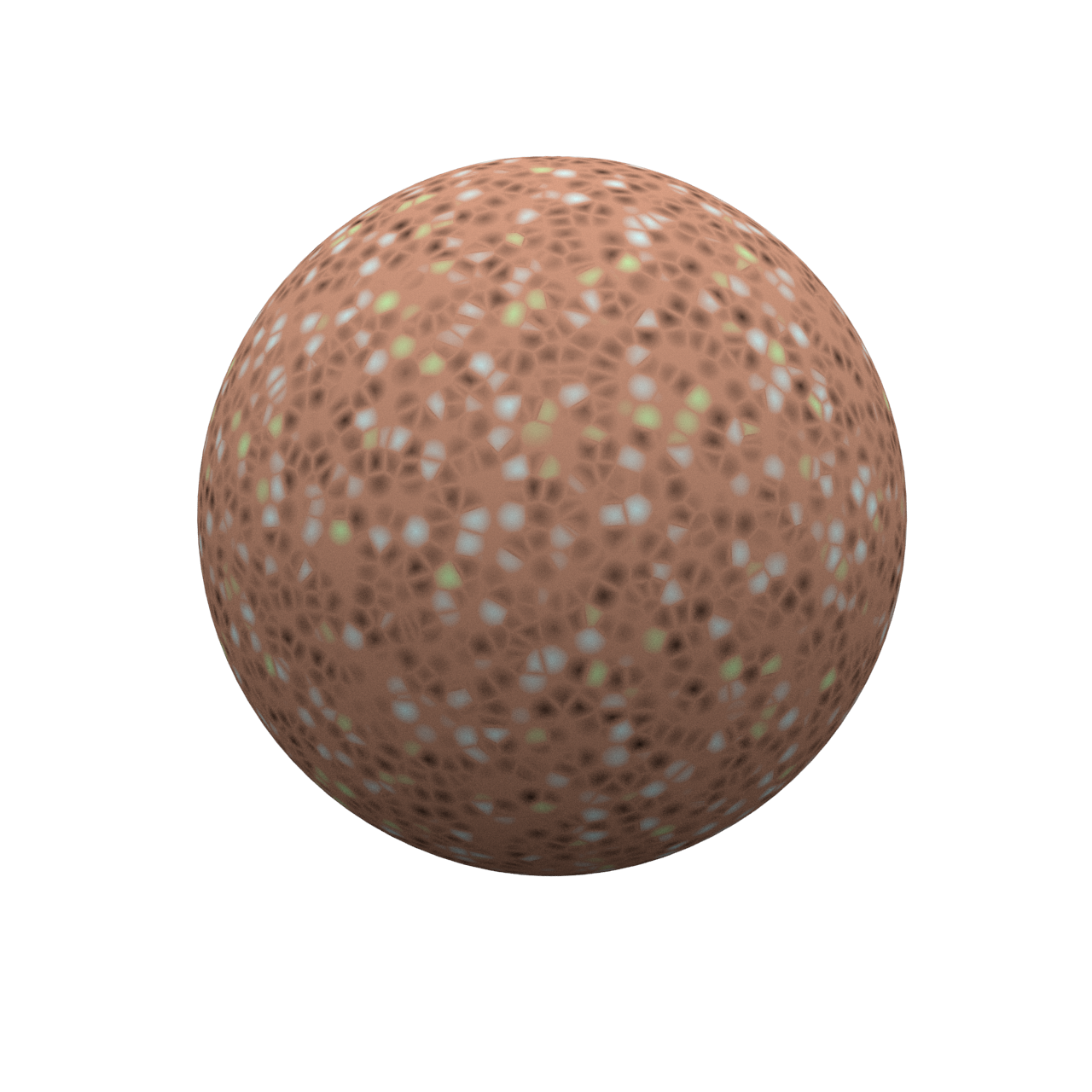
Mix Ratio
= 0.75
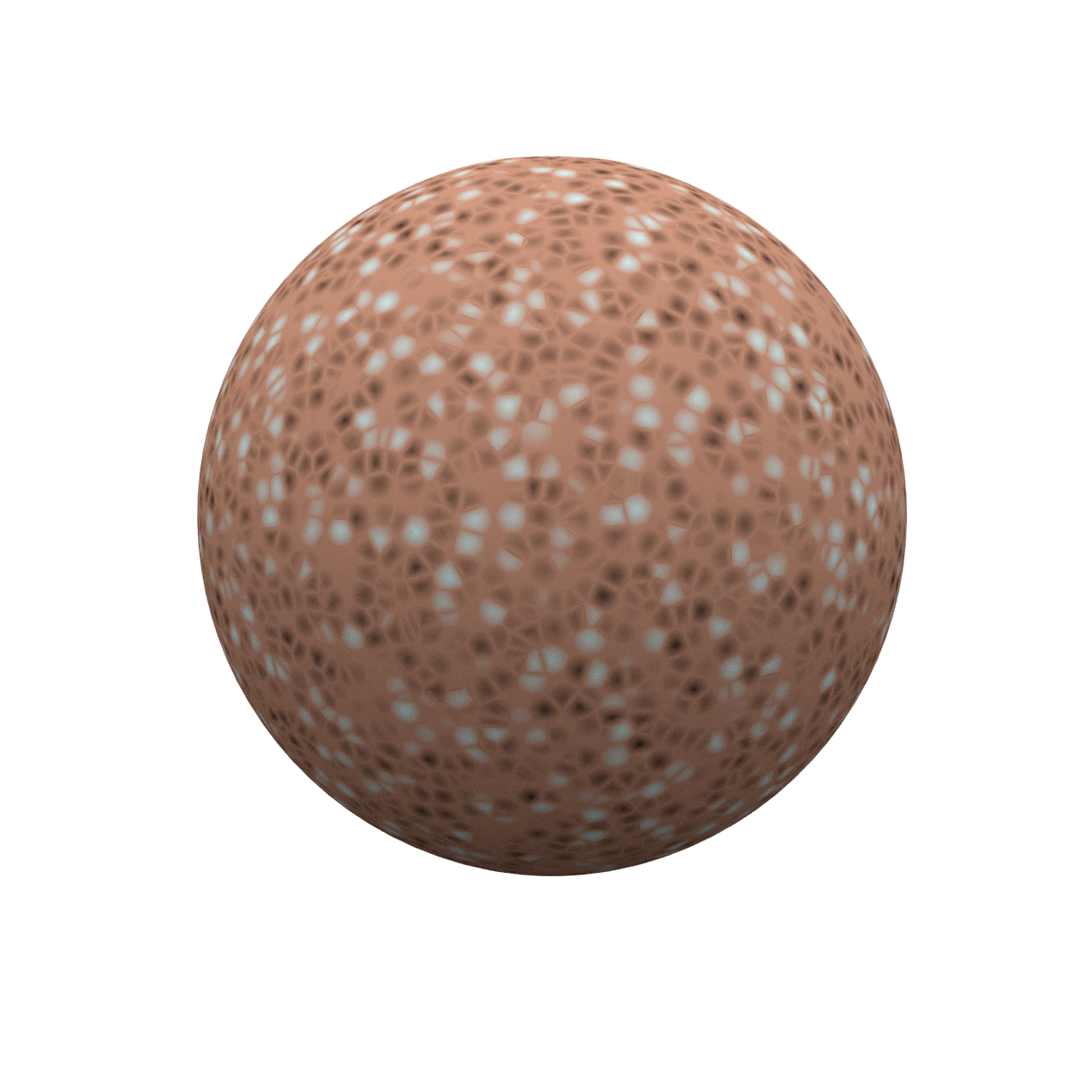
Mix Ratio
= 1
Example: Spottiness

Spottiness
= 0.25

Spottiness
= 0.5

Spottiness
= 1
Example: Randomness

Randomness
= 0
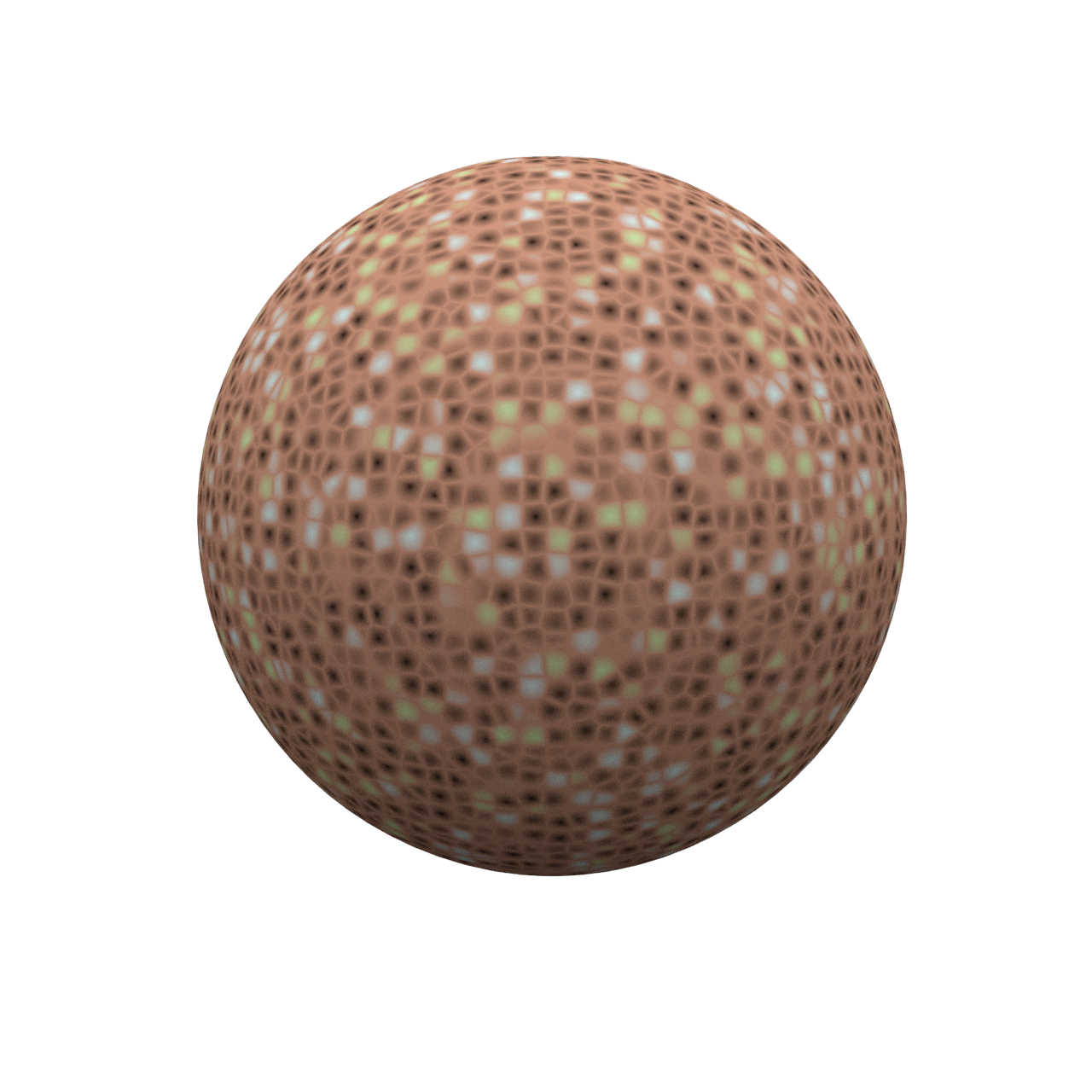
Randomness
= 0.5

Randomness
= 1
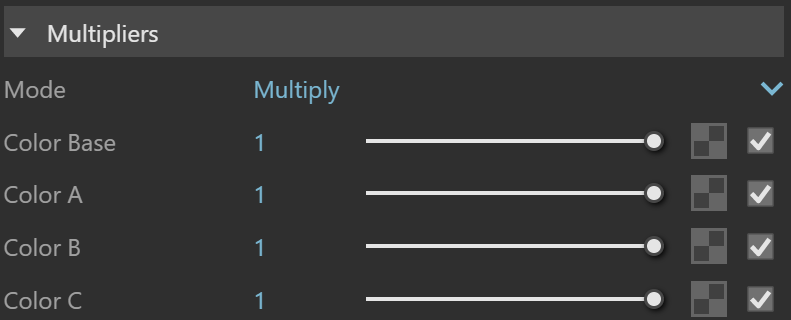
Multipliers
Mode – Specifies the multiplication mode of the colors.
Multiply – Multiplies the RGB numbers for each pixel of the top layer with the RGB number of the corresponding pixel from the bottom layer. The result is a darker picture. The color used for blending is black.
Blend Amount– Takes each pixel from the top layer if present. Otherwise, the bottom layer is used. The color used for blending is the one specified in the color slot.
Color Base – Blends between the color base and a texture, if specified.
Color A – Blends between the first color and a texture, if specified.
Color B – Blends between the second color and a texture, if specified.
Color C – Blends between the third color and a texture, if specified.
Texture Placement
Type – Controls how the texture is positioned on the geometry.
2D (UV Channel) – The texture uses the object UV coordinates.
3D (Object Space) – Places the texture based on the local object coordinates independent of the object UVs.
3D (World Space) – Places the texture based on the world coordinates independent of the object UVs
Environment – This mode is applicable if the map is connected to an Environment slot or a Dome light.
Texture Remapping – Uses UVW values from a color texture or separate grayscale textures.
Mapping Source – The texture uses an external UV placement source.
2D (UV Channel)
UV Channel/Set – Specifies the index of the mapping channel data to use. A value of 1 takes the first available channel.
Repeat U/V – Determines how many times the texture is repeated in the 0 to 1 UV square.
Lock U/V Repeat – Locks the U/V Repeat.
Offset U/V – Controls the texture offset in the U and V direction.
Rotate – Rotates the texture (in degrees).
Tile U/V – Tiles the texture in the U and V direction. If the option is disabled, the Default texture color is used outside the 0 to 1 UV square. Default color is found in Parameters > Color Manipulation.
Mirror U/V – Mirrors the texture in the U and V direction separately. The option cuts the texture in the half flipping one side vertically or horizontally. This can be used to avoid seams in-between non-tileable repeated textures.

2D (UV Channel) Parameters
3D (Object Space)
Repeat X/Y/Z – Determines how many times the texture is repeated along the X/Y/Z axis.
Lock U/V Repeat – Locks the X/Y/Z repeat.
Offset X/Y/Z – Controls the texture offset in the X/Y/Z direction.
Rotate X/Y/Z – Rotates the texture around the X/Y/Z axis.

3D (Object Space) Parameters
3D (World Space)
Repeat X/Y/Z – Determines how many times the texture is repeated along the X/Y/Z axis.
Lock U/V Repeat – Locks the X/Y/Z repeat.
Offset X/Y/Z – Controls the texture offset in the X/Y/Z direction.
Rotate X/Y/Z – Rotates the texture around the X/Y/Z axis.
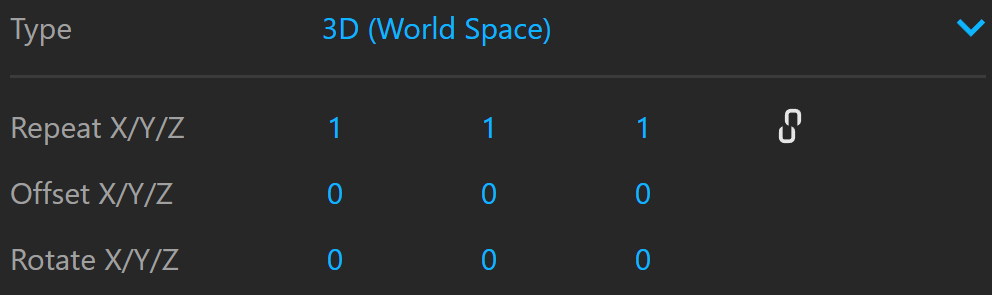
3D (World Space) Parameters
Environment
Mapping – Specifies the type and shape of the texture.
Angular
Cubic
Spherical
Spherical Inverted
Mirror Ball
Screen
Rotate H – Rotates the environment sphere horizontally.
Flip H – Flips the environment sphere horizontally.
Rotate V – Rotates the environment sphere vertically.
Flip V – Flips the environment sphere vertically. This option is active only in Spherical Mapping.
Ground – Enables ground projection of the texture.
Position X/Y/Z – Offsets the ground projection along the X/Y/Z axis.
Radius – Specifies a projection radius. Can be used to control the scale of the projection.
2d Transformation – see 2D (UV channel) parameters.

Environment Parameters
Texture Remapping
Mode – Determines whether a single or multiple textures should be used for U and V texture coordinates remapping.
UV – The Red input texture channel determines the U sampling coordinate. The Green input texture channel determines the V coordinate.
U – The value of this texture determines the U sampling coordinate.
V – The value of this texture determines the V sampling coordinate.
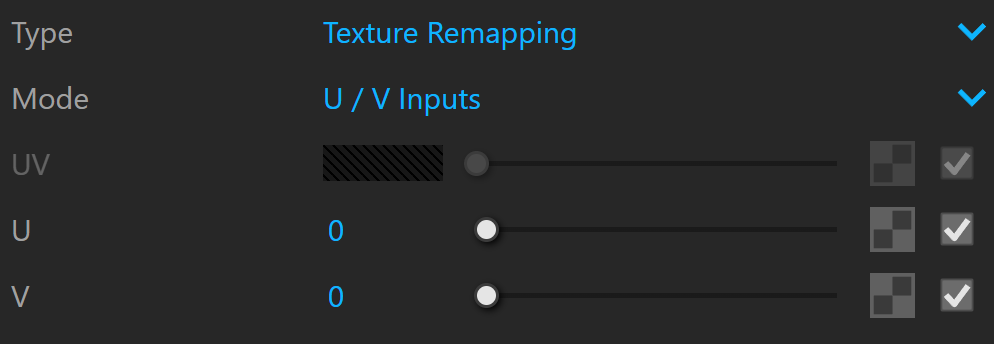
Texture Remapping Parameters
Mapping Source
UV Placement Source – External UV placement source to be used for the texture placement.

Mapping Placement Parameters