V-Ray for Rhino
Omni Light
This page provides information on the V-Ray Omni Light.
Last updated 1 September 2026
This page provides information on the V-Ray Omni Light.
Overview
The V-Ray Omni Light is a V-Ray specific light source plugin that can be used to create physically accurate light that emits light from a single location in all directions.
V-Ray Omni light(s) can be instanced by using Array or Alt+drag the light object in the Rhino viewport.
UI Paths
||V-Ray Asset Editor|| > Lights (right-click) > Omni Light
||V-Ray Asset Editor|| > Create Asset (left-click) > Lights > Omni Light
Rhino Menus Ribbon
||V-Ray|| > Lights > Omni Light
||V-Ray Lights Toolbar|| > Omni Light tool

Parameters

Enabled () – Turns V-Ray Omni Light on and off.
Color – Specifies the color of the light when the mode parameter is set to Color. When using photometric units, this color is normalized, so that only the color hue is used, and the light intensity is determined by the Intensity parameter.
Intensity – Specifies the strength of the light. See Intensity example below.
Units – Specifies the light unit of measurement. Using correct units is essential when working with physical camera exposure. The light automatically takes the scene units scale into consideration to produce correct result.
Default (Scalar) – The color and multiplier directly determine the visible color of the light without any conversion. The light surface appears with the given color in the final image when seen directly by the camera.
Luminous Power (Lumens) – Total emitted visible light power measured in lumens. The intensity of the light does not depend on its size. A typical 100W incandescent light bulb emits about 1500 lumens of light.
Luminance (lm/m^2/sr) – Visible light surface power measured in lumens per square meter per steradian. The intensity of the light depends on its size.
Radiant Power (W) – Total emitted visible light power measured in watts. The intensity of the light does not depend on its size. This is not the same as the electric power consumed by a light bulb for example. A typical 100W light bulb only emits between 2 and 3 watts as visible light.
Radiance (W/m^2/sr) – Visible light surface power measured in watts per square meter per steradian. The intensity of the light depends on its size.
Decay – Sets the behavior of light intensity with distance from the light source. Тhe light intensity is inversely proportional to the square of the distance from the light (surfaces that are farther from the light are darker than surfaces that are closer to the light).
No Decay – Light intensity will not decay with distance.
Inverse – Applies a slow, forgiving falloff to the light, i.e., a gradual, soft, and aesthetically pleasing decrease in light intensity as it moves away from the light source. If you double the distance from the light source, the brightness is reduced in half.
Inverse Square – Applies a fast, physically accurate falloff to the light that matches the real-world light behavior. If you double the distance from the light source, the brightness is reduced 4 times. This is the normal behavior of light.
Inverse Cube – Light intensity is inversely proportional to the cube of the distance from the light.
Shadow Radius – Controls the size of the light. Where 0.0 is a omni light, larger values produce soft (area) shadows. See Shadow Radius example below.

Options
Shadows – When enabled (default), the light casts shadows. When disabled, the light does not cast shadows.
Affect Diffuse – Determines whether the light is affecting the diffuse properties of the materials. With this option off, there is no diffuse contribution from the light.
Affect Specular – Determines whether the light is affecting the specular of the materials (i.e. glossy reflections). With this option off, there is no specular contribution from the light.
Affect Atmospherics – Specifies whether the light influences the atmospheric effects in the scene. The value determines the amount of involvement.
Caustic Subdivs – Controls the amount of photons that V-Ray traces to estimate caustics. Large numbers slow down the calculation of the caustics photon map and may take more memory.

Example: Intensity
This example shows how changing the Intensity parameter changes the light in the scene. Note that the values are calculated as Lumens.

Intensity = 1000 Lumens
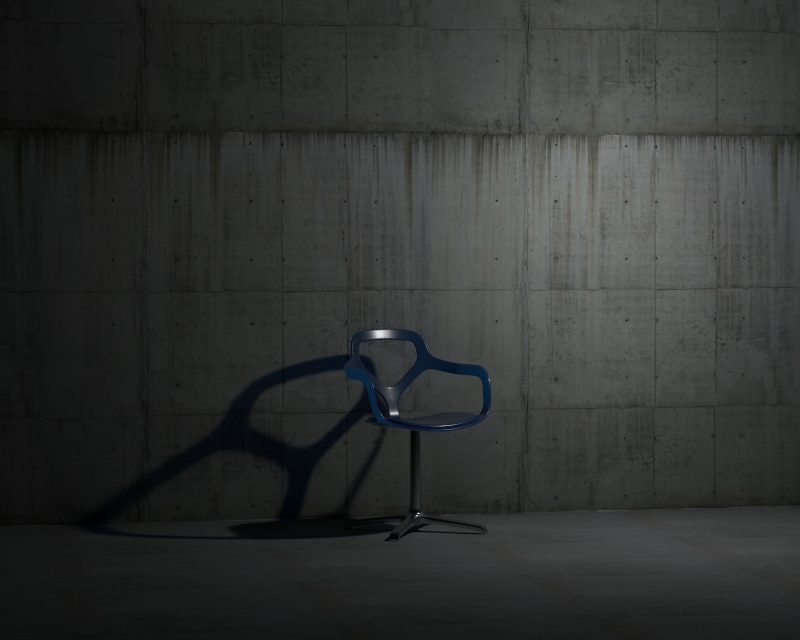
Intensity = 2500 Lumens

Intensity = 5000 Lumens

Intensity = 7500
Example: Shadow Radius
This example shows how the Shadow Radius parameter affects the light in the scene. Notice how lesser values result in sharper shadows and greater values result in blurrier and elongated shadows.
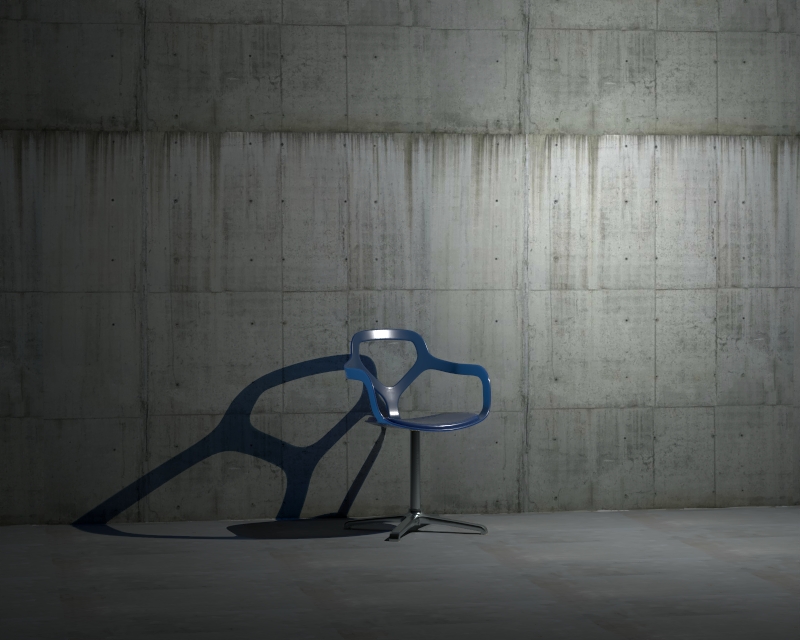
Shadow Radius = 0.0
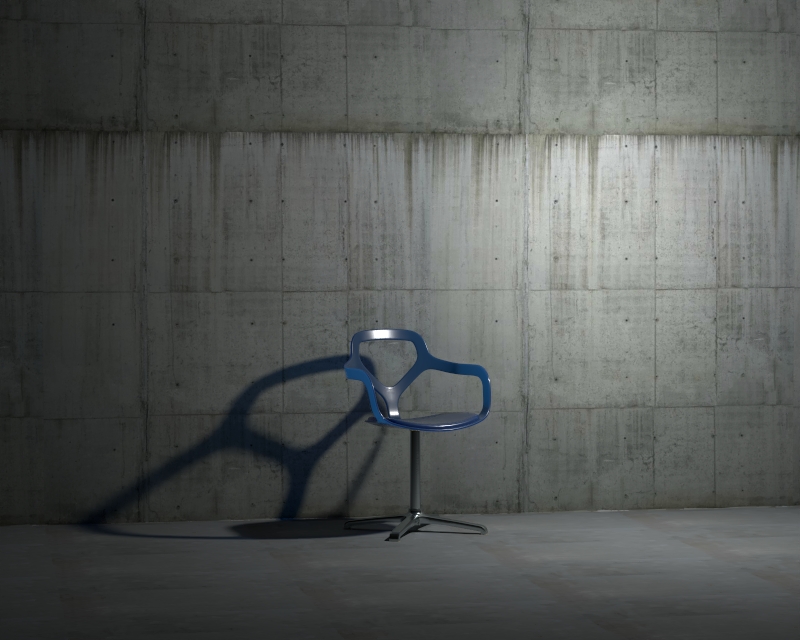
Shadow Radius = 0.4

Shadow Radius = 1.0