V-Ray for Rhino
Scatter
This page provides information about V-Ray Scatter in V-Ray for Rhino.
Last updated 1 September 2026
This page provides information about V-Ray Scatter in V-Ray for Rhino.
Overview
The V-Ray Scatter tool creates instances of objects using the surfaces of other objects or splines to generate points.
www.youtube.com
UI Paths
||Asset Editor|| > Geometries (right-click) > Scatter
||Asset Editor|| > Create Asset > Geometries > Scatter
Rhino Menus Ribbon
||V-Ray|| > Objects > Convert to Scatter Host
||V-Ray Objects Toolbar|| > Scatter (left-click) > Make Scatter host from the selection
||V-Ray Objects Toolbar|| > Scatter (right-click) > Remove the Scatter host properties from the selection

Scatter Workflow
V-Ray Scatter consists of two types of objects – Host objects and Guest objects that are scattered over the Host object's surface. There are several ways to create Scatter Host and Guest objects.
Creating Scatter Host Objects
- Select an object in the viewport. Left-click the Scatter button from the V-Ray Geometry Toolbar to make Scatter host from the selection.
- Select an object in the viewport. Go to the V-Ray menu > Objects > Convert to Scatter Host.
- Select an object in the viewport. Open the Asset Editor > Geometry > Scatter and use the Apply to Selection option.
Creating Scatter Guest Objects
Add Guests – Select an object in the viewport and use the Add Guests button in the Asset Editor. The object appears under the Add Guests button.
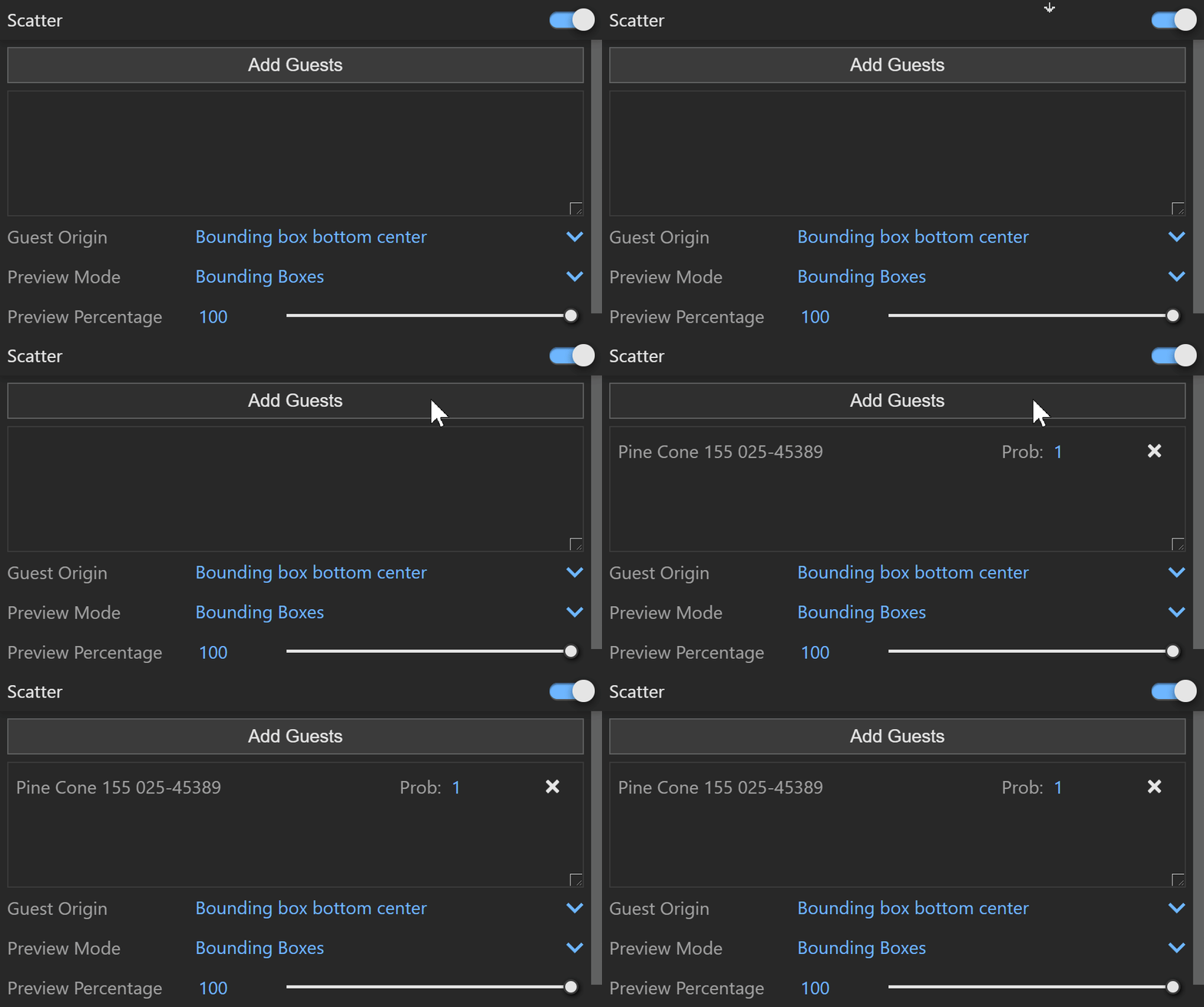
Scatter
Scatter – Enables Scatter.
Add Guests – Adds the currently selected scene objects to the Guests list. The objects in this list are scattered on the base geometry.
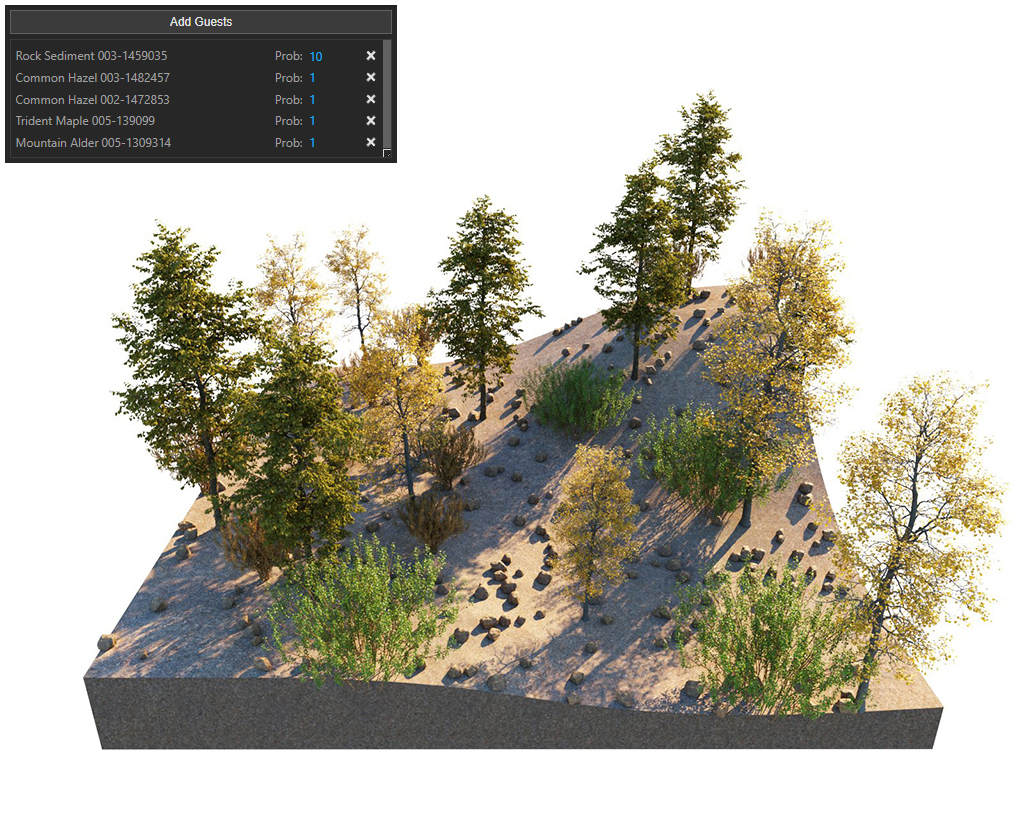
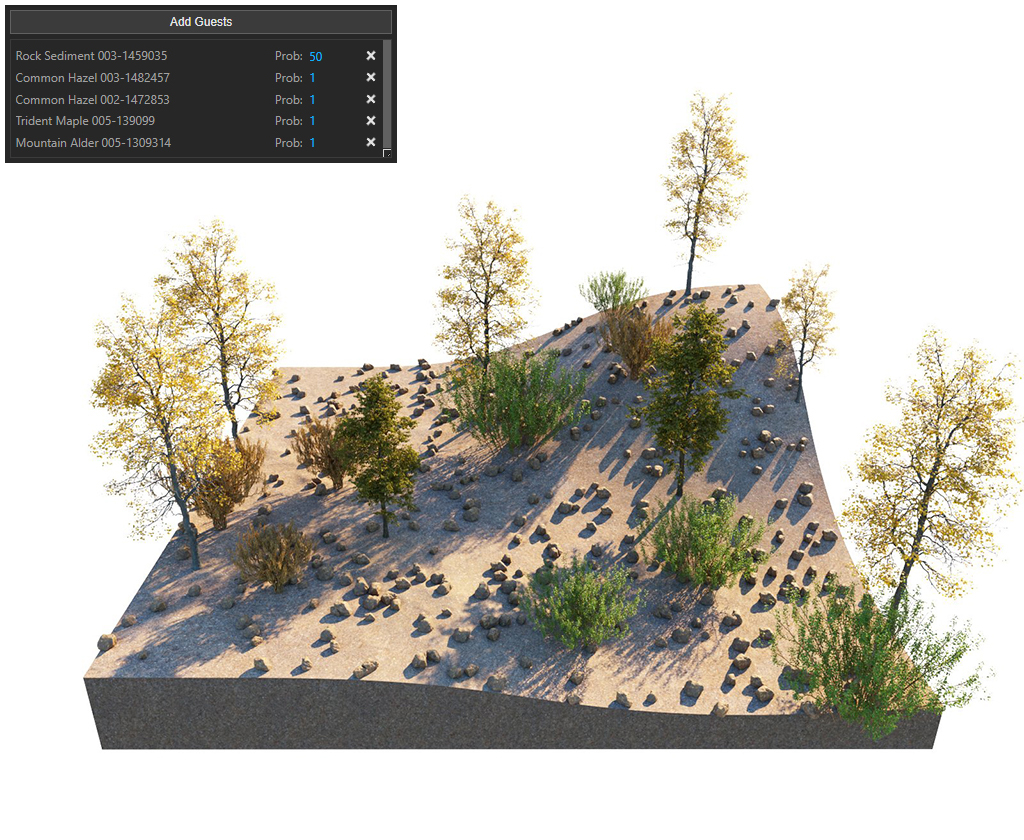
Probability – Determines the relative probability of the guest to appear. See the Probability Examples below.
Guest Origin – Determines how the objects are positioned relative to the random Scatter points.
Bounding box bottom center – The bounding box bottom center of the object.
Bounding box volume center – The bounding box volume center snaps to the instance.
Object origin – The original object origin point snaps to the instance point.
Preview Mode – Changes between a bounding box or point preview for the instances. Note that the point positions are determined by the origin of the guest. See the Preview Mode Examples below.
Preview Percentage – Limits the number of previews displayed in the viewport. See the Preview Percentage Example below.

Example: Probability
This is an example of introducing multiple Guest objects with different probability settings into a single Host object.

Example: Preview Mode
This example shows the different preview modes.
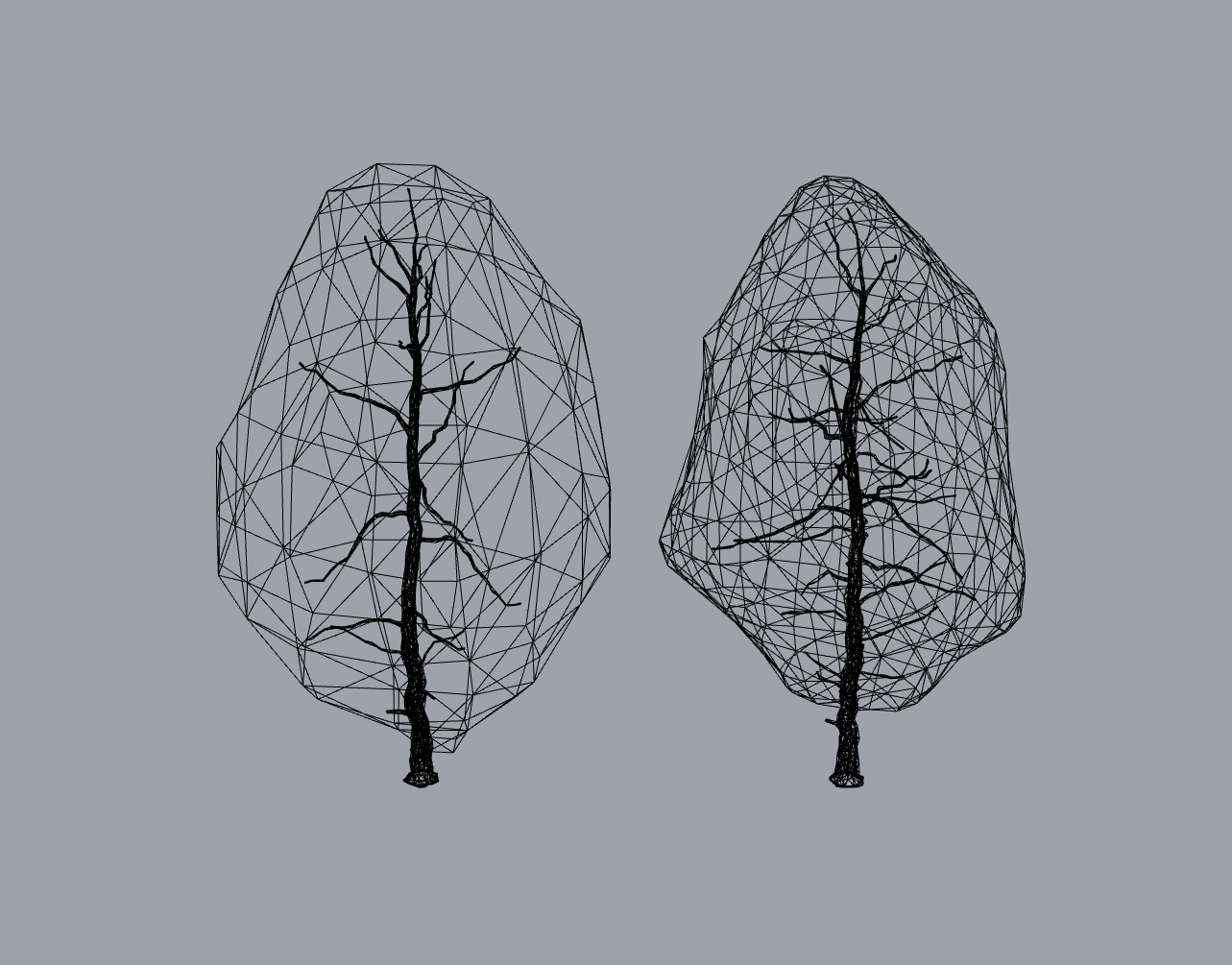
Scatter Guest Objects
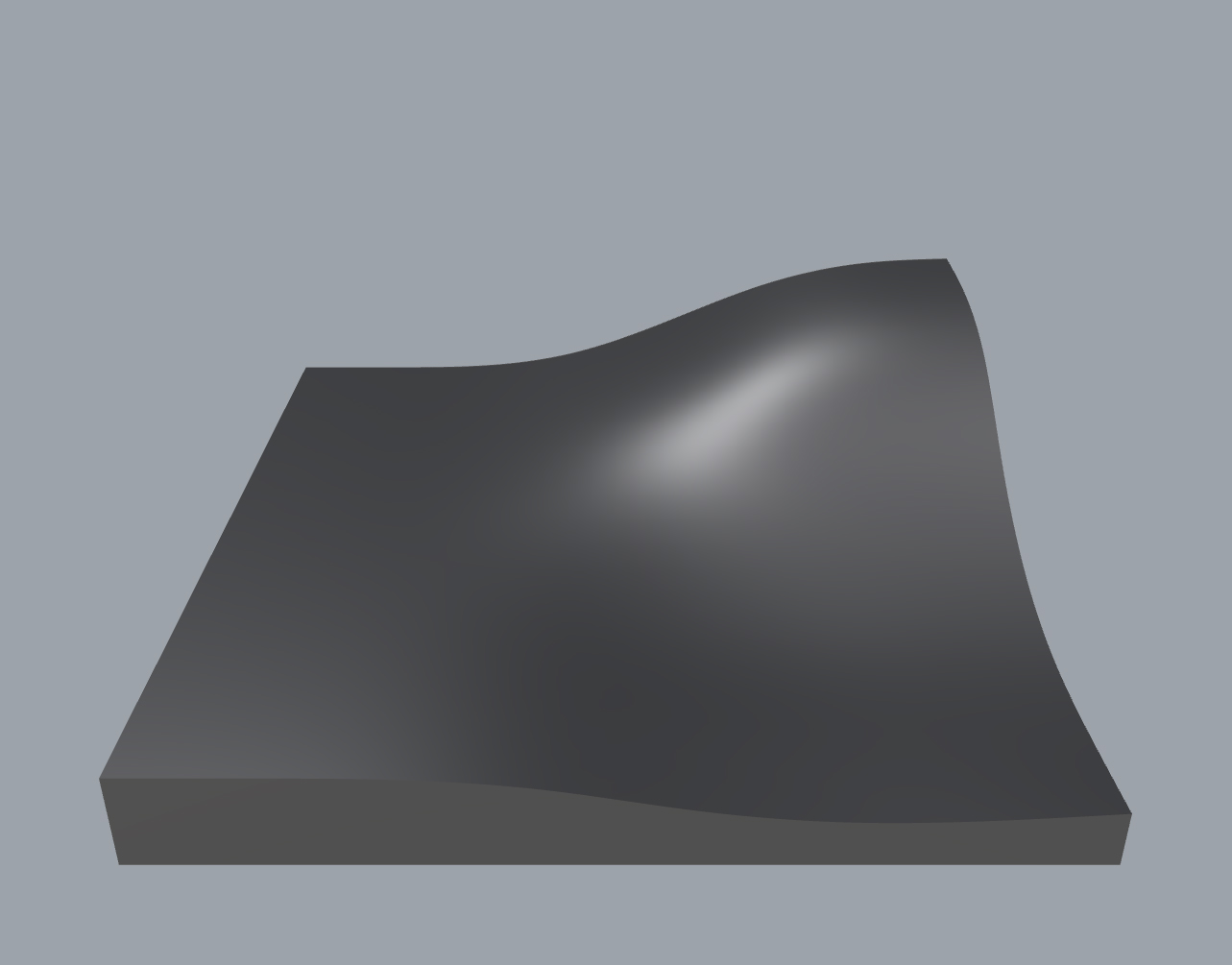
Scatter Host Object

Point Preview
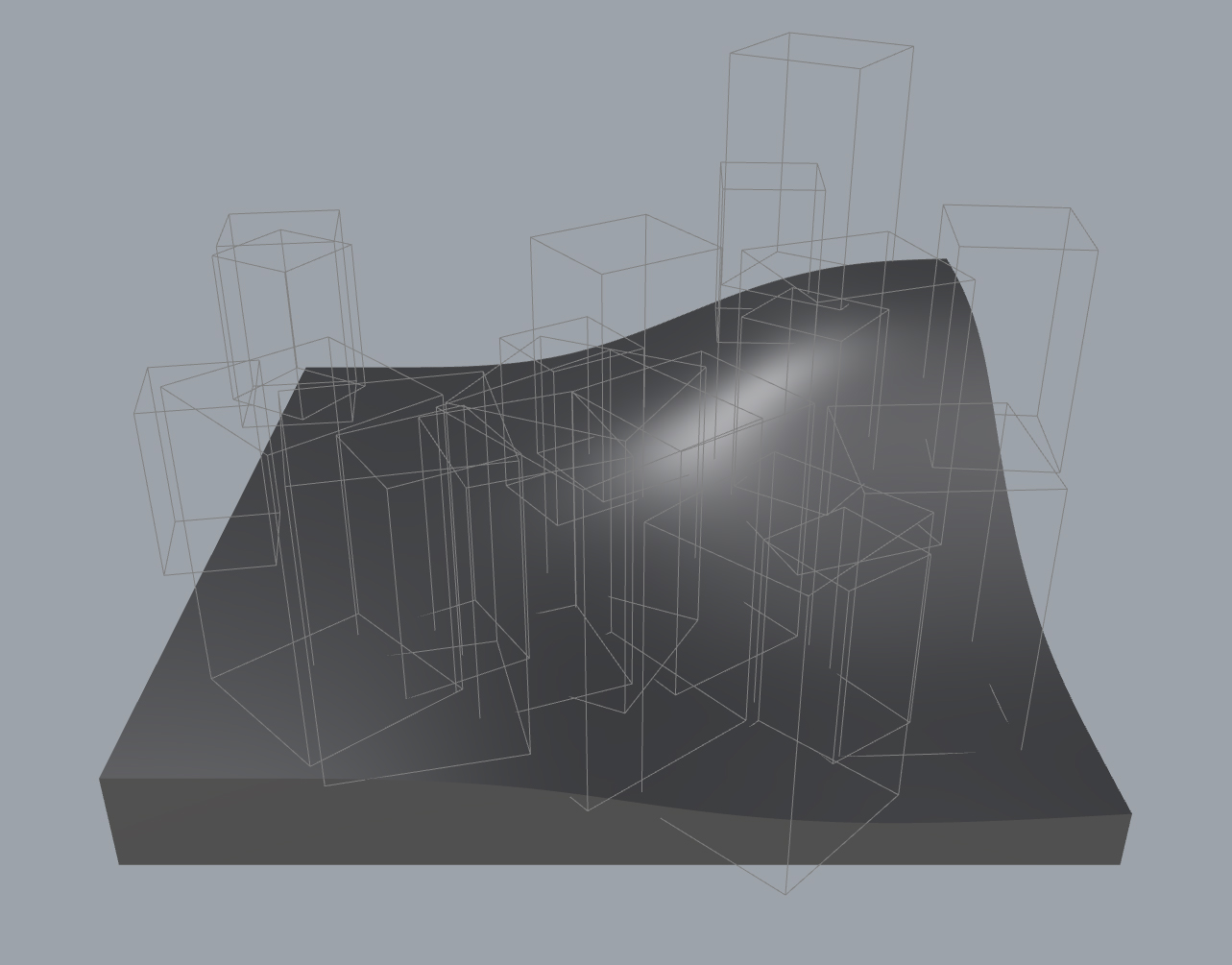
Bounding Box Preview
Example: Preview Percentage
This example shows how the Preview Percentage changes the number of previews displayed in the viewport

Preview Percentage
= 0

Preview Percentage
= 25

Preview Percentage
= 50

Preview Percentage
= 100
Parameters
Scattering Mode – Specifies the guest objects' scattering mode.
1D - On Splines – Scatters objects along splines. When a mesh is added to the guests' list, the items are scattered along all mesh edges.
2D - On Surfaces – Scatters objects on surfaces. It doesn't matter if the surface is horizontal, vertical, or if it is a complex 3D object
3D - In a Bounding Box – Scatters objects inside the object's bounding box. Keep in mind that bounding boxes are cube-shaped. Using this mode on a round object, scatters instances in a cube around it.
Max Count (Limit) – Limits the maximum number of instances. See the Max Count and Multiple Objects examples below.
Seed – Controls the random Scatter seed.
Example: Seed


Avoid Collisions – When enabled, instances that collide with each other are discarded. See the Avoid Collisions example below.

Example: Max Count
Max Count (Limit) is a limit to help avoid creating too many instances and overloading the system. This option has no effect if the Instance Count value is lower than the Max Count value. Depending on the hardware, this limit can be adjusted to ensure smooth performance and avoid excessive memory consumption. At Instances Count - 100, the scattered objects do not exceed the Max Count (Limit) - 50 and the render is the same as when the Instances Count is 50. Scattering Mode = 2D On Surfaces; Max Count (Limit) = 50.

Max Count
= 50
Instances
= 5

Max Count
= 50
Instances
= 25
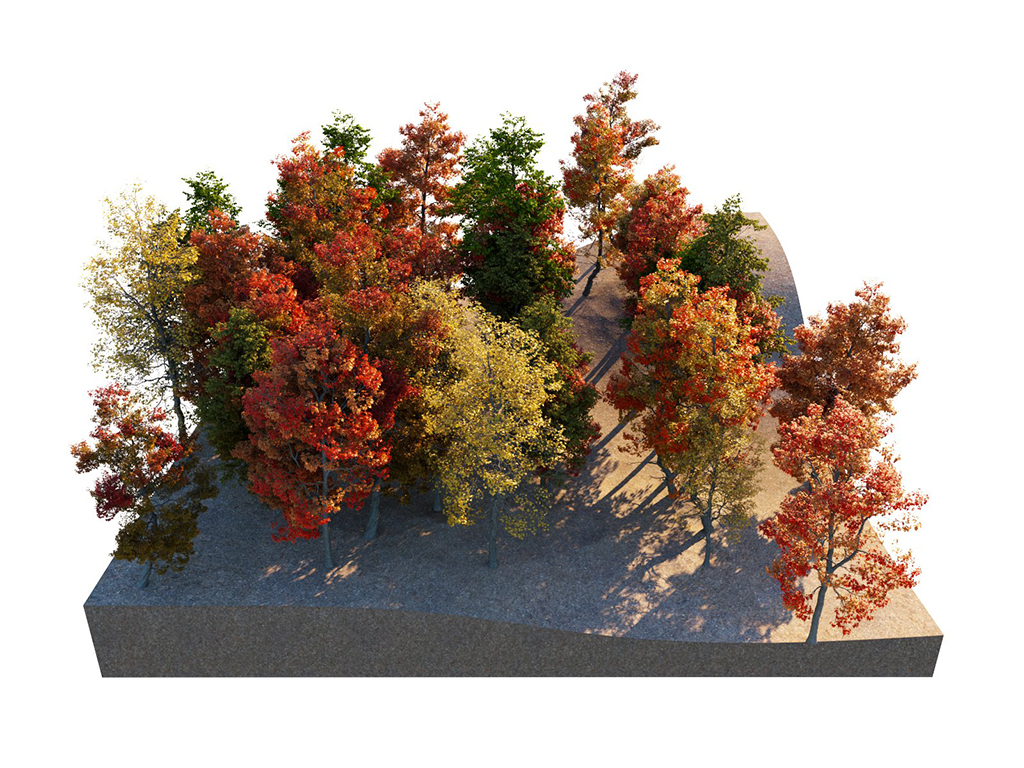
Max Count
= 50
Instances
= 50
Example: Multiple Objects
Scatter treats multiple host objects as one with combined surface area (or volume). If you set Scatter to produce 100 instances of a guest object over two host objects, it does not produce 100 for each host. Instead, it produces 100 randomly distributed instances over both host objects' combined surface area (or volume).

Multiple Objects

Single Object
Example: Avoid Collisions
This example shows how the Avoid Collisions function works. Higher values result in larger distance between instances.

Avoid Collisions
= Off

Avoid Collisions
= 0.5

Avoid Collisions
= 2
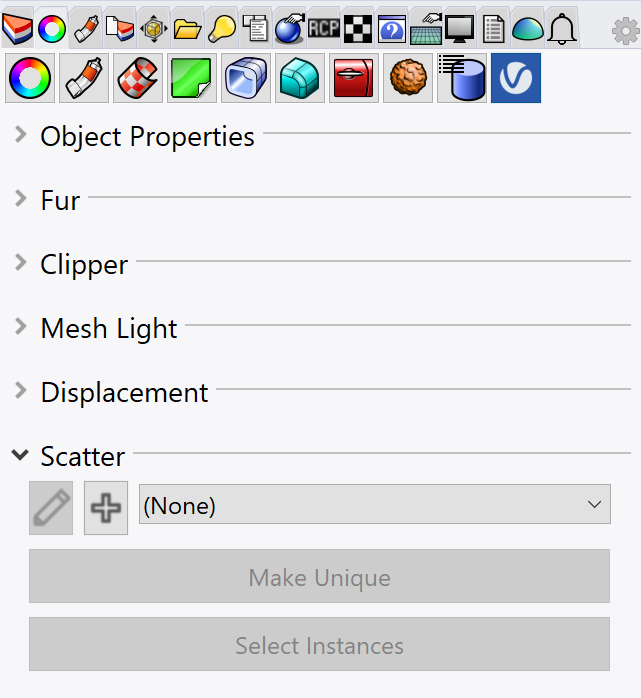
Scatter in Rhino Properties Panel


The button creates a new Scatter plugin and assigns it to the selection. The button opens the geometry property panel of the selected Scatter asset in the V-Ray Asset Editor for edition.
Make Unique – Makes the selected instance of a Scatter unique. It creates a new Scatter (copy of the current one) item in the Asset Editor that is linked only to the selected object.
Select Instances – Selects all objects that have an instance of the same Scatter in the viewport.
Notes
- Starting with V-Ray 5.20.01, V-Ray special objects (Fur/Clipper/Displacement/Mesh Light/Scatter) are not deleted from the Asset Editor, when the last item with the corresponding special object assigned to it, is deleted from the viewport.
- Scatter Density map currently does not support raytraced textures.
- There is no Local space in Rhino. As a result, this mode uses the World space Up vector. This option is exposed in the UI to ensure interoperability with other V-Ray products where a distinction between local and world positions is valid.
Rollouts
Each Scatter rollout has its own dedicated page listed below: