V-Ray for Rhino
V-Ray Script Access in Grasshopper
Rendering and exporting proxy meshes, scenes, and animation can be done through Grasshopper's C# Script and/or GHPython Script components.
Last updated 8 October 2025
Rendering and exporting proxy meshes, scenes, and animation can be done through Grasshopper's C# Script and/or GHPython Script components.
The Camera component functions “Get Active Rhino Viewport” and “Look through Camera” can be done through the Script components.
Overview
Rendering and exporting proxy meshes and scenes (including animation) can be done through Grasshopper's C# Script and/or GHPython Script components. The methods are listed in the table below.
Require Render component as input:
public bool RenderAnimation(); | Starts animation renderer. |
public bool RenderAnimation(); | Starts animation renderer. |
public bool Render(bool sync = false); | Starts renderer. true = function executed synchronously false = function executed asynchronously |
public string ExportProxy(string filePath, bool animated = false); | Exports .vrmesh file (@" .vrmesh") true = export as animated proxy false = export as static proxy |
public string ExportScene(string filePath, bool animated = false); | Exports .vrscene file (@" .vrscene") true = export as animated proxy; false = export as static proxy |
public string ExportSequence(string filePath); | Exports an animation sequence of V-Ray Scene (.vrscene) files (@" .vrscene") |
public bool ExportCloud(); | Submits the current .vrscene file to Chaos Cloud. |
Require Camera component as input.
public void ToView(Rhino.Display.RhinoViewport viewport, bool redraw = true); | “Look through Camera“ in a specified View |
public void ToView(Rhino.Display.RhinoViewport viewport, bool redraw = true); | “Look through Camera“ in a specified View |
public void FromView(Rhino.Display.RhinoViewport viewport, bool expireSolution = true); | Sets the Grasshopper Camera in a specified View |
public void ToActiveView(bool redraw = true); | “Look through Camera“ in the Active View |
public void FromActiveView(bool expireSolution = true); | “Get Active Rhino Viewport” |
C# Script
Render Examples
1. Create a C# Script component and plug the renderer output in one of its inputs.

2. Add references to VRaySDK.Net.dll and VRayForGrasshopper.gha

3. In the code editor, cast the input variable to VRayForGrasshopper.Scripting.VRayRenderer.
<code data-v-c2b1f83f=""><span data-v-c2b1f83f="" class="line">VRayForGrasshopper.Scripting.VRayRenderer renderer = x as VRayForGrasshopper.Scripting.VRayRenderer; renderer.Render(false);</span></code>
<code data-v-c2b1f83f=""><span data-v-c2b1f83f="" class="line">VRayForGrasshopper.Scripting.VRayRenderer renderer = x as VRayForGrasshopper.Scripting.VRayRenderer; renderer.ExportProxy(@"filePath\fileName.vrmesh");</span></code>
<code data-v-c2b1f83f=""><span data-v-c2b1f83f="" class="line">VRayForGrasshopper.Scripting.VRayRenderer renderer = x as VRayForGrasshopper.Scripting.VRayRenderer; renderer.ExportScene(@"filePath\fileName.vrscene");</span></code>
Camera Examples
Rhino 7
- Create a C# Script component and plug the Camera output in its x input.
- Right-click on the C# Script component > Manage Assemblies and add references to VRaySDK.Net.dll and VRayForGrasshopper.gha.
- In the code editor, import VRayForGrasshopper (“using VRayForGrasshopper;”) at the beginning of the document.
- In the code editor, cast the input variable to VRayForGrasshopper.Scripting.VRayCamera.
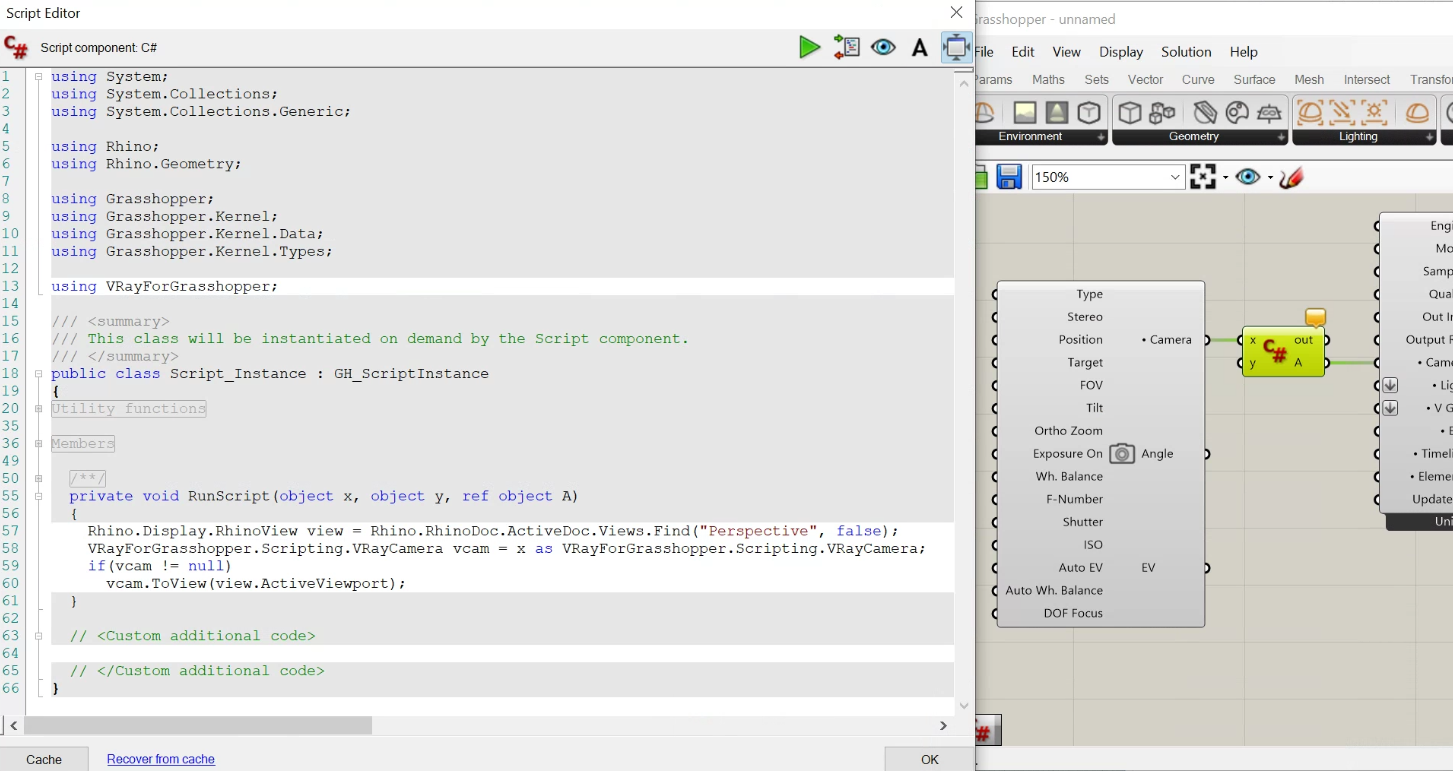
Examples:
ToView - “Look through Camera“ in a specified View
<code data-v-c2b1f83f=""><span data-v-c2b1f83f="" class="line">Rhino.Display.RhinoView view = Rhino.RhinoDoc.ActiveDoc.Views.Find("Perspective", false);</span><span data-v-c2b1f83f="" class="line"> VRayForGrasshopper.Scripting.VRayCamera vcam = x as VRayForGrasshopper.Scripting.VRayCamera;</span><span data-v-c2b1f83f="" class="line"> if(vcam != null)</span><span data-v-c2b1f83f="" class="line"> vcam.ToView(view.ActiveViewport);</span></code>
FromView - Sets the Grasshopper Camera in a specified View
<code data-v-c2b1f83f=""><span data-v-c2b1f83f="" class="line">Rhino.Display.RhinoView view = Rhino.RhinoDoc.ActiveDoc.Views.Find("Perspective", true);</span><span data-v-c2b1f83f="" class="line">VRayForGrasshopper.Scripting.VRayCamera vcam = x as VRayForGrasshopper.Scripting.VRayCamera;</span><span data-v-c2b1f83f="" class="line">if(vcam != null)</span><span data-v-c2b1f83f="" class="line"> vcam.FromView(view.ActiveViewport);</span></code>
ToActiveView - “Look through Camera“ in the Active View
<code data-v-c2b1f83f=""><span data-v-c2b1f83f="" class="line"> (x as VRayForGrasshopper.Scripting.VRayCamera).ToActiveView();</span></code>
FromActiveView - “Get Active Rhino Viewport”
<code data-v-c2b1f83f=""><span data-v-c2b1f83f="" class="line">(x as VRayForGrasshopper.Scripting.VRayCamera).FromActiveView();</span></code>
Rhino8
- Create a C# Script component and plug the Camera output in its x input.
- In the code editor, import VRayForGrasshopper at the beginning of the document:
// r "VRayForGrasshopper.gha"
using VRayForGrasshopper; - In the code editor, cast the input variable to VRayForGrasshopper.Scripting.VRayCamera.
Examples:
ToView - “Look through Camera“ in a specified View
<code data-v-c2b1f83f=""><span data-v-c2b1f83f="" class="line">Rhino.Display.RhinoView view = Rhino.RhinoDoc.ActiveDoc.Views.Find("Perspective", false);</span><span data-v-c2b1f83f="" class="line">if(x is VRayForGrasshopper.Scripting.VRayCamera vcam)</span><span data-v-c2b1f83f="" class="line"> vcam.ToView(view.ActiveViewport); </span></code>
GhPython Script
Render Examples
1. Create a GhPython Script component and plug the renderer output in one of its inputs.
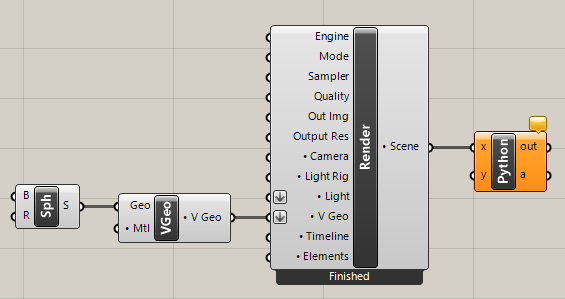
2. In the code editor, call any of the above methods on the input variable.
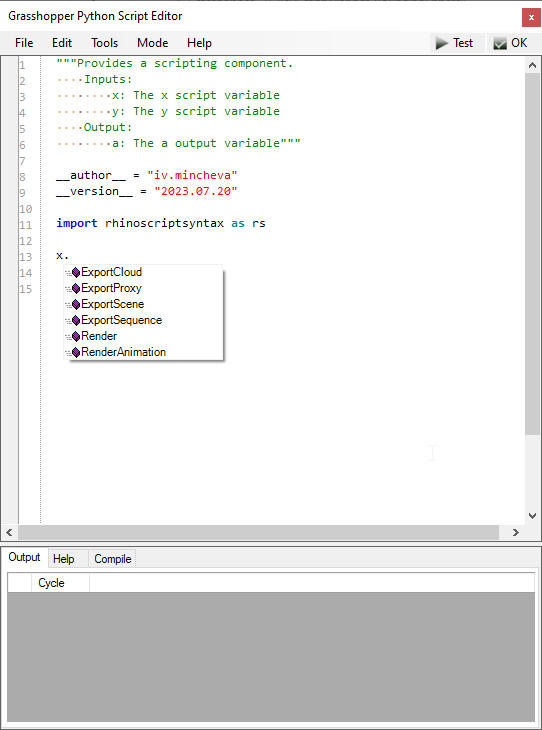
Camera Examples
1. Create a GhPython Script / Python 3 Script / IronPython 2 Script component and plug the Camera output in its x input.
2. In the Script editor, import Rhino and write the script
Examples:
ToView - “Look through Camera“ in a specified View
<code data-v-c2b1f83f=""><span data-v-c2b1f83f="" class="line">import Rhino</span><span data-v-c2b1f83f="" class="line">view = Rhino.RhinoDoc.ActiveDoc.Views.Find("Perspective", True);</span><span data-v-c2b1f83f="" class="line">x.ToView(view.ActiveViewport, True);</span></code>
FromView - Sets the Grasshopper Camera in a specified View
<code data-v-c2b1f83f=""><span data-v-c2b1f83f="" class="line">import Rhino</span><span data-v-c2b1f83f="" class="line">view = Rhino.RhinoDoc.ActiveDoc.Views.Find("Perspective", True);</span><span data-v-c2b1f83f="" class="line">x.FromView(view.ActiveViewport, True);</span></code>
ToActiveView - “Look through Camera“ in the Active View
<code data-v-c2b1f83f=""><span data-v-c2b1f83f="" class="line">x.ActiveView()</span></code>
FromActiveView - “Get Active Rhino Viewport”
<code data-v-c2b1f83f=""><span data-v-c2b1f83f="" class="line">x.FromView()</span></code>