Use the Emissive layer in V-Ray for SketchUp to control a material's light colour, intensity and transparency.
Overview
Create an Emissive material layer with Add Layer in the V-Ray Asset Editor. It has the same parameters as the Emissive material. You cannot override this layer.
Parameters
Some options are available only in Advanced mode.
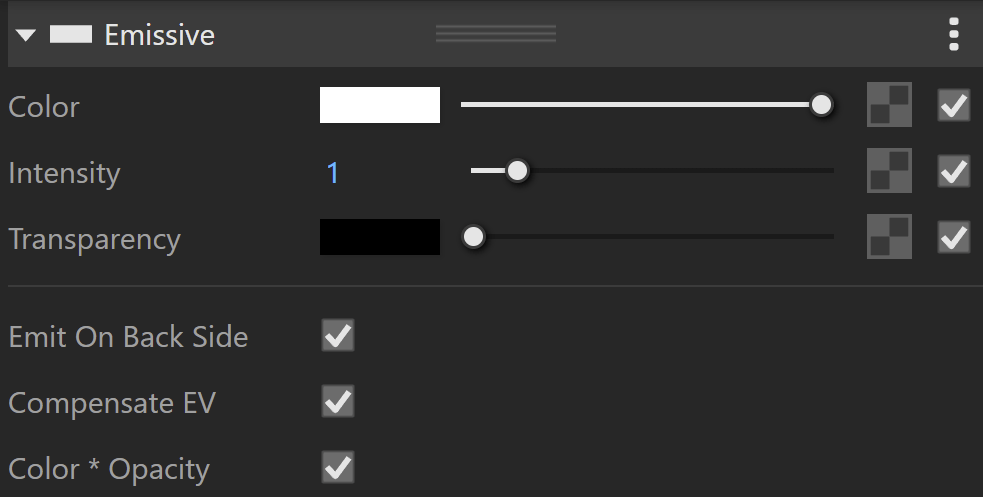
Colour sets the light's colour. You can also use a texture. See the Color and Texture examples below.
Intensity controls the strength of the light.
Transparency sets the colour that is transparent. Black is opaque and white is transparent. You can also use a texture. See the Transparency Texture example below.
Emit On Back Side makes the object emit light from its back side as well as its front side. When disabled, only the front side emits light, and the material renders as black on the back sides. See the Emit On Back Side examples below.
Use Compensate EV when rendering with the V-Ray Physical Camera. When enabled, it adjusts the material's intensity to compensate for the camera exposure.
Color *Opacity multiplies the light material's colour by the opacity texture when enabled. When disabled, colour and opacity act independently. This is called additive transparency.
Multipliers
Mode selects how you adjust textures using the following methods.
Multiply lets you set multipliers to adjust colours and textures.
Blend Amount lets you set blend amounts to adjust colours and textures.
Color controls the intensity of the Emissive Color (light colour).
Intensity controls the strength of the light.
Transparency controls the intensity of the Transparency Color. This determines the colour that is transparent.
