V-Ray for SketchUp
Generic Reflection
The Reflection rollout is part of the Generic material's parameters.
Last updated 1 September 2026
The Reflection rollout is part of the Generic material's parameters.
Reflection
Some options are available only in Advanced mode.
Reflection – Enables reflection of the material.
Reflection Color – Specifies the reflection color. Note that the reflection color dims the diffuse surface color based on the Energy preservation option. See the Reflection Color example below.
Reflection Glossiness* – Available when the Surface control option is set to Use Glossiness. Specifies the sharpness of reflections. A value of 1.0 means perfect mirror-like reflection; lower values produce blurry or glossy reflections. Use the Subdivs parameter below to control the quality of glossy reflections. See the Reflection Glossiness example below.
Reflection Roughness – Available when the Surface control option is set to Use Roughness. Specifies the sharpness of reflections. A value of 0.0 means perfect mirror-like reflection; higher values produce blurry or glossy reflections. Use the Subdivs parameter below to control the quality of glossy reflections.
Fresnel – When enabled, the reflection strength depends on the viewing angle of the surface. Some materials in nature (e.g. glass, etc.) reflect light in this manner. Note that the Fresnel effect depends on the index of refraction as well. See the Fresnel example below.
Reflection IOR* – When disabled, the Refraction IOR is used as Reflection IOR. Enable for finer control over the Reflection IOR.
Metalness* – Controls the reflection model of the material from dielectric (metalness 0.0) to metallic (metalness 1.0). Note that any intermediate value between 0.0 and 1.0 does not correspond to a physical material. This parameter can be used with PBR setups coming from other applications. The Metalness texture map should be considered a mask between two different types of materials: dielectric or conductive.
GTR Tail Falloff – Active only when the BRDF is set to GGX. It allows fine tuning of the specular reflections by controlling the transition from highlighted to non-highlighted areas. Higher values such as the default make the highlights sharper, while lower values make the transition more subtle. This parameter does not affect the size of the actual highlight - this is controlled by the Reflect glossiness paramater. See the GTR Tail Falloff example below.
Surface Control – Changes the behavior of all material parameters controlling the surface smoothness:
Use Glossiness – The base and coat reflection layers as well as the Sheen will use Glossiness values. A value of 1.0 means perfectly smooth surface, while a value of 0.0. means rough/diffuse-like reflection.
Use Roughness – The base and coat reflection layers as well as the Sheen will use Roughness values. A value of 1.0 means rough/diffuse-like reflection, while a value of 0.0. means perfectly smooth surface.

Example: Reflection Color
This example demonstrates how the Reflection Color parameter controls the reflectivity of the material. Note that this color also acts as a filter for the diffuse color.

Reflection Color
= Black (0, 0, 0)

Reflection Color
= Medium Gray (128, 128, 128)

Reflection Color
= White (255, 255, 255)
Example: Reflection Glossiness
This example demonstrates how the Reflection Glossiness parameter controls the highlights and reflection blurriness of the material.
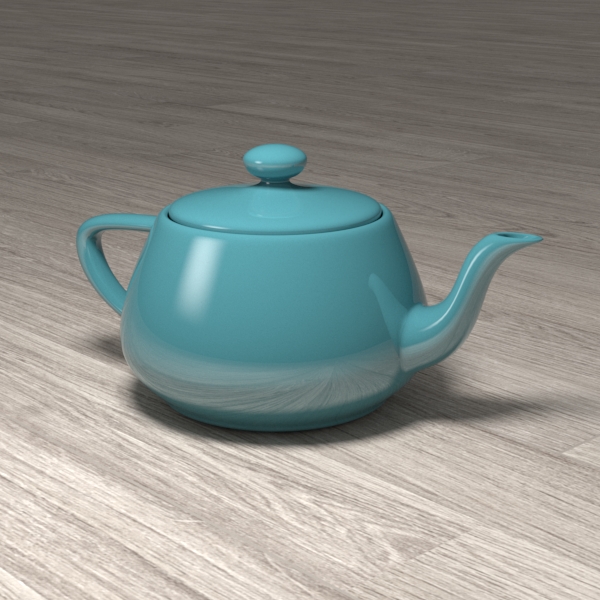
Reflection Glossiness
= 1.0 (perfect mirror reflections)

Reflection Glossiness
= 0.8

Reflection Glossiness
= 0.6
Example: Fresnel
This example demonstrates the effect of the Fresnel option. Note how the strength of the reflection varies with the IOR of the material. For this example, the Reflection color is pure white (255, 255, 255).

Fresnel
= On,
IOR
= 2.0

Fresnel
= On,
IOR
= 10.0

Fresnel
= Off,
IOR
= 10.0
Example: GTR Tail Falloff
This example demonstrates the effect of the GTR tail falloff parameter.

GTR tailoff:
0.1

GTR tailoff:
1.0

GTR tailoff:
2.0 (default)
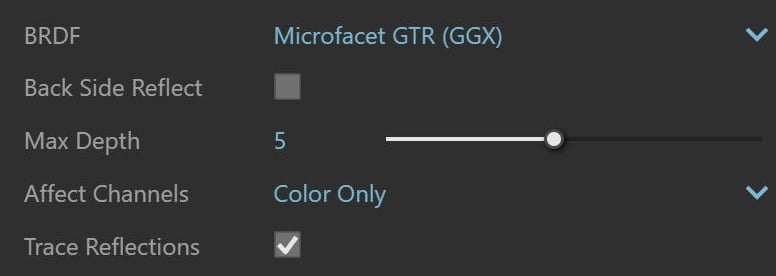
BRDF – Determines the type of BRDF (the shape of the highlight). There are 4 types available - Phong, Blinn, Ward, Microfacet GTR (GGX). See the BRDF example below.
Additional Information
Back Side Reflect – When disabled, reflections are calculated for the front side of the objects only. When enabled back-side reflections are also calculated.
Max depth – Specifies the number of times a ray can be reflected. Scenes with lots of reflective and refractive surfaces may require higher values to look right.
Affect Channels – Specify which channels are affected by the reflectivity of the material.
Color Only – The reflectivity of the material affects only the RGB channel of the final render
Color+Alpha – Causes the material to transmit the alpha of the reflected objects instead of displaying an opaque alpha.
All Channels – The reflectivity of the material affects all channels and render elements.
Trace Reflections – Enables reflection tracing for the current material. If disabled, disables only reflections and not specular highlights
Example: BRDF Type
This example demonstrates the differences between the BRDFs available in V-Ray.

Phong

Blinn

Ward

Microfacet GTX (GGX)
Anisotropy
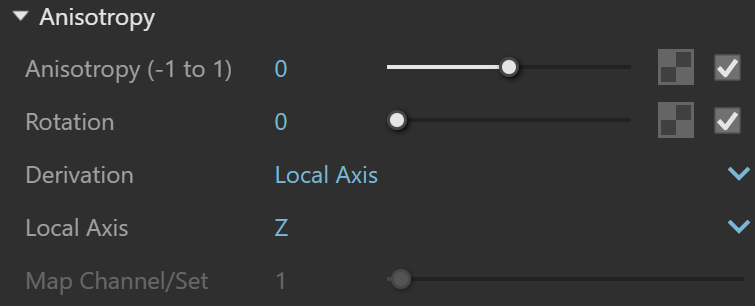
Anisotropy (-1 to 1) – Determines the shape of the highlight. A value of 0.0 means isotropic highlights. Negative and positive values simulate brushed surfaces. The accepted values are in the range from 0.99 to -0.99. See the Anisotropy example below.
Rotation – Determines the orientations of the anisotropic effect in a float value between 0 and 1 (where 0 is 0 degrees and 1 is 360 degrees). See the Rotation example below.
Derivation – Determines the anisotropy orientation method.
Local Axis – The orientation of the anisotropic reflection/highlight is based on the object's local X, Y or Z axis.
Map Channel – When enabled, the orientation of the anisotropic reflection/highlight is based on the specified map channel/set.
Local Axis – Specifies a local axis used for Anisotropy orientation. (X, Y, Z)
Map Channel/Set – Specifies a map channel that is used for the anisotropic reflections/highlights orientation.
Example: Anisotropy
This example demonstrates the effect of the Anisotropy and Rotation parameters, which determine the shape of the highlight. For the examples below, the Type is set to Microfacet GTR (GGX).

Anisotropy
= -0.2

Anisotropy
= -0.4

Anisotropy
= -0.8
Example: Rotation

Rotation
= 0.1

Rotation
= 0.4

Rotation
= 0.5

Rotation
= 0.6
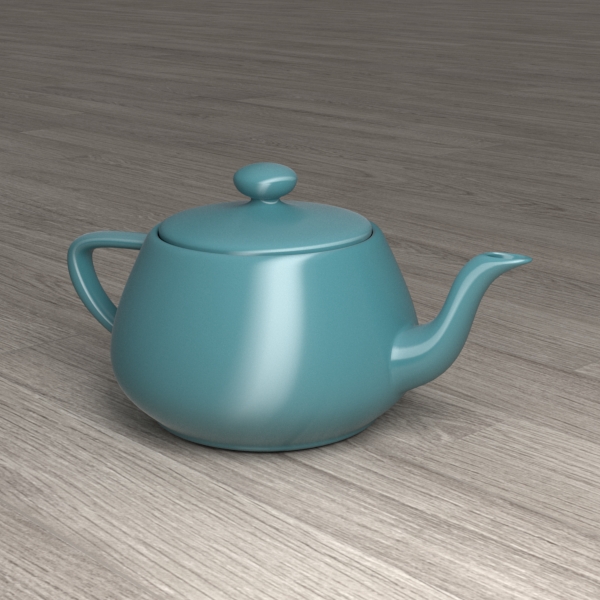
Rotation
= 0.8
Dim Distance
Dim Distance – Enables Dim Distance.
Distance – Specifies a distance after which the reflection rays are not traced.
Dim Falloff – Sets a falloff radius for the dim distance.

Notes
* – When a Bitmap texture is mapped in this slot, its color space is automatically adjusted. Copy-pasting, replacing or wrapping a texture does not trigger this automatic adjustment. It is reserved solely when creating a Bitmap in the specified material slot.