This page provides information about the Generic material in V-Ray for SketchUp.
Last updated 1 September 2026
This page provides information about the Generic material in V-Ray for SketchUp.
Overview
Generic is a special V-Ray material, that allows for better physically correct illumination (energy distribution) in the scene, faster rendering, more convenient reflection and refraction parameters. Within this material you can apply different texture maps, control the reflections and refractions, add bump and displacement maps, force direct GI calculations, and choose the BRDF for the material.
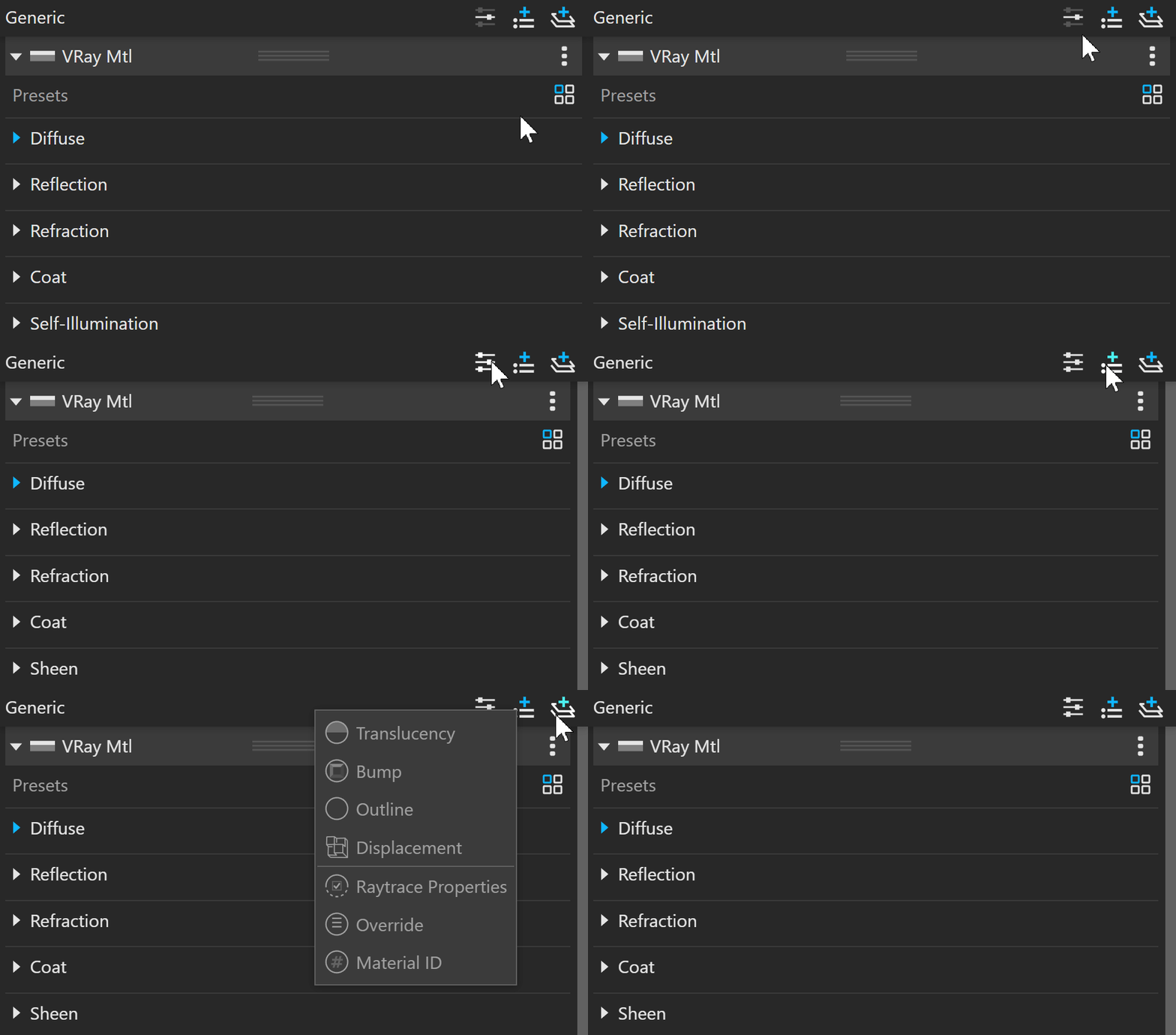
The Generic material settings are organized in Basic and Advanced modes. You can switch the mode from the toggle button under the Preview Swatch or globally from the Configuration rollout of the Settings tab.
The Add Layer and Add Attribute buttons are provided for some V-Ray materials, including Generic. For more information, see the Add Attribute and Add Layer sections.
The context menu of the Color slot provides options to Copy and Paste, as well as to Reset the color.
A Reset option is provided in the context menu of each Number Slider. You can reset the slider value to the default one.
Attributes
The attributes available for the Generic material are as follows.
Translucency
Translucency
Bump
Bump
Outline
Outline
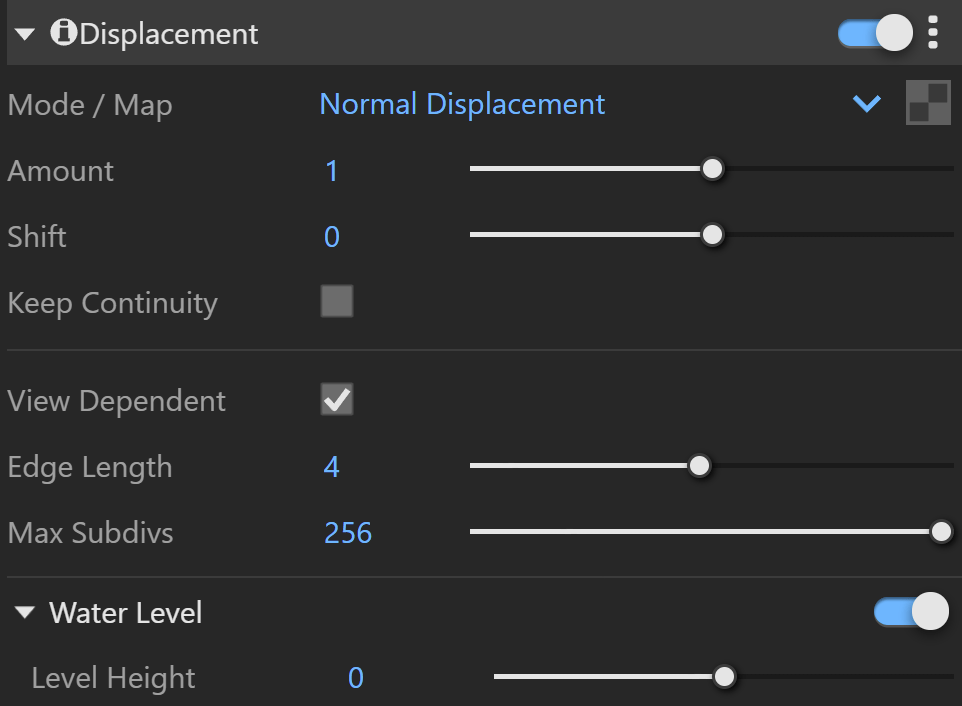
Displacement
Displacement
Raytrace Properties
Raytrace Properties
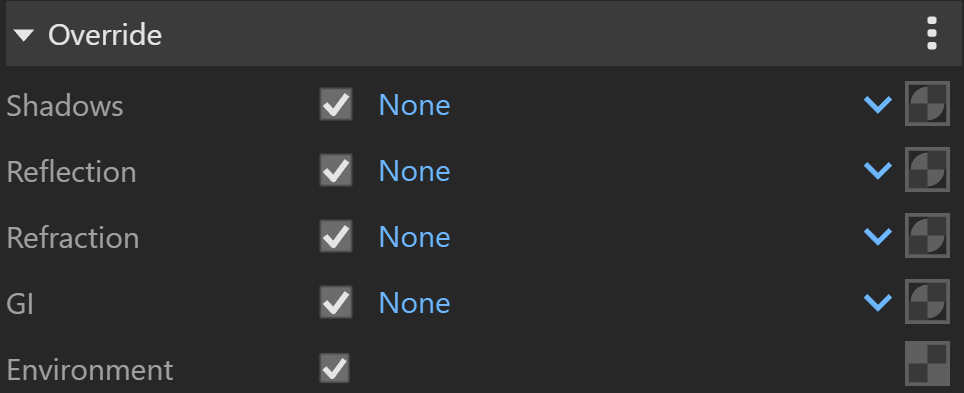
Override
Override
Material ID
Material ID
Layers
The Layers available for the Generic material are as follows.
VRay Mtl
Emissive
Diffuse Coat
Reflective Coat
Flakes 2
Stochastic Flakes
Generic Presets
View
Generic Diffuse
View
Generic Reflection
View
Generic Refraction
View
Generic Coat
View
Generic Sheen
View
Generic Thin Film
View
Generic Self-Illumination
View
Generic Opacity
View
Generic Quick Caustics (Experimental)
View
Generic Bump And Normal Mapping
View
Generic Multipliers
View
Generic Viewport Display
View
Notes
Materials with Normal opacity mode are now migrated to Stochastic opacity mode.
The Highlight Glossiness parameter is a legacy plugin. It is migrated from previous versions; however, if it is disabled, the row is hidden and its value is set to 1.
Use the Generic material whenever possible in your scenes. This material is specifically optimized for V-Ray and often GI and lighting is computed much faster for V-Ray materials than for standard materials. Many V-Ray features (e.g. light cache, render elements ) are guaranteed to work properly only with Generic and other V-Ray compliant materials.
The Generic material can produce reflections/refractions for matte objects - see Wrapper Material.
The 2D mapping method ignores the Tiling parameters specified in the textures themselves.
The 2D mapping (landscape) method only supports one UV mapping channel.
Having a very large number of scene objects using materials with 2D Displacement may substantially prolong the geometry compilation phase of the rendering process.
Calculated in the default SketchUp unit - inches.
Prior to V-Ray Next, Update 1 the Fog Scattering section was known as Translucency.
With V-Ray 5, PBR layers are converted to regular material layers.
With V-Ray 5, update 2, all Normal maps of newly-created materials are calculated in Tangent space. The options for Object/World/Screen space normal maps are now considered legacy options. They remain unchanged in materials from older scenes unless the materials are updated to a non-legacy bump mode. In this case, the legacy options cannot be restored back.
When a Bitmap texture is mapped in this slot, its color space is automatically adjusted. Copy-pasting, replacing or wrapping a texture does not trigger this automatic adjustment. It is reserved solely when creating a Bitmap in the specified material slot.