This page provides information on V-Ray IES Light.
Overview
Photometric lights utilise an .ies file which contains the distribution profile for the light. An .ies file contains complete specifications of a real world light bulb or tube including the shape of the light cone and the steepness of the falloff of the light. Such files are usually provided by the manufacturer of the real-world bulb, and the information in those files, which is gathered through lab experiments, is extremely accurate in its representation of the light source. By loading an .ies file, the properties of the light are recreated within SketchUp and used by V-Ray during rendering.
IES lights are particularly useful for architectural interior renderings, where it can be important to show the actual result of using specific man-made light sources in the scene.
UI Paths
||V-Ray Asset Editor|| > Lights (right-click) > IES Light
||V-Ray Asset Editor|| > Create Asset (left-click) > Lights > IES Light
SketchUp Menus Ribbon
||Extensions|| > V-Ray > Lights > IES Light
||V-Ray Lights Toolbar|| > IES Light

Preview Overlay
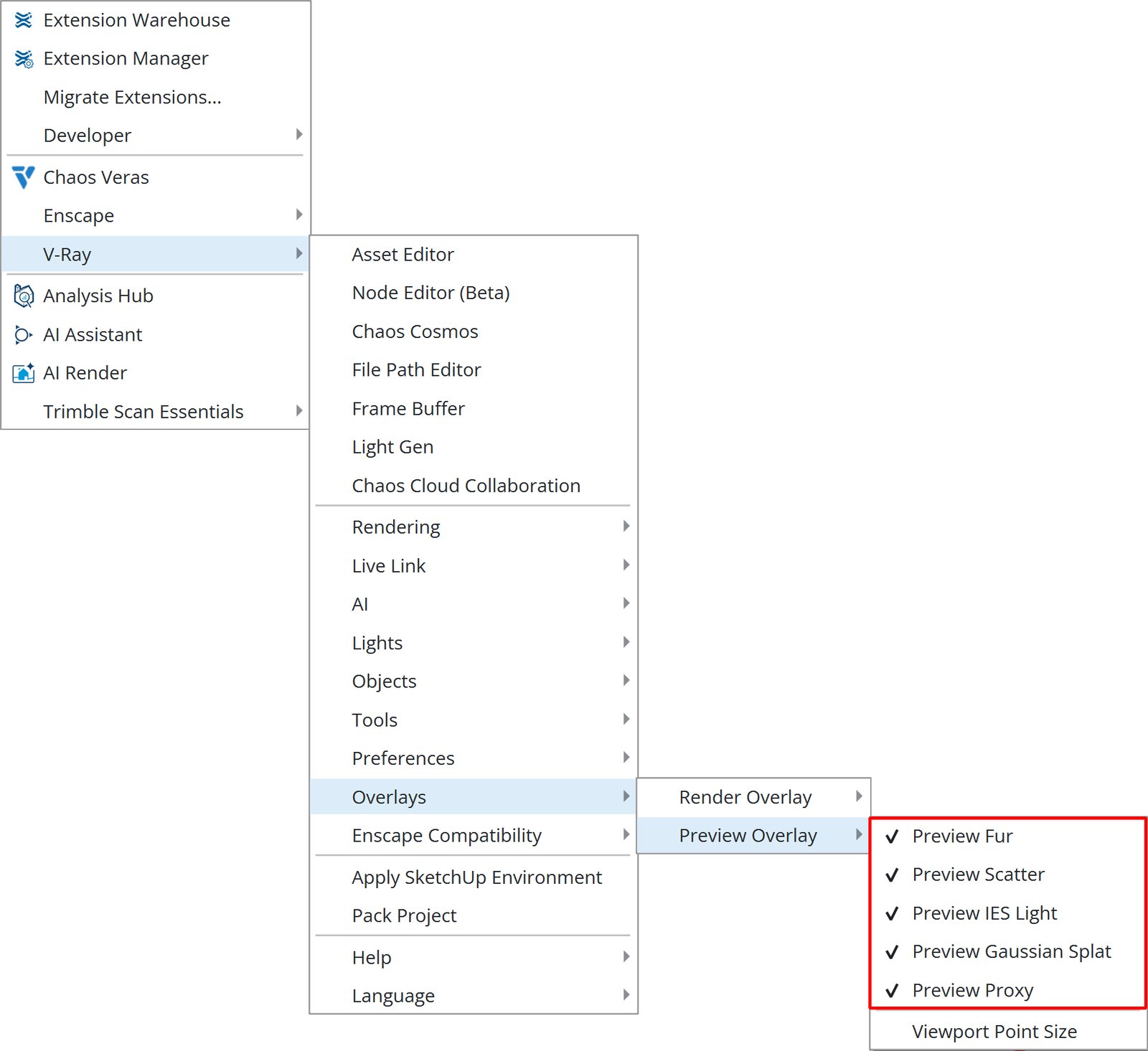
Select V-Ray Object previews to be displayed in the SketchUp viewport from ||V-Ray|| > Overlays > Preview Overlay.
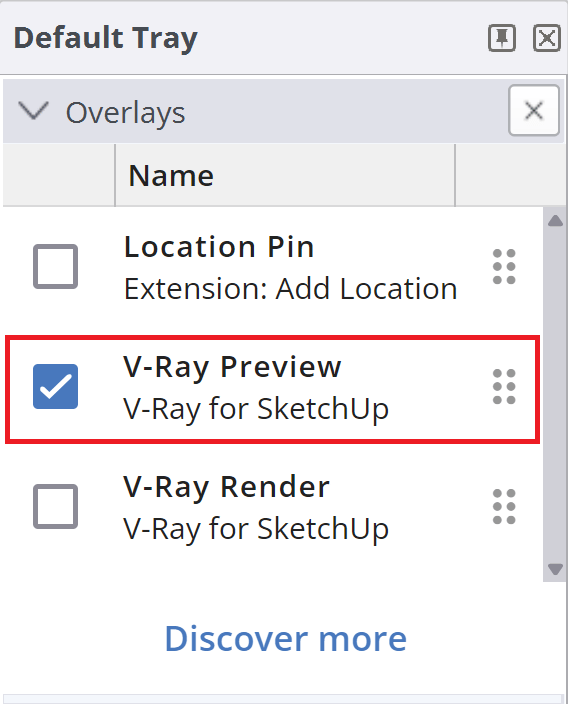
Enable or disable all previously selected V-Ray Object previews from ||Window|| > Default Tray > Overlays > V-Ray Preview.
Parameters

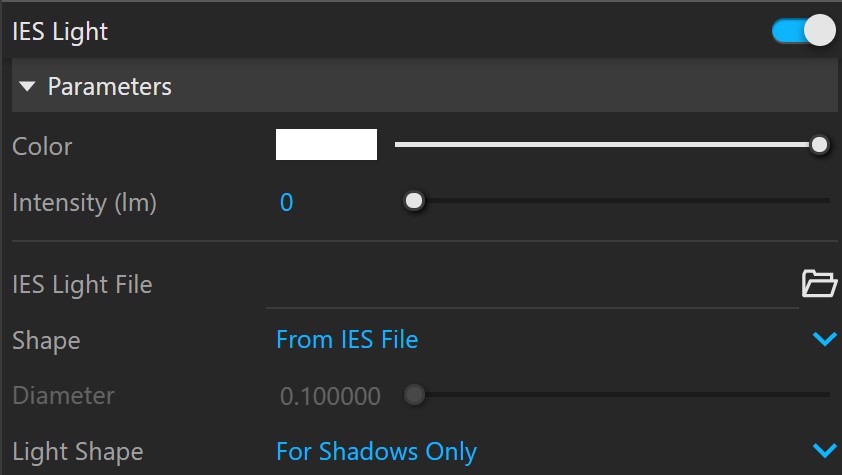
Enabled () – Turns the VRayLight on and off.
Color – Specifies the colour of the light.
Intensity (lm) – When enabled, specifies the strength of the light in Lumens to override the intensity specified in the .ies file. See the Intensity example below.
IES Light File – Specifies an .ies file to use for the current light.
Shape – Determines the shape of the light when calculating Soft Shadows. By default, VRayLightIES uses the shape information stored in the .ies file. See the Shape example below.
From IES File – Uses the shape information stored in the .ies file.
Point – Treats the light shape as a point light.
Circle – Treats the light shape as a planar circular area light. Its dimensions can be specified with the diameter parameter below.
Sphere – Treats the light shape as a sphere light. Its dimensions can be specified with the diameter parameter below.
Diameter – Specifies the diameter for applicable light shape types.
Light Shape – Determines whether and how the shape of the light is taken into consideration during the calculation of shadows and illumination.
Disabled – The light shape is not considered for illumination, and the light generates sharp shadows.
For Shadows Only – The light shape is used only for soft shadow generation. The illumination is not affected by the light shape (i.e., it behaves as a point light).
For Emission and Shadows – The light shape is considered for the calculation of the illumination and shadows.
Example: Intensity
This example shows how the Intensity parameter affects the IES light.
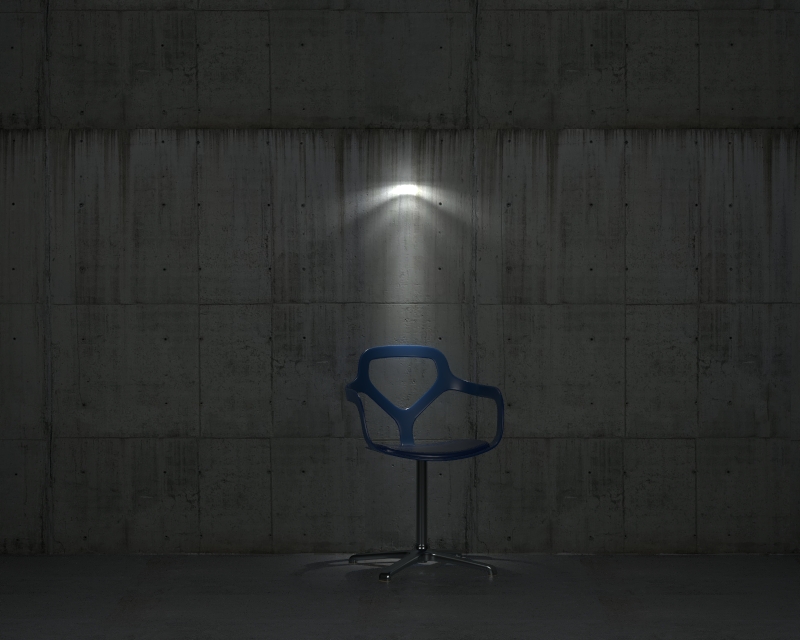
Intensity is taken from the .ies file
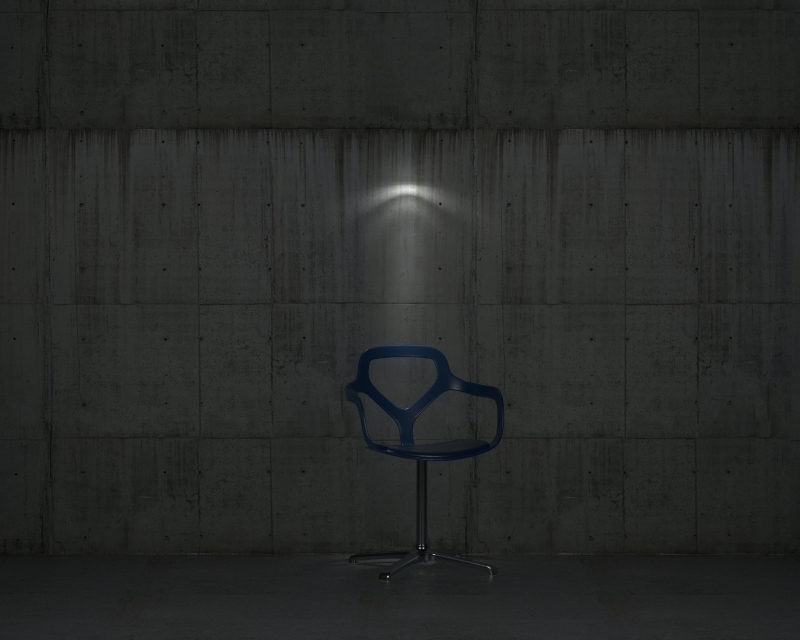
Intensity
= 300
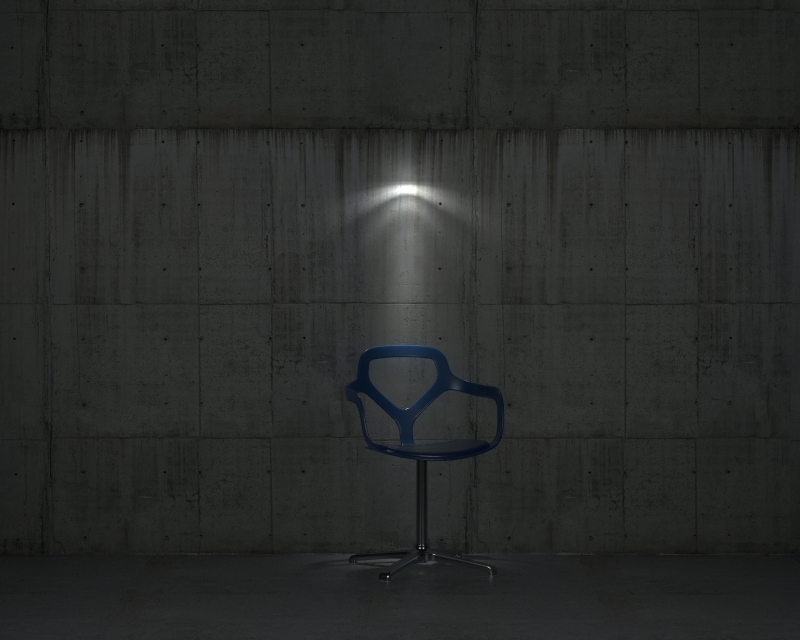
Intensity
= 600
Example: Shape
This example shows how light is affected by the different shapes of the IES Light. Circle and Sphere shapes examples are also compared with different diameters - 1.0 and 10.0.
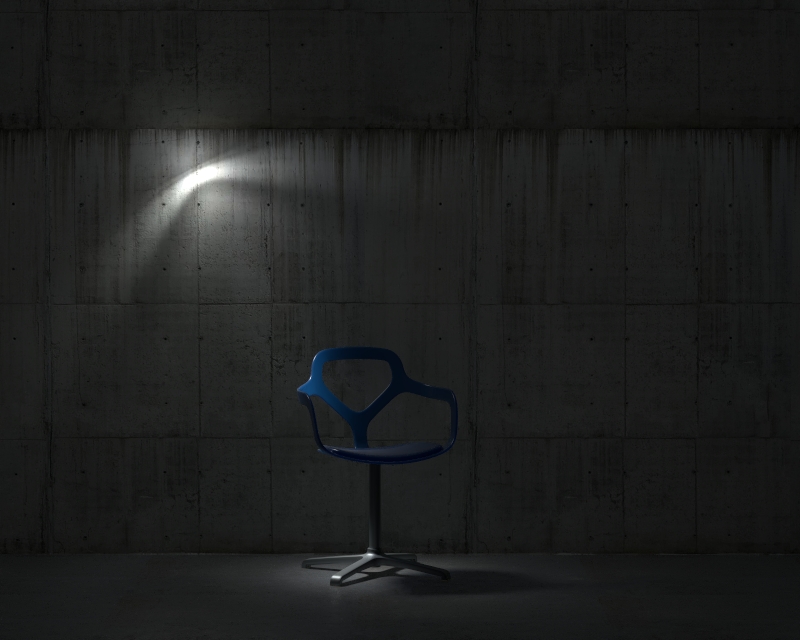
Circle
,
Diameter
= 1.0
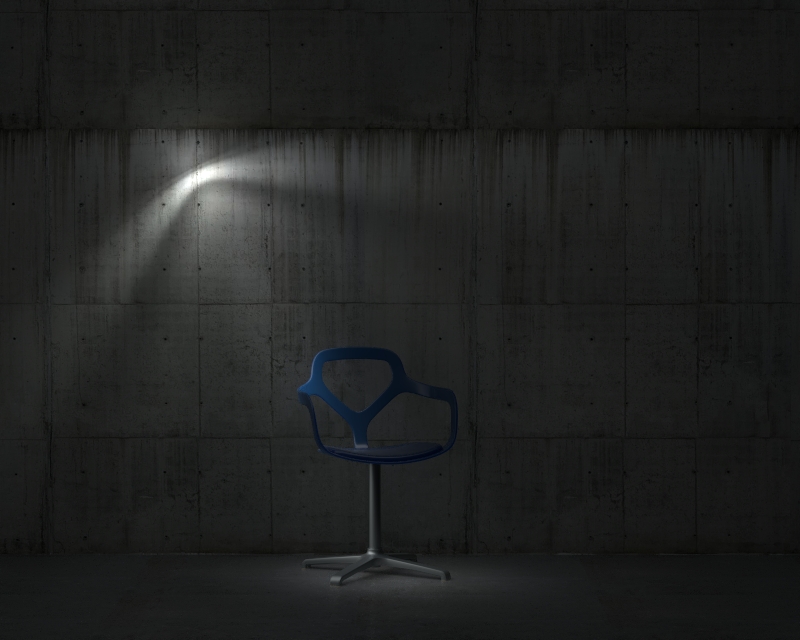
Circle
,
Diameter
= 10.0
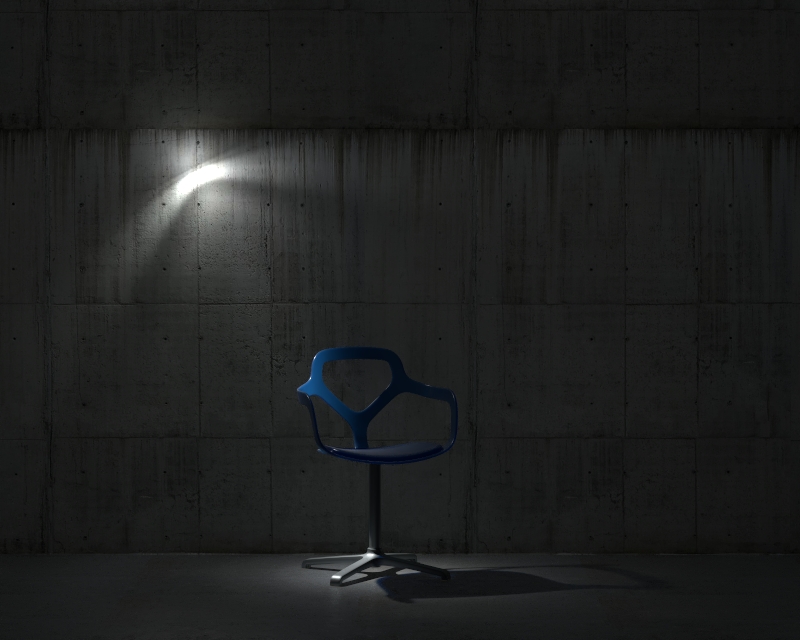
Default
shape from the IES light
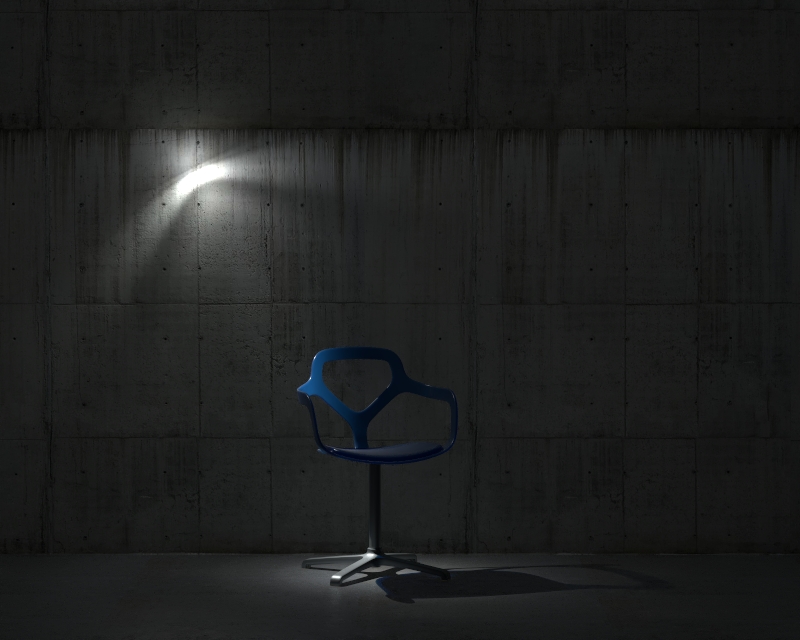
Point
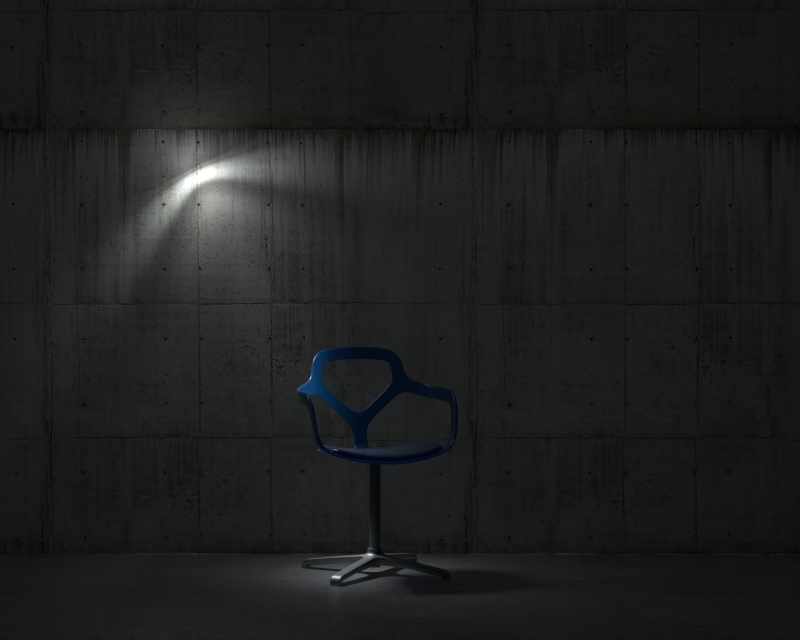
Sphere
,
Diameter
= 1.0
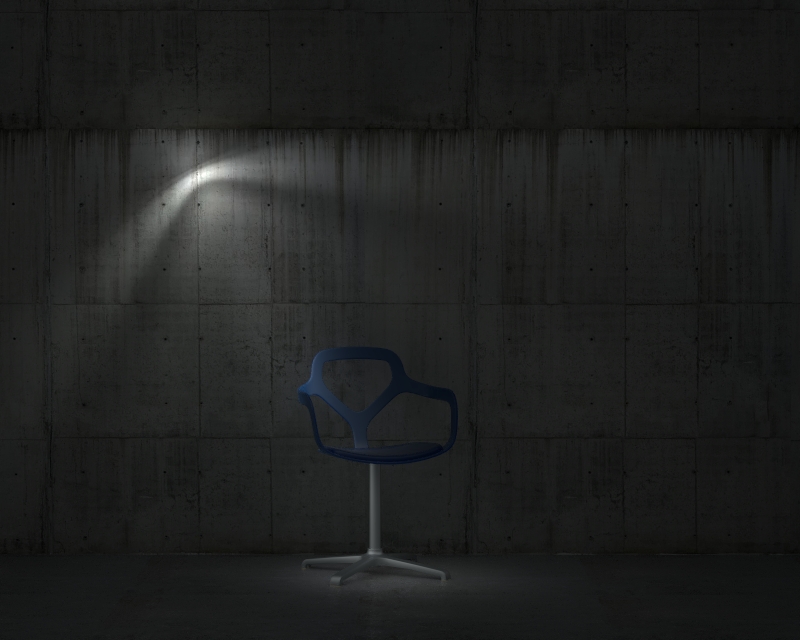
Sphere
,
Diameter
= 10.0
Advanced Decay
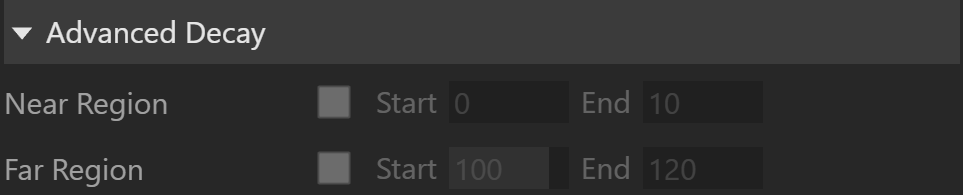
Near Region – Toggles near decay on and off. Near decay controls how the light fades in from its source. The Start and End values determine where the near fade-in starts and ends.
Far Region – Toggles far decay on and off. Far decay controls how the light fades out with distance. The Start and End values determine where the fade-off starts and ends.
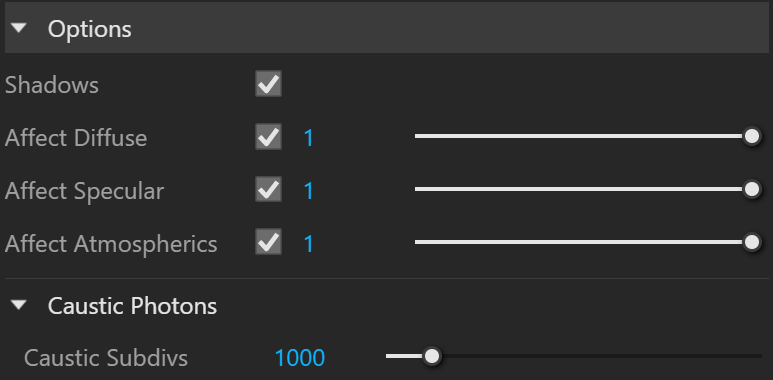
Options
Shadows – When enabled (default), the light casts shadows. When disabled, the light does not cast shadows.
Affect Diffuse – When enabled, the light affects the diffuse properties of the materials.
Affect Specular – When enabled, the light affects the specular of the materials.
Affect Atmospherics – Specifies whether the light influences the atmospheric effects in the scene. The value determines the amount of involvement.
Caustic Subdivs – Used by V-Ray when calculating Caustics. Lower values produce noisy results but render faster. Higher values produce smoother results but take more time.