Overview
This guide helps you install V-Ray for SketchUp.
A complete V-Ray for SketchUp installation includes:
- V-Ray
- V-Ray License Server
- V-Ray Swarm
- Chaos Cloud Client app
- Chaos Cosmos Browser service
- Chaos Unified Login
If you use a trial, follow the Trial installation guide. The process differs from the instructions on this page.
Installing V-Ray for SketchUp gives you access to:
Operating system requirements
Windows
You may need administrator privileges on your Windows account to run the installation.
Follow the installer's instructions.
macOS
You need administrator privileges on your macOS account to run the installation.
Double-click the downloaded .dmg file to mount it, then run the V-Ray Installer.
Follow the installer's instructions.
Run the installer
Welcome
Read the End User License Agreement and Global Consumer Privacy Policy carefully. Click the I accept buttons if you agree to the terms.
Click Continue.

You can choose the V-Ray interface language at any point during installation. Click the language button for Chinese and Japanese options.

Host app version
Select the SketchUp version you want to install V-Ray for. You can select more than one version at once.
Click Install.
To customise your V-Ray installation, click Advanced.

Cloud Licensing
V-Ray uses Cloud Licensing by default when you install it for the first time.
Click Install to continue with Cloud Licensing. If you need to connect to a network License Server, click Use License Server.
Chaos products use two licensing models: Cloud Licensing and the License Server. With Cloud Licensing, you sign in with your Chaos Account to use products anywhere with an internet connection. The License Server supports centralised network setups. You must be on the same local network or connect through a VPN.

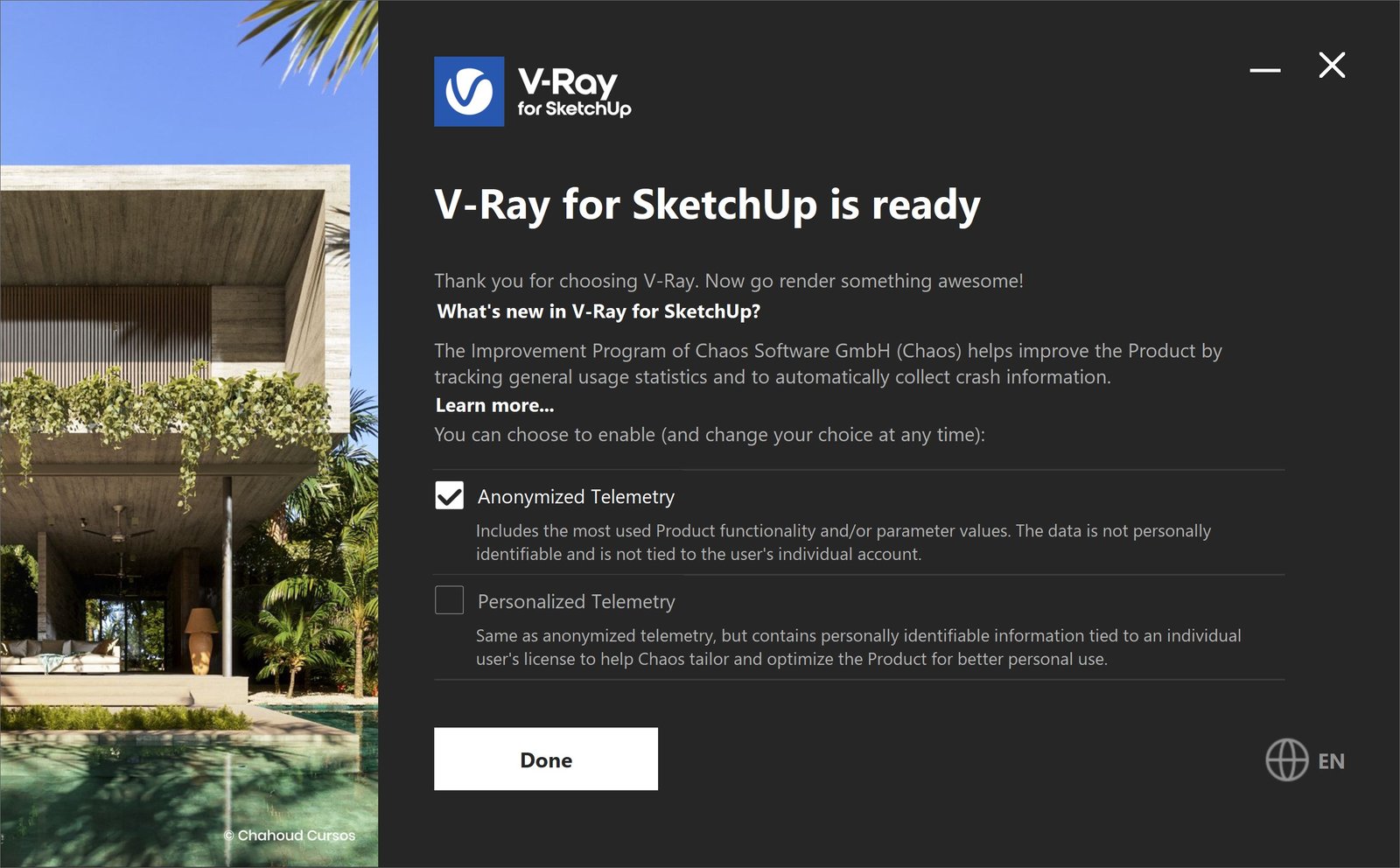
Chaos Telemetry
V-Ray is now installed.
You can take part in the feedback program to help Chaos decide what to improve in future V-Ray versions. Taking part does not violate intellectual property. Chaos does not collect scenes, assets or materials. You can change this preference at any time in V-Ray Render Settings > Settings > About V-Ray > Feedback program settings. For details, see Chaos Telemetry.
Anonymized Telemetry includes the product functions you use most and/or ac:parameter values. This data does not identify you and is not linked to your individual account.
Personalized Telemetry includes the product functions you use most, ac:parameter values and personally identifiable information linked to your individual licence. Chaos uses this data to tailor and optimise the product for your use.
Advanced installation settings
Additional components
Click Advanced Installation to open the Additional Components screen. Choose whether to install V-Ray Swarm.
Selecting Disable AI Features sets a system environment variable that disables all V-Ray AI features in the software.
Click Continue to proceed with the installation.

Licensing
Choose whether V-Ray uses Cloud Licensing or the Chaos License Server. Cloud Licensing connects directly to the Chaos Licensing Service.
With Cloud Licensing, you sign in with your Chaos Account to use your product anywhere with an internet connection.

Licensing
Choose whether the Chaos License Server runs on your computer or another machine.
Local installs the License Server on your computer. For instructions, see the Chaos License Quick Start Guide.
Remote configures your Chaos product to use floating licences on a local network. Enter the IP address of your network's Chaos License Server in the Primary License Server field. Leave port 30304 unchanged. For details, see License Server Deployment.

Footnotes
- Starting with V-Ray 6, update 1, Chaos Cloud is always installed with V-Ray because it is an integral part of the product.