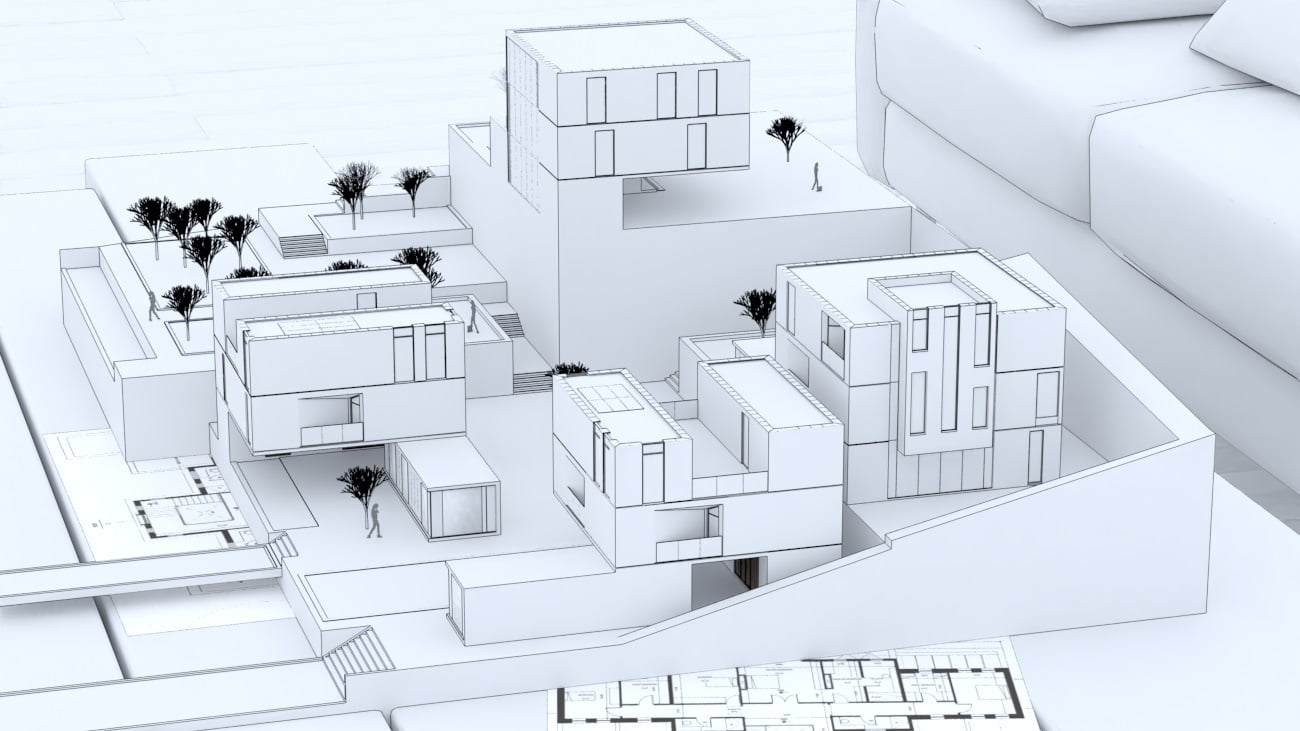
The Outline Override material settings are organized in Basic and Advanced modes. You can switch the mode from the toggle button under the Preview Swatch or globally from the Configuration rollout of the Settings tab.
An Add Layer and Add Attribute buttons are provided for some V-Ray materials, including Outline Override. You can select an additional layer that can add up to the appearance of the material. For more information, see the Add Attribute and Add Layer sections.
The context menu of the Color slot provides options to Copy and Paste, as well as to Reset the color.
A Reset option is provided in the context menu of each Number Slider. You can reset the slider value to the default one.
Base
Base – Specifies the base layer material.
Outline
Line Color – Specifies the color of the outlines. See the Line Color example below.
Opacity – Enables Opacity/Transparency binding. When enabled, changing the V-Ray material refraction changes the corresponding base application material opacity/transparency.
Normal Threshold – Determines when lines will be created for parts of the same object with varying surface normals (e.g. at the inside edges of a box). A value of 0.0 means that only 90 degrees or larger angles generate internal lines. Higher values mean that smoother transitions between face normals can also generate a line. Setting this value to 1.0 fills curved objects completely.
Overlap Threshold – Determines when outlines will be created for overlapping parts of the same object. Lower values reduce the internal overlapping lines, while higher values produce more overlapping lines. Setting this value to 1.0 fills curved objects completely.
Width – Specifies the width of the outlines. See the Line Width example below.
Example: Line Color
This example shows the effect of the Line Color and Inner Line Color parameters.
Line Color = red; Inner Lines = disabled
Line Color = red; Inner Line Color = black
Line Color = green; Inner Line Color = blue
Example: Line Width
This example shows the effect of the Width parameter. The Inner Line Control is disabled.
Inner Line Color – Specifies the color of the inner lines. See the Line Color example.
Inner Width – Specifies the width of the inner lines.
Example: Inner Line Control
This example shows the effect of the Inner Line Control parameter. The main lines are black and the Inner Lines are red. The Width of the main lines is set to 3, while that of the Inner Lines is set to the default 1.5.
Viewport Display
Viewport Display – Enables connection/binding between V-Ray and the corresponding base application material.
Color – Enables color binding. Changing the V-Ray material color changes the corresponding base application material color and vice versa.
Opacity – Enables Opacity/Transparency binding. When enabled, changing the V-Ray material refraction changes the corresponding base application material opacity/transparency.
Texture Mode – Enables texture binding. Changing the V-Ray material texture changes the corresponding base application material texture and vice versa. Disabling this parameter allows for base app material changes without affecting the V-Ray material.
Auto – Binds the diffuse texture to the base app material.
Custom – A custom texture slot is bound to the base app material.
Viewport Texture – The selected texture is bound to the base app material. Keeping this slot empty in Custom mode shows a Helper Texture in the viewport.
Override Control
Can be Overridden – When enabled, the material can be overridden by the Material Override option in the Settings.
Attributes
The Attributes available for the Outline Override material are as follows.
Translucency
Translucency
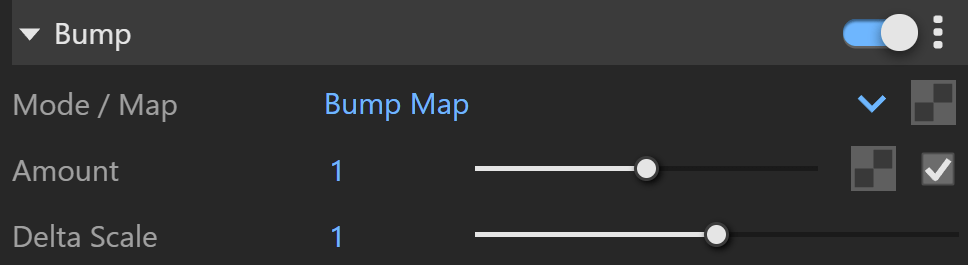
Bump
Bump
Outline
Outline
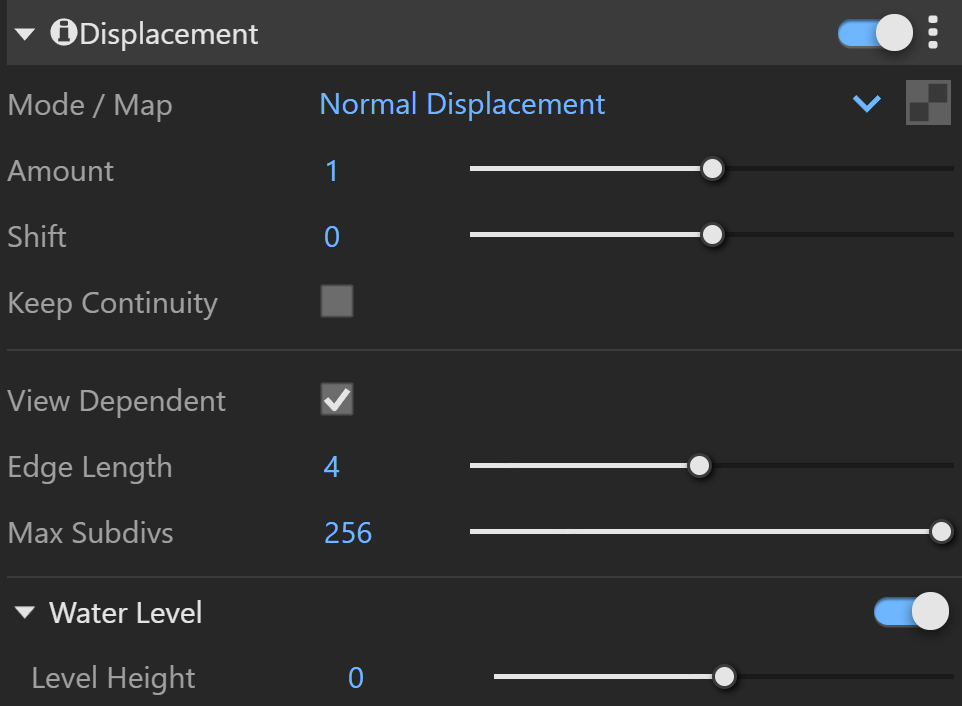
Displacement
Displacement
Raytrace Properties
Raytrace Properties
Override
Override
Material ID
Material ID
Layers
The Layers available for the Outline Override material are as follows.