V-Ray for SketchUp
Two Sided
This page provides information about the Two Sided material in V-Ray for SketchUp.
Last updated 1 September 2026
This page provides information about the Two Sided material in V-Ray for SketchUp.
Overview
The Two Sided material is a utility material provided with the V-Ray renderer. The material allows seeing the light on the backside of the objects. Use this material to simulate thin translucent surfaces like paper, cloth curtains, tree leaves, etc.


UI Paths
||V-Ray Asset Editor|| > Materials (right-click) > Two Sided
||V-Ray Asset Editor|| > Create Asset (left-click) > Materials > Two Sided
Common Use Examples

Two Sided material is commonly used for leaves. Notice how the light illuminates the shrub from behind.
The curtain uses Two Sided material to allow some outdoor light on the inside of this interior.
Parameters
Front Material – Sets the material to be used for front faces as defined by the object normals. See the Front Material example below.
Back Material – Sets the material to be used for back side faces as defined by the object normals. See the Back Material example below.
Translucency – Determines which side (front or back) relative to the camera is more visible in the rendering process. By default, this color is black (0.0), which means that only the front side is visible. When set closer to white (1.0), more of the Back material is seen. When set closer to black (0.0), more of the Front material is seen.
Mult. By Front Diffuse – When enabled, the Translucency is multiplied by the Front material.
Force Single Sided – When enabled, the sub-materials renders as one-sided materials. Disabling is not recommended.

Example: Front Material
In this example, the lampshade uses a Two Sided material with only a Front material connected (Generic material). A V-Ray sphere light is used to illuminate the inside. Translucency is shown here with grayscale values (RGB).
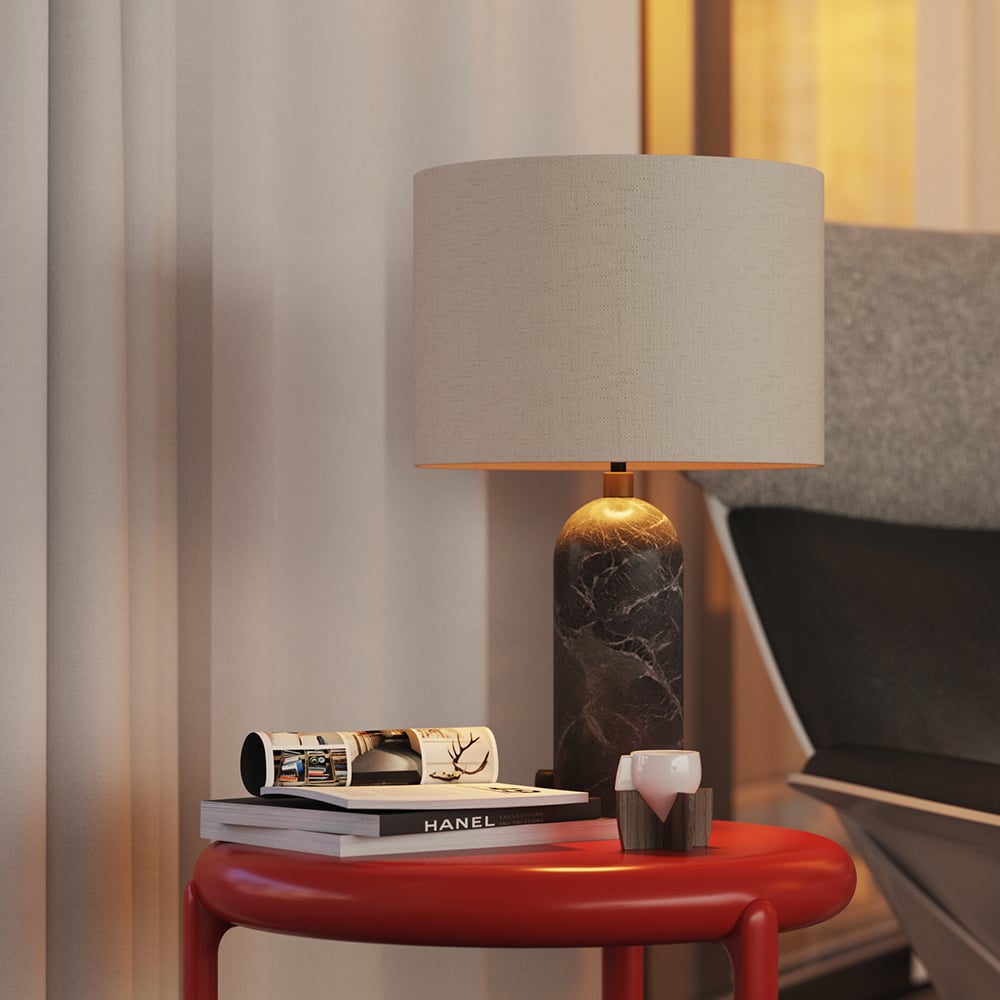
Translucency
= 0, 0, 0

Translucency
= 64,64,64

Translucency
= 192,192,192
Example: Back Material
In this example, the leaves have both front and back materials connected to the Two Sided Material. Notice how the leaves change when the Translucency value (shown in RGB) is changed. The last render uses a Translucency grayscale map.

Translucency (0, 0, 0)

Translucency (128, 128, 128)
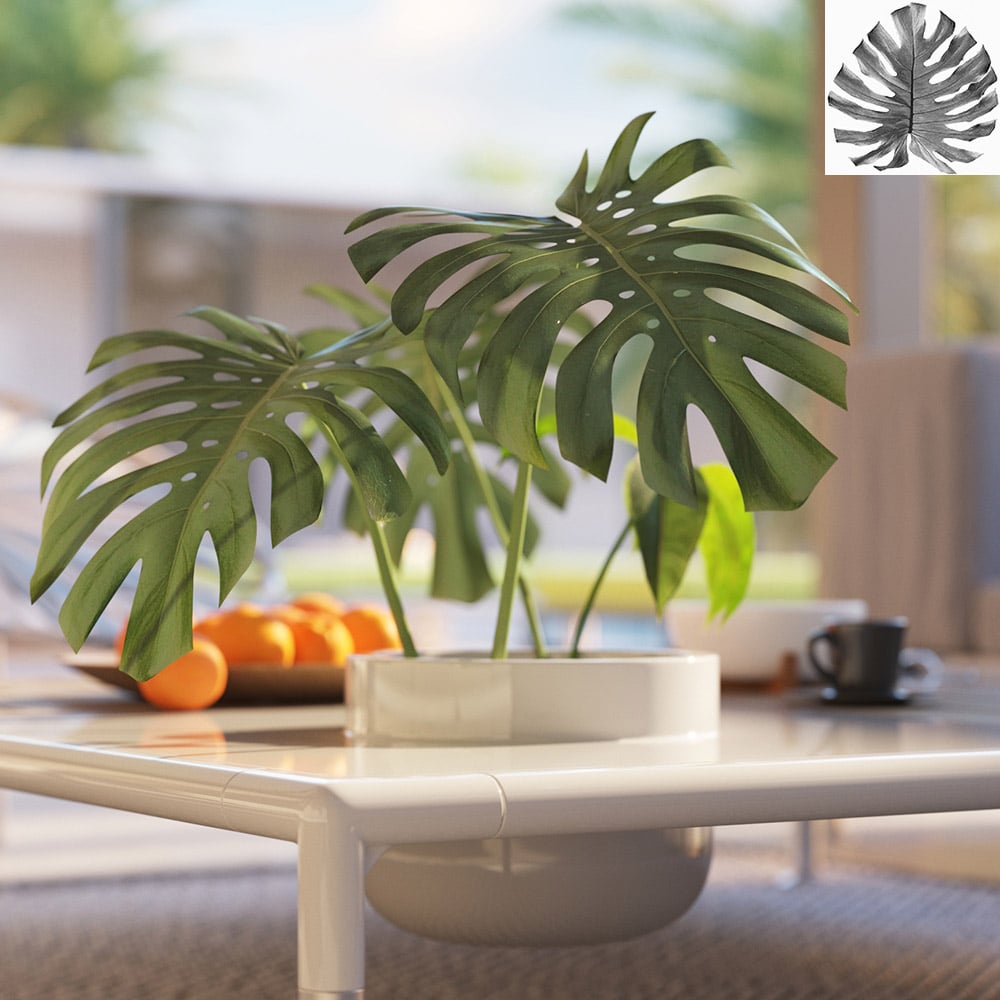
Translucency map
Viewport Display
Viewport Texture – The selected texture is displayed in the viewport.

Override Control
Can be Overridden – When enabled, the material can be overridden by the Material Override option in the Settings.
Notes
- This material will give best results when assigned to open surface objects like planes, extruded splines, etc. Otherwise it can lead to extremely long render times.
- The Two Sided material can be made visible only from one side by having its Front material slot empty and the Back material slot filled in.