V-Ray for SketchUp
V-Ray Material Library
This page provides information on how to manually load libraries in V-Ray for SketchUp.
Last updated 1 September 2026
This page provides information on how to manually load libraries in V-Ray for SketchUp.
Overview

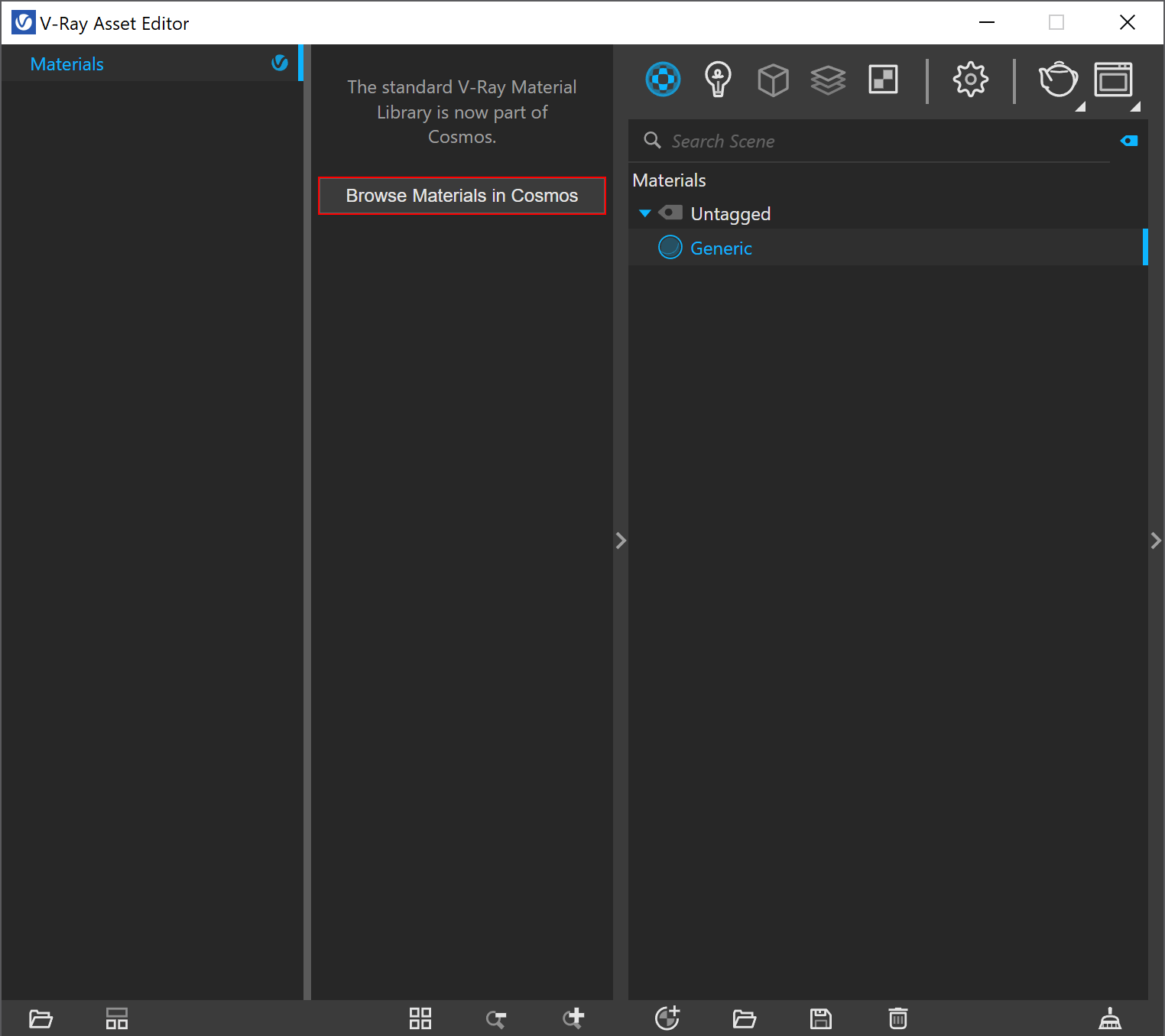
You can also load your assets into the Library by using the directory button (). It adds a new file system location to read the .vrmat files.
UI Paths and Functionalities
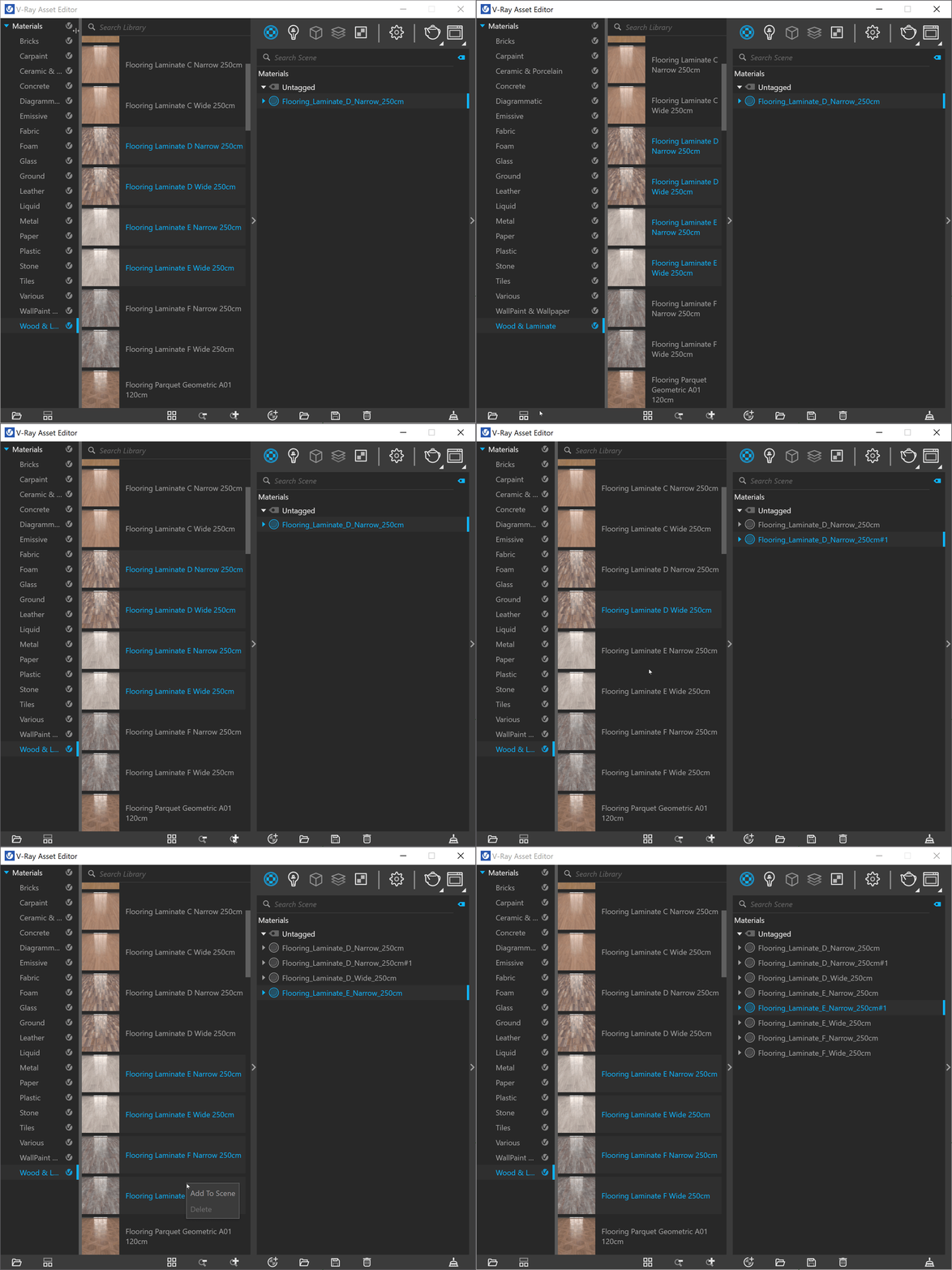
Add assets from the manually added material libraries to your SketchUp project by drag-and-dropping the asset into the central panel or by right-clicking and selecting the option Add to Scene. The functionality buttons at the bottom enable the reordering of the assets' display.
Use the Open Folder button and select the path where your assets reside. They appear automatically in a newly created folder of the asset's tree. Right-click on the folder and use the context menu options to remove or refresh it.
Notes
- The V-Ray Material Library and Light Gen HDRI assets may be inaccessible for direct download to V-Ray 5 users. This can be avoided by upgrading to the latest V-Ray version.
Alternatively, the asset files can be acquired manually by downloading the following archive file and unpacking it at:
Windows: %USERPROFILE%\Documents\
macOS: ~/Library/Application Support/Chaos/
Restarting V-Ray after the asset files are placed will restore functionality to both the Material Library and the Light Gen. Note that a message prompting you to download assets may still appear - press Continue to safely disregard it.
skup2016_vray3_materialPresets_foam.png