V-Ray Standalone
Getting Started with Environment Variables
This page shows you how to use environment variables.
Last updated 20 November 2025
This page shows you how to use environment variables.
Overview
Environment variables affect the way software applications run on your system. They allow users to define certain ways in which software operates outside of the software process itself, e.g. define a behavior once and never have to tweak a setting in the interface later on.
We'll look at setting environment variables at a few different levels: system, user, and process.
Usually, setting variables per process is safer than setting them on the user or system level, as the effect is isolated to just a particular running instance. See the Process Variables section below.
The Environment
Each process has an environment of variables associated with values. When a new process is started, it copies the environment of the process that started it. For example, when you double-click an icon to launch an application, the new process copies the user environment of the Desktop (or technically speaking – of the running shell, which on Windows is explorer.exe), while if you start a program from a Windows Command Prompt, the new process copies the environment of that particular Command Prompt instance, which can be different – see the Process Variables section below.
System Variables
At the system level, variables affect all instances of an application started by all users on the system. For example, if you set a variable that defines a certain behavior for V-Ray at the system level, any user who logs to the system will see V-Ray operate in the same way.
See the Useful Tips section of this article for a more extensive list of good practices and recommendations.
Windows
1. Open the Edit the system environment variables window by either searching for it in the Start Menu or locating it in the Control Panel.
2. Click Environment Variables...

The system environment is defined by the System variables list in the bottom half of the screen.

3. Add a New... or Edit... an existing environment variable.
Linux and macOS
See the Useful Tips section of this article for a more extensive list of good practices and recommendations.
User Variables
At the user level, variables only affect processes started by the same user. For example, another user who logs to the system will not see any difference in how V-Ray operates.
See the Useful Tips section of this article for a more extensive list of good practices and recommendations.
Windows
The steps are the same as for setting system variables, except adding new user variables or modifying existing ones is defined by the User variables for <username> list in the top half of the screen.
Linux and macOS
See the Useful Tips section of this article for a more extensive list of good practices and recommendations.
Process Variables
Variables can be set to affect only a specific isolated instance of a process. For example, you can run two instances of V-Ray at the same time, where each instance has different variables defined. Then, each instance will operate differently.
Process variables are a very convenient way to control software behavior while only affecting one running instance of the software. See the Bat and Shell scripts section to find out more.
Windows
- Open a Windows Command Prompt by typing cmd in the Start Menu.
- Set the variable or variables.
- Start an application from the same Command Prompt by typing in the full path to the application executable.
Example:
Type each line in a Command Prompt and execute it by pressing Enter.
<code data-v-c2b1f83f=""><span data-v-c2b1f83f="" class="line">Set VRAY_NUM_THREADS=4</span><span data-v-c2b1f83f="" class="line">"C:\Program Files\Chaos\V-Ray\Standalone for x64\bin\vray.exe" -scenefile=C:\scenes\ est.vrscene</span></code>
Linux and macOS
Type each line in a Terminal and execute it by pressing Enter.
Example:
<code data-v-c2b1f83f=""><span data-v-c2b1f83f="" class="line">Export VRAY_NUM_THREADS=4</span><span data-v-c2b1f83f="" class="line">/usr/Chaos/V-Ray/Standalone_for_centos7/bin/vray -scenefile=/tmp/test.vrscene</span></code>
Useful Tips
References
You can 'refer' to other variables by their names.
On Windows, wrapping a variable name in the percent character (%) creates a reference. For example, MY_VARIABLE=%ANOTHER_VARIABLE% – assigns the value of ANOTHER_VARIABLE to MY_VARIABLE.
On Linux and macOS, the dollar sign ($) is placed before the variable name to create a reference. For example, MY_VARIABLE=$ANOTHER_VARIABLE
References are useful when extending variables with more values. See the Setting vs. extending variables section below.
Value Separators
Variables can hold multiple values, separated with a different symbol depending on the OS:
- Windows uses the semicolon symbol – MY_VARIABLE=value_one;value_two;last_value
- Linux / macOS uses the colon symbol – MY_VARIABLE=value_one:value_two:last_value
OS-specific declarations
On Windows, variables are declared using the Set command. For example, Set MY_VARIABLE=1 – declares MY_VARIABLE and assigns a value of 1 to it.
On Linux and macOS, the command is Export. For example, Export My_VARIABLE=1
Setting vs. extending variables
Semantically, variables can be set or extended.
A variable is set when it is declared.
For example, Set MY_VARIABLE=1 is a declaration.
A variable is extended when more values are appended to it after it has been declared.
On Windows: MY_VARIABLE=%MY_VARIABLE%;2 extends MY_VARIABLE with a second value of 2. In this example, MY_VARIABLE was declared a second time, with the first value being the value before re-declaration, and the second value being directly assigned as 2.
On Linux and macOS, the syntax is: MY_VARIABLE=$MY_VARIABLE:2
String and path values
On Windows, string values, including paths, should not be wrapped in quotes ("), because the quotes become part of the value.
For example, Set MY_VARIABLE=C:\Some Directory is correct, while Set MY_VARIABLE="C:\Some Directory" is wrong.
On all operating systems, the only place where quotes are required is when the path to an executable file has spaces. For example: "C:\Program Files\Chaos\V-Ray\Standalone for x64\bin\vray.exe"
Bat and Shell scripts
.bat (Windows) and .sh (Linux / macOS ) scripts are a very convenient way to start an application with a custom environment. In fact, this is the recommended approach for running our V-Ray Portable Installation.
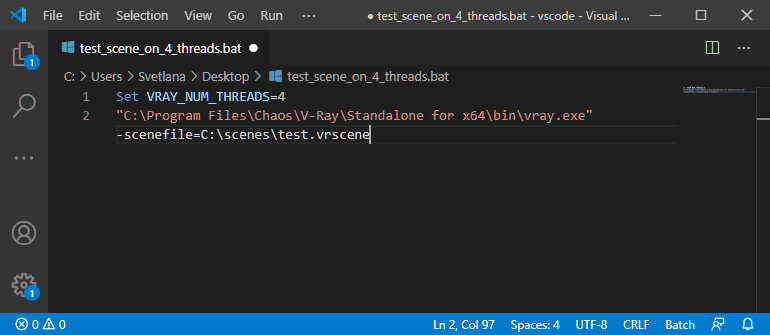
As an example, here's a simple executable script that limits V-Ray Standalone to use only 4 CPU threads and then renders a scene:
A Windows .bat file would look like this:
<code data-v-c2b1f83f=""><span data-v-c2b1f83f="" class="line">Set VRAY_NUM_THREADS=4</span><span data-v-c2b1f83f="" class="line">"C:\Program Files\Chaos\V-Ray\Standalone for x64\bin\vray.exe" -scenefile=C:\scenes\ est.vrscene</span></code>
A Linux or macoS .sh script file would look like this:
<code data-v-c2b1f83f=""><span data-v-c2b1f83f="" class="line">Export VRAY_NUM_THREADS=4</span><span data-v-c2b1f83f="" class="line">/usr/Chaos/V-Ray/Standalone_for_centos7/bin/vray -scenefile=/tmp/test.vrscene</span></code>

Such scripts can be launched by simply double-clicking them (or calling them from a Terminal) and they will run a given application with a specific environment that will not affect your system in any other way.
Notes
- V-Ray Standalone supports .vrscenes containing files with long names on Windows when the corresponding option is enabled in the system settings. Refer to the official Windows documentation for instructions on how to enable long file name support.