V-Ray Standalone
Uninstall V-Ray
This page provides information on uninstalling V-Ray Standalone.
Last updated 20 November 2025
This page provides information on uninstalling V-Ray Standalone.
Windows
macOS
Linux
Uninstalling V-Ray Standalone
V-Ray installer will automatically uninstall any previous versions.
If you need to manually uninstall V-Ray, make sure that V-Ray components are not being used. Go to Windows Start > Control Panel > Programs and Features or Start > All Programs > Chaos > Uninstall V-Ray Standalone for x64
This will start the V-Ray uninstaller. Follow the on-screen instructions to remove V-Ray from your system and restore any files overwritten by the installation.
After the uninstall is complete there may be some leftover files that you need to delete.
Please check if present and delete the following files and folders:
C:\Program Files\Chaos\V-Ray\Standalone for x64
Uninstalling Chaos License Server
To remove V-Ray license server, either use the Add/Remove Programs applet from the Control Panel, or select Start menu > All Programs > Chaos > Uninstall Chaos License Server
V-Ray installer will automatically uninstall any previous versions.
To uninstall V-Ray Standalone and/or Chaos license server, start the uninstall app, which is normally located in /Applications/Chaos/V-Ray/Standalone_for_mavericks_x64/uninstall/ directory.
A Chaos Software lister window will appear. Select the V-Ray Standalone option:

Follow the instructions of the uninstaller.
V-Ray installer will automatically uninstall any previous versions.
To uninstall V-Ray Standalone and/or Chaos license server, start the uninstall program with root permissions, which is normally located in the /usr/Chaos/V-Ray/Standalone_for_linux_x64/ directory. For example:
$ su
$ /usr/Chaos/V-Ray/Standalone_for_linux_x64/uninstall
follow the instructions of the uninstaller
$ exit
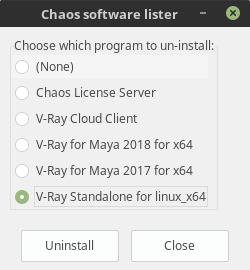
You may need to manually delete the following folders:
/usr/Chaos/V-Ray/Standalone_for_linux_x64