V-Ray for Unreal
Installation of V-Ray for Unreal
This page provides information about installing V-Ray for Unreal.
Last updated 24 February 2026
This page provides information about installing V-Ray for Unreal.
Overview
This guide is to serve as a reference for the installation of V-Ray for Unreal.
A complete installation of V-Ray for Unreal consists of:
- V-Ray
- V-Ray License Server
- Chaos Cloud Client app
- Online Licensing Documentation
In order to complete a full installation of V-Ray for Unreal, you need to run the provided installer.
If you are a trial user, please refer to the Trial installation, as the process differs from the one showed on this page.
Downloading V-Ray for Unreal
You can download the latest official version of V-Ray for Unreal by using the Download V-Ray for Unreal button with the account supplied to you by Chaos or your reseller.
Click on the Download for Windows x64 and save the vray_adv_5####_unreal_x64.exe file.
Installation Steps
The V-Ray installer will automatically remove any previous installations. This will allow you to seamlessly upgrade from previous versions. If you experience problems you can manually uninstall the previous versions to perform a clean install. See the Uninstall V-Ray page.
Before running the installation, make sure your Windows account has administrative privileges.
Unreal Engine Version | Installer Name |
|---|
Unreal Engine Version | Installer Name |
|---|---|
Unreal Engine 4.24 | vray_adv_5####_unreal_x64.exe |
Unreal Engine 4.25 | vray_adv_5####_unreal_x64.exe |
Unreal Engine 4.26 | vray_adv_5####_unreal_x64.exe |
To start the installation, double-click the installation file.
- Once you've carefully read the License Agreement, click I Agree if you agree to the terms.

- In this screen you can select for which Unreal Engine version to install V-Ray. You can choose more than one version at once.
Click the Install button to proceed with standard installation. If you need to customize your V-Ray installation, press the Advanced button. The Advanced installation lets you choose whether to install the License Server, Chaos Cloud Client.

Click here to see the Advanced installation options...
V-Ray type

Additional Components

Settings

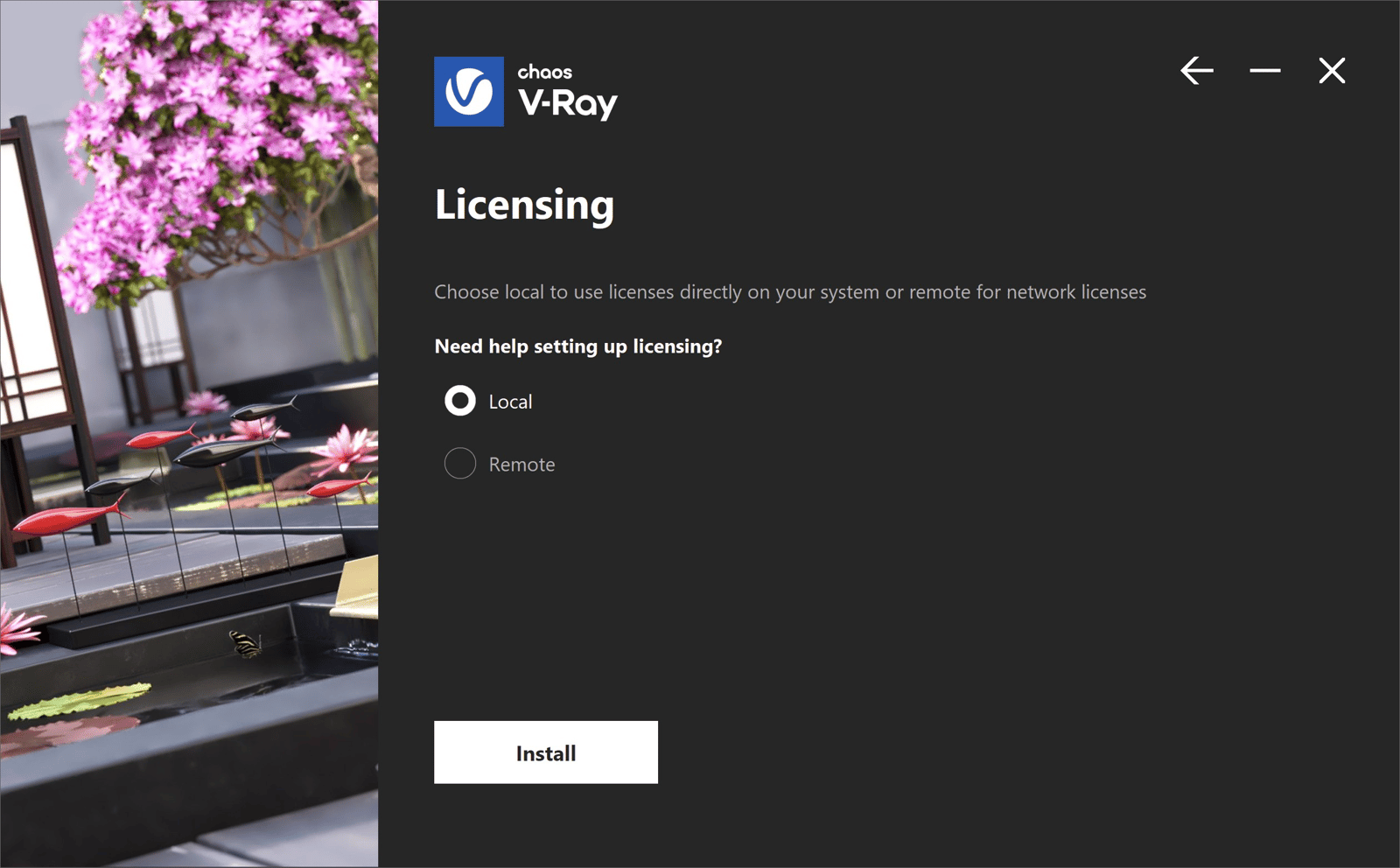
Licensing
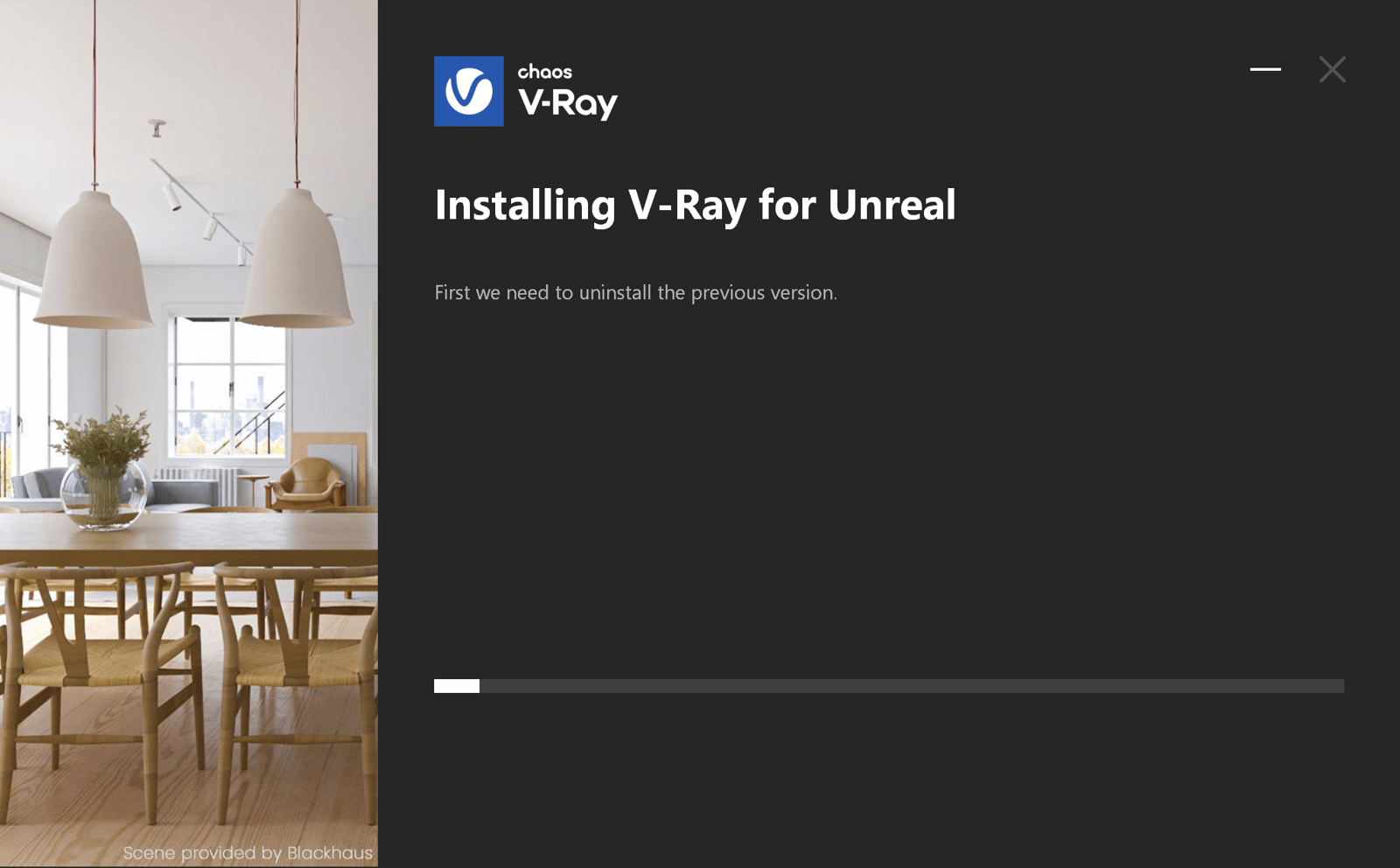
- The installer first checks for running applications and prompts you to stop them, if there are such.
Then it automatically uninstalls all old versions.
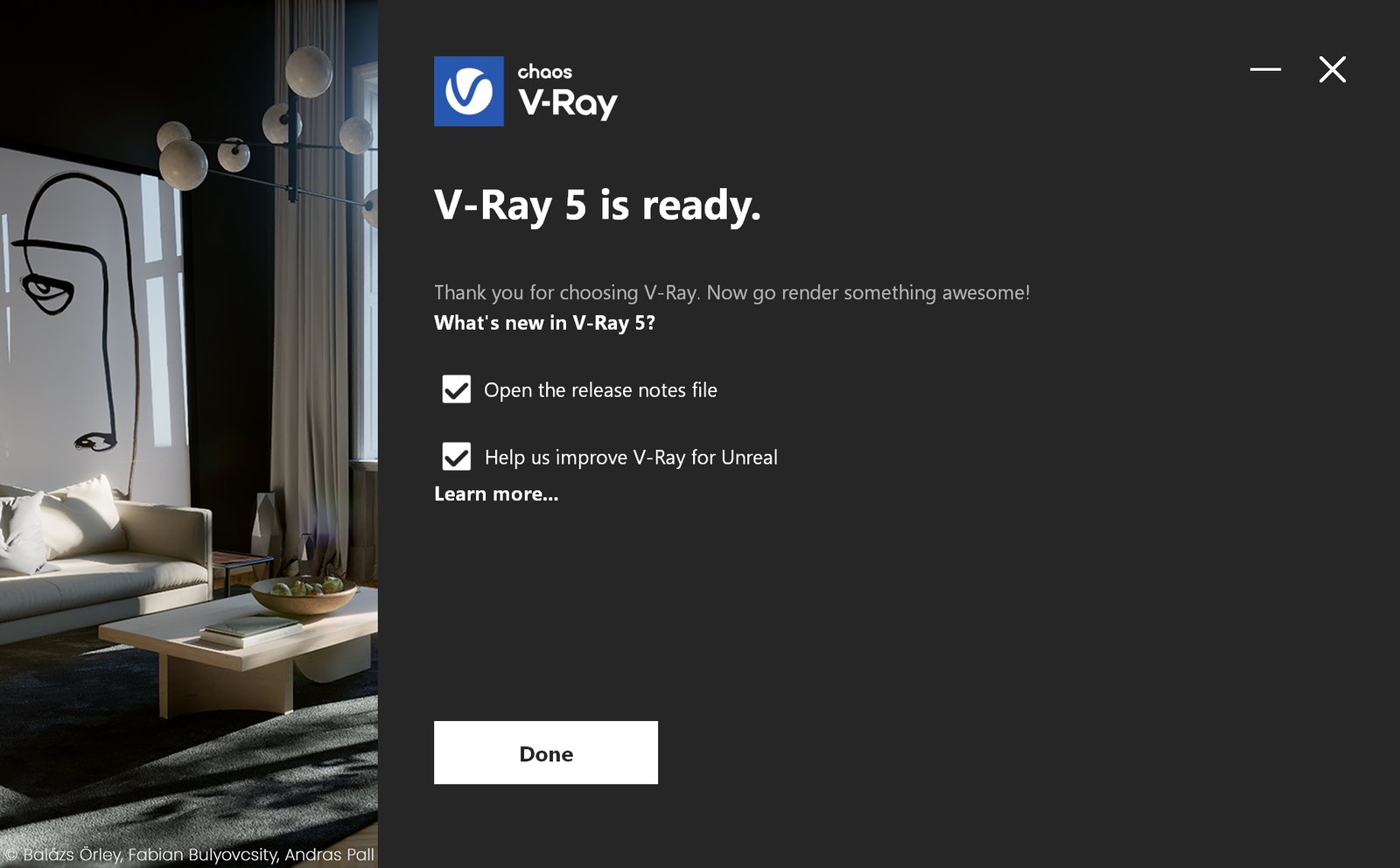
- Your installation is completed. On the last screen resides the usage statistics collection option. For more information on the Chaos Telemetry, follow the link. Also, you can check the Open the release notes file option to open the release notes file after the installation.