KeyShot Studio
Material Variations
In this step you can add additional materials to existing Multi-Materials or convert “simple” materials to Multi-Materials.
Last updated 3 August 2026
In this step you can add additional materials to existing Multi-Materials or convert “simple” materials to Multi-Materials.
The list displays all the Multi-Materials in the current scene. When you select one of the Multi-Materials, the lower list (pictured in the example at the right) will display all materials it consists of.
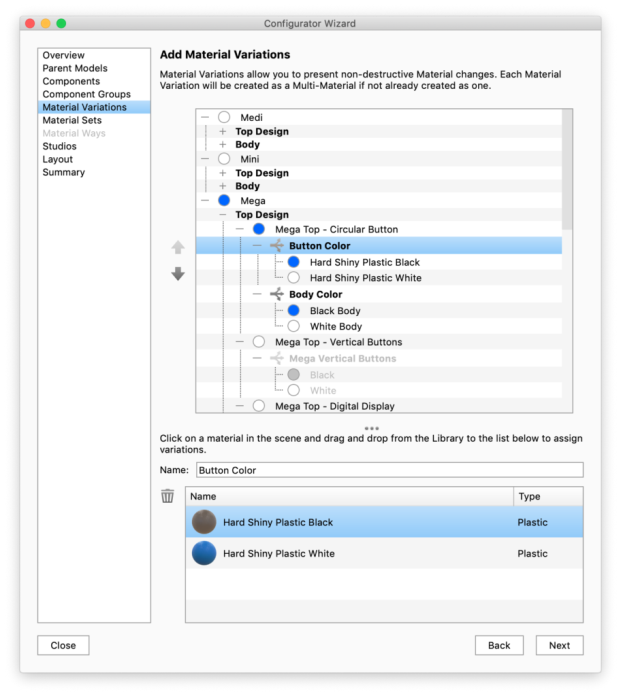
Add to existing Multi-Materials Add New Multi-Materials Once materials are in the list you can give the Material Variation a name i.e. Wheel Accent. This material will become a Multi-Material in your scene that can also be accessed and further edited from the Material tab. Remove Material Variations |
 . You can repeat this until there is only one variation left, reverting the Multi-Material to a single material.