Chaos Licensing
Migrating to Cloud Licensing
This page explains how to migrate from a centralized License Server setup to Chaos Cloud Licensing.
Last updated 14 November 2025
This page explains how to migrate from a centralized License Server setup to Chaos Cloud Licensing.
Overview
Chaos products can use two licensing models: Cloud Licensing and the License Server.
Cloud Licensing offers maximum flexibility, allowing users to sign in with their Chaos Account. They can use products from any location with an Internet connection, without the need to be on the same local network or connect through a VPN to a License Server.
Starting in 2026, new versions of Chaos products have Cloud Licensing built directly into the product. These versions can access licenses without а License Server.
Cloud Licensing is optional — you can continue using your existing License Server if you prefer, and you can switch back at any time. You can also run both approaches in parallel: newer product versions can use Cloud Licensing, while older versions can keep using the License Server. Unattended machines, such as render nodes and fully offline environments, can also remain on their respective License Server deployments.
For a comparison between the two models, read the licensing overview.
If you are using offline licenses, read this article for details on migrating to Cloud Licensing.
License Server UHD
mp4
58 MB
Preparation
Before Installation
Before installing products in Cloud Licensing mode, the Admin should do the following in My Chaos:
- Add users to the Organization.
Add everyone who should be able to use Chaos products to your Organization in My Chaos.
- You can add users in bulk by uploading a CSV file.
- Larger organizations can use single sign-on (SSO) and automatic user provisioning by integrating their identity provider.
- Assign licenses
- Named licenses: Assign each Named license directly to the person who should use it. That license becomes dedicated to them.
- Floating licenses (shared pool):
- Assign all Floating licenses to the Admin account.
- Turn on Floating License Sharing in the Organization tab.
- Floating licenses assigned to the Admin become a shared pool for everyone in the Organization. Only one shared pool is supported at this time.
After the Preparation
- Everyone who needs access has a Chaos account added to the Organization and can sign in.
- Named seats are assigned to specific users.
- The shared Floating license pool is ready.
- You can now start moving machines to Cloud Licensing.
Migration Paths
How you switch to Cloud Licensing depends on your current setup.
Scenario A: Local License Server on Each Machine
Current setup: Each machine runs a License Server alongside the product, and users sign in with their Chaos Account. This also includes machines with a pre-2026 product version installed with default settings. The installation automatically added a Local License Server for sign-in licensing.
After the Preparation steps are complete, do the following on each machine:
- Install or update to a Chaos product version that has Cloud Licensing built-in.
- During installation, the installer will suggest updating the licensing setup to Cloud Licensing (you have the option to stay on the Local License Server, if needed).
- Click Install to switch to Cloud Licensing, then complete the installation.
After this, the newly installed product will use Cloud Licensing directly. The local License Server will remain installed on the device, and older product versions can continue using it.

Scenario B: Central License Server for the whole team
Current setup: Users install the Remote licensing option and point the product to a shared License Server on the local network.
After the Preparation steps are complete, do the following on each machine:
- Install or update to a Chaos product version that has Cloud Licensing built-in.
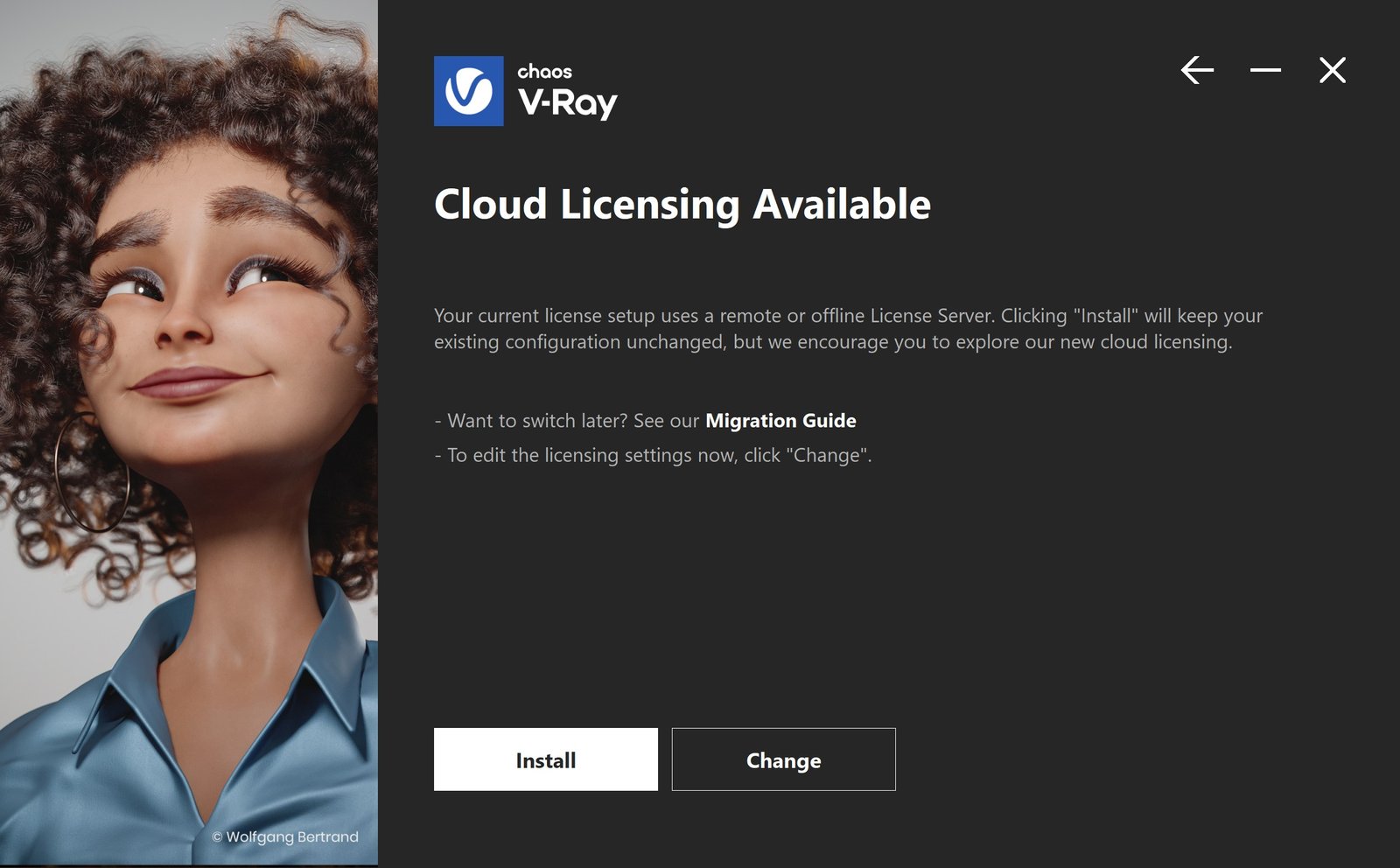
- The installer will show a notification about Cloud Licensing availability, but it will not switch automatically.
- Click Change. In the licensing options, select Cloud Licensing, and then complete the installation.
After this, the newly installed product will use Cloud Licensing directly. Older versions of the product can continue using the existing License Server.
After Migration
For any product version that uses Cloud Licensing:
- Open the product.
- When asked, sign in with your Chaos Account, or with corporate SSO (depending on how your organization is set up).
- After sign-in:
- If you were assigned a license directly, that license is used.
- Otherwise, the product will use a Floating license from the shared pool.
Important Note on Render Nodes and Offline Environments
Cloud Licensing requires:
- The machine has Internet access, and
- The user can sign in interactively.
Because of this requirement:
- Fully offline environments are not supported by Cloud Licensing. Read this article for details on migrating a setup with offline licenses to Chaos Cloud Licensing.
- Lab machines, render nodes, and other unattended systems that cannot sign in with a user account are not good candidates for Chaos Cloud Licensing.
These machines should continue using the existing License Server deployment. It can run in parallel with Cloud Licensing for other users and machines.