Chaos Vantage
Background
This page provides information about the Background rollout of Vantage's Environment tab.
Last updated 20 March 2026
This page provides information about the Background rollout of Vantage's Environment tab.
Overview
The Background rollout provides control over how the Sky sphere is rendered. The rollout is located under the Environment tab in the right-hand side panel.

Settings
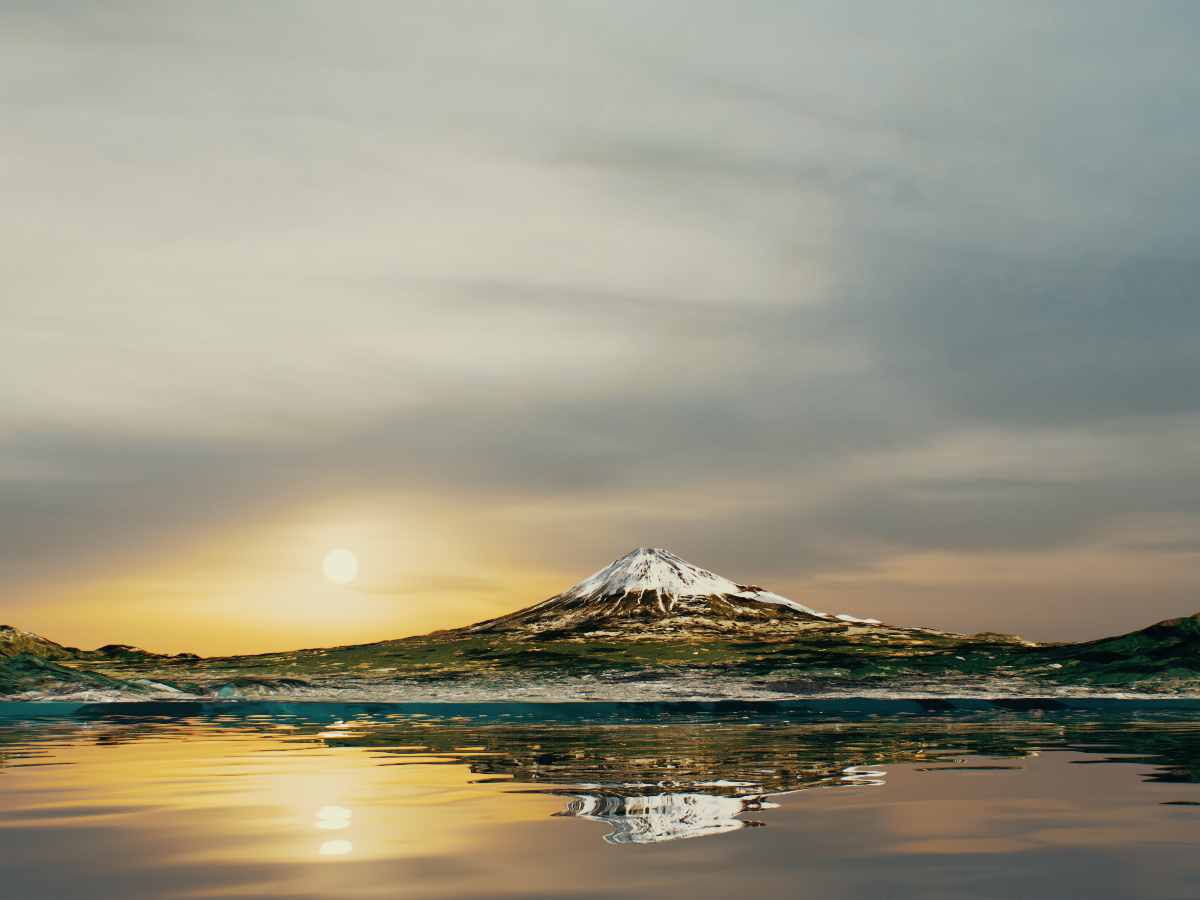
Mode – Specifies the mode which will be used for the background. Note that the Background texture is not used for lighting and glossy reflections. See the Background Mode example below.
Same as environment – Uses the specified Environment source.
Solid color – Uses a solid color for the background.
Image – Uses an image as a background.
Solid Color Mode
The following parameters are available for Solid Color mode:
Color – Specifies a color as a background.
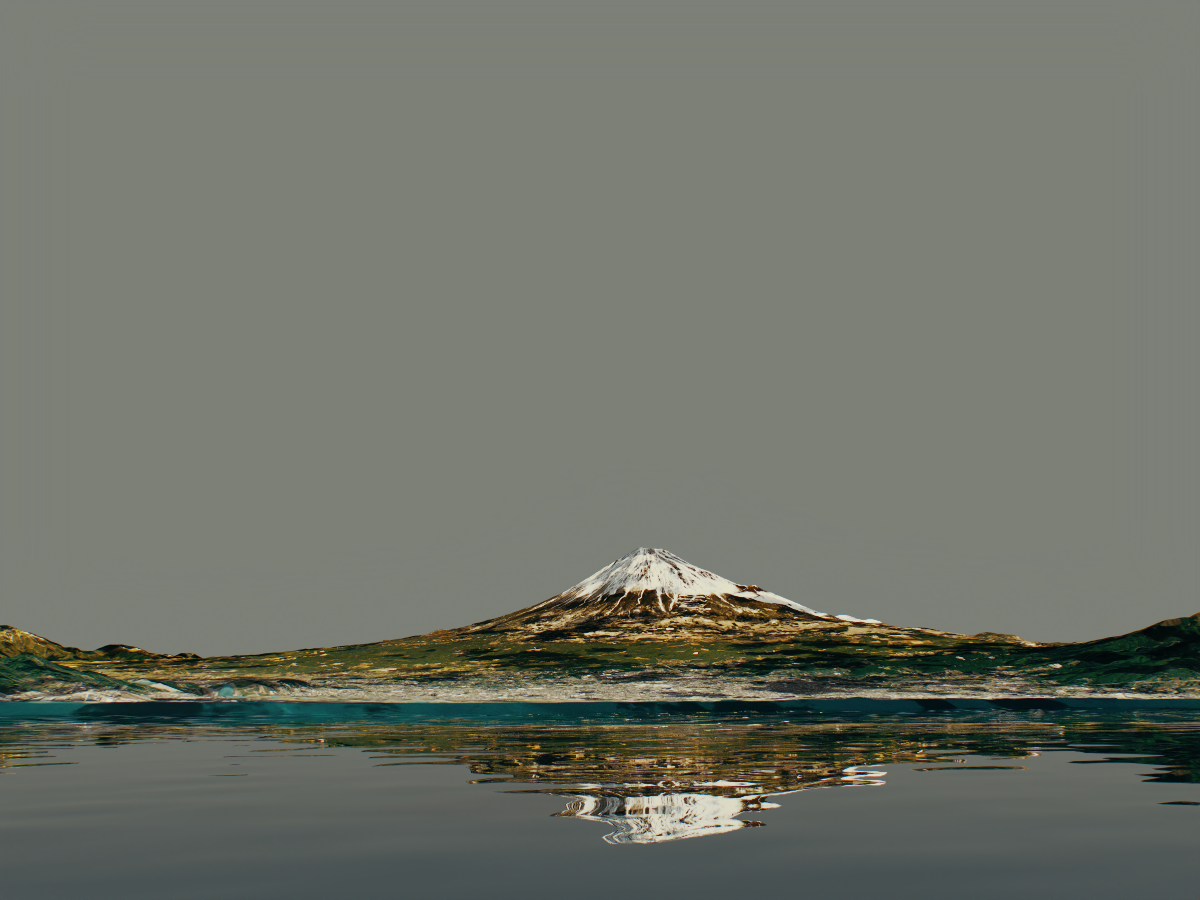
Intensity – Specifies the intensity for the background image/color. See the Solid Color Intensity example below.
Use for refraction/mirror reflection – When enabled, the background override is used for both refraction and perfect (glossiness=1) reflection rays. See the Use for Refraction/Mirror Reflection example below.
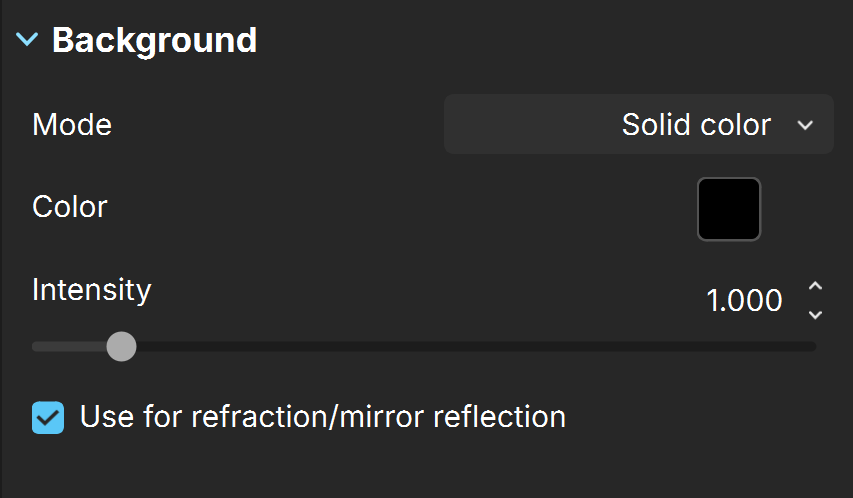
Image Mode
The following parameters are available for Image mode:
Color – Specifies a color as a background when Background Image is empty. When a background image is loaded through the Load background option, the color has no effect.
Load background – Specifies an image to use as a background.
RGB color space – Specifies the RGB color space of the background image.
Auto – The color space is deduced by the file's name.
Raw – No transformation is applied to R|G|B colors.
sRGB – The loaded image is considered in sRGB color space.
ACEScg – The loaded image is considered in ACEScg color space.
Mapping – Specifies the mapping method for the image - spherical or screen. See the Mapping example below.
Rotation – Specifies a rotation angle in degrees for the background image. Available when Mapping is set to Spherical.
Fit – Controls how the environment texture is mapped to the camera view. It offers three modes:
Inside – Maps the environment texture to fit the camera view height while keeping the texture proportions.
Outside – Maps the environment texture to fit the camera view width while keeping the texture proportions.
Stretch – Stretches the environment texture to fit the camera view without keeping the texture proportions.
Note that the Fit option is available only when Mapping is set to Screen.
Offset X – Sets the horizontal offset. The value is relative to the viewport's width. Available when Mapping is set to Screen.
Offset Y – Sets the vertical offset. The value is relative to the viewport's height. Available when Mapping is set to Screen.
Flip horizontally – Reverses the image along the vertical axis, swapping the left and right sides. The vertical position remains unchanged. In short, the image is flipped horizontally.
Wrap around – When enabled, the background image wraps around the screen when shifted via offsets. Available when Mapping is set to Screen.
Intensity – Specifies the intensity for the background image/color.
Use for refraction/mirror reflection – When enabled, the background override is used for both refraction and perfect (glossiness=1) reflection rays. See the Use for Refraction/Mirror Reflection example below.

Examples
Background Mode
This example shows the difference between all three Background Modes.

Same as Environment

Solid color
Image
Solid Color Intensity
This example shows the effect of the Intensity parameter when Background Mode is Solid color.

Intensity = 0
Intensity = 1

Intensity = 10
Use for Refraction/Mirror Reflection
This example shows the effect of the Use for refraction/mirror reflection parameter. The Background mode is set to Image. Note how the reflection changes to reflect the new overwritten background instead of the original physical sky and procedural clouds.
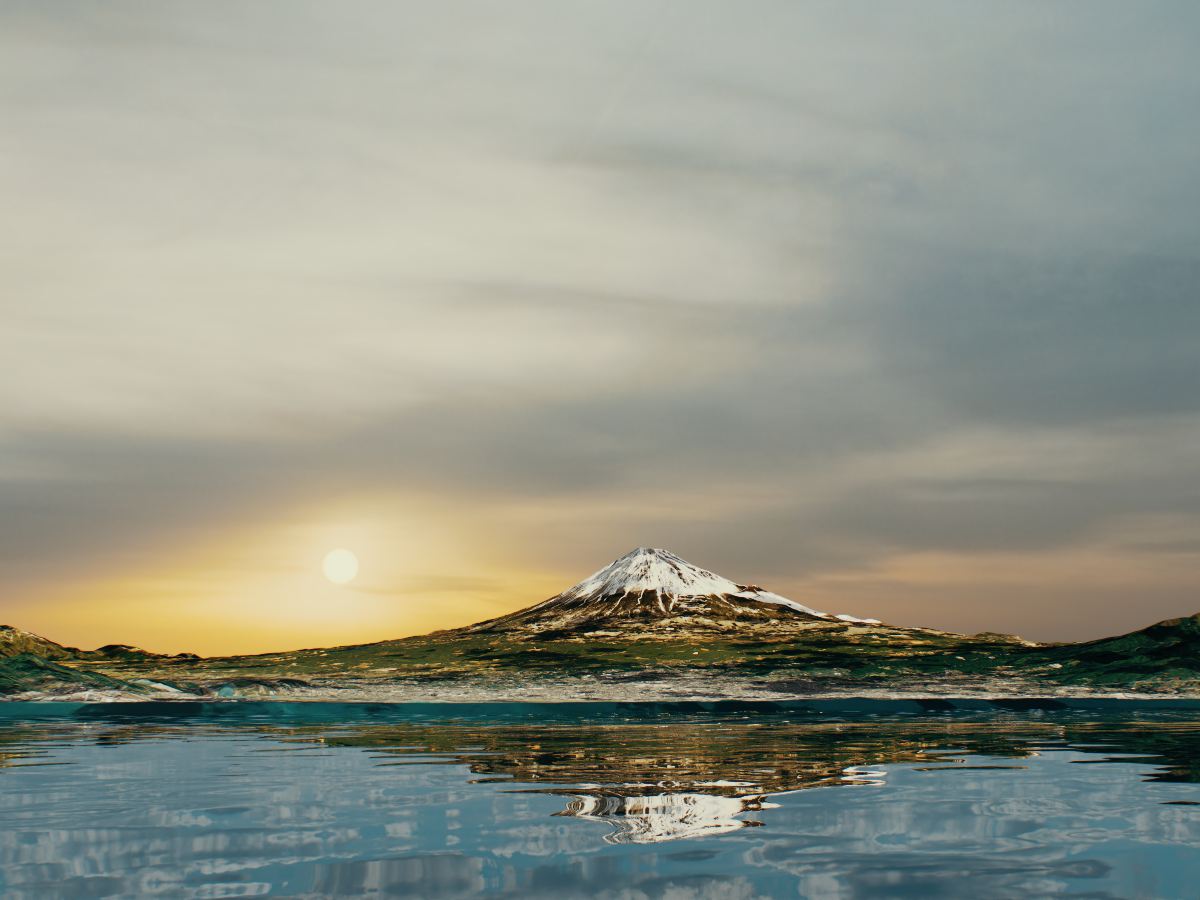
Use for refraction/mirror reflection is off

Use for refraction/mirror reflection is on
Mapping
This example shows the effect of the Mapping parameter. The Background mode is set to Image. Note that the image used as background is best suited for a spherical map.
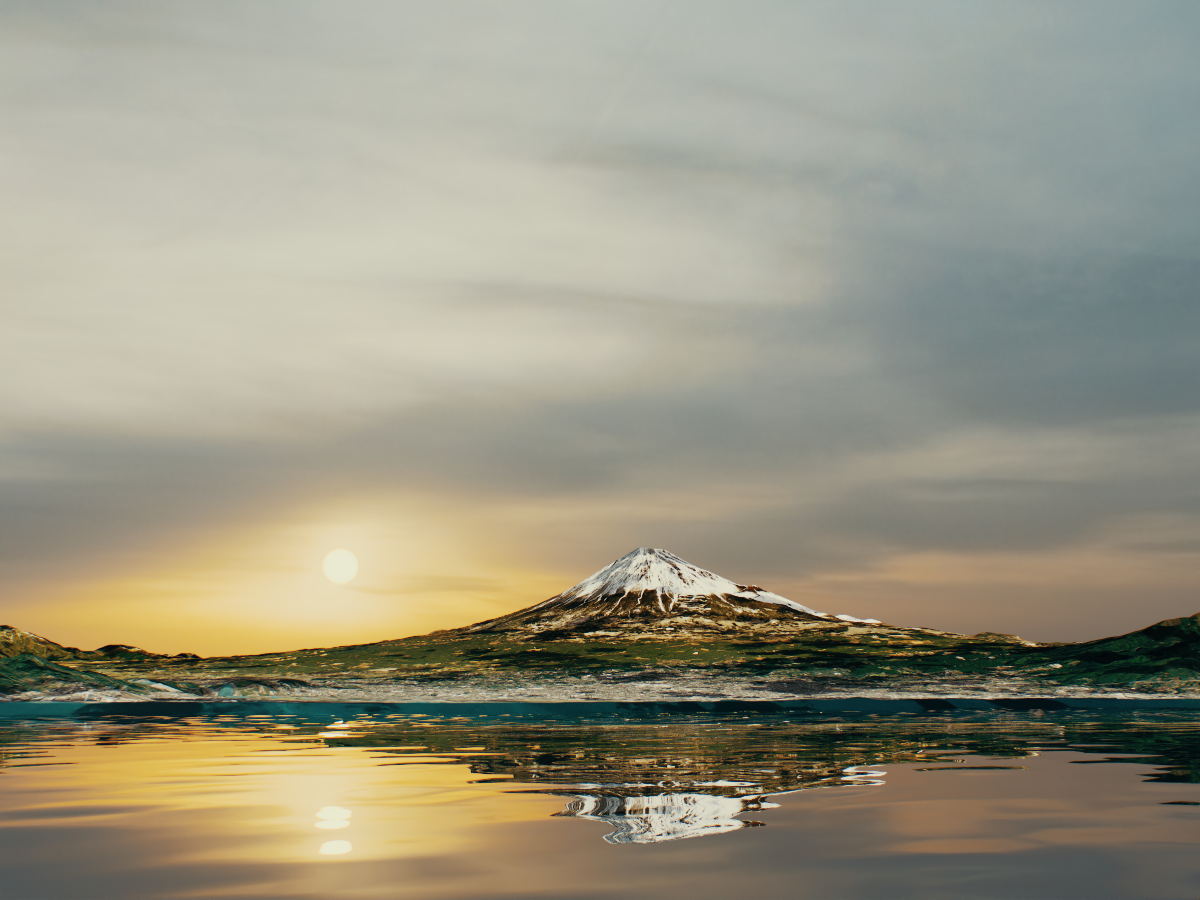
Mapping is off

Mapping is on