Chaos Vantage
Clouds
Тhis page provides information about the Clouds rollout of Vantage's Environment tab.
Last updated 27 February 2026
Тhis page provides information about the Clouds rollout of Vantage's Environment tab.
Overview
The Clouds rollout provides options for adding clouds and contrails to the scene. It is located under the Environment tab in the right-hand side panel. The rollout includes three tabs that control cloud appearance, cloud positioning, and contrail settings.
Button | Description |
|---|
Button | Description |
|---|---|
Clouds settings – Contains settings for controlling the appearance of the clouds, such as their density and variation. | |
Clouds positioning settings – Contains settings for positioning the clouds in the sky. | |
Contrails settings – Contains settings for enabling contrails and managing their appearance and position. |
Settings
Enable clouds – Enables the cloud system.

Clouds Settings
Density – Specifies the density of the cumulus and stratus types of clouds. A value of 100% fills up the sky with clouds. See the Density example below.
Density multiplier – A multiplier to the Density option. The larger the value, the darker the sky becomes at the horizon. Setting a value of 0 results in no clouds, regardless of the Density value.
Variety – Specifies the variety of the cumulus and stratus types of clouds. See the Variety example below.
Random seed – Generates a random value, based on the given number, to change the pattern of the clouds and the Contrails.
Cirrus amount – Specifies the amount of cirrus clouds in the sky. The maximum value of 1 fills the sky with cirrus clouds. When set to 0, the cirrus clouds are completely gone. See the Cirrus Amount example below.
Ground shadows – When enabled, casts shadows from the clouds. See the Ground Shadows example below.
Improved shading – Enables more accurate shadowing of clouds by other clouds. Note that the results are better in offline rendering.

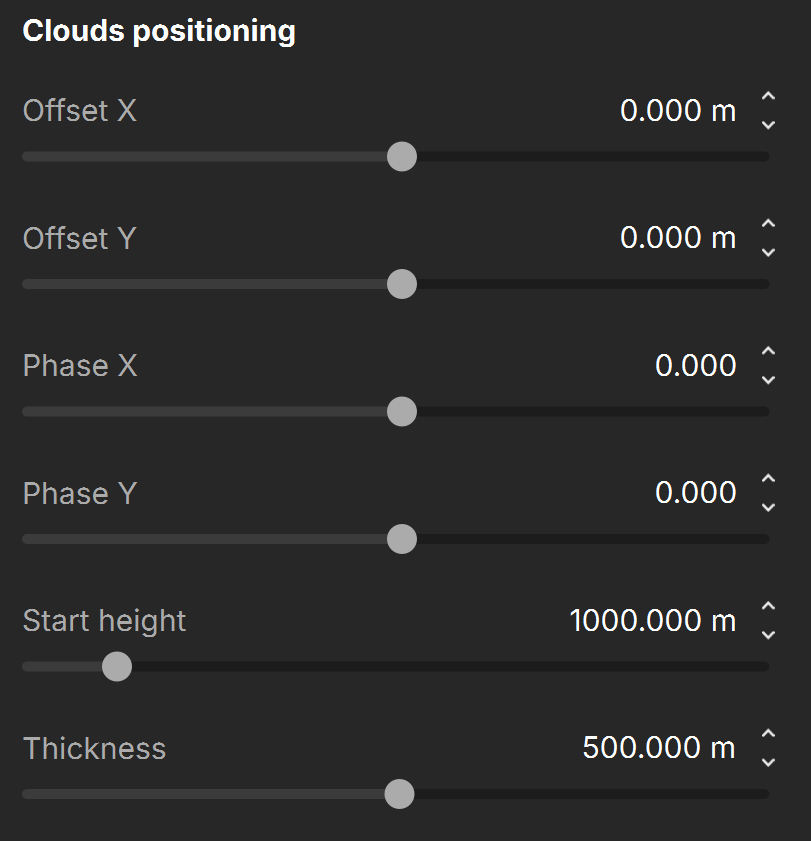
Clouds Positioning Settings
Offset X – Moves the cloud system on the X axis.
Offset Y – Moves the cloud system on the Y axis.
Phase X – Specifies the phase by X axis, can be used to fine-tweak the cumulus and stratus clouds appearance. The appearance of the clouds loops at 0, 100, 200, etc.
Phase Y – Specifies the phase by Y axis, can be used to fine-tweak the cumulus and stratus clouds appearance. The appearance of the clouds loops at 0, 100, 200, etc.
Start height – Specifies the clouds' starting height position. See the Start Height example below.
Thickness – Specifies the height of the cloud layer. Lower values make the cumulus and stratus types of clouds thin and sheer/lucent, while higher values make them full and heavy. See the Thickness example below.
Contrails Settings
Enable contrails – When enabled, airplane contrails are simulated in the sky. Specify the number of contrails visible in the sky through the slider below. See the Number of Contrails example below.
Contrails strength – Specifies the opacity of the contrails. Lower values create less opaque trails, which look older. See the Contrails Strength example below.
Contrails distortion – Specifies the amount of distortion in the contrails.
Contrails offset X – Offsets the contrails by a given value, according to the X axis.
Contrails offset Y – Offsets the contrails by a given value, according to the Y axis.
Contrails time – Specifies how far the contrails progress along the sky. See the Contrails Time example below.

Examples
Example: Ground Shadows
The following example shows the effect of the Ground shadows option.
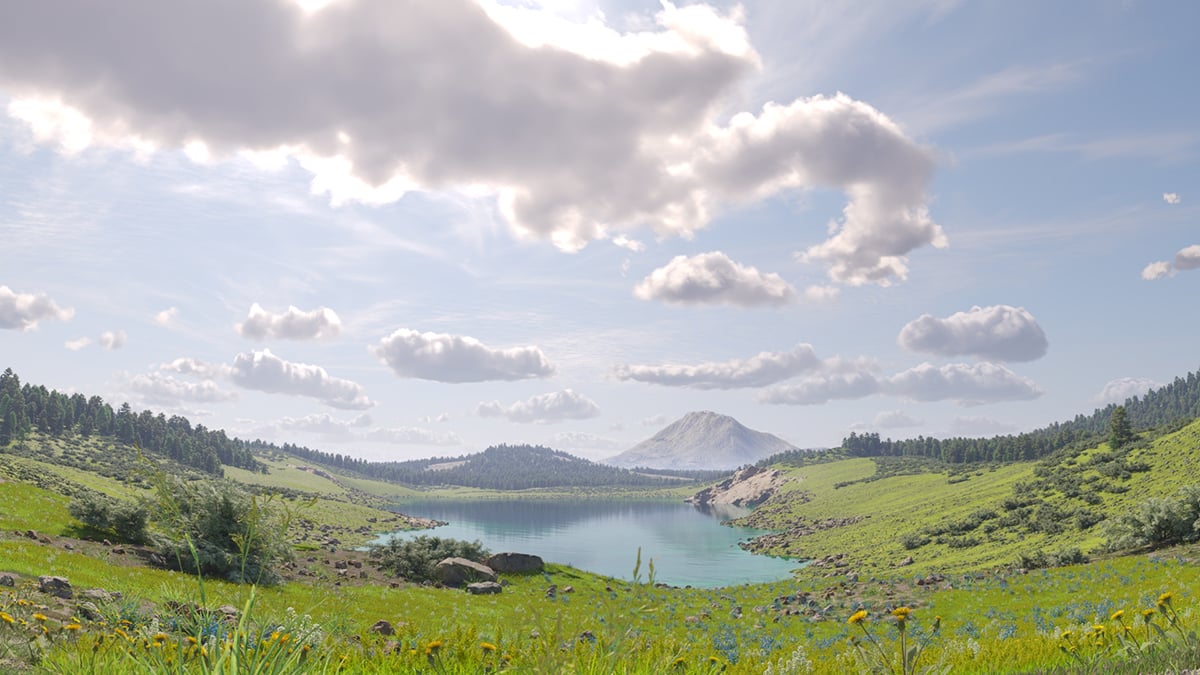
Ground shadows is off

Ground shadows is on
Example: Density
The Density parameter controls the amount of clouds in the sky. The higher the value, the higher the amount of clouds appearing in the render.

Density = 0

Density = 0.4

Density = 0.8
Example: Variety
This example shows how the Variety parameter affects the distribution and look of the clouds.

Variety = 0

Variety = 0.5

Variety = 1
Example: Cirrus Amount
This example shows how increasing the Cirrus amount increases the appearance of the cirrus(high altitude, wispy) clouds in the render.
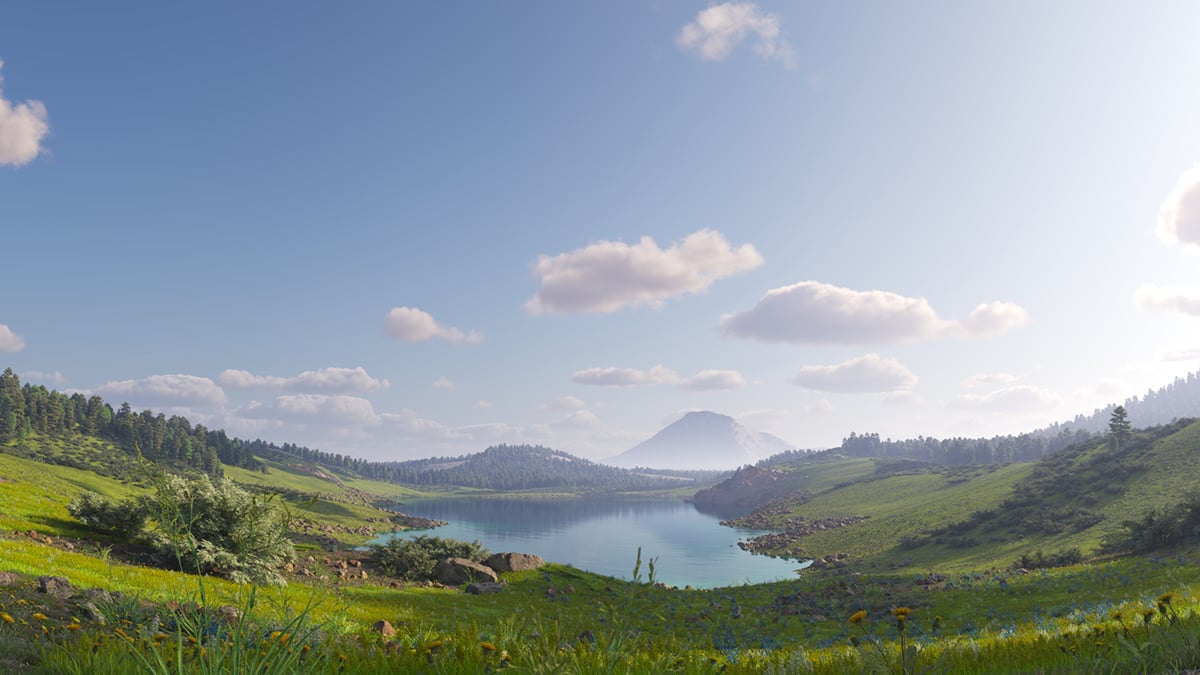
Cirrus amount = 0

Cirrus amount = 0.5

Cirrus amount = 1
Example: Number of Contrails
Note that the contrails are spread randomly across the sky. In most cases, the camera does not capture all of the contrails.

Number of contrails = 5

Number of contrails = 20

Number of contrails = 40
Example: Start Height
Notice how the clouds change their position in the sky with increasing the Start height value.
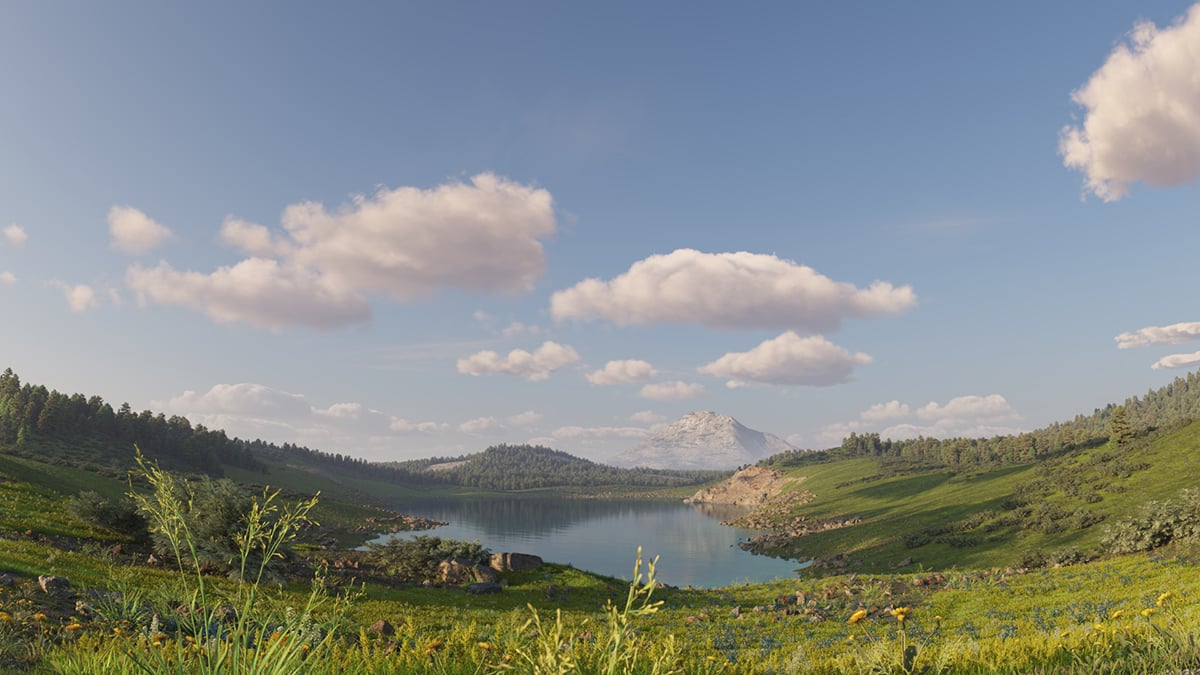
Start height = 500
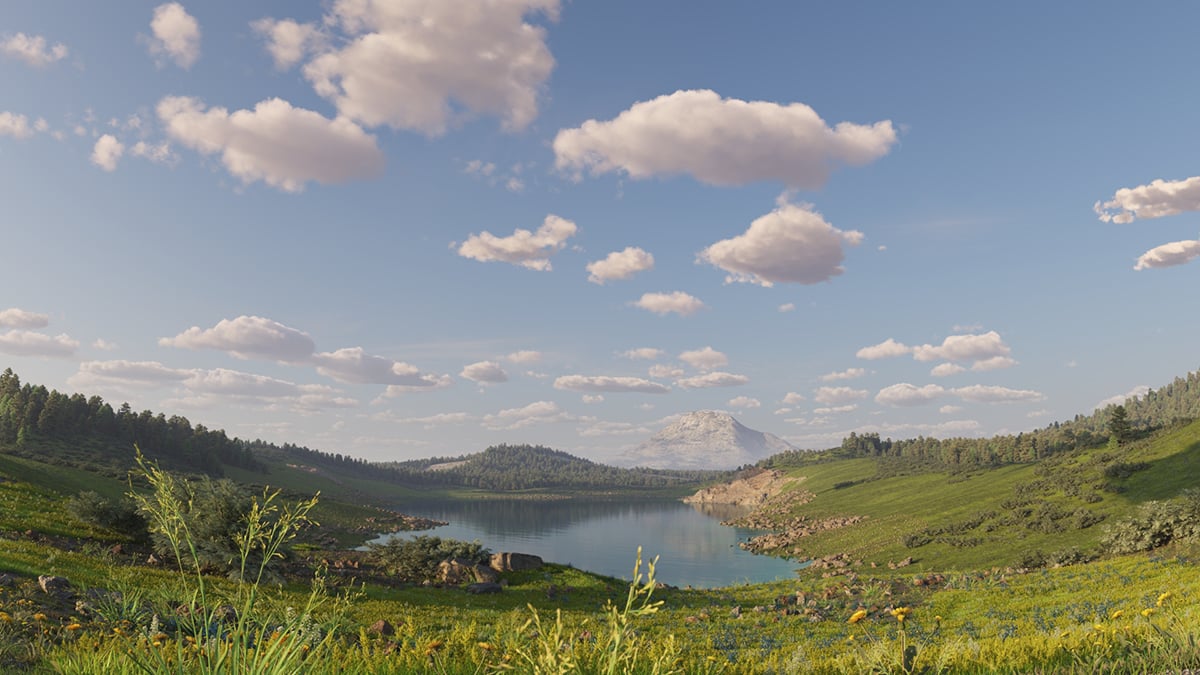
Start height = 1000

Start height = 1500
Example: Thickness
The thickness parameter specifies how full the clouds are. Smaller values make them thinner and sheer, while higher values make them look heavier.

Thickness = 200
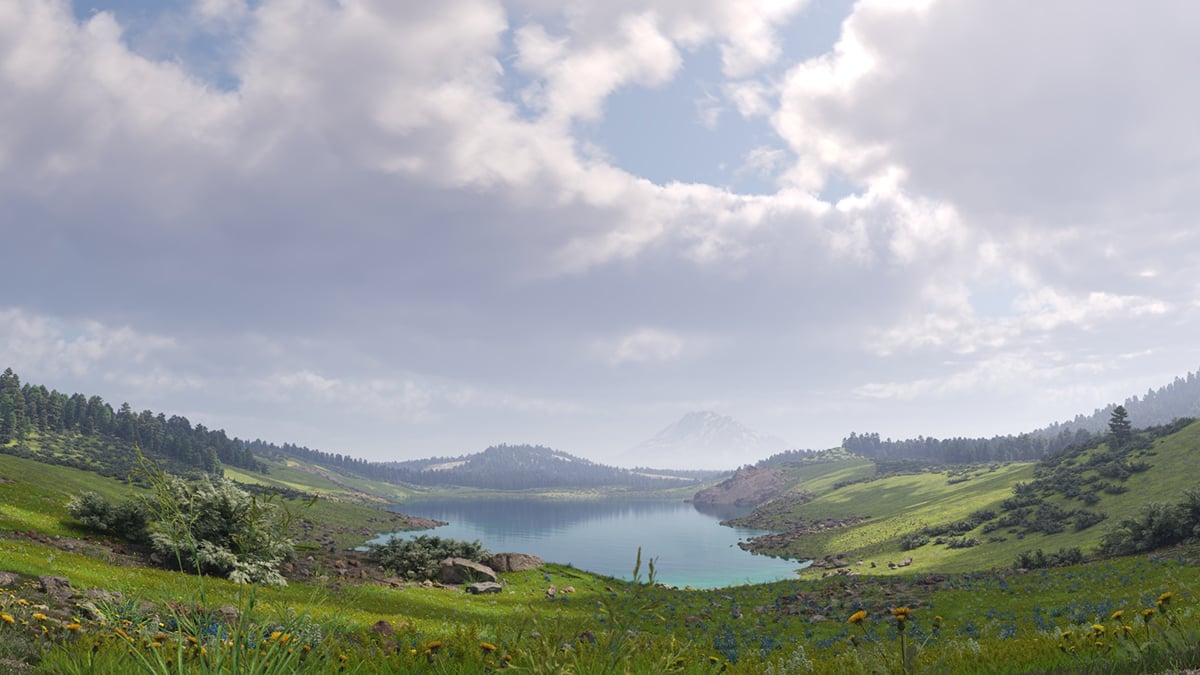
Thickness = 500
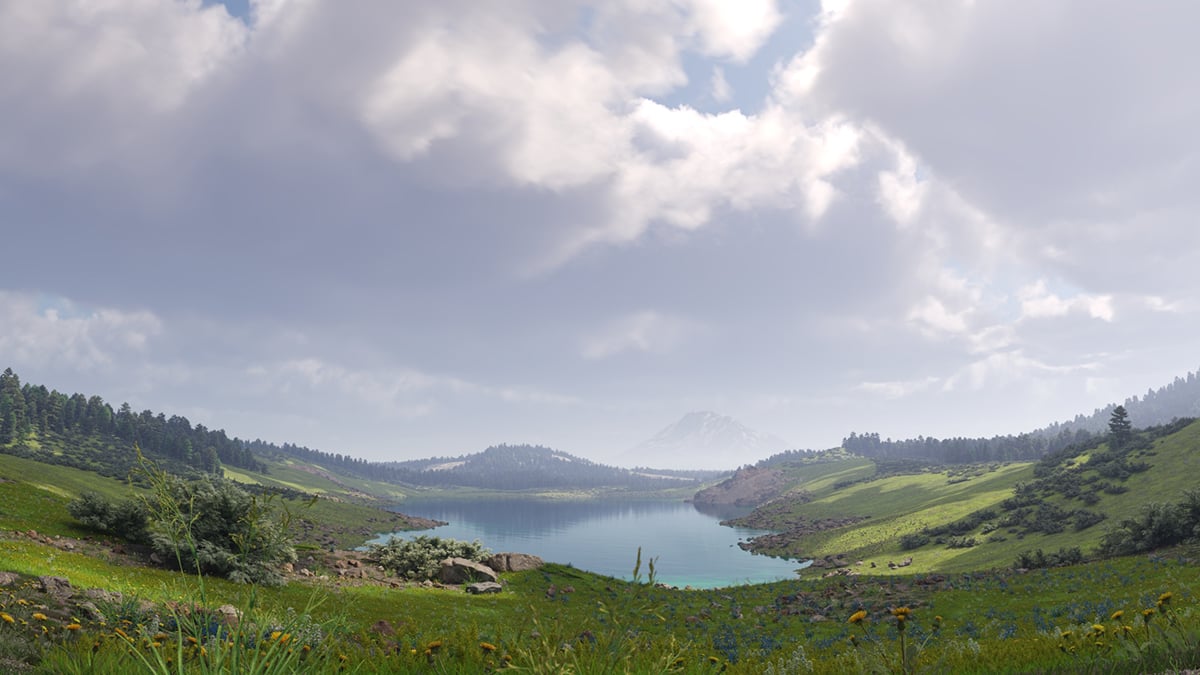
Thickness = 800
Example: Contrails Strength
This example shows how the strength parameter makes the contrails more visible and prominent in the sky.

Contrails strength 0.1

Contrails strength 0.5

Contrails strength 1
Example: Contrails Time
The frames in this animation show the Contrails time parameter with values ranging between 0 and 2.0, with a step of 0.2.