Chaos Vantage
Chaos Cosmos Browser
This page gives information about the Chaos Cosmos Browser in Chaos Vantage.
Last updated 11 June 2026
This page gives information about the Chaos Cosmos Browser in Chaos Vantage.
Overview
Chaos Cosmos Content System delivers a 3D content library of high-quality 3D content selected from the rich Chaos ecosystem. It allows users to browse, place, and render 3D assets in Chaos Vantage. The asset categories span across Furniture, Accessories, People, Vegetation, Vehicles, HDRIs, and more. In addition, the assets work seamlessly in the different Chaos renderers (V-Ray, V-Ray GPU, Corona, Vision, Envision, and Vantage) and host apps (3ds Max, Maya, Blender, Revit, Rhino, SketchUp, Houdini, and Cinema 4D). You can also generate your own materials using the Cosmos AI Material Generator tool.
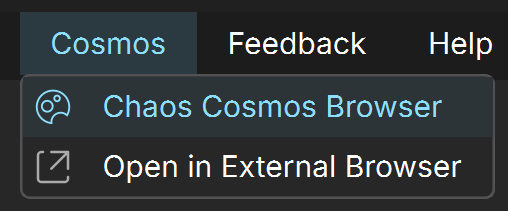
UI Path

Installation
Chaos Cosmos Browser is part of the installation of Chaos Vantage and does not require any other specific actions. You can access the downloadable content of the Chaos Cosmos Platform from within Chaos Vantage after the installation is finished.
Chaos Cosmos's AI Material Generator tool also does not require any other specific actions.
For more information on Chaos Vantage installation, see the Installation page.
Workflow
To start using the Chaos Cosmos content, please follow the steps below:
1. Click the Chaos Cosmos Browser button to open the Chaos Cosmos Browser. Alternatively, go to Cosmos menu > Chaos Cosmos Browser.
2. Click the Sign in button. Then enter your Chaos credentials.
3. Use the menu or the Search tab to find assets. You can additionally choose between different Categories. An option to show Downloaded assets only is also available.
The filters help you refine your search by date, popularity, color, and space.

4. Use the button to enable the Multi-Selection Mode. In this mode, you can select several assets to download, import, update or delete at once.
How to search for assets.

Download Assets

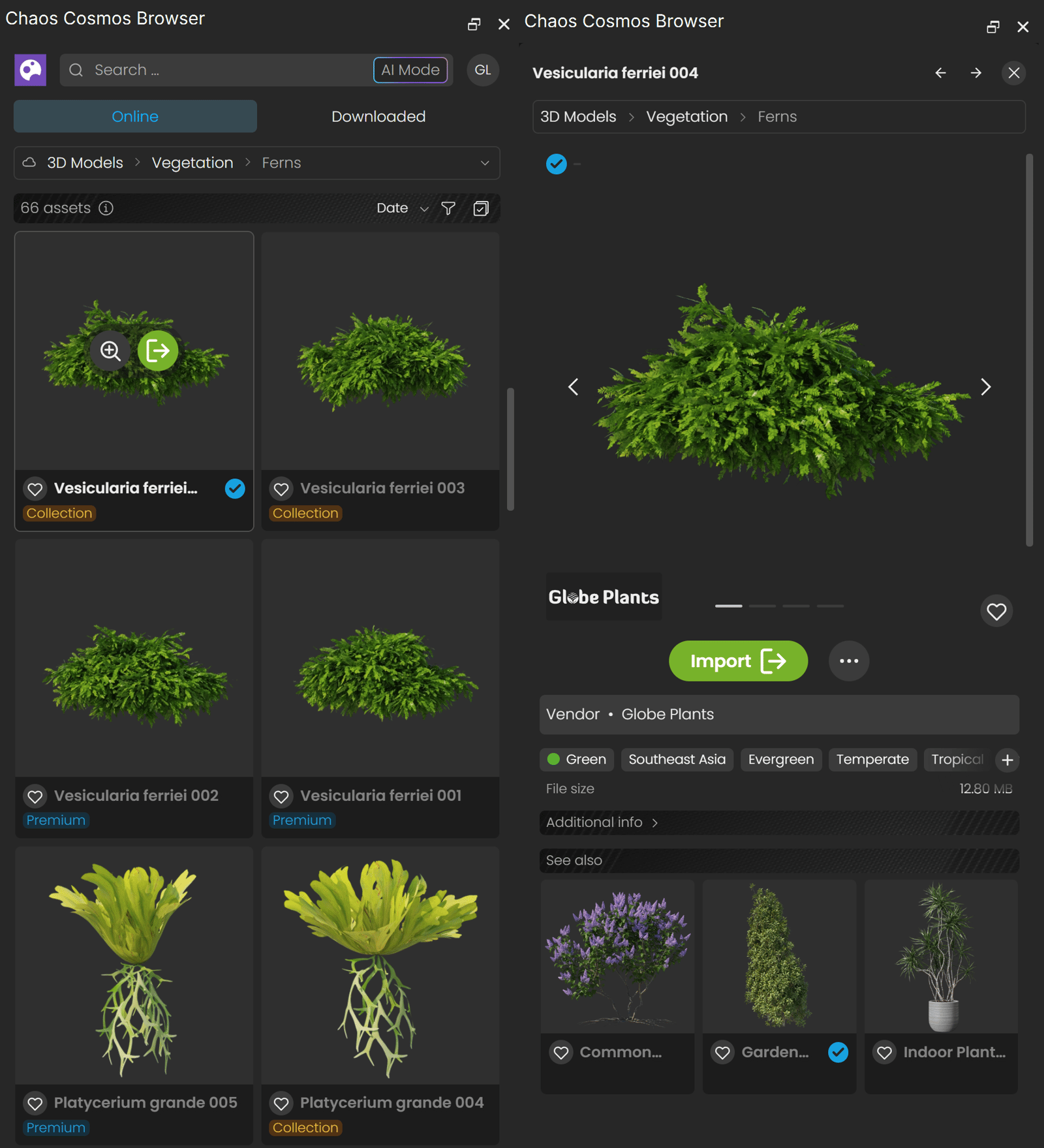
Once you choose an asset, you have to download it. Hover over it and click the Download button.
Another way to download an asset is to click on it and open it in a pop-up window. This reveals additional information such as the category/space/color of the asset and other details. Other connected assets can be filtered by clicking on any of the additional information parameters. Click the Download button to download the asset.

All downloaded assets are marked with symbol. They are available in the Downloaded category.



Import Assets
Once the download is complete, a pop-up window will state that the asset is downloaded successfully.

Use the Import button to bring the asset into Vantage. Another way to import an asset is to click on it and open it in a pop-up window. Then click the Import button.
Alternatively, drag the asset into the viewport.
3D models
You can place downloaded 3D models either in the center or at a random place in the scene.
To import a 3D model into Vantage, do one of the following:
- Random place in the scene: Use dragging into the viewport. That starts the component placement tool and allows you to place the asset wherever you want in the scene with proper surface alignment. Holding Shift while placing ignores the surface normal and places the asset without rotating it.
- Center of the scene: Use the Import button to bring the asset into the host platform. The button places the asset at 0,0,0 of the coordinates system
ImportAssets
mp4
9 MB
Materials
The Materials section contains an array of pre-made materials, such as wood, metal, glass and others. It also contains Decals, which can be used to simulate dirt or stickers on objects.
Once downloaded, materials can be imported via the Import button. If there is an object currently selected, the material is applied directly to it. Otherwise, the material is imported into the Material Lister.
Alternatively, dragging onto an object in the scene or directly into the Material Lister also imports it.

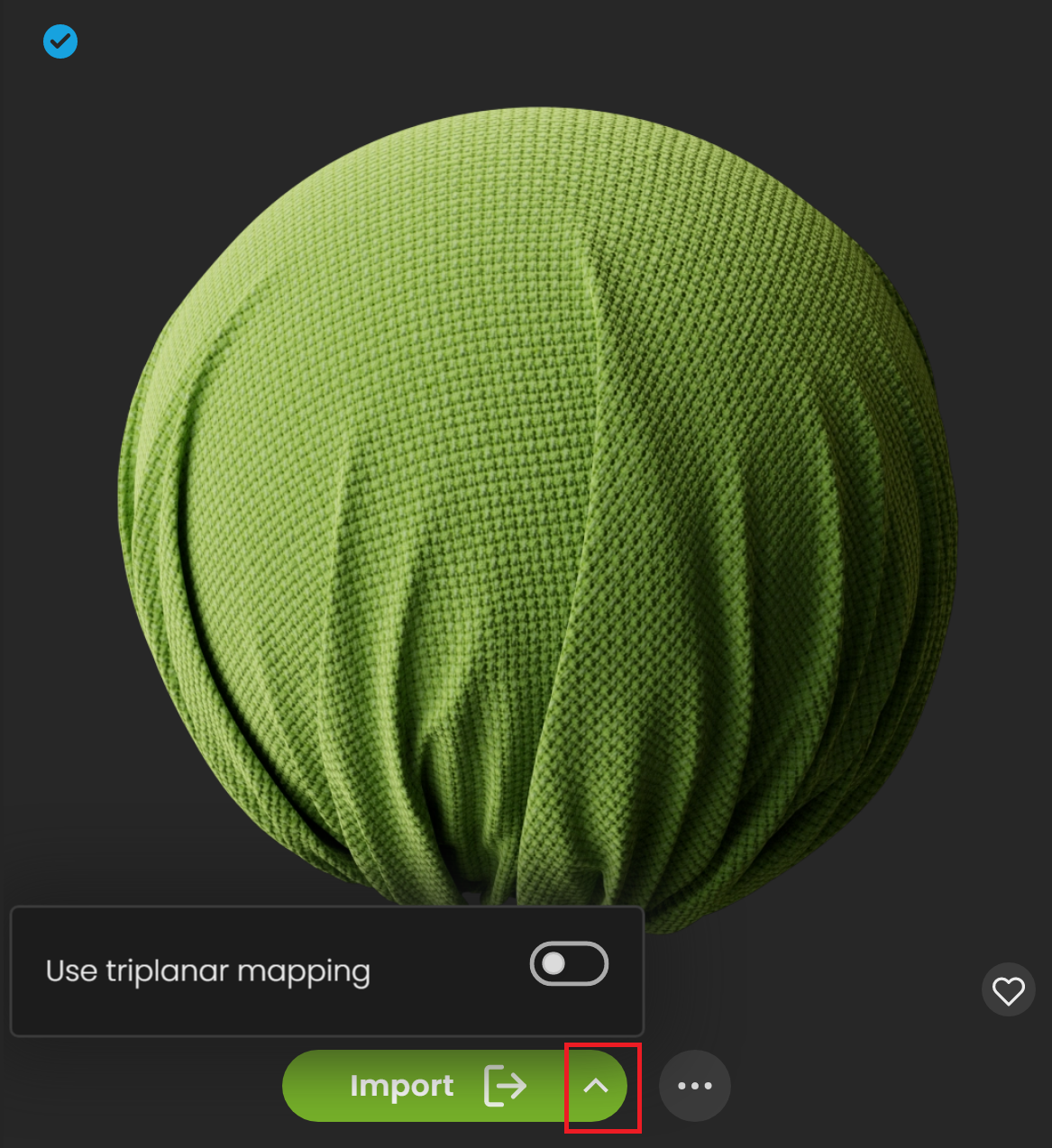
Click the green arrow for an additional import option.
Use triplanar mapping – Enables triplanar mapping on VRayBitmaps (when adding the material to a scene or selection).

Apart from using the pre-made Cosmos materials, you can generate your own materials. For more information, see the AI Material Generator page.
Lights
Cosmos lights are imported as a hierarchy with 3d lighting assets. This means that moving or rotating the parent geometry keeps its light together with it.
HDRIs
Downloaded Chaos Cosmos HDRIs can be imported as an Environment texture. To assign an HDRI, drag it into the scene and it will automatically be assigned to the environment slot. For more information, refer to the Environment Tab page.
Animated Assets

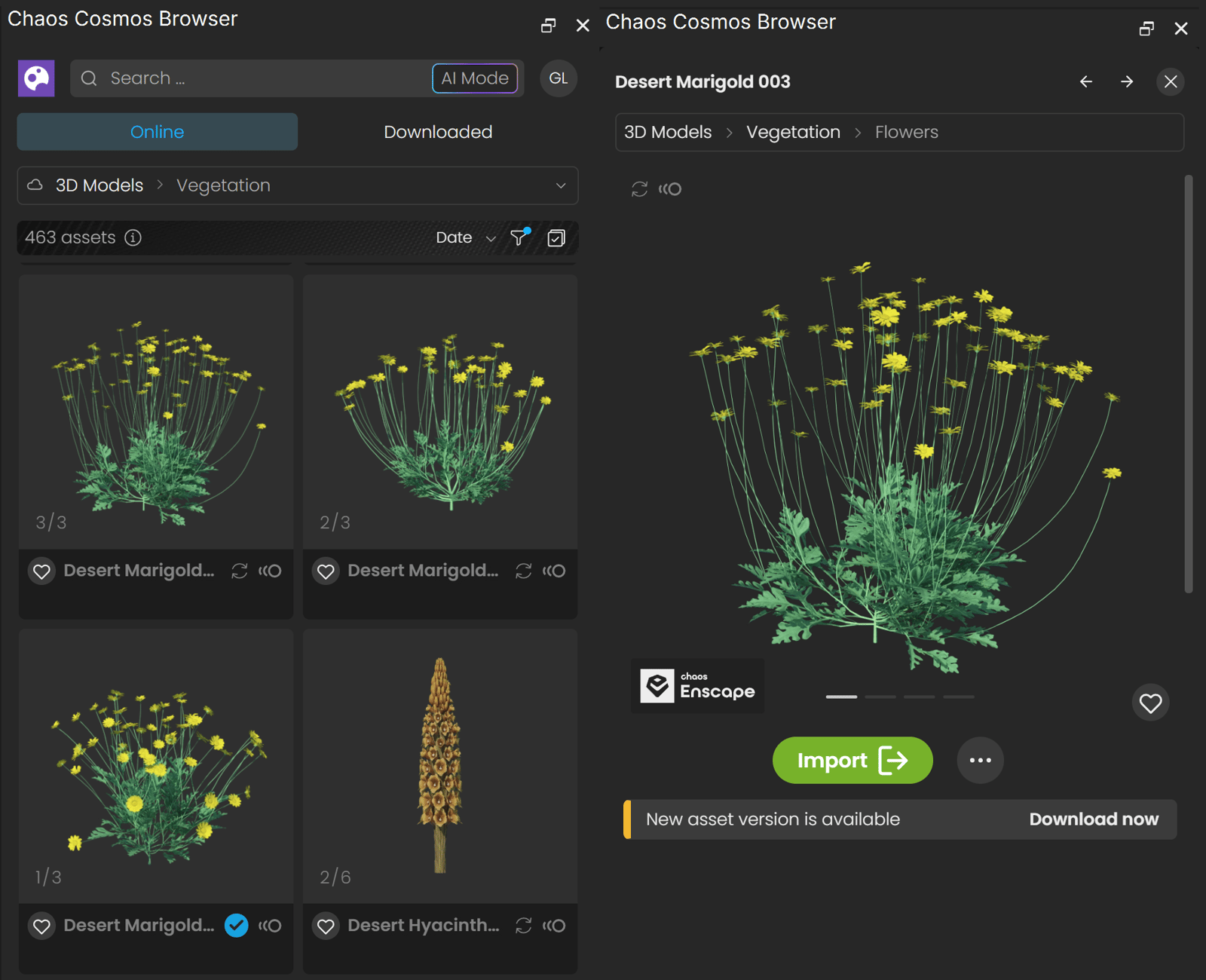
Some vegetation assets have an animation indicator showing that the assets are animated and the animation is available in Chaos Vantage only. In order for an asset to be animated, the Affect vegetation option must be enabled from Environment tab > Wind rollout.
Assets with Variants
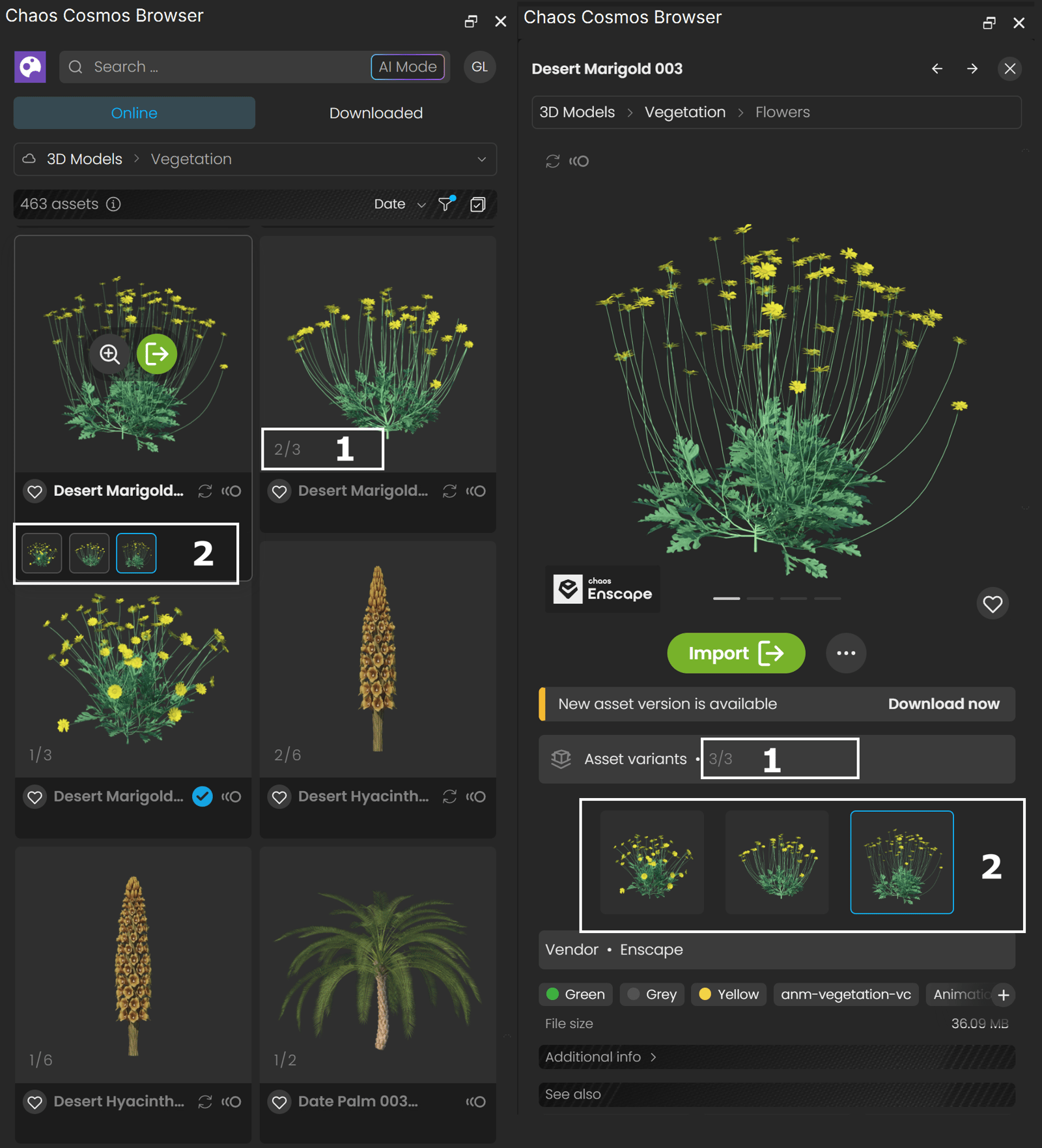
Some assets have more than one variant. Assets with variants combine different versions of the same asset into a single item in the library.
1. Assets with variants have an indicator displaying the total number of its variants.
2. To display the asset variants, hover over the asset. The variants show as small thumbnails and you can preview them by hovering over the thumbnail.
Note that you have to download and then import each individual variant if you want to have them all in your scene.
Update Assets

Cosmos assets get updated over time. When an update is available, an update label appears.
You can download the new versions from within the Chaos Cosmos Browser. Click on the labeled asset to open a popup window and click the Download now update text in the bottom.
Search Assets
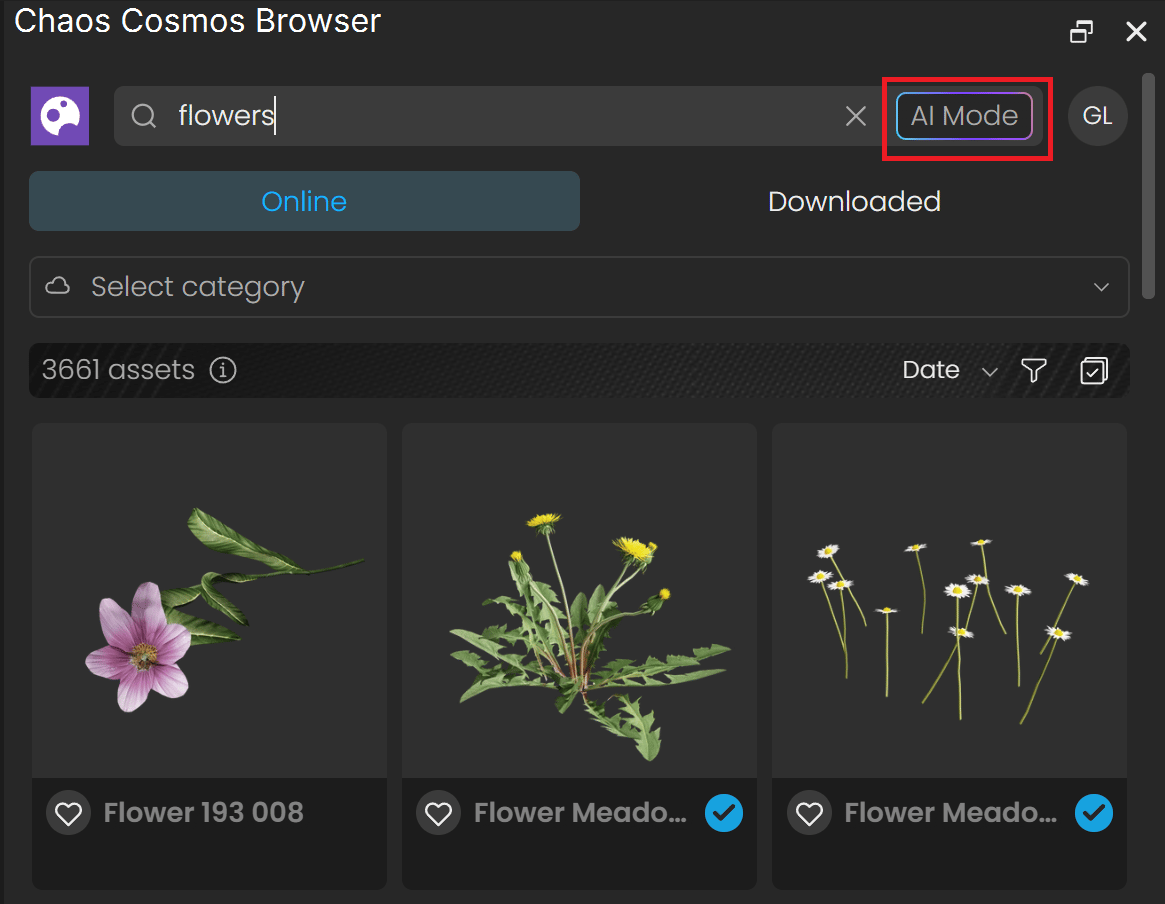
Switch between standard and AI Mode Search options to enhance the provided results. The AI Mode is available only after signing in with a Collection license.
The results show all available assets, regardless of the current subscription plan.
Delete Assets
To delete a downloaded asset, open the asset in a pop-up window. Then use the dropdown options available when you right-click the tree dots next to the Import button.

Notes
- When you share .vantage files with others, Cosmos assets contained within are available for download on the other machines with a prompt to do so. Internet connection is required.