Chaos Vantage
Sky
This page provides information about the Sky rollout of Vantage's Environment tab.
Last updated 27 February 2026
This page provides information about the Sky rollout of Vantage's Environment tab.
Overview
The Sky rollout offers properties for the environment setup. It is located under the Environment tab in the right-hand side panel.
The Sky settings are grouped into several tabs depending on the selected Environment mode.
Settings tab – Contains general settings for configuring the environment mode and parameters. |
Settings tab – Contains general settings for configuring the environment mode and parameters. | |
Stars tab – Contains settings for enabling and configuring stars and the Milky Way system. Available when Environment mode is Physical sky. | |
Include/Exclude tab – Contains include/exclude lists of objects that are affected by the environment. |

Settings
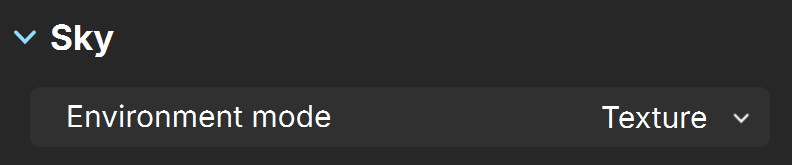
Environment mode – Specifies the mode to be used for scene lighting:
Texture – Enables the use of an environment texture for lighting.
Solid Color – Enables the use of a solid color for lighting.
Physical Sky – Enables the use of a sky texture for lighting. Available only when the imported .vrscene has VRaySky texture.
Texture Mode
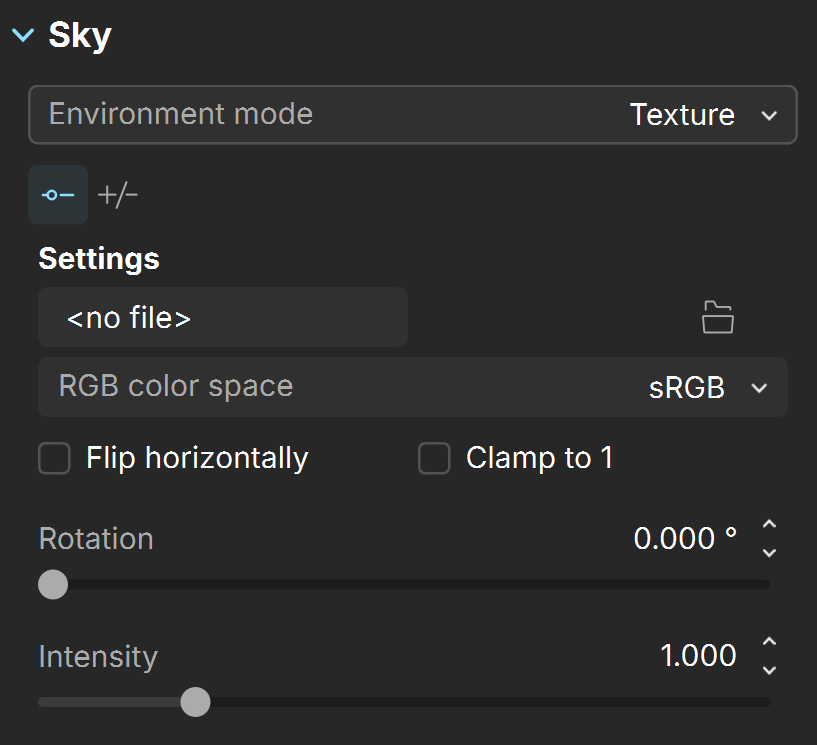
The following parameters are available for Texture Mode.
Load environment – Loads an image for the Environment.
RGB color space – Specifies the RGB color space of the environment texture.
Auto – The color space is deduced by the file's name.
Raw – No transformation is applied to R|G|B colors.
sRGB – The loaded image is considered in sRGB color space.
ACEScg – The loaded image is considered in ACEScg color space.
Flip horizontally – Flips the environment image horizontally.
Clamp to 1 – Clamps the colors of the Environment texture to a value of 1.
Rotation – Specifies a rotation angle in degrees for the Environment texture.
Intensity – Specifies the intensity of the Environment lighting.
Solid Color Mode
The following parameters are available for Solid Color Mode.
Color – Specifies the Environment color.
Intensity – Specifies the intensity of the Environment lighting.

Physical Sky Mode
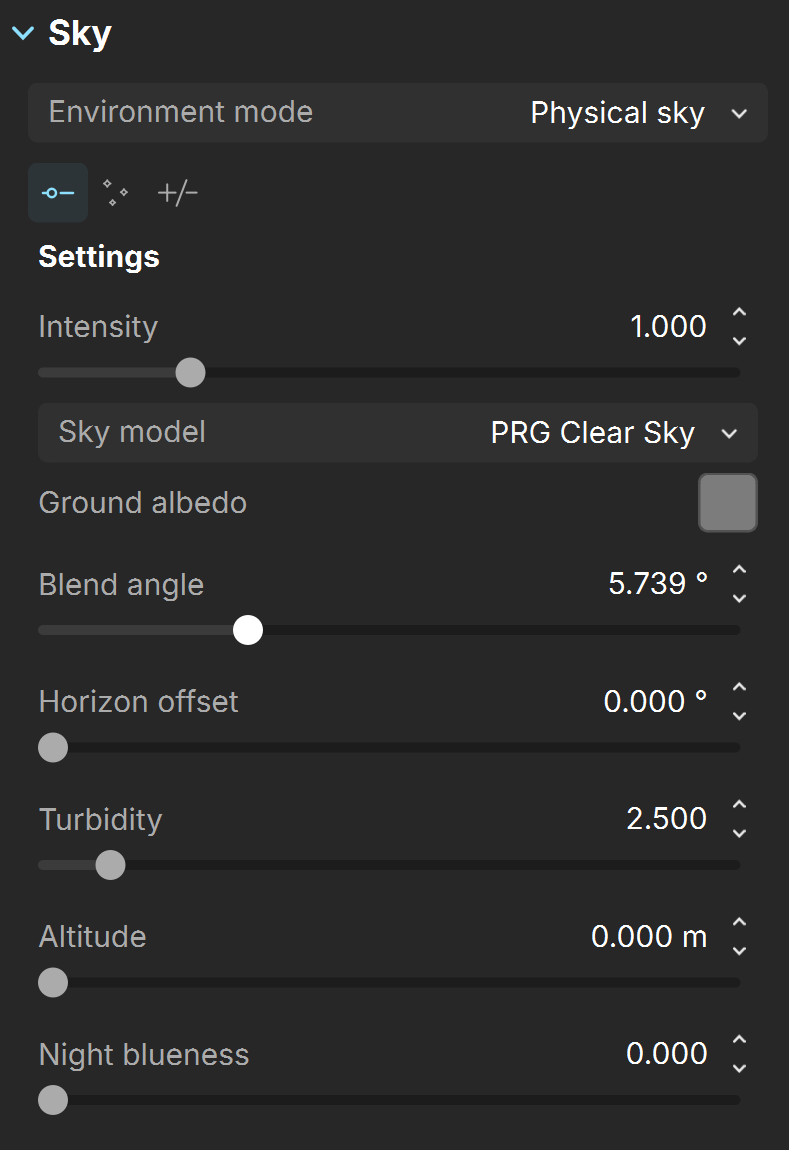
The following parameters are available for Physical Sky Mode.
Intensity – Specifies the intensity of the Environment lighting.
Sky model – Specifies the use of location coordinates, date and time of day to control the sun position. See the Sky Model examples below.
Preetham et al. – The sky procedural texture is generated based on the Preetham et al. model.
CIE Clear – The sky procedural texture is generated based on the CIE method for a clear sky.
CIE Overcast – The sky procedural texture is generated based on the CIE method for a cloudy sky.
Hosek et al. – The sky procedural texture is generated based on the Hosek et al. model.
PRG Clear Sky (old) – The sky procedural texture is generated based on the PRG Clear Sky model (prior to V-Ray 7), which has an enhanced sunrise and sunset sky.
PRG Clear Sky – The sky procedural texture is generated using the updated PRG Clear Sky method. The updated PRG Clear Sky allows for rendering the sky at various observer altitudes, up to several kilometers, controlled by the Altitude parameter. It also supports rendering of nautical twilight effects with sun positions up to 12 degrees below the horizon. Additionally, it features enhanced turbidity control, enabling the rendering of sky conditions with turbidity values ranging from 1.81 to 4.89. See the PRG Clear Sky examples below.
Ground albedo – Sets the color of the ground.
Indirect hor illum – Specifies the intensity (in lx) of the illumination on horizontal surfaces coming from the sky. This parameter is enabled when one of the CIE Sky Models (CIE Clear, CIE Overcast) is selected.
Blend angle – Specifies the angle in degrees where blending will occur between the horizon line and sky. Values close to 0.0 produce a sharper horizon line, while larger values produce a softer horizon line. See the PRG Clear Sky - Blend Angle examples below.
Horizon offset – Allows you to manually lower the horizon line. See the PRG Clear Sky - Horizon Offset examples below.
Turbidity – Determines the amount of dust in the air, which in turn affects the color of the sun and sky. Smaller values produce a clear, blue sky and sun similar to what is seen in rural areas, while larger values make the sun and sky more yellow and orange. See the PRG Clear Sky - Turbidity examples below.
Altitude – Controls the observer's altitude in meters. As the altitude increases, sky clarity improves, and the horizon line becomes less defined. See the PRG Clear Sky - Altitude examples below.
Night blueness – Controls how black the sky is in complete night. A value of 0 makes the sky completely black, while a value of 1 makes the sky slightly blue. Night blueness also controls how the sky behaves for solar elevations lower than -12°. If Night blueness is set to 0, when the Sun goes from -12° to -18°, the sky fades into complete black. By increasing the value of the Night blueness, the black is being replaced with increasingly blue sky. If the Night blueness is set to 1, the sky at -18° and lower looks the same as for -12°, but without the orange wedge on the horizon caused by the Sun.
Ozone – Affects the color of the sun light. Available in the range between 0.0 and 1.0. Smaller values make the sunlight more yellow, while larger values make it bluer.
Stars
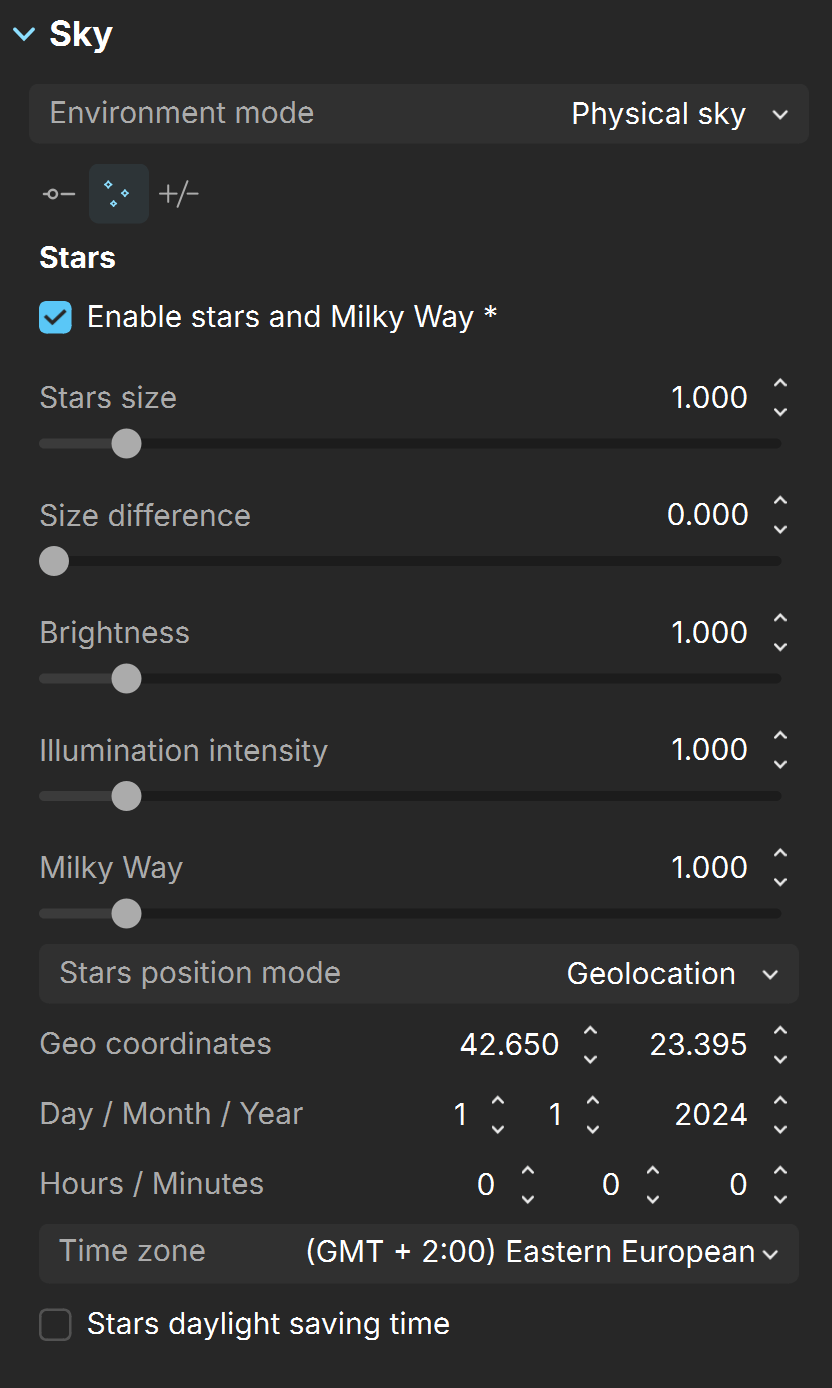
Enable stars and Milky Way – Enables the appearance of stars in the night sky. When the Stars position mode is set to Geolocation, the Sun controls the positioning of the stars.
Stars size – Controls the size of the stars. A default value of 1 renders the stars with radius of 1 pixel, a value of 2 makes the stars twice as large. If set to 0, the stars are rendered with the minimum size possible.
Size difference – Controls the size difference between faint and bright stars. When set to 0, all stars have the same size, and a value of 1 makes the brightest stars twice as large, the second magnitude stars (e.g. Polaris) keep their size, and the faintest stars disappear.
Brightness – Controls the brightness of the stars as seen directly in the sky or in perfect mirror reflections/refractions.
Illumination intensity – Controls the intensity of the scene illumination cast by the stars.
Milky Way – This is a multiplier of the brightness of the Milky Way.
Stars position mode – Specifies the positioning mode for the stars.
Geolocation – Sets geolocation coordinates for the Sun that affect the stars.
Geolocation from sun – Uses the geolocation coordinates set in the Sun and Moon rollout.
Geo coordinates – Defines the latitude and longitude positions of the scene over the Earth globe. Available when the Stars position mode is Geolocation.
Latitude – Determines the Night Sky latitude, where -90° means the sky shows over the South Pole, and 90° means the sky shows over North Pole. If VRaySun is used inside the 3ds Max Daylight system, then this parameter is hidden and the value from the Daylight system automatically applies.
Longitude – Determines the Night Sky longitude, where 0 is the Prime Meridian, and 90 is 90° to the East of the Prime Meridian. If VRaySun is used inside the 3ds Max Daylight system, then this parameter is hidden and the value from the Daylight system automatically applies.
Day / Month / Year – Specifies the day/month/year for which to compute the sun position. Available when the Stars position mode is Geolocation.
Hours / Minutes – Specifies the hours/minutes for which to compute the sun position. Available when the Stars position mode is Geolocation.
Time zone – Specifies the current time zone of the scene. The Time Zone is not set automatically based on Latitude/Longitude values. Available when the Stars position mode is Geolocation.
Stars daylight saving time – When enabled, compensates for Daylight Saving Time(DST). Available when the Stars position mode is Geolocation.
Include/Exclude
Light include/exclude – Specifies a list of objects to be included in or excluded from illumination. Objects are added to the list using the Pick scene object(s) tool.
Shadow include/exclude – Specifies a list of objects to be included in or excluded from shadow-casting. Objects are added to the list using the Pick scene object(s) tool.

Pick scene object(s) () – Selects objects and adds them to the include/exclude list.

Delete selected object(s) from the list () – Removes the selected objects from the include/exclude list.

Examples
The following examples demonstrate the effect that individual Sky parameters have on the scene. Click on any image to view it at a higher resolution.
Sky Models
The images below show the different sky model types. Default values for VRaySky have been used.
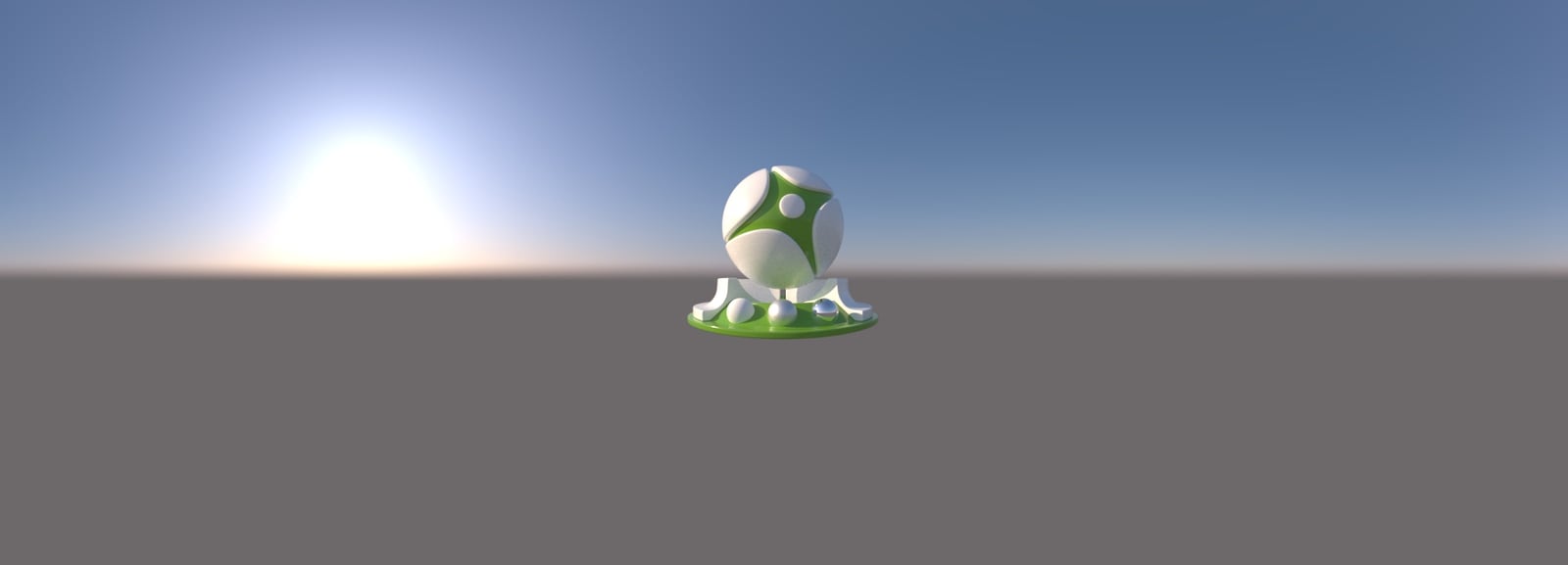
Preetham et al.

CIE Clear
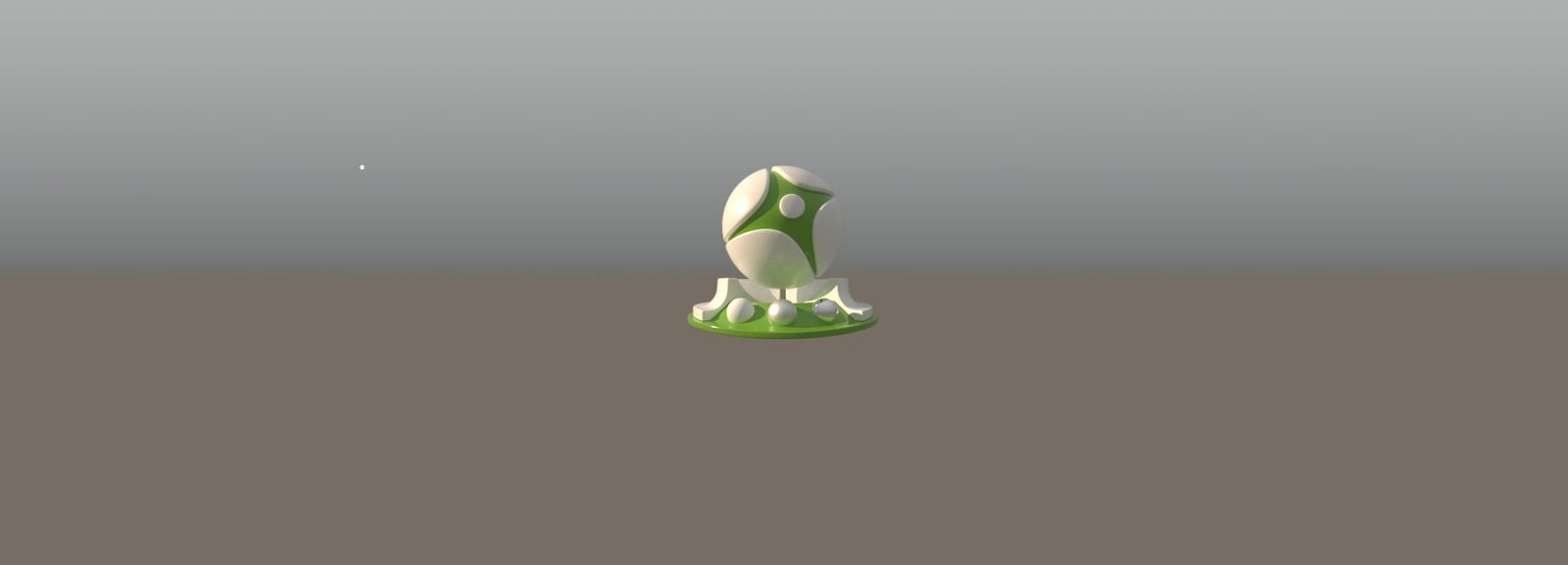
CIE Overcast
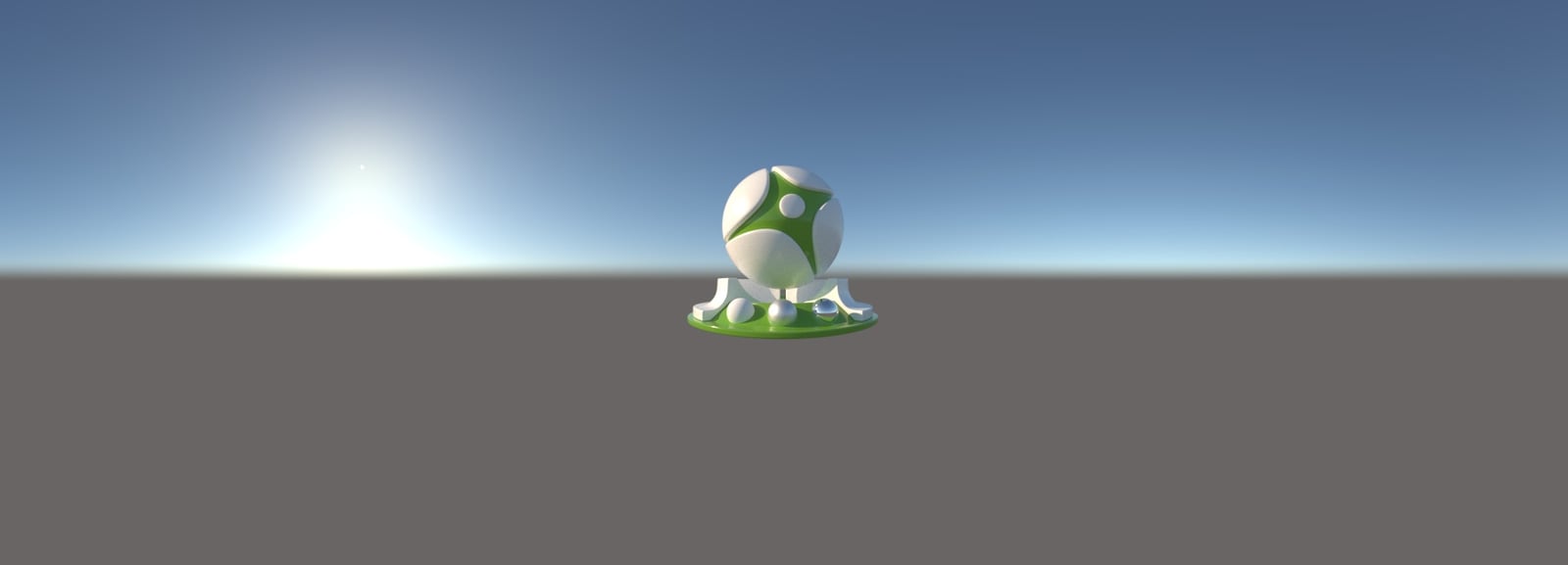
Hosek et al.

PRG Clear Sky Old

PRG Clear Sky
PRG Clear Sky - Turbidity
In this example, you can see how the amount of dust in the air affects the color of the sun and sky. Smaller values produce a clear image, while higher values dim the sun and sky.
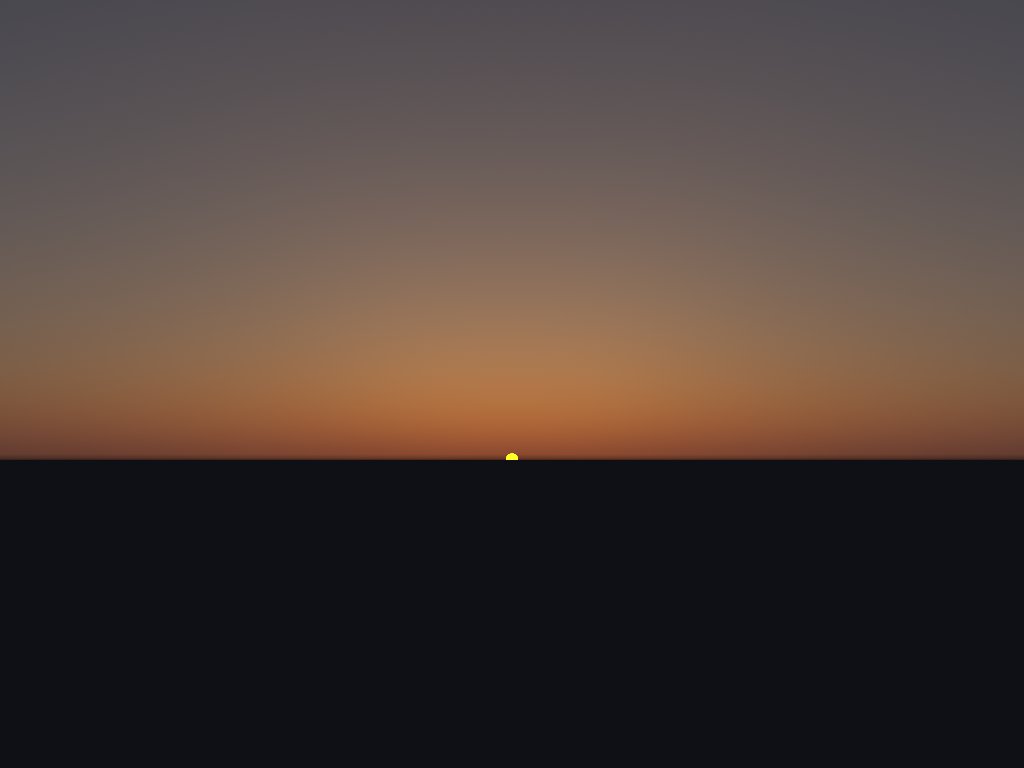
Turbidity = 2

Turbidity = 2.6

Turbidity = 3

Turbidity = 4

Turbidity = 5
PRG Clear Sky - Altitude
This example shows how the Altitude values affect the visualization of the sky. Higher Altitude values result in better sky clarity and a less defined horizon line.

Altitude = 0

Altitude = 1000

Altitude = 2000

Altitude = 10000

Altitude = 15000
PRG Clear Sky - Nautical twilight effect
This example shows how the sun's position affects the sky, creating a twilight effect. Changing the sun's position could require adjusting the Exposure Value as well.

Exposure Value = 10; Sun below the horizon = 0°

Exposure Value = 10; Sun below the horizon = -2°

Exposure Value = 10; Sun below the horizon = -4°
PRG Clear Sky - Blend Angle
In this example, you can see how the value of the Blend angle smoothens or sharpens the horizon.

Blend angle = 5
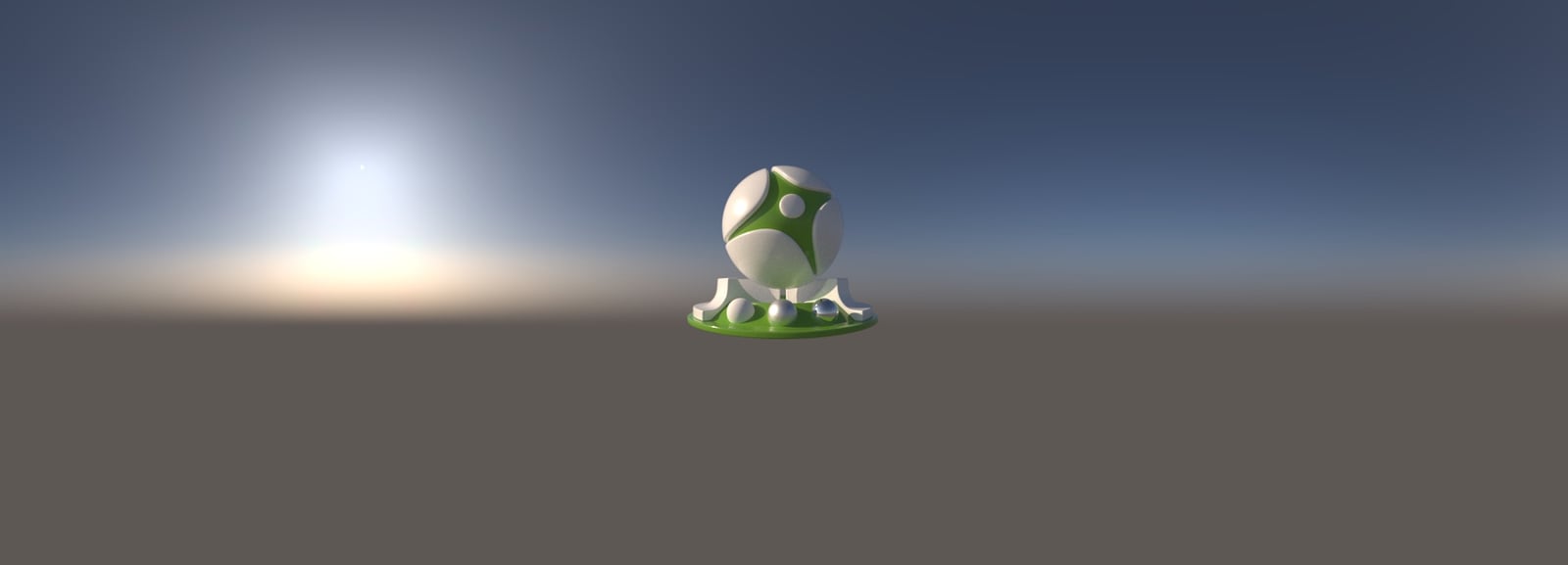
Blend angle = 10

Blend angle = 20

Blend angle = 45

Blend angle = 90
PRG Clear Sky - Horizontal Offset
In this example, you can see how the value of the Horizontal offset moves the horizon up and down.

Horizon offset = 0
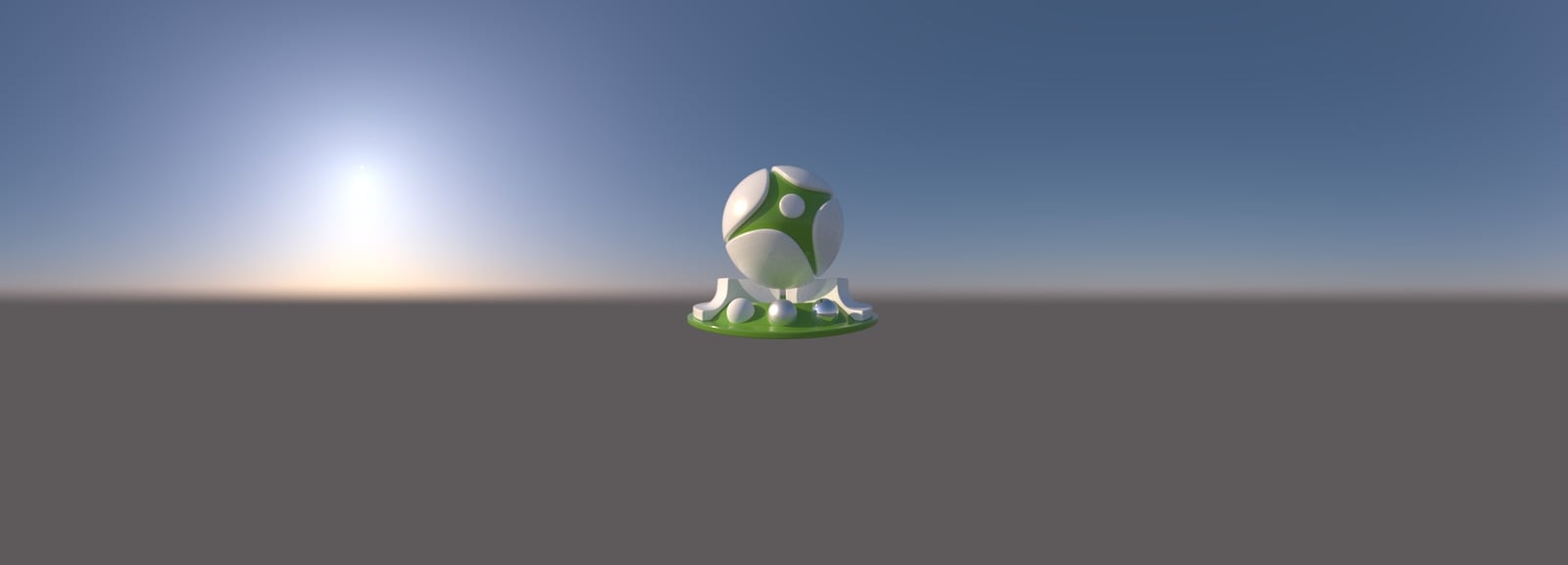
Horizon offset = 10

Horizon offset = 20

Horizon offset = 40

Horizon offset = 60