Chaos Vantage
Spot Light
This page offers information about imported and native Spot lights in Chaos Vantage.
Last updated 27 February 2026
This page offers information about imported and native Spot lights in Chaos Vantage.
Overview
The Max Spot Light is the representation of the Spot light from 3ds Max in Chaos Vantage. It can be either created using the Create new Light object tool from the Toolbar or imported with a .vrscene file.
The Spot Light is the representation of the Spot light that is imported from any application except 3ds Max. It has fewer parameters than the Max Spotlight.
Max Spot Light Parameters
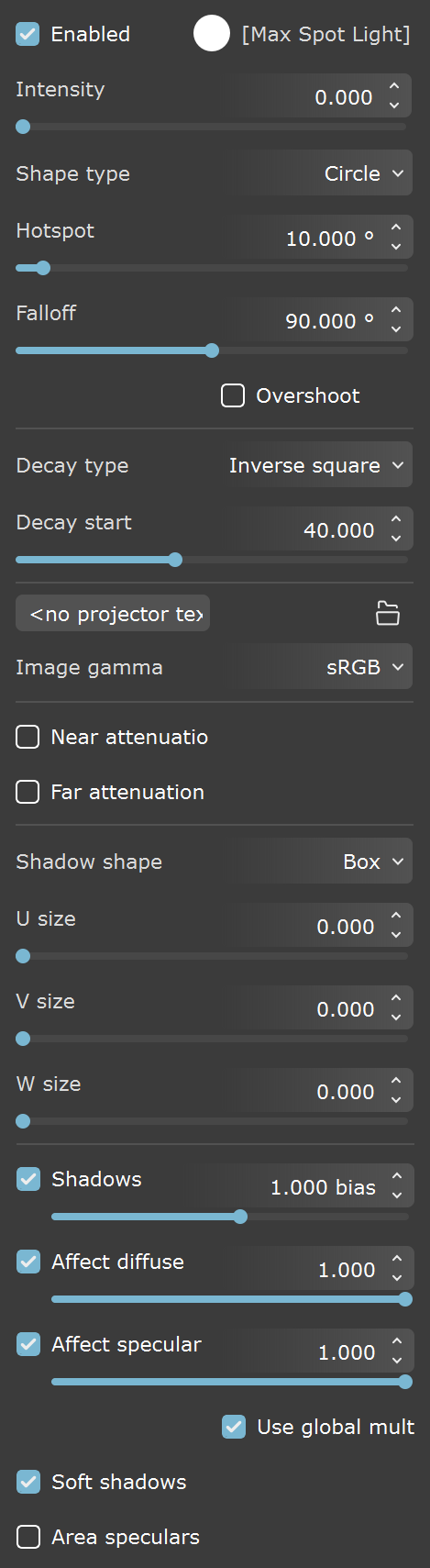
The following parameters are available when creating Max Spot Light in Vantage or importing it from 3ds Max.
Enabled – Turns on and off the spot light.
Color – Changes the color of the spot light. See the Color example below.
Intensity – Specifies the intensity of the spot light's brightness.
Shape type – Specifies the shape area from which the light casts rays. See the Shape Type example below.
Circle – Sets a circle shape for the light.
Rectangle – Sets a rectangle shape for the light.
Smooth rectangle – Sets a rectangle shape with rounded corners for the light.
Hotspot – Specifies the angle of a spot light's cone in degrees. See the Hotspot example below.
Falloff – Specifies the angle of a light's falloff in degrees. See the Falloff example below.
Rect. aspect – Specifies the aspect ratio for the rectangular shape when Shape type is Rectangle or Smooth rectangle.
Overshoot – When enabled, the light casts light in all directions. Texture projections and shadows occur only within its falloff cone. See the Overshoot example below.
Decay type – Sets the type of decay (reduction of a light's intensity over distance) to use for the light. See the Decay Type example below.
None – No decay is applied and the light maintains full strength to infinity unless Far attenuation is enabled.
Inverse – Applies a slow, forgiving falloff to the light, i.e., a gradual, soft, and aesthetically pleasing decrease in light intensity as it moves away from the light source. If you double the distance from the light source, the brightness is reduced in half. The decrease in the intensity can be calculated by the formula luminance=R0 /R where R0 is the Near attenuation end value of the light if enabled, and R is how far the surface is from that point (R0).
Inverse square – Applies a fast, physically accurate falloff to the light that matches the real-world light behavior. If you double the distance from the light source, the brightness is reduced 4 times. The decrease in the intensity can be calculated by the formula luminance=(R0 /R)2 where R0 is the Near attenuation end value of the light if enabled, and R is how far the surface is from that point (R0).
Decay start – Specifies the distance at which the light begins to decay. Value is ignored if Near attenuation is enabled. See the Decay Start example below.
Projector tex – Specifies the texture to be used for color projection.
Load projector tex – Opens a browse window to load the texture to be used for projection.
Image gamma – Specifies the color space for the loaded Projector tex.
sRGB – Sets the loaded projector texture to be interpreted in sRGB color space.
Linear – Sets the loaded projector texture to be interpreted in Linear color space.
Auto – Automatically determines the color transfer function. If a bitmap file name contains the string "_srgb", the transfer function is sRGB. If a bitmap file name contains the strings "_lin_srgb" or "raw", no correction is applied. For bitmap files with 8 bits per color component, 3 or 4 color components (like png, jpg, and other) and no suffix, the transfer function is sRGB. In all other cases, no correction is applied.
Near attenuation – Enables near attenuation for the light.
Near attenuation start – Sets the distance at which the light begins to fade in.
Near attenuation end – Sets the distance at which the light is at full intensity.
Far attenuation – Enables far attenuation for the light.
Far attenuation start – Sets the distance at which the light begins to fade out.
Far attenuation end – Sets the distance at which the light is at zero intensity.
Shadow shape – Specifies the shape for the light from which shadow rays are cast.
Box – Sets a box shape the light.
Sphere – Sets a sphere shape the light.
U size – Specifies the length of the box shape when Shadow shape is Box or the diameter of the sphere Shadow shape is Sphere.
V size – Specifies the width of the box shape when Shadow shape is Box.
W size – Specifies the height of the box shape when Shadow shape is Box.
Shadows – When enabled (the default), the light casts shadows. Turn this option off to disable shadow casting for the light. The value moves the shadow toward or away from the shadow-casting object(s). Higher values move the shadow toward the object(s), while lower values move it away. If this value is too extreme, shadows can "leak" through places they shouldn't or "detach" from an object. Other effects from extreme values include Moire patterns, out-of-place dark areas on surfaces, and shadows not appearing at all in the rendering.
Affect diffuse – Determines whether the light affects the diffuse portion of the materials. The value controls the light's contribution to the diffuse portion of the materials. See the Affect Diffuse example below.
Affect specular – Determines whether the light affects the specular portion of the materials. The value controls the light's contribution to specular reflections.
Use global mult. – When enabled, uses the Enable Lights value (Render tab > Advanced mode > Lighting rollout) as a multiplier to Intensity value. When disabled, the light is independent from the global multiplier.
Soft shadows – When enabled, the light shape is considered for illumination and the light is going to generate soft shadows. When disabled, the light is going to generate sharp shadows.
Area speculars – When enabled, the shape of the light is visible in the specular reflections. When disabled, the particular light is rendered as a point light in the specular reflections.
Spot Light Parameters
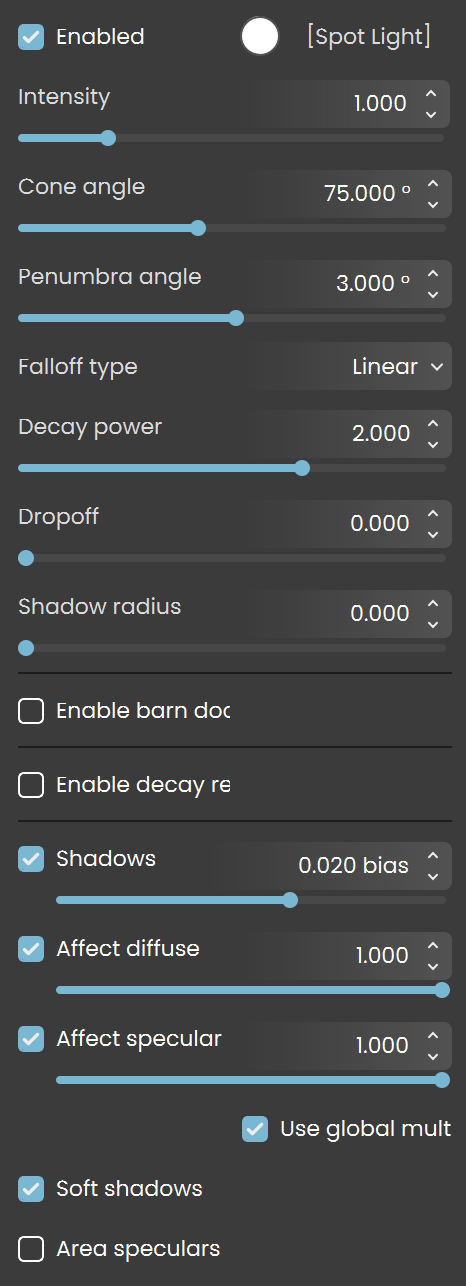
The following parameters are available when importing Spot Lights from applications other than 3ds Max.
Enabled – Turns on and off the spot light.
Color – Changes the color of the spot light. See the Color example below.
Intensity – Specifies the intensity of the spot light's brightness.
Cone angle – Specifies the angle of a spot light's cone in degrees.
Penumbra angle – Specifies the penumbra angle from the spot light's cone in degrees.
Falloff type – Specifies the falloff interpolation type for the penumbra angle.
Linear – Sets a linear falloff interpolation.
Smooth – Sets an ease curve falloff interpolation.
Decay power – Specifies how quickly the light’s intensity decreases with distance.
Dropoff – Specifies the rate at which light intensity decreases from the start to the end of the spot light beam.
Shadow radius – Specifies the radius for the spot light so that soft shadows can be achieved. Small values produce sharp shadows while large generate softer shadows.
Enable barn door – Enables a barn door effect for the spot light.
Left – Specifies the angle for the left door.
Right – Specifies the angle for the right door.
Top – Specifies the angle for the top door.
Bottom – Specifies the angle for the bottom door.
Enable decay regions – Enables illuminated region within a spot light’s beam.
Start distance (1,2,3) – Specifies the start distance for each of the illuminated regions.
End distance (1,2,3) – Specifies the end distance for each of the illuminated regions.
Shadows – When enabled (the default), the light casts shadows. Turn this option off to disable shadow casting for the light. The value moves the shadow toward or away from the shadow-casting object(s). Higher values move the shadow toward the object(s), while lower values move it away. If this value is too extreme, shadows can "leak" through places they shouldn't or "detach" from an object. Other effects from extreme values include Moire patterns, out-of-place dark areas on surfaces, and shadows not appearing at all in the rendering.
Affect diffuse – Determines whether the light affects the diffuse portion of the materials. The value controls the light's contribution to the diffuse portion of the materials. See the Affect Diffuse example below.
Affect specular – Determines whether the light affects the specular portion of the materials. The value controls the light's contribution to specular reflections.
Use global mult. – When enabled, uses the Enable Lights value (Render tab > Advanced mode > Lighting rollout) as a multiplier to Intensity value. When disabled, the light is independent from the global multiplier.
Soft shadows – When enabled, the light shape is considered for illumination and the light is going to generate soft shadows. When disabled, the light is going to generate sharp shadows.
Area speculars – When enabled, the shape of the light is visible in the specular reflections. When disabled, the particular light is rendered as a point light in the specular reflections.
Examples
The following examples demonstrate the effect that individual Spot Light parameters have on the scene. Click on any image to view it at a higher resolution.
Color
This example shows the effect of the Color parameter.

Color is red

Color is green

Color is blue
Shape Type
This example shows the effect of the Shape type parameter.

Shape type = Circle

Shape type = Rectangle

Shape type = Smooth rectangle
Hotspot
This example shows the effect of the Hotspot parameter.

Hotspot = 0

Hotspot = 10

Hotspot = 45
Falloff
This example shows the effect of the Falloff parameter.

Falloff = 10

Falloff = 45

Falloff = 90
Decay Type
This example shows the effect of the Decay type parameter.
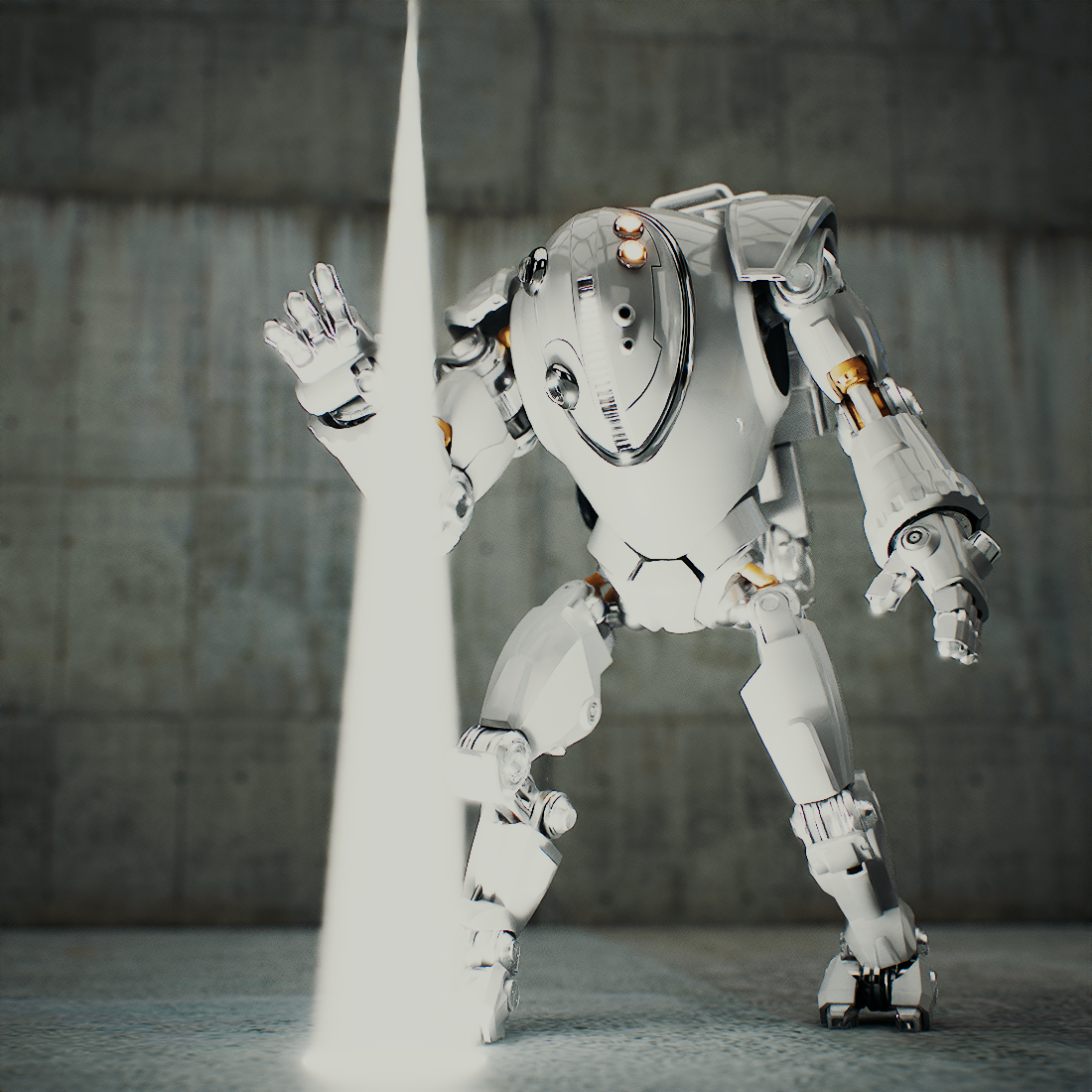
Decay type = None

Decay type = Inverse

Decay type = Inverse square
Decay Start
This example shows the effect of the Decay start parameter.

Decay start = 1

Decay start = 3

Decay start = 5
Overshoot
This example shows the effect of the Overshoot parameter.

Overshoot is off

Overshoot is on
Affect Diffuse
This example shows the effect of the Affect diffuse parameter.

Affect diffuse is off

Affect diffuse is on