Chaos Vantage
Sun and Moon
This page provides information about the Sun and Moon rollout of Vantage's Environment tab.
Last updated 27 February 2026
This page provides information about the Sun and Moon rollout of Vantage's Environment tab.
Overview
The Sun and Moon rollout provides properties to configure the sunlight in the scene. In combination with the settings available in the Sky rollout, they define the overall lighting conditions of the scene.
The Sun and Moon rollout is located under the Environment tab in the right-hand side panel. The Sun and Moon settings are grouped into Sun settings, Moon settings, advanced settings, and include/exclude list tabs.
Sun tab – Contains settings for controlling the Sun color, size, position, and intensity. |
Sun tab – Contains settings for controlling the Sun color, size, position, and intensity. | |
Moon tab – Contains settings for controlling the Moon color, size, position, and intensity. | |
Advanced settings tab – Contains settings for controlling whether the Sun light casts shadows and affects the diffuse or specular portion of the material. | |
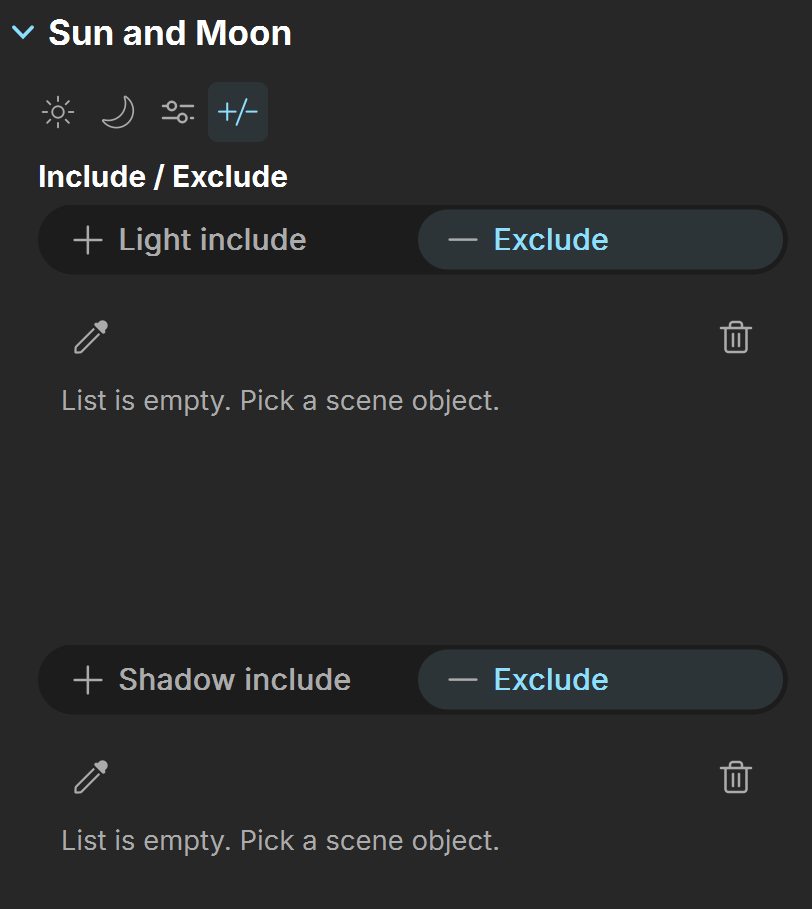
Include/Exclude tab – Contains settings for including or excluding objects from light illumination and shadow-casting. |
Sun
Enabled – Turns on and off the sun light.
Color – Changes the color of the sun and depends on the Color mode parameter. See the Sun Color examples below.
Intensity – Specifies the intensity of the sun and can be used to reduce the default brightness. See the Sun Intensity examples below.
Sun size – Controls the visible size of the sun disc. This value can be used to control shadow softness cast from objects. Lower values produce sharp shadows, while large values produce softer shadows. See the Sun Size Multiplier examples below.
Color mode – Affects the way the color in the Color parameter affects the color of the sun. See the Sun Color Mode examples below.
Filter – Shifts the hue of the sun towards the color specified in the Color parameter.
Direct – Sets the color of the sun to match the color in the Color parameter. In this case, the intensity of the light does not depend on the V-Ray Suns position in the sky and is controlled through the Intensity parameter.
Override – Sets the color of the sun to match the color in the Color parameter but the intensity of the light still depends on the sun's position in the sky.
Sun position mode – Specifies the control mode for the sun's position in the sky.

Manual – Specifies a manual control of the sun position using the Rotate () transform tool.
Altitude/Azimuth – Specifies the use of Altitude and Azimuth values to control the sun's position.
Geolocation – Specifies the use of location coordinates, date and time of day to control the sun position.
Animated Geolocation – Specifies the use of location coordinates, date and time of day to control the sun position that can be animated in the Sun track in the animation editor.
Invisible – When enabled, makes the sun invisible, both to the camera and to reflections. This is useful to prevent bright speckles on glossy surfaces where a ray with low probability hits the extremely bright sun disk. See the Sun Invisible example below.

Altitude/Azimuth Mode
The following parameters are available for the Altitude/Azimuth Mode:
Altitude – Sets the altitude position (in degrees) of the sun in the sky.
Azimuth – Sets the azimuth position (in degrees) of the sun in the sky.

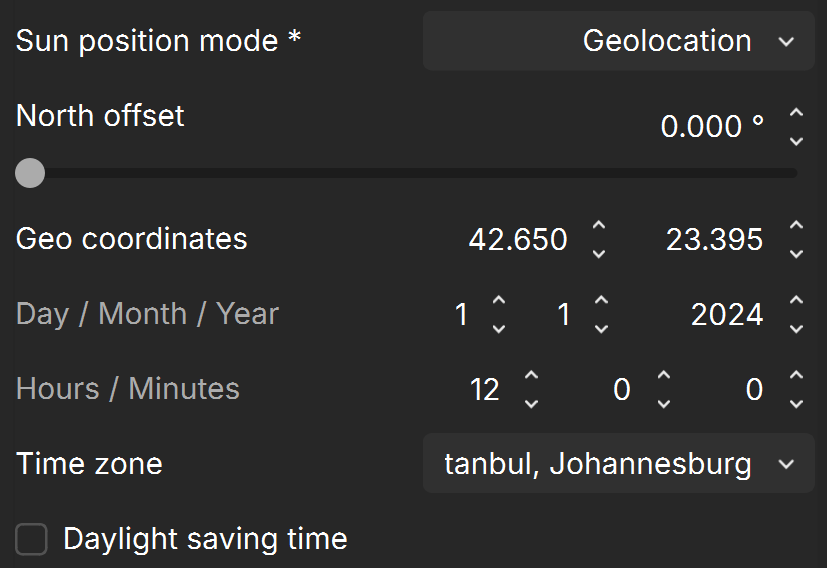
Geolocation Mode
The following parameters are available for the Geolocation Mode:
North offset – Sets the altitude position (in degrees) of the sun in the sky.
Geo coordinates – Defines the latitude and positions of the scene over the Earth globe.
Day / Month / Year – Specifies the day/month/year for which to compute the sun position.
Hours / Minutes – Specifies the hours/minutes for which to compute the sun position.
Time zone – Specifies the current time zone of the scene. The Time Zone is not set automatically based on Latitude/Longitude values.
Daylight saving time – When enabled, compensates for Daylight Saving Time(DST).
Animated Geolocation Mode
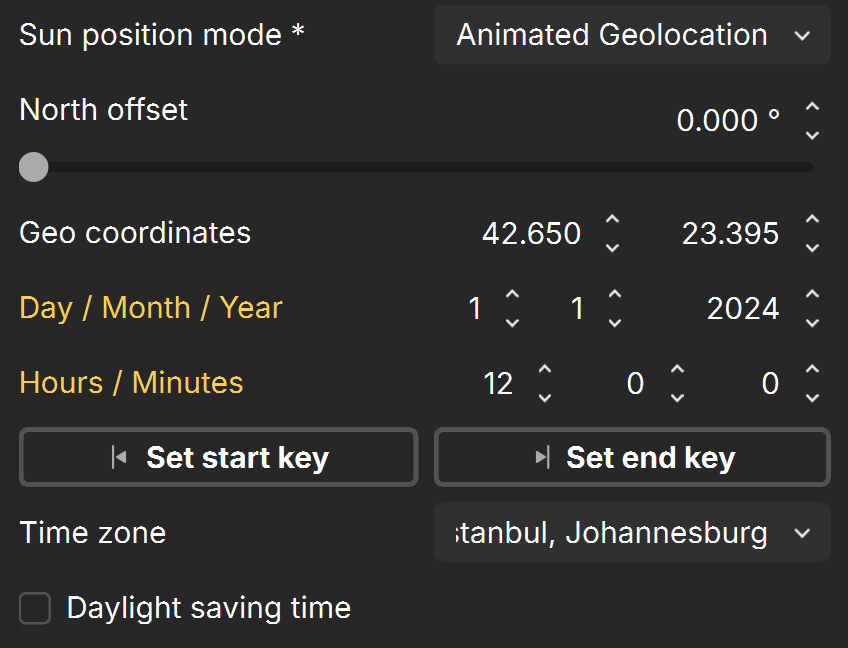
The following parameters are available for the Animated Geolocation Mode:
Set start keyframe – Sets the current Day / Month / Year and Hours / Minutes values at the start of the sun animation track.
Set end keyframe – Sets the current Day / Month / Year and Hours / Minutes values at the end of the sun animation track.
North offset – Sets the altitude position (in degrees) of the sun in the sky.
Geo coordinates – Defines the latitude and longitude positions of the scene over the Earth globe.
Day / Month / Year – Specifies the day/month/year for which to compute the sun position.
Hours / Minutes – Specifies the hours/minutes for which to compute the sun position.
Time zone – Specifies the current time zone of the scene. The Time Zone is not set automatically based on Latitude/Longitude values.
Daylight Saving Time – When enabled, compensates for Daylight Saving Time(DST).
Moon
Enable moon – Turns on and off the Moon.
Moon size – Controls the visible size of the Moon. Affects the appearance of the Moon disc as seen by the camera and reflections, as well as the blurriness of the Moon shadows.
Brightness – Controls the brightness of the Moon as seen directly in the sky or in perfect mirror reflections/refractions.
Illumination intensity – Controls the brightness of the scene illumination cast by the Moon.
Glow – Controls the brightness of the glow around the Moon. A value of 0 disables the glowing effect.
Filter color – Specifies the moonlight color. The default white (1, 1, 1) color means no change of color.
Moon position color – Specifies what geolocation coordinates to be used for positioning the Moon.
Geolocation from sun – Uses the geolocation coordinates from the Sun to position the Moon.
Geolocation from stars – Uses the geolocation coordinates from the Sky to position the Moon.
Altitude/Azimuth – Sets custom altitude and azimuth to position the Moon.
Altitude – Controls the angle between the Moon and the ground. A value of 0 makes the Moon to be exactly at the horizon, and a value of 90 makes the Moon in the zenith.
Azimuth – Specifies the Moon azimuth angle measured from the scene North to Eastward. A value of 90 aligns with the X-axis (Solid red line) or East.
Phase – Specifies the phase of the Moon, where a value of 0 is full Moon, 90 is first quarter, 180 is new Moon, and 270 the last quarter.
Rotation – Rotates the Moon disc in the sky, where 0 makes it match the Moon appearance in its highest point when observed in the Northern hemisphere, and 180 corresponds to the Southern hemisphere.

Advanced Settings
Shadows – When enabled (the default), the light casts shadows. Turn this option off to disable shadow casting for the light. The value moves the shadow toward or away from the shadow-casting object(s). Higher values move the shadow toward the object(s), while lower values move it away. If this value is too extreme, shadows can "leak" through places they shouldn't or "detach" from an object. Other effects from extreme values include Moire patterns, out-of-place dark areas on surfaces, and shadows not appearing at all in the rendering. See the Shadows example below.
Affect diffuse – Determines whether the light affects the diffuse portion of the materials. The value controls the light's contribution to the diffuse portion of the materials. See the Affect Diffuse example below.
Affect specular – Determines whether the light affects the specular portion of the materials. The value controls the light's contribution to specular reflections. See the Affect Specular example below.

Include/Exclude
Light include/exclude – Specifies a list of objects to be included in or excluded from illumination. Objects are added to the list using the Pick scene object(s) tool.
Shadow include/exclude – Specifies a list of objects to be included in or excluded from shadow-casting. Objects are added to the list using the Pick scene object(s) tool.

Pick scene object(s) () – Selects objects and adds them to the include/exclude list.

Delete selected object(s) from the list () – Removes the selected objects from the include/exclude list.
Examples
Sun Intensity
This example shows the effect of Sun Intensity parameter.

Intensity = 0.05

Intensity = 0.5

Intensity = 1
Sun Size Multiplier
This example shows the effect of Sun size multiplier parameter.

Sun size multiplier = 1

Sun size multiplier = 5

Sun size multiplier = 10
Sun Color Mode
This example shows the effect of the Color mode parameter of Vantage Sun.
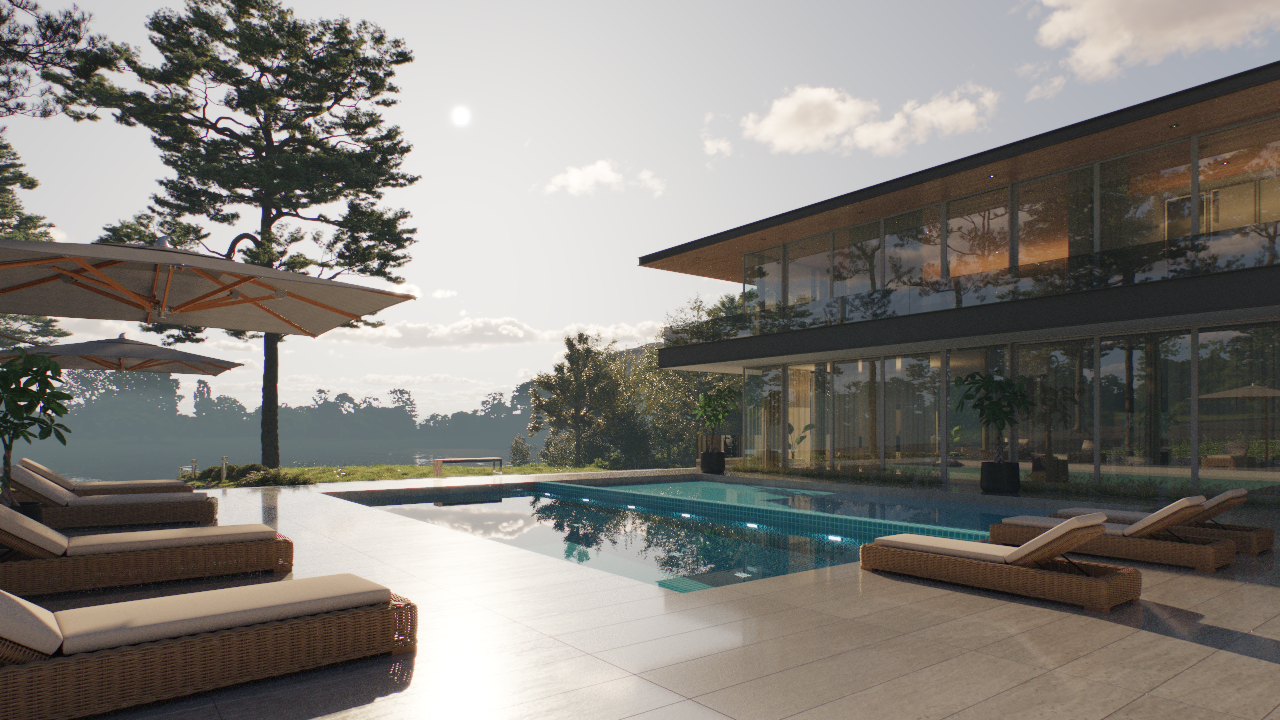
Color mode = Filter

Color mode = Direct
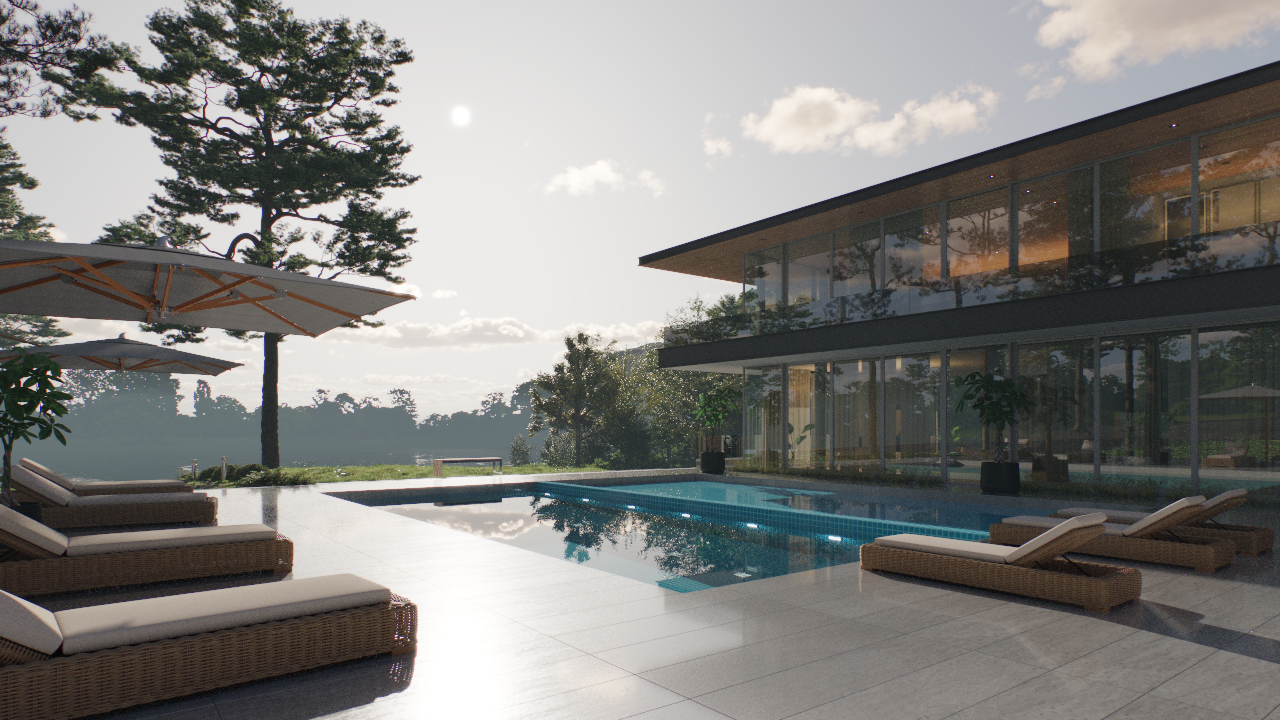
Color mode = Override
Sun Color
This example shows the effect of the Sun Color parameter.

Color is orange
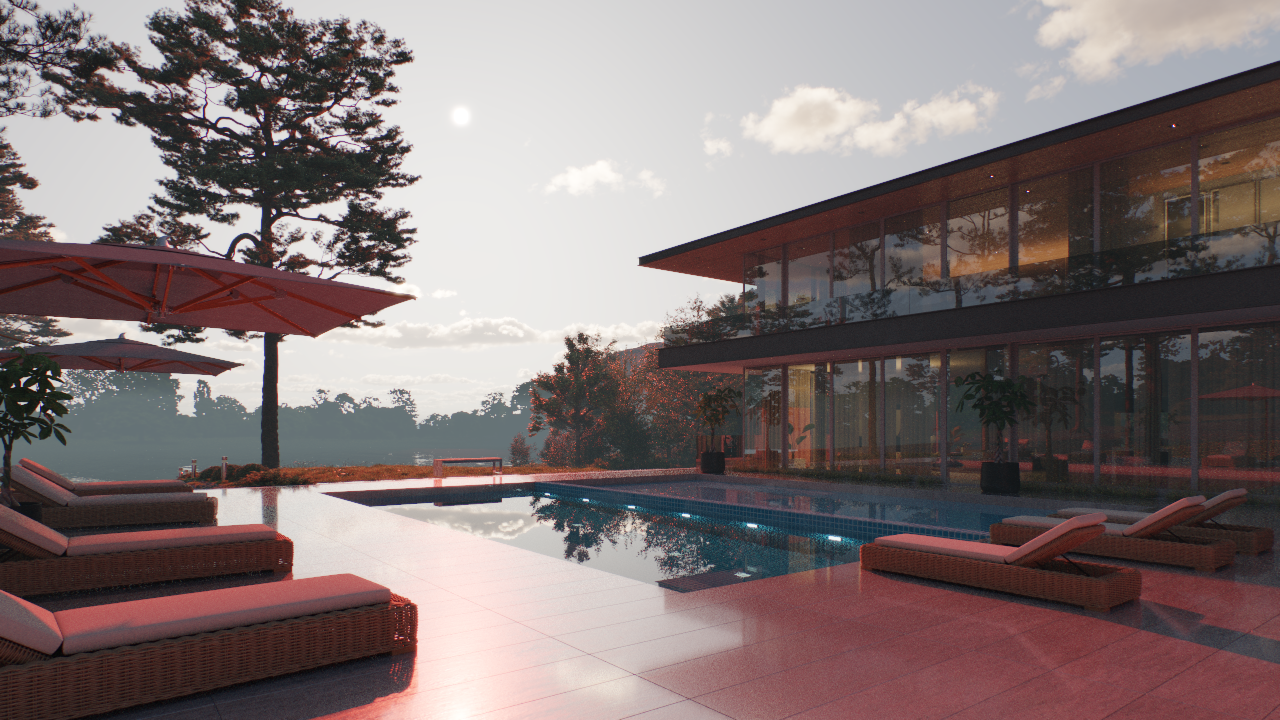
Color is red

Color is white
Sun Invisible
This example shows the effect of the parameter.

Invisibility is off
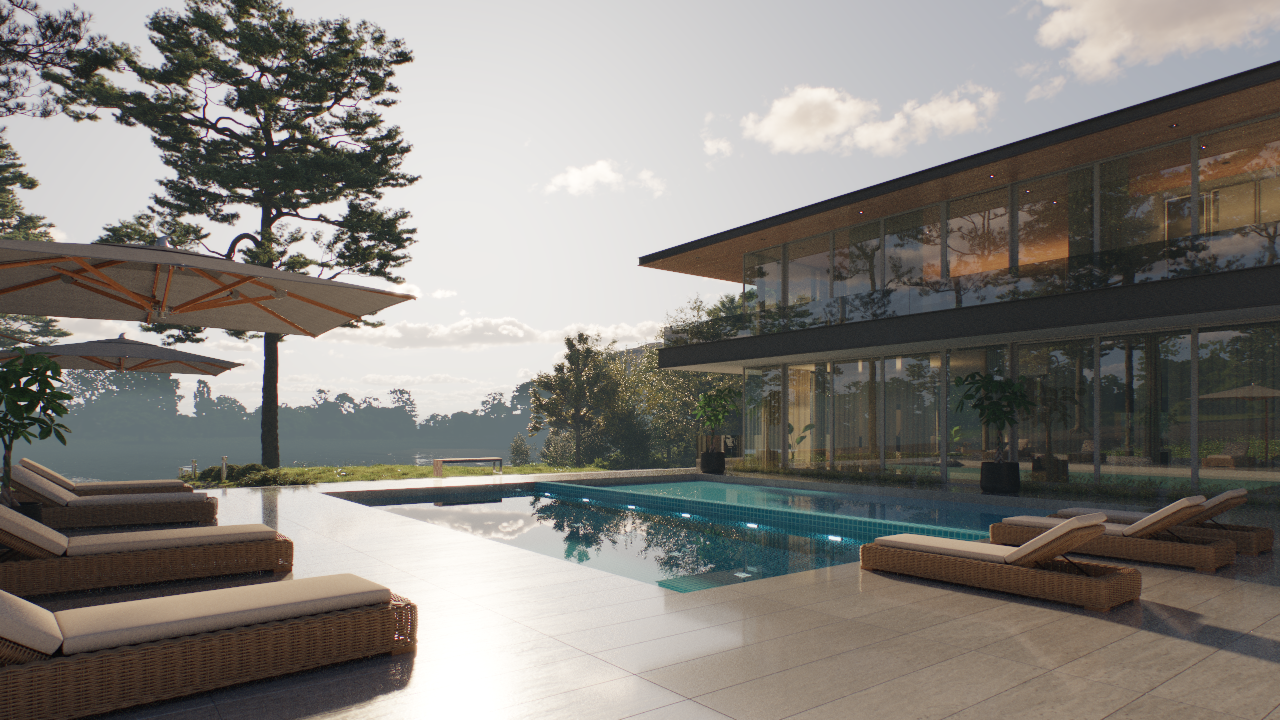
Invisibility is on
Sun Shadows
This example shows the effect of the Shadows parameter.
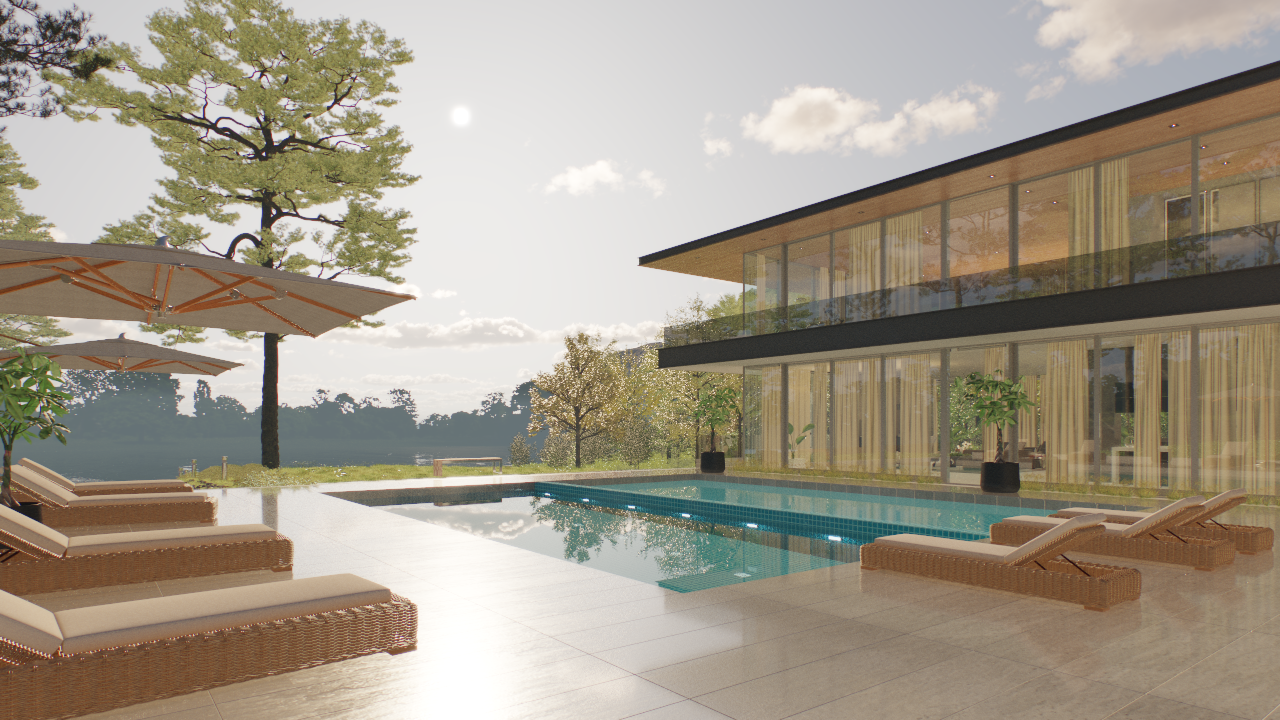
Shadows is off

Shadows is on
Sun Affect Diffuse
This example shows the effect of the Sun's Affect diffuse parameter.

Affect diffuse is off
Affect diffuse is on
Sun Affect Specular
This example shows the effect of the Sun's Affect specular parameter.

Affect specular is off
Affect specular is on