Chaos Vantage
Transforms Dialog Menus
This page offers information about the Move, Rotate, and Scale transform dialog menus in Chaos Vantage.
Last updated 20 March 2026
This page offers information about the Move, Rotate, and Scale transform dialog menus in Chaos Vantage.
Overview



The Transforms dialog menus allow finer control over the position, rotation, and scale of the selected object. The dialog menus are accessible with a right-click on the Move(), Rotate(), and Scale() buttons respectively in the top toolbar.
Translate type-in menu
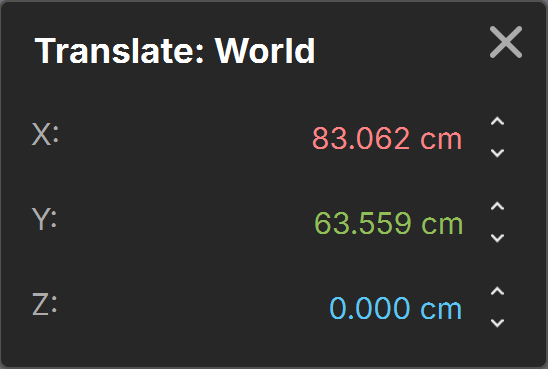
X – Displays and specifies the selected object's position on the X axis.
Y – Displays and specifies the selected object's position on the Y axis.
Z – Displays and specifies the selected object's position on the Z axis.
Rotate type-in menu
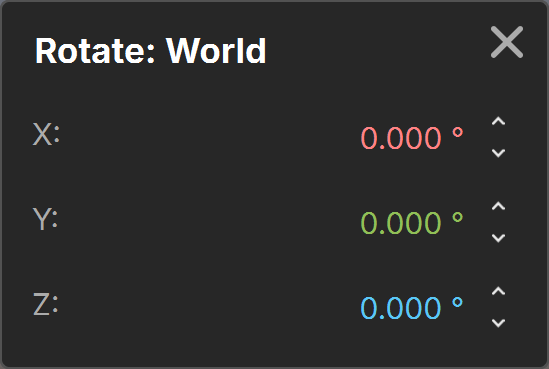
X – Displays and specifies the selected object's rotation on the X axis.
Y – Displays and specifies the selected object's rotation on the Y axis.
Z – Displays and specifies the selected object's rotation on the Z axis.
Scale type-in menu
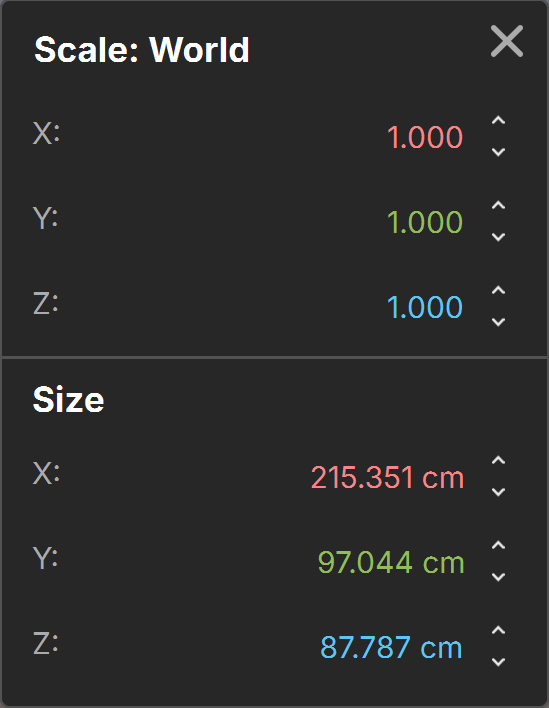
Size indicates the actual dimensions of the selected object, like width, height, or length. Scale is a multiplier applied to those dimensions.
Scale
X – Displays and specifies the selected object's scale on the X axis.
Y – Displays and specifies the selected object's scale on the Y axis.
Z – Displays and specifies the selected object's scale on the Z axis.
Size
X – Displays and specifies the selected object's real size in scene units on the X axis.
Y – Displays and specifies the selected object's real size in scene units on the Y axis.
Z – Displays and specifies the selected object's real size in scene units on the Z axis.