Chaos Vantage
TriPlanar
This page provides details about the TriPlanar texture in Chaos Vantage.
Last updated 7 October 2025
This page provides details about the TriPlanar texture in Chaos Vantage.
Overview
The TriPlanar texture allows for the quick assignment of bitmap and other 2D textures on objects that lack suitable UV coordinates. The texture works by projecting one or more textures along the object-space axes, based on the surface normals of the shaded object.
Settings
Texture mode – Specifies whether to use one or three textures for the different projection axes.
Same texture on all axes – Projects the same texture along each local axis.
Different texture on each axis – Uses a different texture along each axis.
Different texture on each axis in each direction – Uses a different texture on all axes, including the negative direction ones.
Texture x / y / z – Specifies the texture to project along the X/Y/Z axis when the texture mode is set to Different texture on each axis, or the texture to project along the negative X/Y/Z axis when the texture mode is set to Different texture on each axis in each direction.
Size – Adjusts the size of the texture. Note that it is dependent on the scene units. If the scene units are changed, the value of the Size parameter changes automatically, and the render remains the same.
Blend – Controls the blend between the different projections. Lower values produce sharper transitions between projections.
Frame offset – Moves the point relative to which the textures are projected.
Texture rotation – Specifies rotation (in degrees) for the projected textures around the respective projection axis. If random texture rotation is enabled, non-zero components of this parameter specify increments for the rotation.
Random texture offset – Randomizes the texture offset based on the Random mode.
Random texture rotation – Randomizes the texture rotation based on the Random mode. The rotation can be locked to specific increments (i.e. 45 degrees only, or 90 degrees only) by setting the Texture Rotation components to the desired increments for the different axes.
Random axis – Randomly changes the projection axes based on the Random mode.
Random frame rotation – Randomly rotates the entire projection space based on the Random mode.
Random mode – Specifies how to generate the random seed needed for the various randomizations:
By face material ID – Computes the seed based on the face material ID of the mesh;
By object render ID – Computes the seed based on the render ID of the objects;
By particle ID – Computes the seed based on the particle ID of the objects;
By instance ID – Computes the seed based on the instance ID of the objects;
By mesh element – Computes the seed based on the elements order in the object;
By node handle – Computes the seed based on the node ID (a unique number assigned to the node when created) assigned.
Auto – Computes the seed based on a unique and random ID for each object.

Examples
Example: Texture mode
In this example, a cube with different chaos product logos is placed in a mirrored room. A VRayMtl with a TriPlanar texture as a Diffuse Color is applied to the cube.
When the Texture Mode is set to Same texture on all axes, we can place one texture and apply it to all the sides of the cube.
When the Texture mode is set to Different texture on each axis, we can apply a different texture to each axis of the cube. The Texture Rotation option can rotate the texture on each axis individually, but it cannot flip the texture. In this example, we only rotate along the Z-axis.
When the Texture Mode is set to Different texture on each axis in each direction, we can apply different textures to each direction - positive and negative, of the axes of the cube. We can modify the look of each direction individually.
In the last image, we want to change the orientation of the Chaos, Cosmos, and Phoenix logos in the reflections. To do this, we need to flip them. The Chaos logo - vertically and the other two - horizontally.
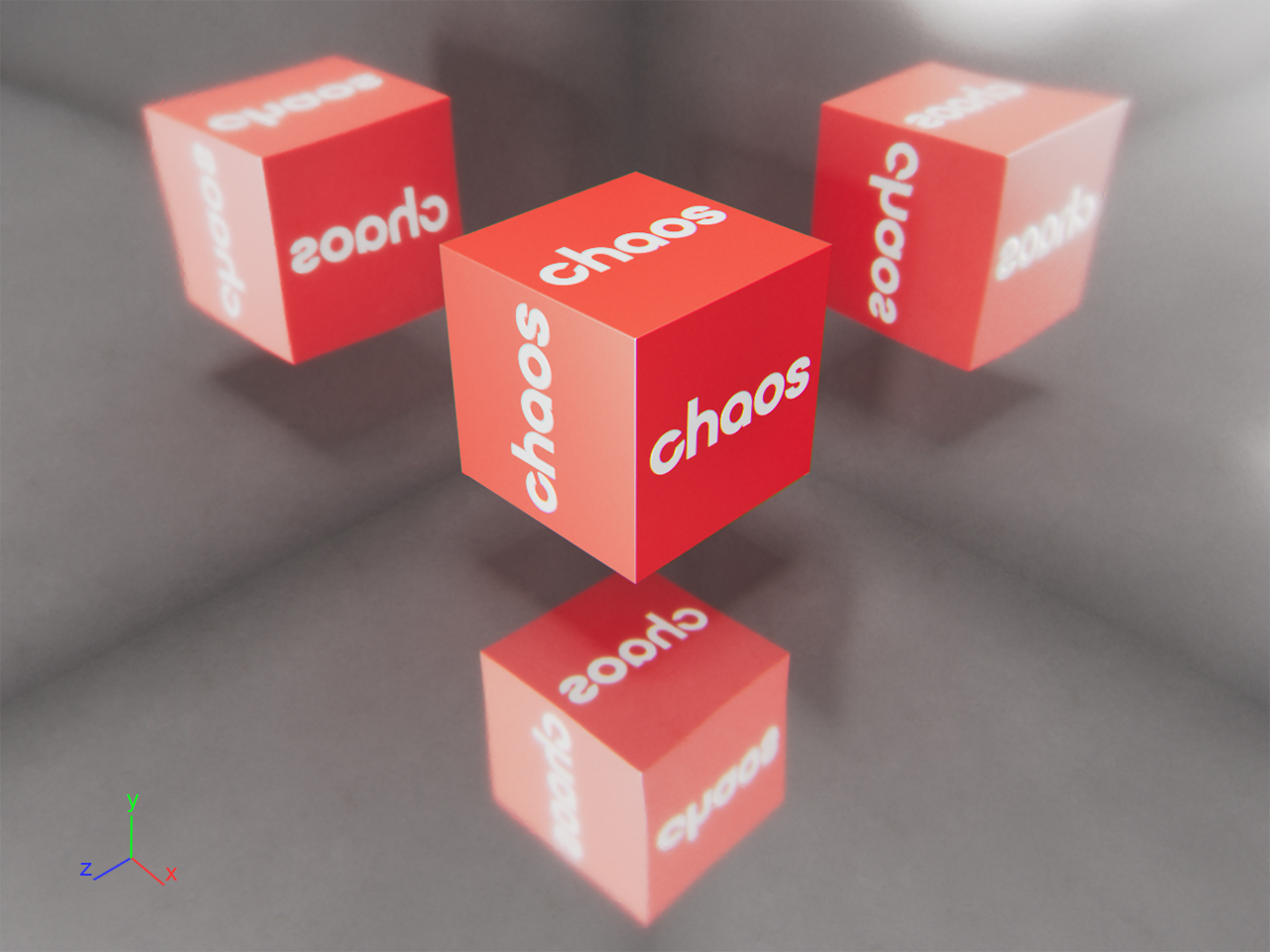
Texture mode = Same texture on all axes

Texture mode = Different texture on each axis

Texture mode = Different texture on each axis, Texture Rotation = 0.0 0.0 90.0

Texture mode = Different texture on each axis in each direction