Corona for Cinema 4D
Corona Bitmap Shader
This article explains the settings and values for the Corona Bitmap shader in Cinema 4D.
Last updated 10 February 2026
This article explains the settings and values for the Corona Bitmap shader in Cinema 4D.
Overview
Corona can load bitmap textures using two supported shaders:
- Corona Bitmap shader
- Cinema 4D native Bitmap shader
Both of them produce almost identical results; however, there are some advantages of using the Corona Bitmap shader over the native Cinema 4D Bitmap shader:
- Corona Bitmaps render faster.
- Corona Bitmaps use less RAM thanks to the Out-of-core rendering feature.
- Corona Bitmap has a simplified UI and controls and additional options for texture mapping and tiling.
- Environment texture maps can be transformed using the Corona Bitmap shader.

Shader Properties
Interpolation – defines how a color is sampled from a bitmap image using UV coordinates. A bitmap is made of pixels, each with a single color, while UV coordinates can refer to any point within the image. When a UV coordinate does not fall exactly on a pixel center, the color is calculated from nearby pixels. This process is called interpolation.
Nearest Neighbor (low quality, fastest) – Selects the pixel closest to the UV coordinate and uses its color. This can result in a blocky or pixelated appearance.
Bilinear (faster) – Blends the colors of the four nearest pixels based on their distance to the UV coordinate. This produces smoother results than Nearest Neighbor interpolation.
Bicubic (smoother) – Uses a larger set of surrounding pixels to compute the final color. This results in smoother appearance and higher visual quality.
File – Selects the texture bitmap using the standard file browser.
Color profile – Selects the color profile that is applied to the texture map.
Embedded – Uses the color profile included in the texture bitmap.
Linear – Changes the color profile to Linear mode.
sRGB – Changes the color profile to sRGB.
Manual Gamma – Sets the Input Gamma value.
Input Gamma – Defines the input gamma value applied to the texture map.
Exposure – Adjusts the exposure applied to the texture map.

UV Tiling
Mode – Selects the tiling mode for the texture bitmap. Available modes are:
No tiling
UDIM
0-based UV
1-based UV
0-based two-digit UV
1-based two-digit UV
Custom pattern
File pattern – When using a tiling mode other than No tiling, this parameter determines the filename structure for the texture maps used.
Max U size – Determines the maximum tiling in the U coordinate.
Max V size – Determines the maximum tiling in the V coordinate.

Crop/Placement
Mode – Selects between crop and placement modes.
Unit space – Selects between the UV (0 to 1 coordinates) and Pixels (width and height) unit space.
U – Crops or places the bitmap by the U coordinates.
V – Crops or places the bitmap by the V coordinates.
Width – Crops or places the bitmap by the width value.
Height – Crops or places the bitmap by the height value.

Additional Mapping
Offset U – Controls the horizontal offset for the texture map.
Offset V – Controls the vertical offset for the texture map.
Length U – Scales the bitmap in the U coordinate.
Length V – Scales the bitmap in the Y coordinate.
Rotation W - Rotates the bitmap in the Z coordinate.
Tiles U – Adjusts the number of tiles in the U coordinate.
Tiles V – Adjusts the number of tiles in the Y coordinate.
Override UVW – When enabled, uses a specific UVW channel
UVW channel – Specifies a UVW channel.
Use Triplanar Mapping - When enabled, the texture is projected from three directions (X, Y, and Z axes) instead of relying on the object’s UVs. This helps remove visible seams and stretching on objects that have poor or missing UV mapping.
Triplanar blending – Controls how smoothly the projections from different directions blend together. Lower values make the transitions sharper, while higher values create smoother blending.
Triplanar scale – Adjusts the overall scale of the triplanar projection across all axes.

Channel Оutputs
Alpha – When a texture map is used together with constant color, alpha determines how they are mixed (alpha = 1 means only map is used, alpha = 0 means only color is used.) Here the user can select how is the alpha computed:
Image Alpha – Alpha is taken from the image (if present, e.g. in TGA/PNG) or set to 1 if missing.
RGB Intensity – Alpha is computed from RGB color.
RGB Average – Alpha is computed from the average RGB color.
None (Opaque) – Alpha is always 1.
Mono – When the output of a texture map is supposed to be a single channel (e.g. for material roughness), this is how it is computed.
RGB Intensity – Computed from RGB color.
RGB Average – Computed from average RGB color.
Image Alpha – Single channel is taken from the image (if present, e.g. in TGA/PNG) or set to 1 if missing.
RGB – Actual color output when texture map is used for color inputs (e.g. diffuse color in material).
RGB – Actual color stored in the bitmap.
RGB Intensity – RGB intensity values are used as the RGB output.
RGB Average – Average RGB values are used as the RGB output.
Image Alpha – Stored alpha in the image is used as the RGB output.

Examples
Placement mode
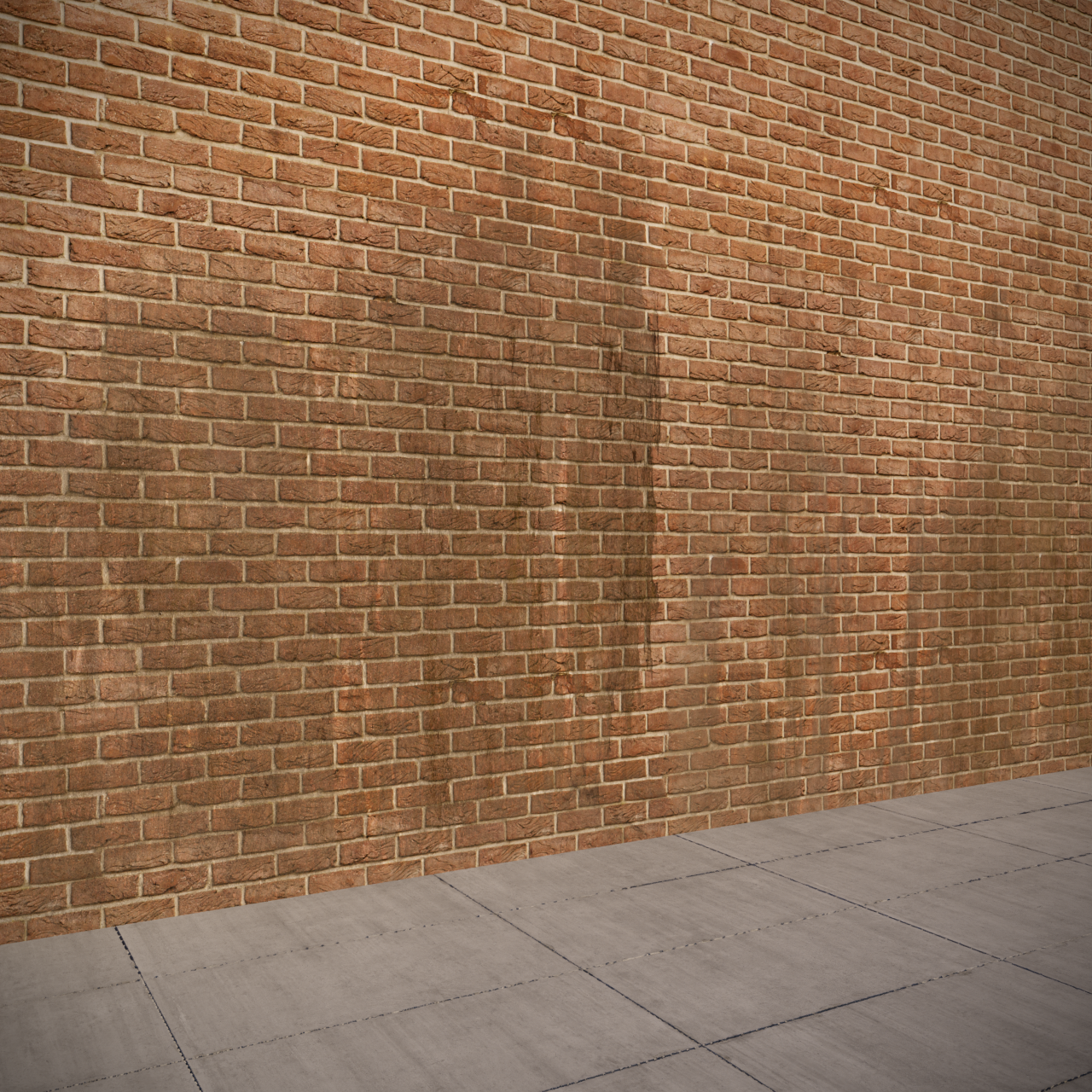
Placement U=0 V=0 Width=1 Height=1
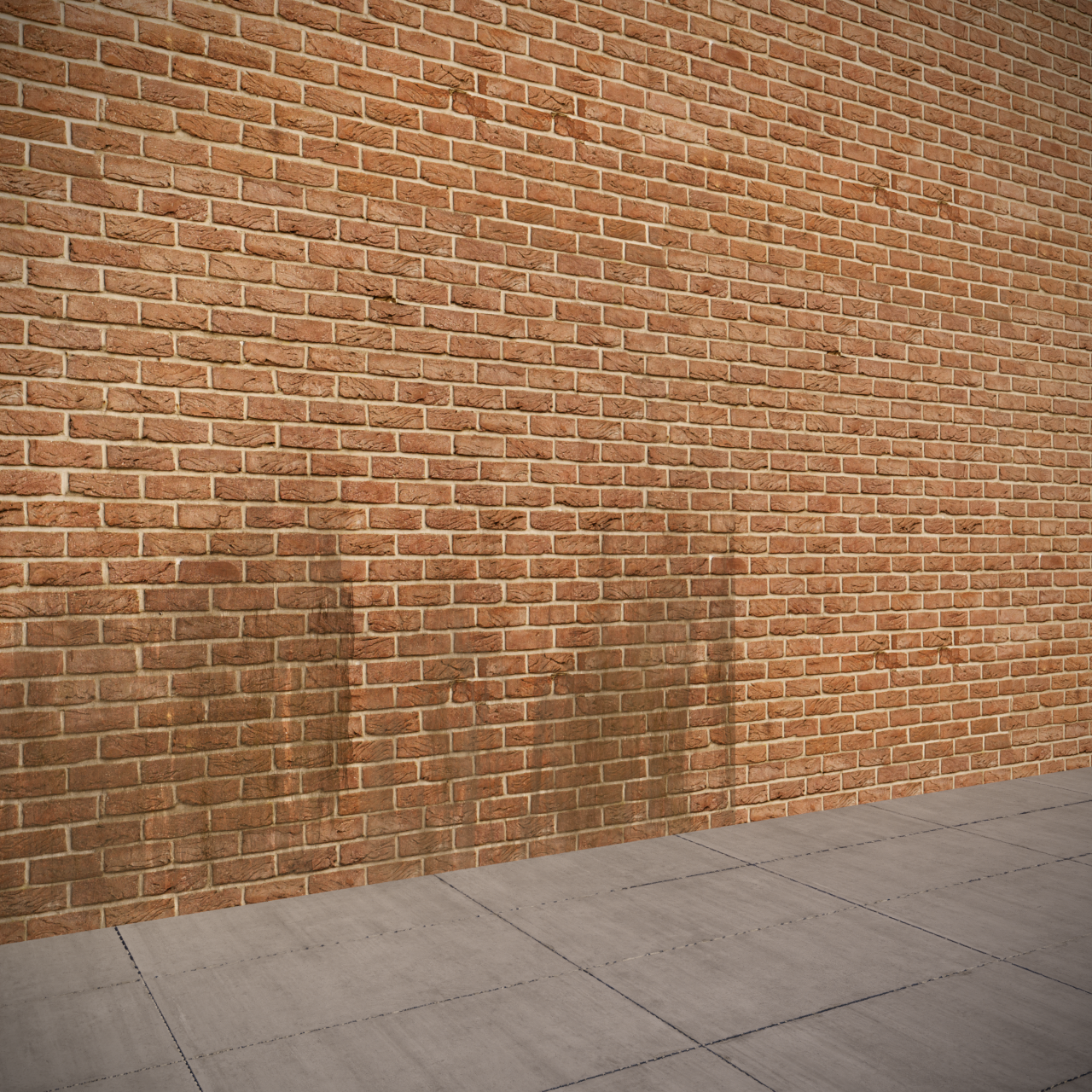
Placement U=0 V=0 Width=0.5 Height=0.5

Placement U=0 V=0 Width=0.25 Height=0.25
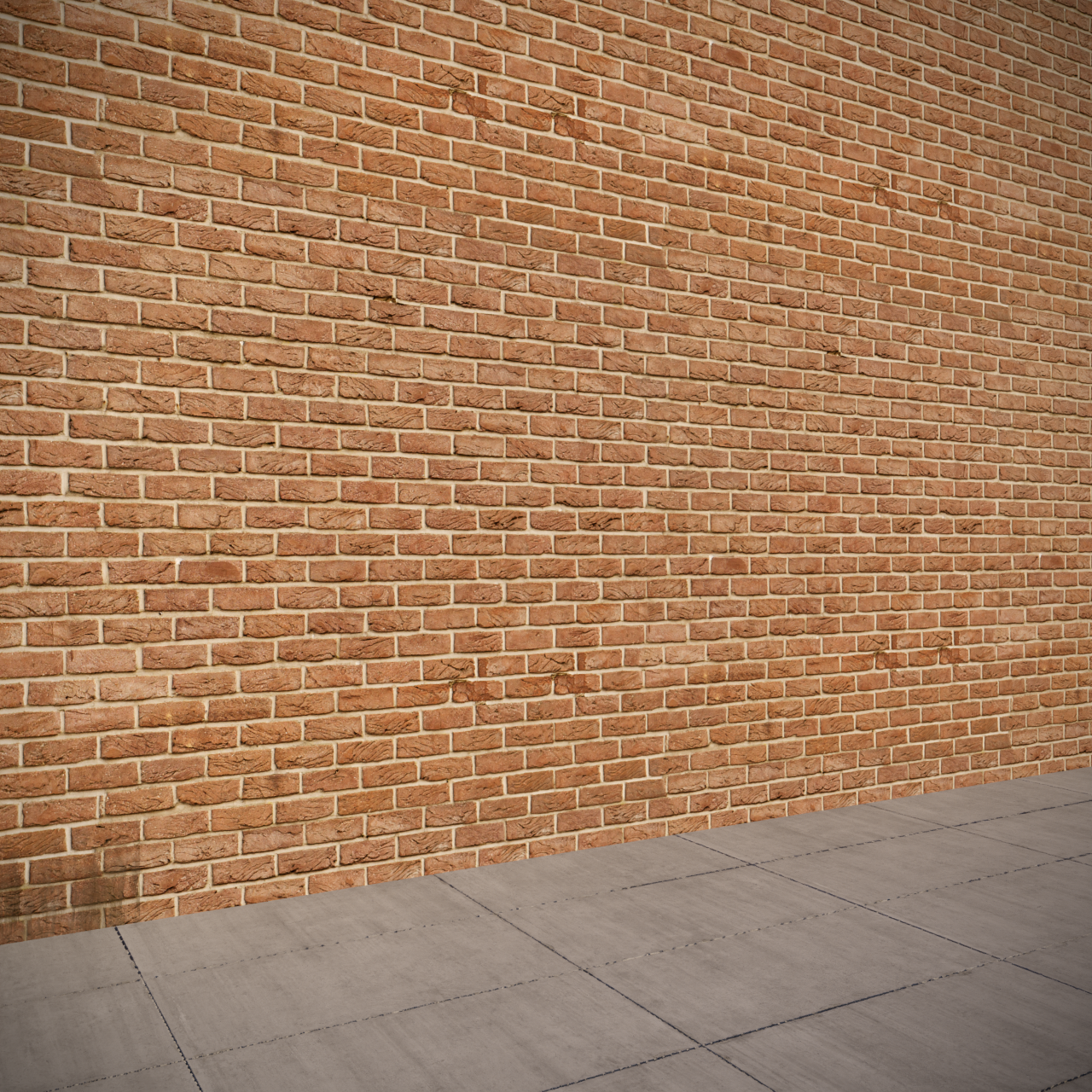
Placement U=0 V=0 Width=0.1 Height=0.1
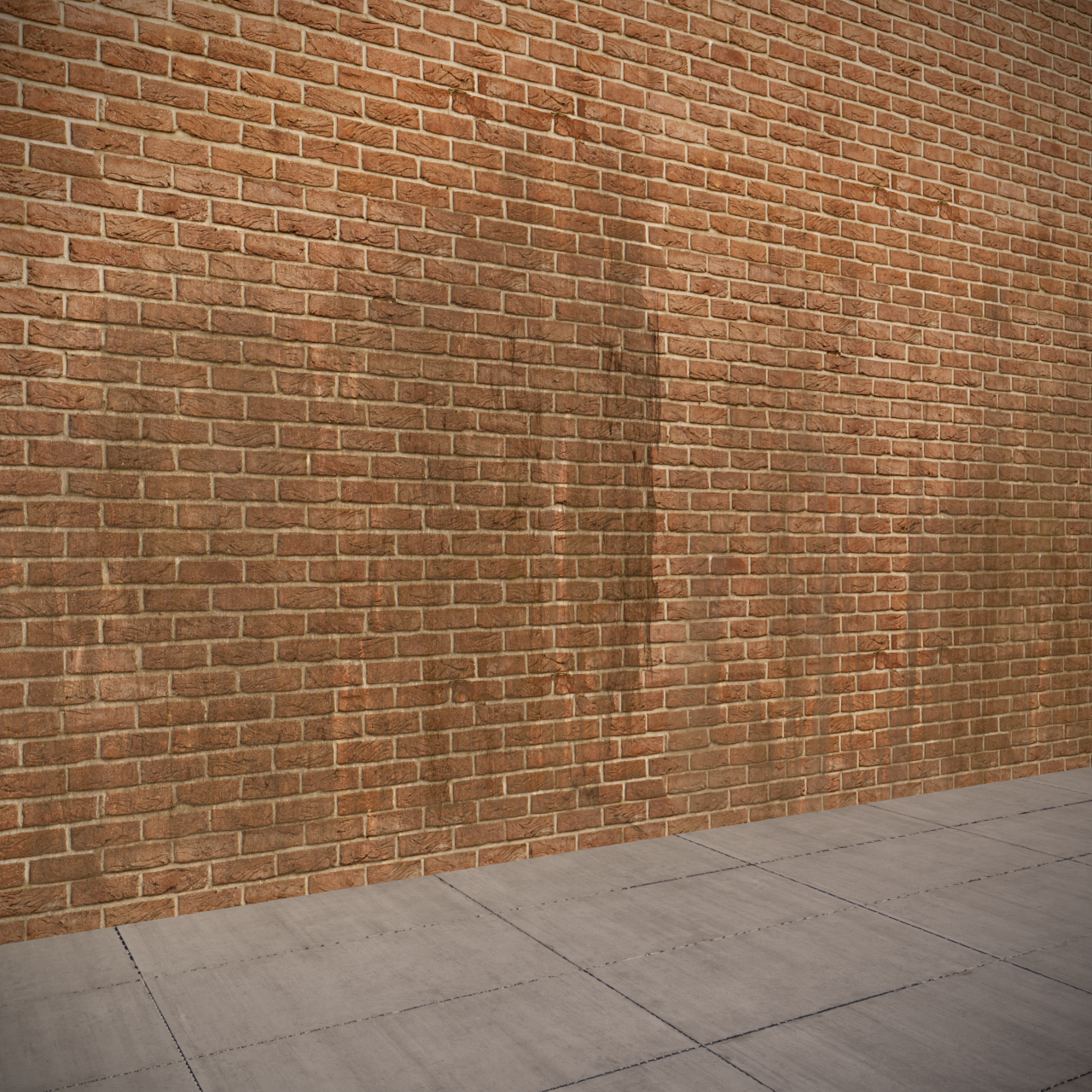
Placement U=0 V=0 Width=1 Height=1

Placement U=0.1 V=0 Width=1 Height=1

Placement U=0.25 V=0 Width=1 Height=1
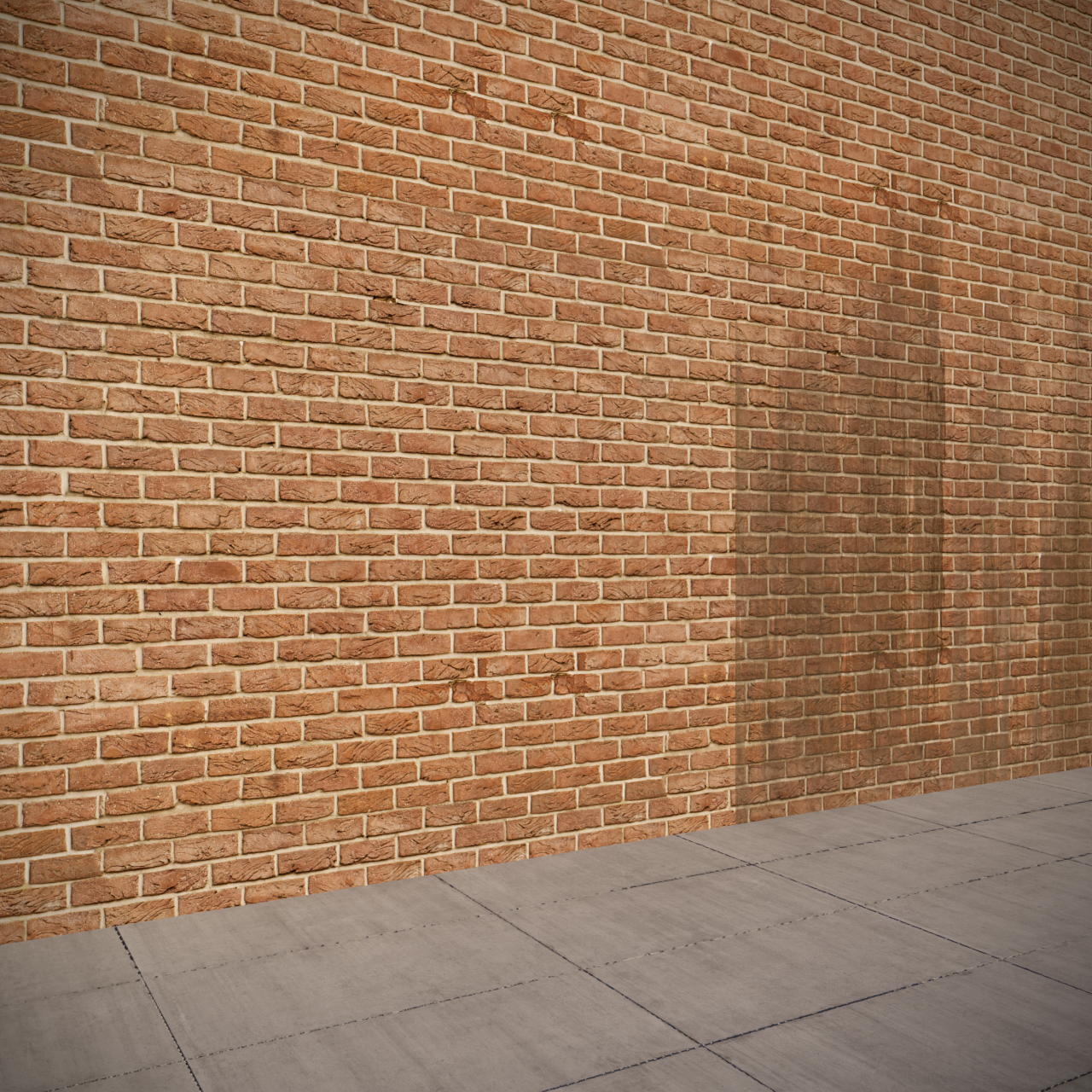
Placement U=0.5 V=0 Width=1 Height=1
Crop mode
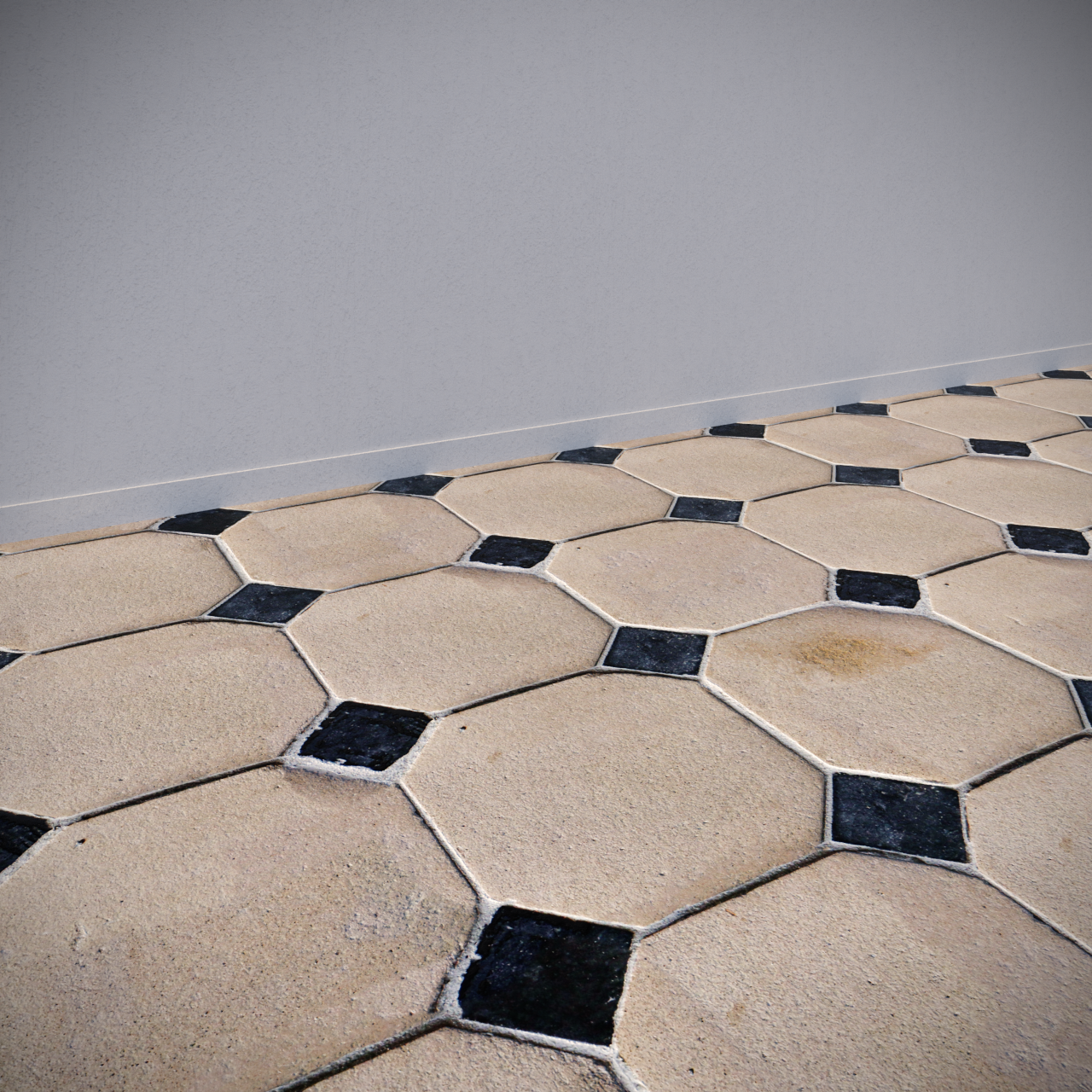
Crop U=0 V=0

Crop U=0.25 V=0.25
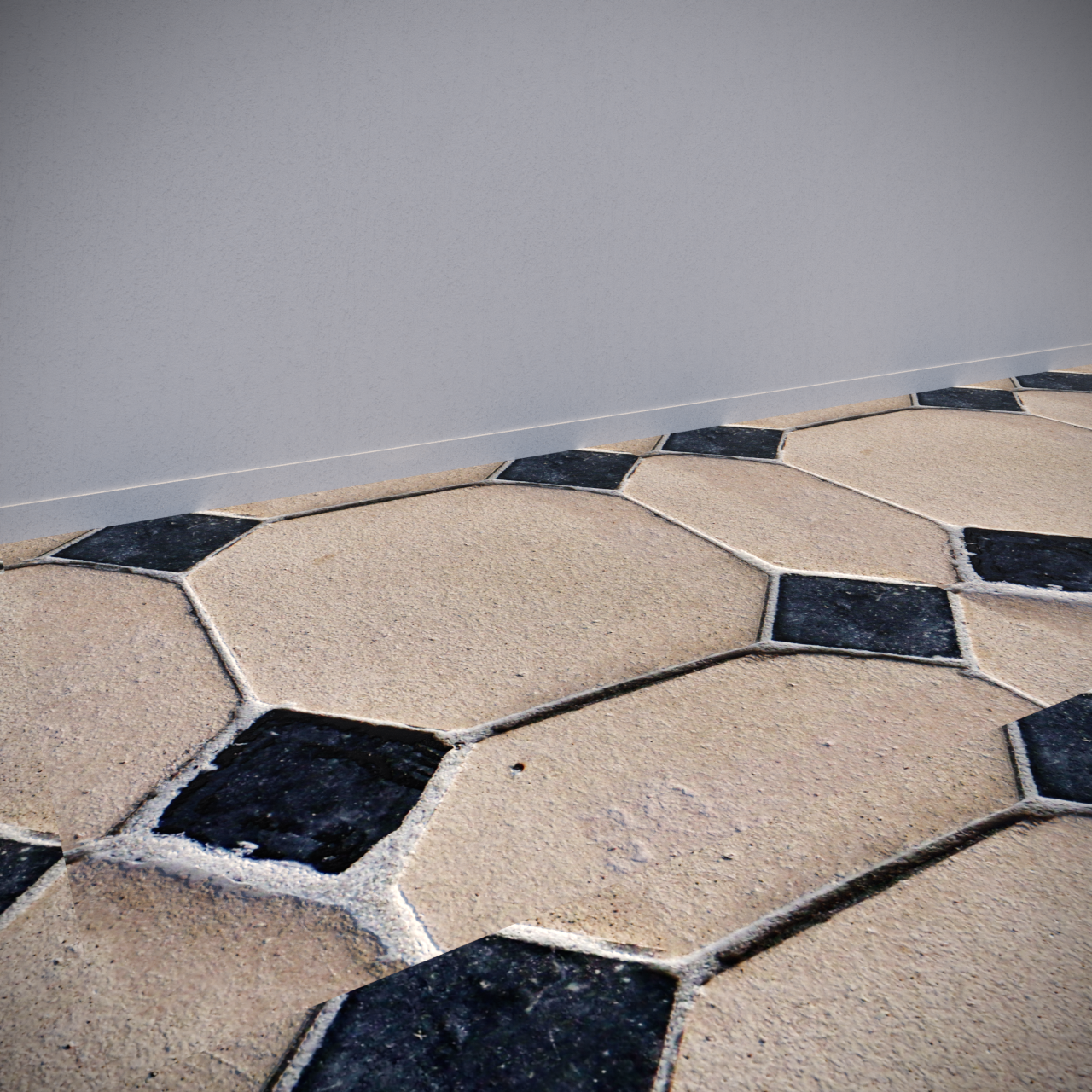
Crop U=0.5 V=0.5

Crop U=0.75 V=0.75
Tiling

Tiles U=1 Tiles V=1

Tiles U=2 Tiles V=2
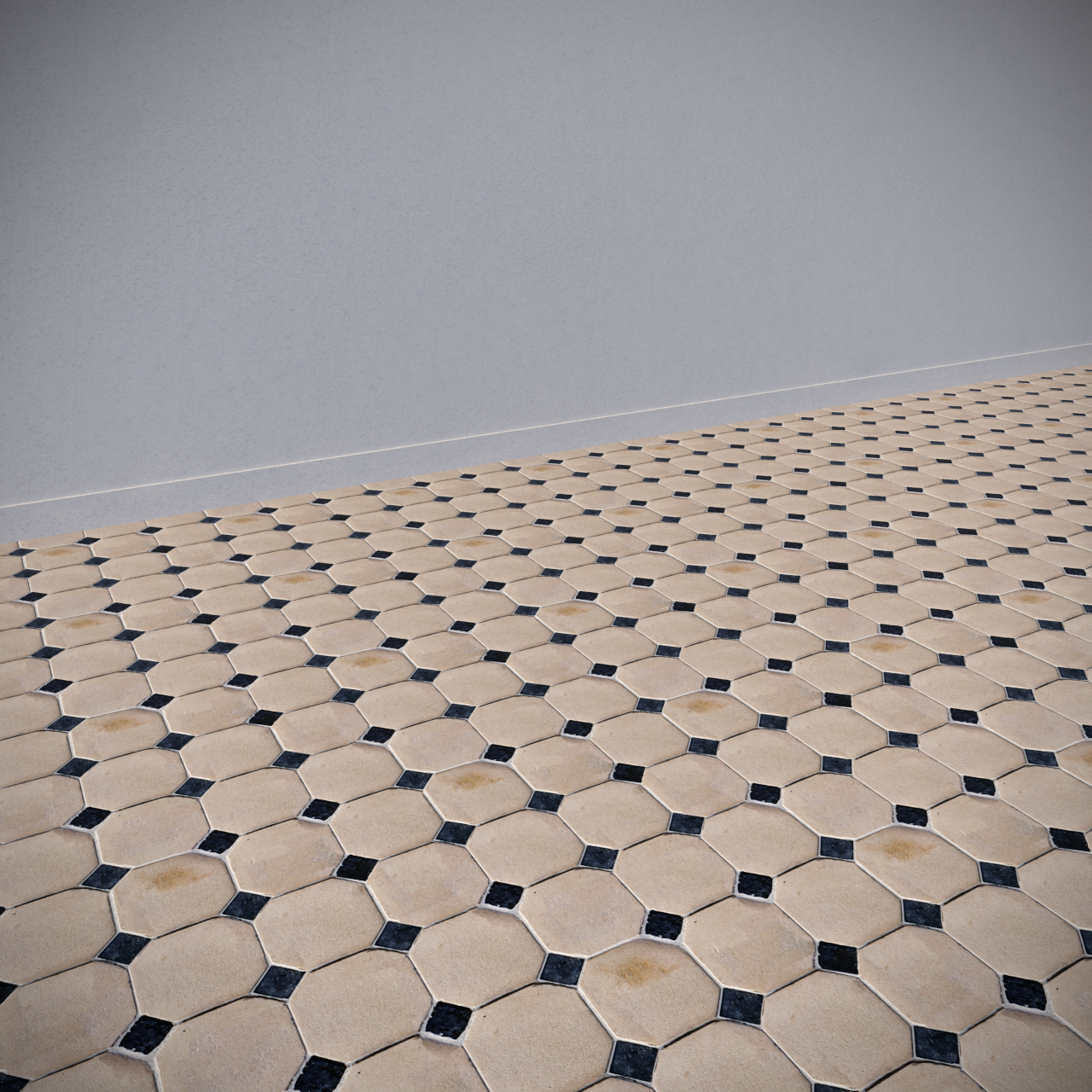
Tiles U=4 Tiles V=4
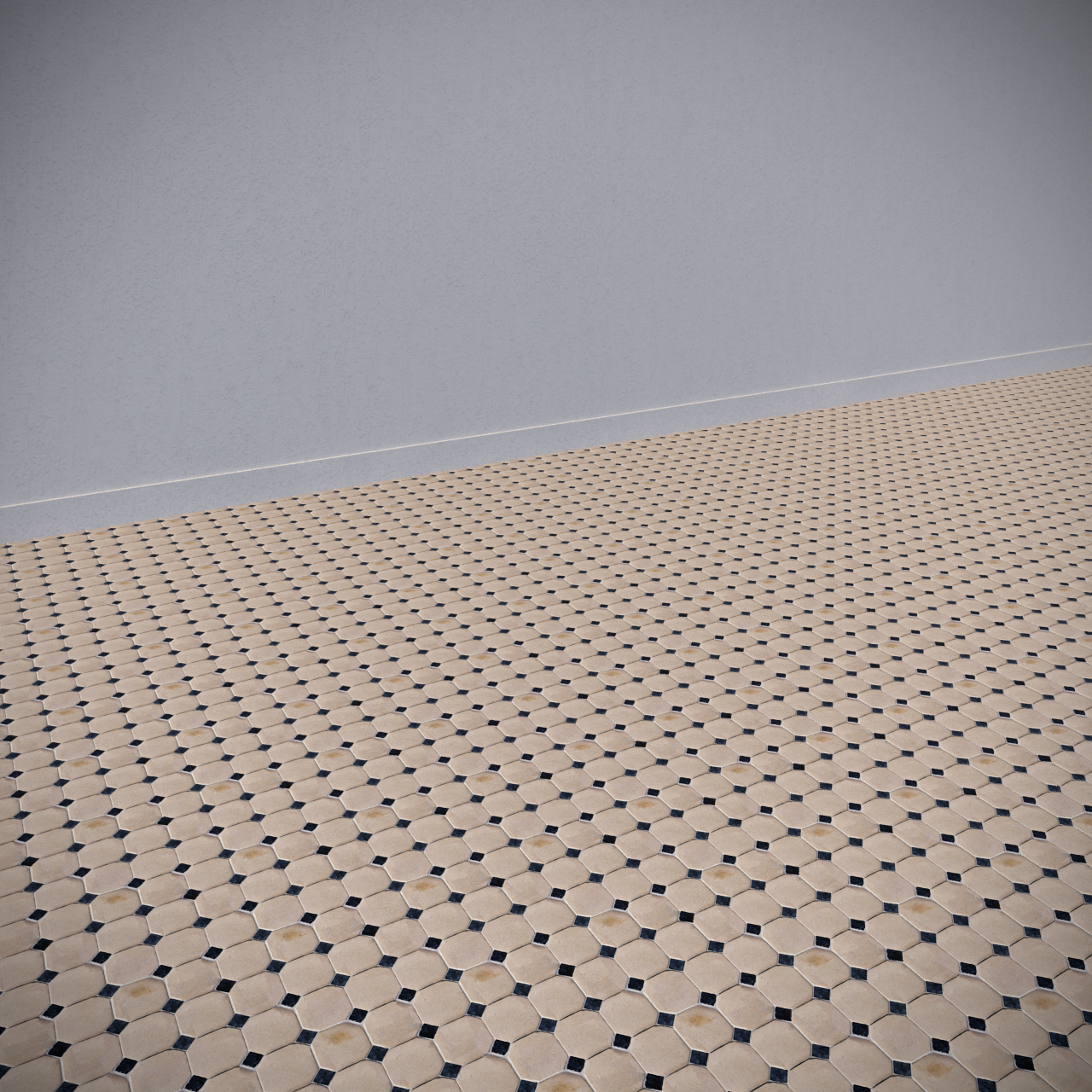
Tiles U=10 Tiles V=10
Interpolation

Bicubic (Smoother)

Bilinear (Faster)
RAM usage difference - Corona Bitmap vs Cinema 4D native Bitmap

Native Bitmap Shader (4.6 GB)

Corona Bitmap Shader (3.4 GB)
Rotation

Corona Bitmap Rotation = 0°
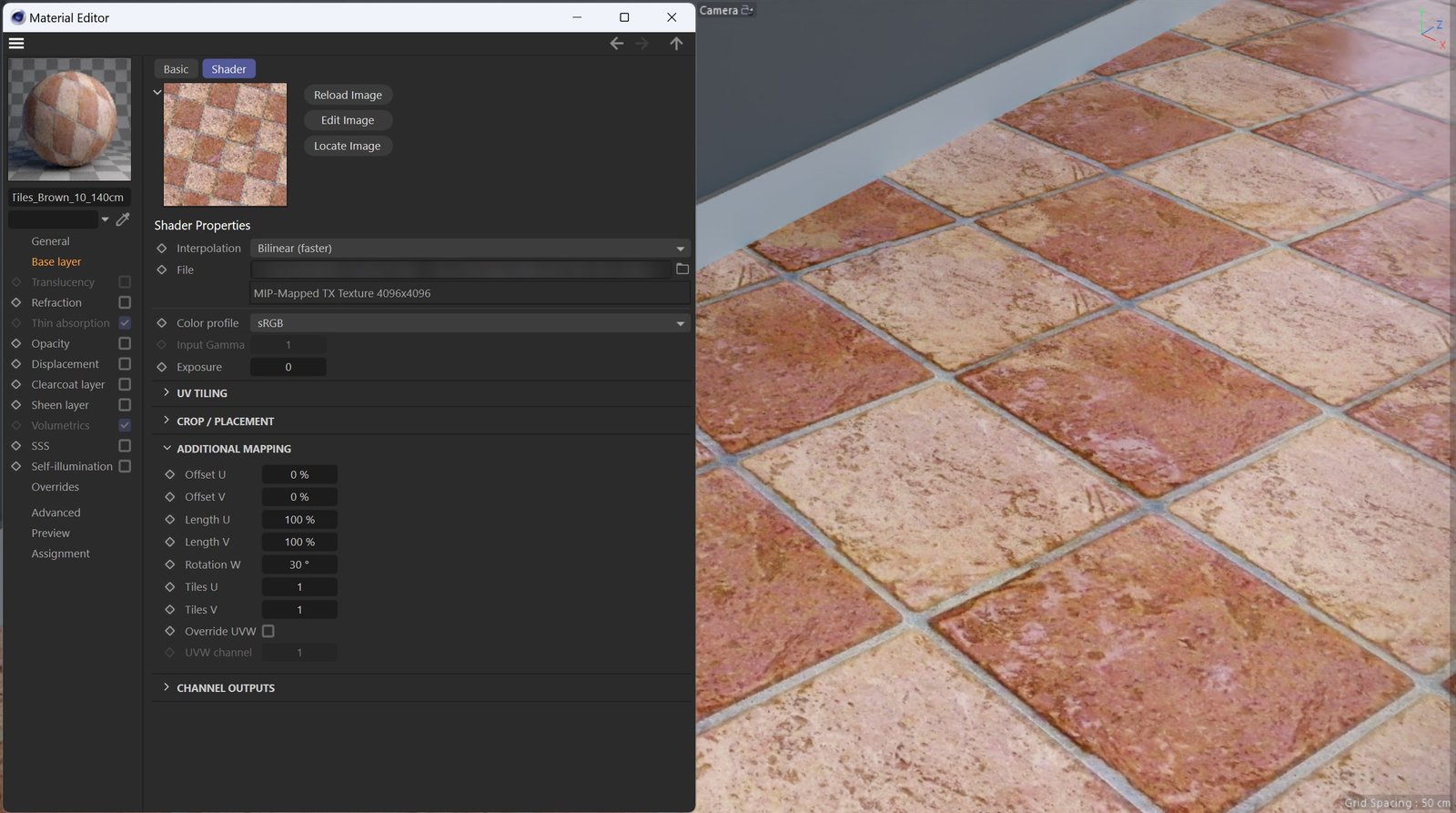
Corona Bitmap Rotation = 30°

Corona Bitmap Rotation = 45°
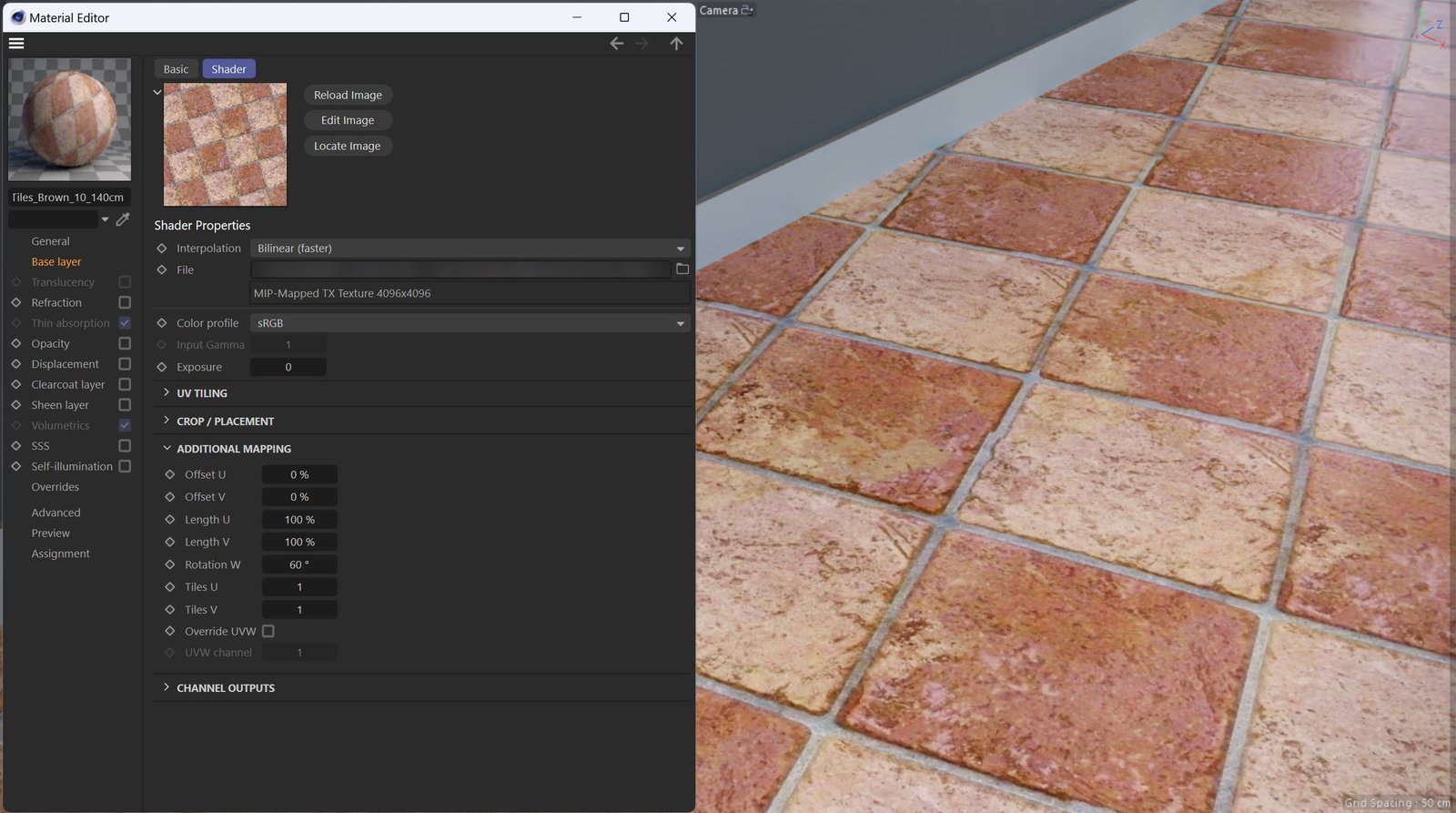
Corona Bitmap Rotation = 60°

Corona Bitmap Rotation = 90°
Use Triplanar Mapping

Use triplanar is off

Use triplanar is on

Setup